Check If Values Exist in Another Range in Excel
Comparing two lists is a common Excel task. For example, you may need to check whether Customer IDs from new orders already exist in a customer master list, whether product codes are included in a catalog, or whether employee IDs appear in an authorized employee list.
The Check if values exist in another range formula in Formula Helper Plus makes this comparison easier. You only need to select the reference range, the values to check, and the text to return for matched and unmatched records. Formula Helper Plus then generates the formulas and displays the corresponding results without requiring you to write the formula manually.
- Advantages of Checking If Values Exist in Another Range
- How to Check If Values Exist in Another Range in Excel
- Tips for Comparing Values in Two Ranges
- FAQ – Frequently Asked Questions
- Conclusion
Advantages of Checking If Values Exist in Another Range
This formula provides a convenient way to compare two lists and clearly identify which values exist in the reference range. It is especially helpful when working with long customer, product, employee, order, or inventory lists.
Its main advantages include:
How to Check If Values Exist in Another Range in Excel
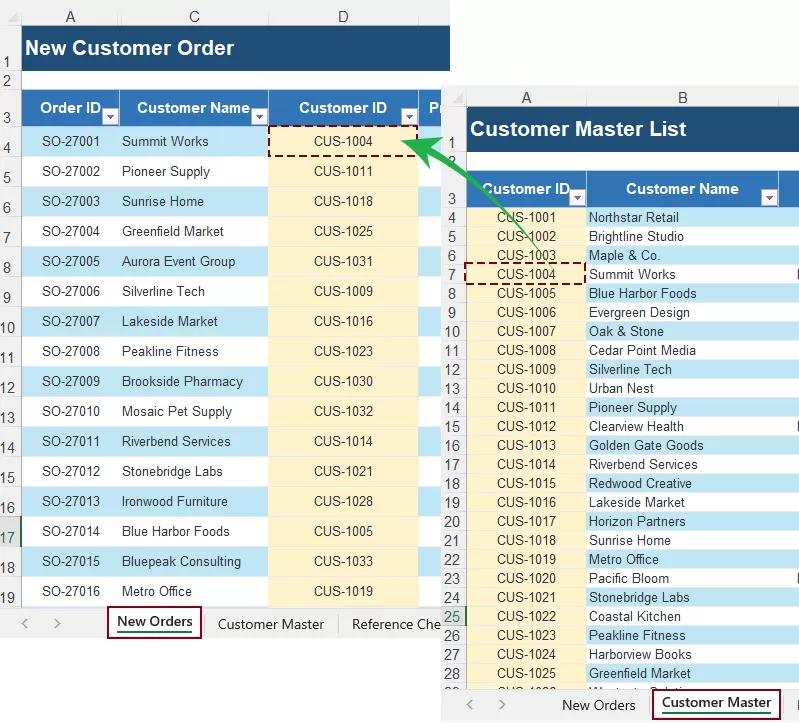
In this example, a company has received 40 new customer orders. We’ll check their Customer IDs against a master list of registered accounts and return Existing or New Customer based on whether each ID is found.
Step 1: Select the first output cell
Begin by selecting the first cell where you want the verification result to appear.
In the New Orders worksheet, select cell J11, the first blank cell in the Verification column.
Step 2: Open Formula Helper Plus
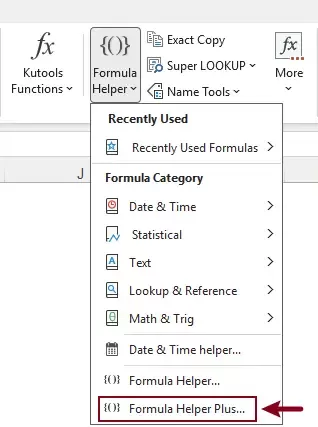
Select Kutools > Formula Helper > Formula Helper Plus.
Step 3: Find the formula
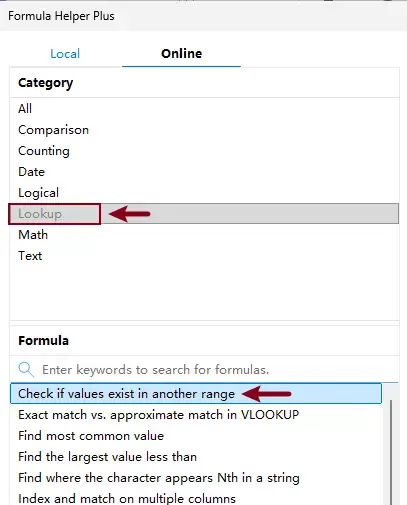
Formula Helper Plus organizes formulas into categories and provides a search box, allowing you to locate the required formula without knowing its syntax.
- Under the Online tab, select Lookup from the Category list.
- Select Check if values exist in another range from the Formula list.
Alternatively, enter a keyword such as exist in the search box to find the formula more quickly.
Step 4: Configure the formula arguments
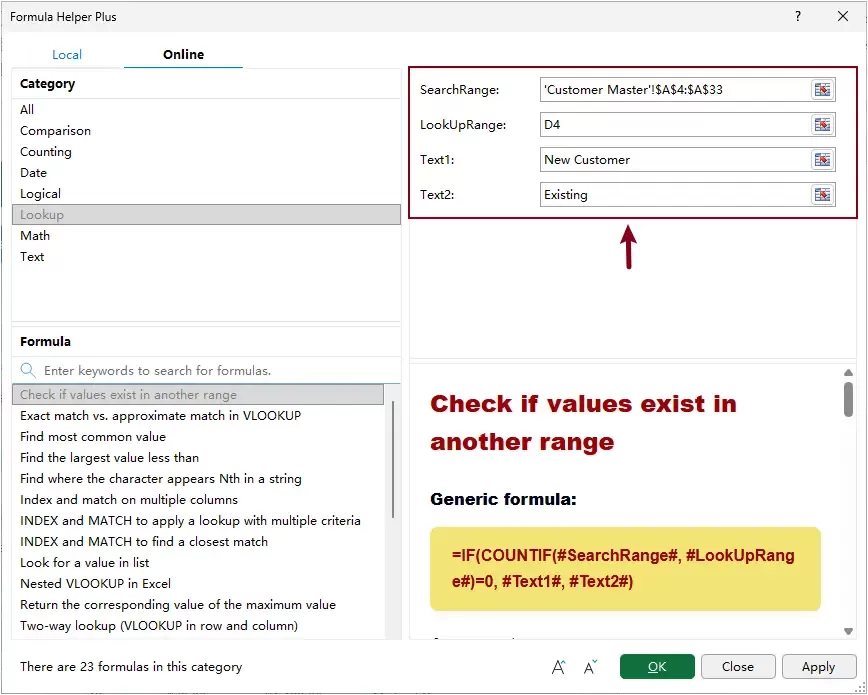
This formula uses four arguments to determine where to search, which values to check, and what results to return. Make sure the two text arguments are entered in the correct order.
Configure the arguments as follows:
- In the SearchRange box, select the reference range in which you want to search for matching values. In this example, I select the registered Customer IDs in the Customer Master worksheet.
- In the LookUpRange box, select the first value you want to check against the reference range. Here I select the first Customer ID in the New Orders worksheet.
- In the Text1 box, enter the text to return when the value is not found.
In this example, enter New Customer to identify Customer IDs that do not exist in the customer master list.
- In the Text2 box, enter the text to return when the value is found.
- Click OK.
Formula Helper Plus inserts the formula into cell J11 and immediately returns the verification result for the first Customer ID.
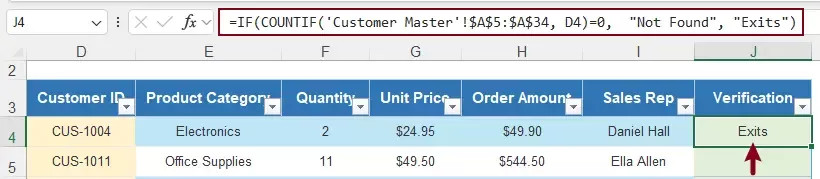
Step 5: Fill the formula down to get all results
After generating the first result, drag the Fill Handle of the formula down to the remaining rows to check the other Customer IDs.
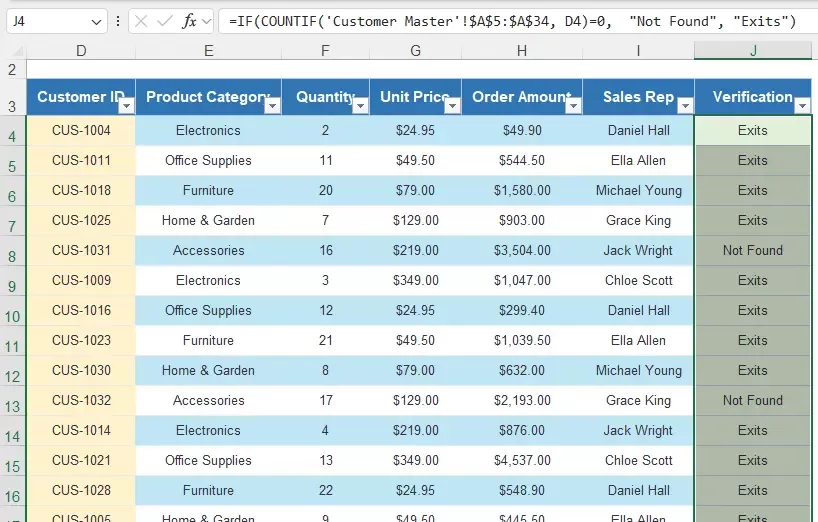
Tips for Comparing Values in Two Ranges
Accurate matching depends on selecting the correct ranges and keeping the values in both lists consistent. The following practices can help prevent unexpected results.
FAQ – Frequently Asked Questions
The following questions address common issues users may encounter when checking whether values from one range exist in another.
Can the two ranges be located on different worksheets?
Yes. You can select SearchRange from a reference worksheet and LookUpRange from the worksheet containing the values to be checked.
Is the comparison case-sensitive?
No. For example, CUS-1004 and cus-1004 are treated as matching values.
Why is an existing value marked as not found?
The cells may contain different data types, extra spaces, or hidden characters. The value may also fall outside the selected SearchRange. Verify both source values and make sure SearchRange includes the complete reference list.
Will the result update when the source data changes?
Yes. The generated formula recalculates whenever a value in SearchRange or LookUpRange changes. If new reference records are added outside SearchRange, update the formula to include the new cells.
Conclusion
The Check if values exist in another range formula helps you quickly identify matched and unmatched values across two lists, helping you verify records and spot missing entries without writing a complex formula manually.
Best Office Productivity Tools
Supercharge Your Excel Skills with Kutools for Excel, and Experience Efficiency Like Never Before. Kutools for Excel Offers Over 300 Advanced Features to Boost Productivity and Save Time. Click Here to Get The Feature You Need The Most...
Office Tab Brings Tabbed interface to Office, and Make Your Work Much Easier
- Enable tabbed editing and reading in Word, Excel, PowerPoint, Publisher, Access, Visio and Project.
- Open and create multiple documents in new tabs of the same window, rather than in new windows.
- Increases your productivity by 50%, and reduces hundreds of mouse clicks for you every day!
All Kutools add-ins. One installer
Kutools for Office suite bundles add-ins for Excel, Word, Outlook & PowerPoint plus Office Tab Pro, which is ideal for teams working across Office apps.





- All-in-one suite — Excel, Word, Outlook & PowerPoint add-ins + Office Tab Pro
- One installer, one license — set up in minutes (MSI-ready)
- Works better together — streamlined productivity across Office apps
- 30-day full-featured trial — no registration, no credit card
- Best value — save vs buying individual add-in
Table of contents
- Advantages of Checking If Values Exist in Another Range
- How to Check If Values Exist in Another Range in Excel
- Tips for Comparing Values in Two Ranges
- FAQ – Frequently Asked Questions
- Conclusion
- The Best Office Productivity Tools
Kutools for Excel
Brings 300+ powerful features to streamline your Excel tasks.
- ⬇️ Free Download
- 🛒 Purchase Now
- 📘 Feature Tutorials
- 🎁 30-Day Free Trial