Classify Values into Multiple Levels Based on Thresholds in Excel
Many Excel tasks require values to be classified into different levels according to defined thresholds. For example, you may need to assign performance ratings based on employee scores, group students into grade levels, categorize sales results, or label risk scores. Creating these classifications manually usually requires a nested IF formula, which can become difficult to write and check as more conditions are added.
The Check multiple conditions function in Kutools for Excel's Formula Helper Plus provides a guided way to complete this task. Simply specify the value to evaluate, enter three thresholds from highest to lowest, and define the result for each level. Kutools then creates the complete nested IF formula, allowing you to classify an entire list without having to remember the formula syntax or arrange its conditions manually.
- What Check multiple conditions can do
- Benefits of Check multiple conditions
- How to use Check multiple conditions
- Tips for better results
- Best use cases
- About Formula Helper Plus
- Frequently Asked Questions
What Check multiple conditions can do
Check multiple conditions compares a number with three thresholds in sequence and returns one of four specified results.
🔢 Check three thresholds
Compare a value with three numeric thresholds, such as 90, 80, and 70.
🏷️ Return four specified results
Define the result returned for each level, such as Excellent, Good, Medium, or Poor.
🧩 Create a nested IF formula
Combine all the conditions and results into a complete nested IF formula without constructing it manually.
🔄 Keep results dynamic
Insert a regular Excel formula that recalculates when the referenced value changes.
Benefits of Check multiple conditions
Check multiple conditions provides a guided and flexible way to classify values according to several thresholds.
No formula memorization required
Complete the calculation without remembering the syntax of nested IF functions.
Avoid building the formula manually
Enter each condition and result in a separate field, and let Kutools arrange the functions, operators, parentheses, and labels correctly.
Enter values or use cell references
Enter fixed thresholds and result labels directly, or select worksheet cells when the arguments are already stored in the worksheet.
Follow clearly labeled arguments
Enter the value, thresholds, and labels in separate fields, making the calculation easier to configure and review.
Customize every classification level
Define your own thresholds and output labels to match grading, performance, sales, risk, or other classification systems.
Keep results dynamic
Kutools inserts a regular Excel formula that recalculates automatically when referenced source values change.
How to use Check multiple conditions
In this example, the function assigns one of four performance grades according to each student’s score:
- 90 or higher: Excellent
- 80 to 89: Good
- 70 to 79: Medium
- Below 70: Poor
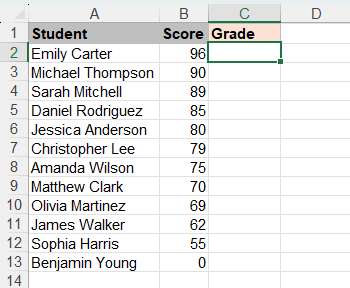
- Select the first empty cell where you want to return a result. In this example, select C2.
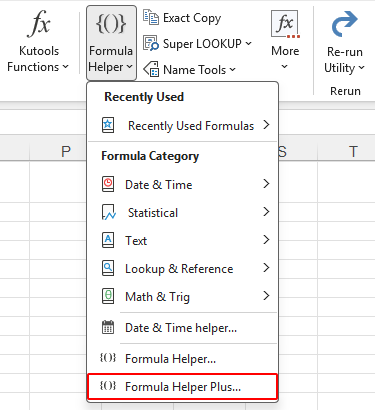
- Click Kutools > Formula Helper > Formula Helper Plus.
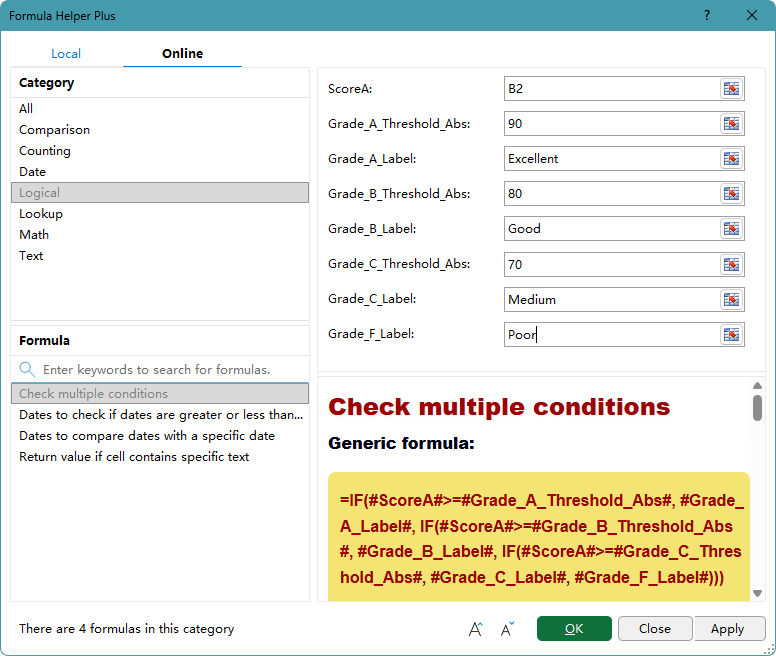
- In the Formula Helper Plus dialog box, on the Online tab, select the Logical category, and then select Check multiple conditions.
- Configure the arguments as follows:
- ScoreA: Select the value to evaluate. In this example, select cell B2.
- Grade_A_Threshold_Abs: Enter 90 as the minimum score for the highest level.
- Grade_A_Label: Enter Excellent as the result returned for scores of 90 or higher.
- Grade_B_Threshold_Abs: Enter 80 as the minimum score for the second level.
- Grade_B_Label: Enter Good as the result returned for scores of 80 or higher but below 90.
- Grade_C_Threshold_Abs: Enter 70 as the minimum score for the third level.
- Grade_C_Label: Enter Medium as the result returned for scores of 70 or higher but below 80.
- Grade_F_Label: Enter Poor as the fallback result for scores below 70.
- Click OK. Kutools inserts the formula into cell C2 and closes the dialog box.
- Select the result cell, and then drag its fill handle down to classify the remaining scores.
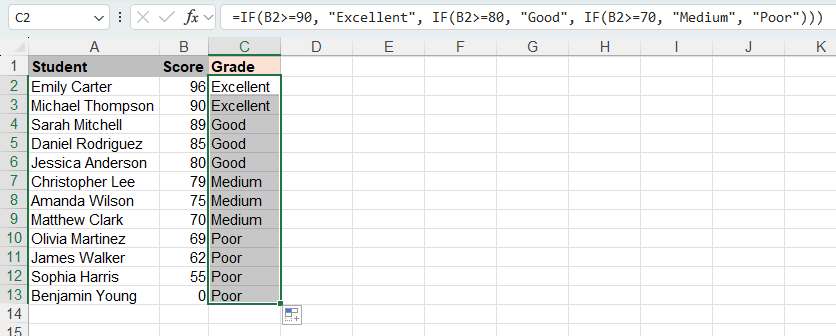
Kutools creates the following formula for the first score:
=IF(B2>=90,"Excellent",IF(B2>=80,"Good",IF(B2>=70,"Medium","Poor")))As the formula is filled down, the score reference changes from B2 to B3, B4, and so on, while the manually entered thresholds and labels remain unchanged.
📝 Note:
If the thresholds or result labels are already stored in the worksheet, instead of entering fixed values, you can select the corresponding cells.
Tips for better results
- Enter thresholds from highest to lowest: The function checks the conditions in order. For the grading example, enter 90 first, followed by 80 and then 70.
- Use fixed values or worksheet cells: Enter thresholds directly, or select cells containing the thresholds. Kutools inserts selected threshold cells as absolute references, so they remain unchanged when you fill the formula down.
- Use a cell reference for the value being evaluated: Enter B2 for the first score so the reference changes automatically when the formula is copied to other rows.
- Enter labels without quotation marks: Enter text such as Excellent or Poor. Kutools adds the required quotation marks to the resulting formula.
- Check boundary values: A score equal to a threshold is included in that level. For example, a score of 90 returns Excellent, 80 returns Good, and 70 returns Medium.
- Review blank source cells: If the score cell is blank, the resulting nested IF formula may return the lowest-level label. Fill in the missing score or use an additional blank-cell check when blank rows should remain blank.
Best use cases for Check multiple conditions
Check multiple conditions is useful whenever numeric values need to be divided into four levels.
Student grades
Assign a descriptive grade according to each student’s test score.
Employee performance
Convert performance scores into consistent evaluation levels.
Sales achievement
Classify sales representatives according to the percentage of their target achieved.
Risk classification
Assign a risk level according to a numeric score produced by an assessment.
About Formula Helper Plus
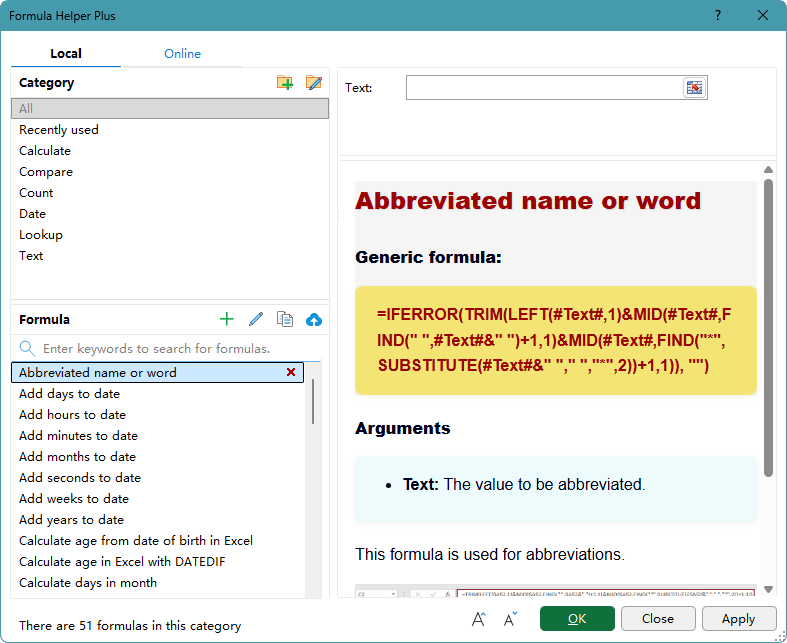
Formula Helper Plus is a formula library in Kutools for Excel that helps you find and insert useful formulas through a guided interface. Formulas are organized into categories, and each one provides labeled argument boxes and instructions explaining the required inputs. You can also create categories and formulas for calculations you use regularly, or share useful formulas to help expand the Online formula library.
- 🗂️ Category tools
- Category list: Browse formulas by category, such as Calculate, Compare, Count, Date, Lookup, and Text.
- Add category
 : Create a category for organizing your own formulas.
 - Rename category
 : Select a custom category, and click this button to rename it.
- 🧮 Formula tools
- Search: Enter keywords in the search box to find a formula by its name or purpose.
- Add formula
 : Create a formula and assign it to a category. When defining the formula, enclose each variable argument in # signs, such as #Range#.
 - Edit formula
 : Select a custom formula, and click this button to modify its formula, category, or description.
 - Copy formula
 : Create an editable copy of the selected formula. This is useful when you want to build a new formula based on an existing one.
 - Upload formula
 : Upload and share the selected formula to help us expand the Online formula library.
 : Create a category for organizing your own formulas.
 : Select a custom category, and click this button to rename it.
 : Create a formula and assign it to a category. When defining the formula, enclose each variable argument in # signs, such as #Range#.
 : Select a custom formula, and click this button to modify its formula, category, or description.
 : Create an editable copy of the selected formula. This is useful when you want to build a new formula based on an existing one.
 : Upload and share the selected formula to help us expand the Online formula library.
Frequently Asked Questions
Why should the thresholds be entered from highest to lowest?
The generated IF formula checks each condition in sequence and stops at the first condition that is true. Entering the highest threshold first ensures that each value is assigned to the correct level.
What happens when a value equals one of the thresholds?
The function uses the greater-than-or-equal-to operator. Therefore, a value equal to a threshold is assigned to that threshold’s level. In this example, 90 returns Excellent, 80 returns Good, and 70 returns Medium.
Will the results update if the scores change?
Yes. Kutools inserts a regular Excel formula. If a referenced score changes, Excel recalculates the formula and updates the corresponding result.
Why did a blank score return the lowest-level label?
In the generated nested IF formula, a blank cell does not meet any of the three numeric thresholds, so the final label is returned. If blank score cells should remain blank, add a blank-cell check to the formula.
Can I use different thresholds or labels?
Yes. The numbers and labels in this tutorial are only examples. You can enter thresholds and result labels that match your own classification rules.
Can this function return more than four results?
This function provides fields for three thresholds and four result labels. If your classification requires more levels, use a customized Excel formula or another suitable lookup method.
Can I edit the formula after inserting it?
Yes. The result is a regular Excel formula, so you can select the result cell and modify the formula in the Formula Bar when needed.
The Best Office Productivity Tools
Kutools for Excel - Helps You To Stand Out From Crowd
Kutools for Excel Boasts Over 300 Features, Ensuring That What You Need is Just A Click Away...
Office Tab - Enable Tabbed Reading and Editing in Microsoft Office (include Excel)
- One second to switch between dozens of open documents!
- Reduce hundreds of mouse clicks for you every day, say goodbye to mouse hand.
- Increases your productivity by 50% when viewing and editing multiple documents.
- Brings Efficient Tabs to Office (include Excel), Just Like Chrome, Edge and Firefox.
Table of Contents
- What Count distinct values can do
- Benefits of Count distinct values
- How to use Count distinct values
- Tips for better results
- Best use cases
- About Formula Helper Plus
- Frequently Asked Questions
Kutools for Excel
Brings 300+ advanced features to Excel
- 🧩 Overview
- 📥 Free Download
- 🎁 30-Day Free Trial available