How to mask sensitive information in Excel
Excel worksheets used for customer records, employee lists, transactions, or reports often contain personal information that should not remain fully visible when the file is shared. Manually hiding part of every ID number, payment card number, phone number, address, email address, or name takes time, and each type of information requires a different masking pattern.
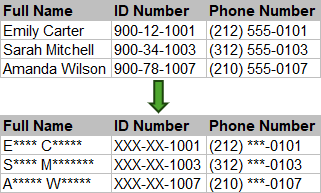
The Mask Sensitive Information feature in Kutools for Excel recognizes supported sensitive data in a selected range and replaces part of each value with masking characters. You can preview the converted values before applying them and use country-specific matching for ID and phone numbers.
 |
What Mask Sensitive Information can do
Mask Sensitive Information provides six operations for obscuring common types of personal data in a selected range. Each operation retains a limited part of the original value so records can still be distinguished while more sensitive details remain hidden.
🆔 Mask ID numbers
Hide the leading portion of recognized ID numbers while retaining the final digits. Select the matching country so Kutools can recognize the correct ID format.
💳 Mask payment card numbers
Replace the leading digits of recognized payment card numbers with asterisks while keeping the final four digits visible.
📞 Mask phone numbers
Hide part of each recognized phone number while retaining useful identifying digits. Select the country that matches the phone-number format.
🏠 Mask home addresses
Hide the street portion of a home address while retaining location details such as the city, state, and ZIP Code.
✉️ Mask email addresses
Hide most of the username before the at sign while keeping limited identifying characters and the email domain visible.
👤 Mask names
Keep the first letter of each name component and replace the remaining letters with asterisks.
👀 Preview before applying
Compare the source data and converted data side by side before updating the selected cells.
🌍 Recognize country-specific formats
Choose from the available countries when masking ID numbers or phone numbers so the feature can match regional formats more accurately.
Benefits of Mask Sensitive Information
Mask Sensitive Information reduces the manual work required to prepare worksheets containing personal data for sharing, testing, or presentation.
Mask a selected range quickly
Process multiple records together instead of editing every sensitive value individually.
Avoid multiple helper formulas
Use one dialog for several data types instead of designing, filling, and replacing different masking formulas for each column.
Check results before applying
Review the source and converted values side by side to see which entries are recognized and how they will be masked.
Limit changes to your selection
Process only the selected range while leaving information elsewhere in the worksheet unchanged.
Keep useful identifying details
Retain limited information, such as the final four card digits or the email domain, so records remain easier to distinguish.
Handle regional formats
Use country selection when masking ID numbers and phone numbers instead of relying on one format for every region.
How to use Mask Sensitive Information
Select the cells that contain the information you want to mask, and then apply the appropriate operation. If the selected range contains several data types, apply the relevant masking operations one at a time.
- Select the range containing the sensitive information.
- Click Kutools > Content > Mask Sensitive Information.
- In the Mask Sensitive Information dialog box, choose one of the following operations:
- Mask ID Numbers
- Mask Payment Card Numbers
- Mask Phone Numbers
- Mask Home Addresses
- Mask Email Addresses
- Mask Names
- For Mask ID Numbers or Mask Phone Numbers, select the country that matches the source-data format.
- Review the Preview pane. The Source Data and Converted Data columns show the original and masked values side by side.
- Click Apply to apply the current operation while keeping the dialog box open. This allows you to select another masking operation when the range contains additional data types. When you have finished, click OK to apply the current operation and close the dialog box.
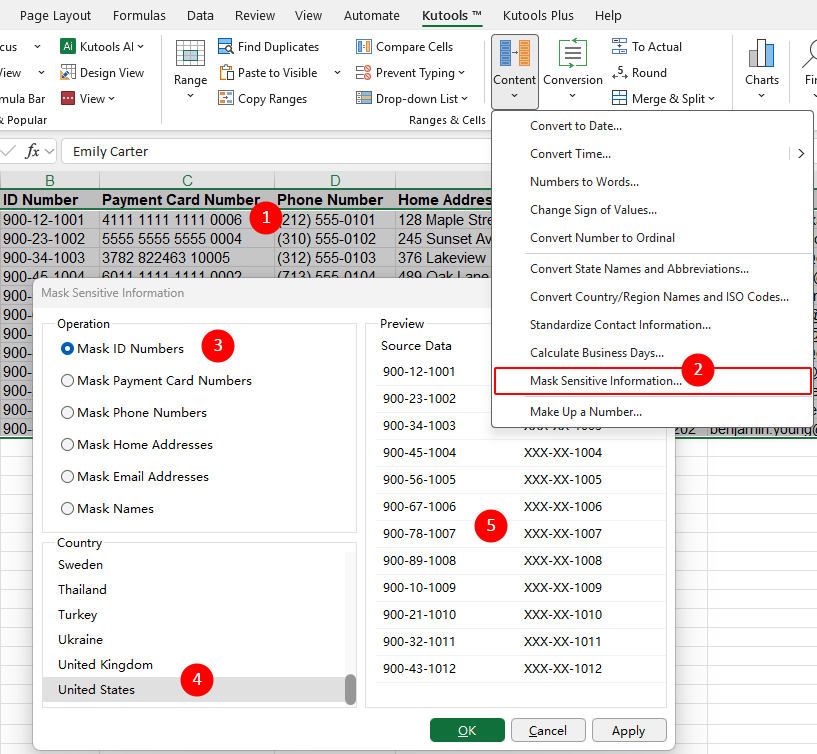
For example, the following US-style values are converted as shown:
| Information type | Source data | Masked data |
|---|---|---|
| Name | Emily Carter | E**** C***** |
| US ID number | 900-12-1001 | XXX-XX-1001 |
| Payment card number | 4111 1111 1111 0006 | **** **** **** 0006 |
| US phone number | (212) 555-0101 | (212) ***-0101 |
| Home address | 128 Maple Street, New York, NY 10001 | ***, New York, NY 10001 |
| Email address | emily.carter@example.com | e****r@example.com |
Undo maskinge
If the result is not what you expected, press Ctrl + Z to restore the original values.
📝 Note:
You can undo only the most recent action performed by Kutools. Multiple Kutools actions cannot be undone one by one.
Tips for better results
Masking depends on recognizable data patterns. Review the source formatting and preview carefully to ensure the intended values are processed.
- Apply one information type at a time: Each operation targets one type of sensitive information. When the selected range contains several types, use Apply after each operation and continue with the next one.
- Select the correct country: Country selection is available only for ID numbers and phone numbers. Choose the country that matches the source format before checking the preview.
- Check unmatched values: A value remains unchanged when it does not match the expected format. Look for missing digits, extra characters, inconsistent separators, or a country mismatch.
- Use valid payment card formats: Payment card numbers must have a recognized prefix and length and pass card-number validation. A correctly spaced number may remain unchanged if its checksum is invalid.
- Review the preview: Confirm that the intended entries appear in the Converted Data column before applying the operation.
- Keep a secure original copy: Masking replaces part of the selected values. Save an unmasked copy in a secure location if the original data may be needed later.
Best use cases for Mask Sensitive Information
Mask Sensitive Information is useful when a worksheet must remain understandable but personally identifiable details should not be fully exposed.
Share reports externally
Prepare customer, employee, or transaction reports for vendors, consultants, or other external recipients while obscuring personal details.
Create training materials
Mask real information before using a worksheet in tutorials, demonstrations, screenshots, or internal training.
Prepare testing data
Reduce the exposure of personal details before a workbook is used for testing formulas, reports, macros, or new workflows.
Send files for troubleshooting
Obscure supported sensitive values before sending a workbook to technical support or another department for investigation.
Compare with Excel built-in methods
Excel formulas can hide parts of text by combining functions such as LEFT, RIGHT, and REPT. However, each data type usually requires a separate formula and pattern. Mask Sensitive Information brings the supported data types together in one dialog and provides a preview before the selected values are updated.
| Capability | Mask Sensitive Information | Excel formulas |
|---|---|---|
| Supported tasks | Includes dedicated operations for IDs, payment cards, phone numbers, addresses, email addresses, and names | Requires a purpose-built formula for each data type and format |
| Country-specific matching | Provides country selection for ID and phone-number formats | Must be built into the formula logic manually |
| Preview | Shows source and converted values side by side before applying | Results appear in helper cells after the formulas are entered |
| Changes to original cells | Applies masked values directly to the selected range | Usually requires helper formulas, followed by copying and pasting the results as values |
| Mixed data types | Processes multiple supported types by applying the relevant operations in the same dialog | Usually requires different formulas for different columns |
| Best suited for | Quickly masking supported sensitive data without building formulas | Creating customized masking rules for a known and consistent format |
Frequently Asked Questions
Why are some values not masked?
A value remains unchanged when it does not match the expected pattern for the selected operation. Check its length, separators, extra characters, and country format. For payment card numbers, also confirm that the number passes card-number validation.
Why do I need to select a country for ID and phone numbers?
ID and phone-number formats vary by country. Selecting the matching country helps Kutools recognize the source values and apply the appropriate masking pattern. Country selection is not used for payment cards, home addresses, email addresses, or names.
Can I mask several types of sensitive information in the same range?
Yes. Select the range, choose the first masking operation, and click Apply. Then select the next operation and apply it. Repeat this process for each data type in the range.
Does Mask Sensitive Information process the entire worksheet?
No. It processes only the selected range. Sensitive information outside that range remains unchanged.
Can I recover the original information after masking it?
The masked values no longer contain the hidden characters. If the workbook is still open, you may be able to undo the operation immediately. For reliable recovery, keep an unmasked copy in a secure location before applying the feature.
Does masking make a workbook safe to share?
Masking reduces the amount of visible personal information, but you should still review the complete workbook before sharing it. Check other worksheets, formulas, comments, hidden rows or columns, and any external connections that may contain unmasked data.
Conclusion
Mask Sensitive Information provides a direct way to obscure supported personal data in a selected Excel range. Choose the matching operation, select a country when processing ID or phone numbers, and check the preview before applying the changes. For mixed datasets, use Apply to process each information type in sequence.
The Best Office Productivity Tools
Kutools for Excel - Helps You To Stand Out From Crowd
Kutools for Excel Boasts Over 300 Features, Ensuring That What You Need is Just A Click Away...
Office Tab - Enable Tabbed Reading and Editing in Microsoft Office (include Excel)
- One second to switch between dozens of open documents!
- Reduce hundreds of mouse clicks for you every day, say goodbye to mouse hand.
- Increases your productivity by 50% when viewing and editing multiple documents.
- Brings Efficient Tabs to Office (include Excel), Just Like Chrome, Edge and Firefox.
Table of Contents
- What Mask Sensitive Information can do
- Benefits of Mask Sensitive Information
- How to use Mask Sensitive Information
- Tips for better results
- Best use cases for Mask Sensitive Information
- Compare with Excel built-in methods
- Frequently Asked Questions
- Conclusion
Kutools for Excel
Brings 300+ advanced features to Excel
- 🧩 Overview
- 📥 Free Download
- 🎁 30-Day Free Trial available