Workbook & Sheet Tab: Instantly Find, Switch, and Organize Your Open Files and Sheets
When you work in Excel daily, it’s common to open multiple files at once—reports, dashboards, audits, or templates. As the number of open workbooks and worksheets grows, switching and locating what you need can quickly slow you down. The Workbook & Sheet tab in Kutools for Excel’s Navigation Pane is a dedicated area that gives you a centralized view of:
- All opened workbooks in a clear list.
- All worksheets of the current workbook in another list together with helpful sheet-level controls.
This layout streamlines everyday navigation by putting key workbook and worksheet actions in one place, so you can move between files and sheets with fewer steps.
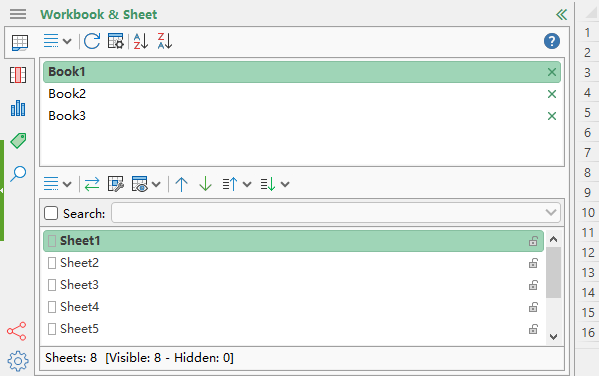
Advantages of the Workbook & Sheet Tab in Navigation Pane
- 🚀 Faster navigation across multiple open filesAll currently opened workbooks are displayed in one structured list. Click a name to switch instantly, which is especially helpful when you handle many files during reporting or review.
- 🧹 Quick closing without breaking your focusWhen too many files are open, you can close a workbook right from the list. This keeps your working set focused without needing to search for the correct window first.
- 🔍 Sorting that speeds up scanningSort open workbooks in ascending or descending order to locate a file faster. Click the same button again to restore the original order when you prefer your previous layout.
- 📚 A clearer, scalable view of worksheetsThe worksheet list provides a clean vertical view of all sheets in the active workbook. It reduces reliance on the bottom tab row, which can be slow to scan in large files.
- 🧩 Efficient sheet organization controlsUse dedicated buttons to move selected sheets up or down, by page, or directly to the top or end. This makes it easier to maintain a consistent sheet structure in complex workbooks.
- 🛡️ Visibility and protection awarenessManage hidden and protected sheets more confidently with built-in status options. You can temporarily show hidden sheets, list hidden ones, and view protection status in the pane.
- 🔎 Search for fast, precise sheet accessEnable Search and type a sheet name to locate it quickly. This is ideal for workbooks with naming patterns such as months, regions, teams, or project stages.
- 🖱️ Multi-select and drag-to-reorderSelect multiple workbooks or sheets with Ctrl or Shift, then drag to reorder them in the pane. This helps you build a working order that matches your daily workflow.
- 📊 At-a-glance sheet countsThe status bar displays totals for all worksheets, visible sheets, and hidden sheets. It provides a quick structural overview when you review templates or prepare a file for sharing.
How to Use the Workbook & Sheet Tab
After enabling the Workbook & Sheet tab in the Navigation Pane, you can use it to manage two things in one place: all open workbooks and all worksheets in the active workbook. The sections below walk you through setup, key interface elements, and practical usage for both lists.
1. Enable the Navigation Pane
Click Kutools >Navigation to open the Navigation Pane.
2. Interface Overview of the Workbook & Sheet tab
This is a quick, scan-friendly map of the main controls. You don’t need to use every option—just jump to the parts you need.

1. Enable the Workbook & Sheet section
Click the  button to display the Workbook & Sheet section of the Navigation Pane.
Workbook-side controls (2–3)
2. Workbook List: view and switch open workbooks
All opened workbooks are listed here. Click a name to switch. To close a workbook, click the  Close button next to it.
3. Buttons above the list of opening workbooks:
 Sort Workbooks in Ascending Order: Sorts open workbooks A–Z. Click again to restore the original order.
  Sort Workbooks in Descending Order: Sorts open workbooks Z–A. Click again to restore the original order.
  Workbook Tools: Provides quick access to utilities in the Workbook group on the Kutools Plus tab.
  Refresh: Updates the workbook information shown in the pane.
 Sort Workbooks in Ascending Order: Sorts open workbooks A–Z. Click again to restore the original order.
  Sort Workbooks in Descending Order: Sorts open workbooks Z–A. Click again to restore the original order.
  Workbook Tools: Provides quick access to utilities in the Workbook group on the Kutools Plus tab.
  Refresh: Updates the workbook information shown in the pane.
 Worksheet-side controls (4–10)
4. Worksheet List: view and switch worksheets of the current workbook
All worksheets in the active workbook are listed here. Click any sheet to navigate to it.
5. Buttons above the list of worksheets:
 Toggle between the two most recently used sheets.
  A Collection of Sheet Tools: Quick access to utilities in the Worksheet group on the Kutools Plus tab.
  This menu contains: Make Hidden Worksheets Temporarily Visible / List Hidden Sheets in the Sheet List / Displays the Protection Status of the Worksheet in the Worksheet Pane.
  Move the selected sheet(s) up.
  Move the selected sheet(s) down.
  Move the selected sheet(s) up one page or to the top.
  Move the selected sheet(s) down one page or to the end.
 Toggle between the two most recently used sheets.
  This menu contains: Make Hidden Worksheets Temporarily Visible / List Hidden Sheets in the Sheet List / Displays the Protection Status of the Worksheet in the Worksheet Pane.
  Move the selected sheet(s) up.
  Move the selected sheet(s) down.
  Move the selected sheet(s) up one page or to the top.
  Move the selected sheet(s) down one page or to the end.
 6. Search worksheets by name
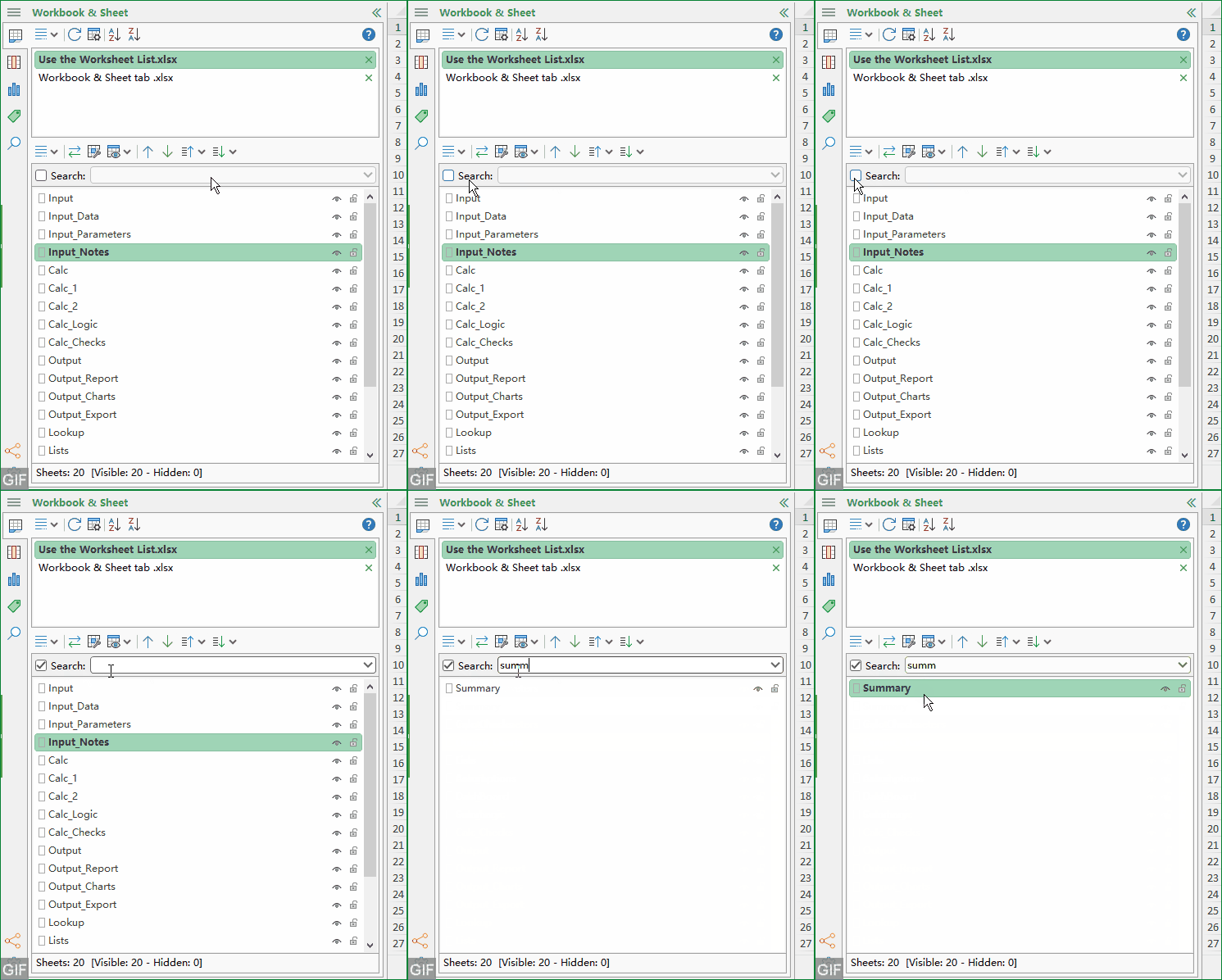
Enable Search and type a sheet name to locate it quickly.
7. Status bar sheet counts
Shows totals for all worksheets, visible sheets, and hidden sheets.
8. Quick icons for visibility and protection
Use the icons next to each sheet name for fast actions:
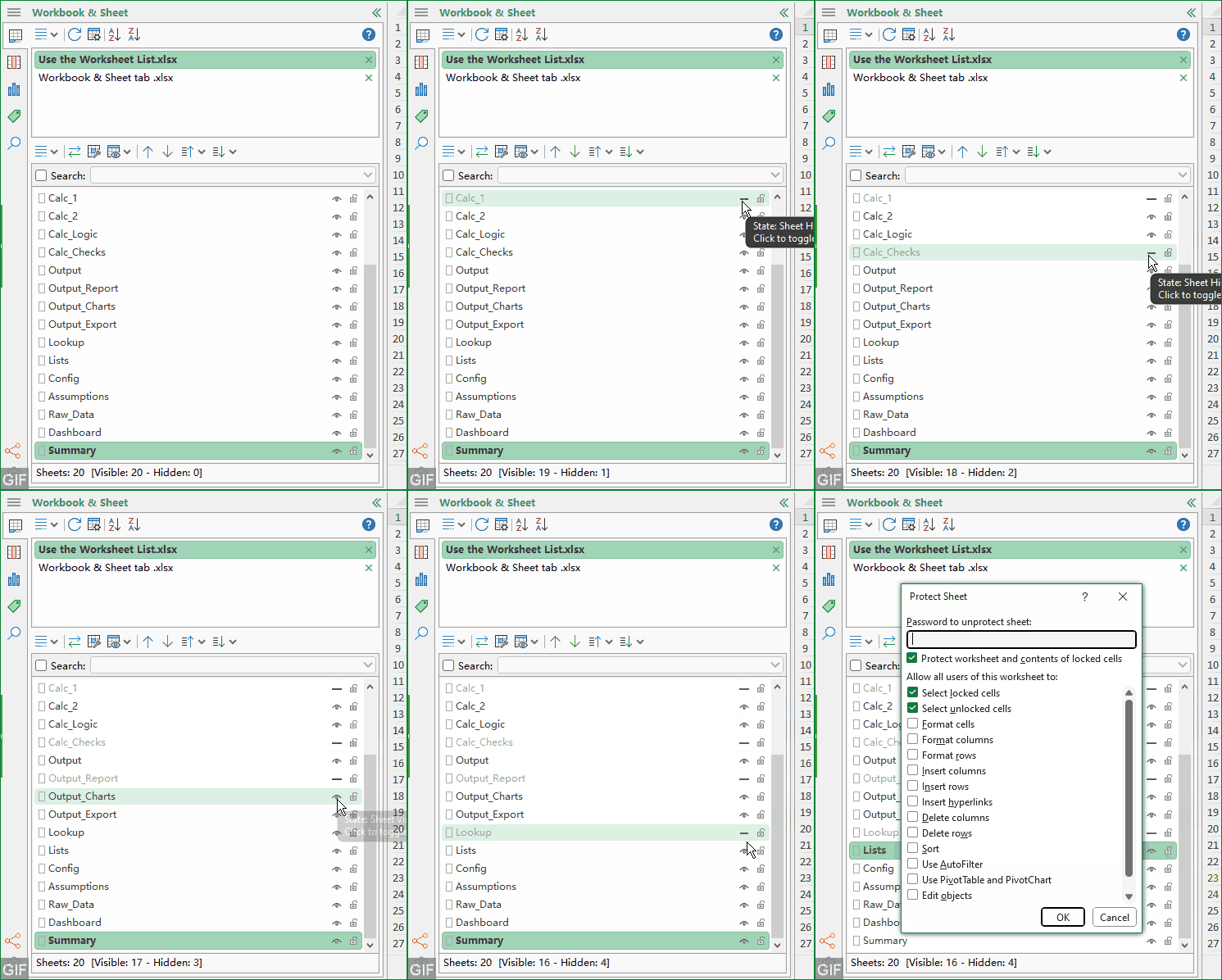
 Change the visible status of the sheet.
  Protect or unprotect the sheet.
 Change the visible status of the sheet.
  Protect or unprotect the sheet.
 9. Worksheet right-click menu
Right-click any worksheet name to access additional sheet operations.
10. More tools
Click the  button to show more tools.
3. How to Use the Workbook List
The Workbook List is built for clean and efficient multi-file work. It helps you manage your active working set without leaving the pane.
Switch between open workbooks
Click any workbook name in the list to activate it. This is faster than searching across separate windows when you are comparing files or consolidating data.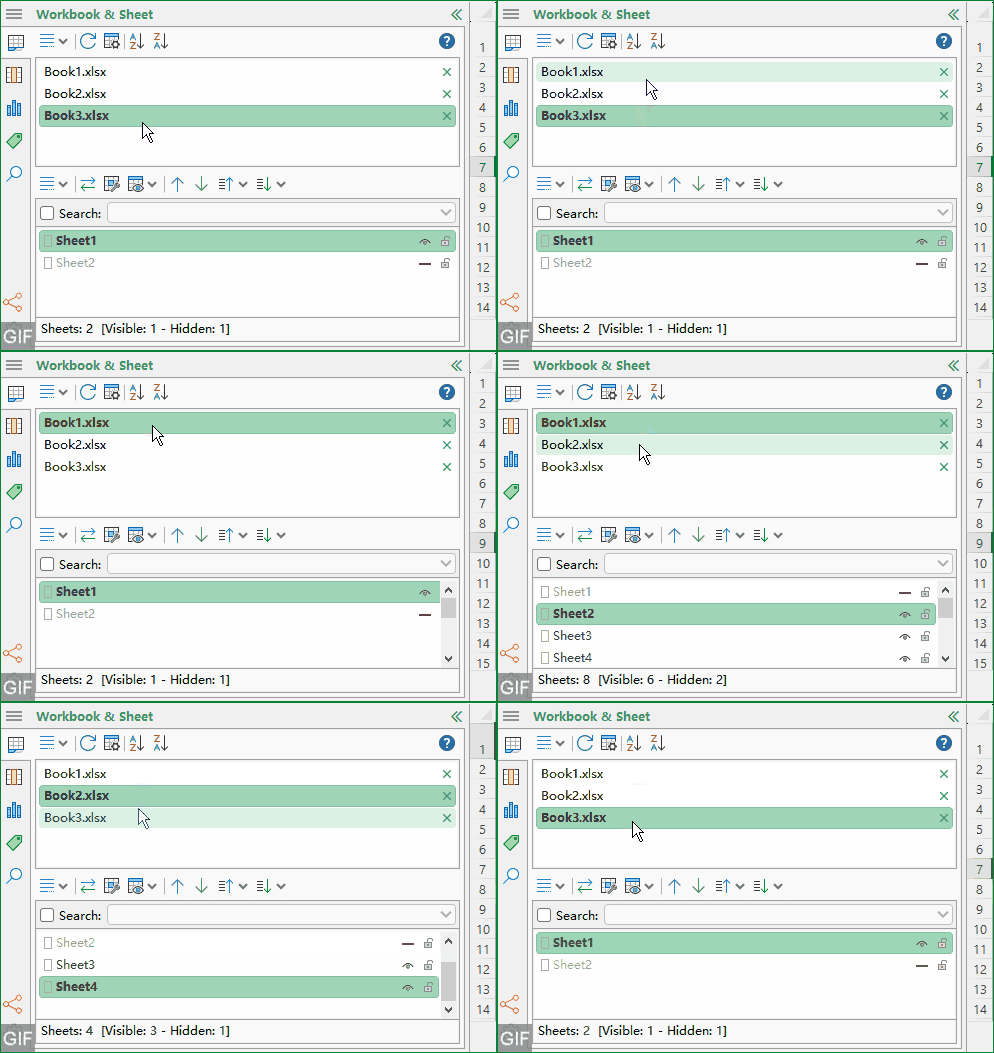
Close workbooks directly from the pane
Use the close button next to a workbook to close it when it is no longer needed, helping you keep a focused working environment.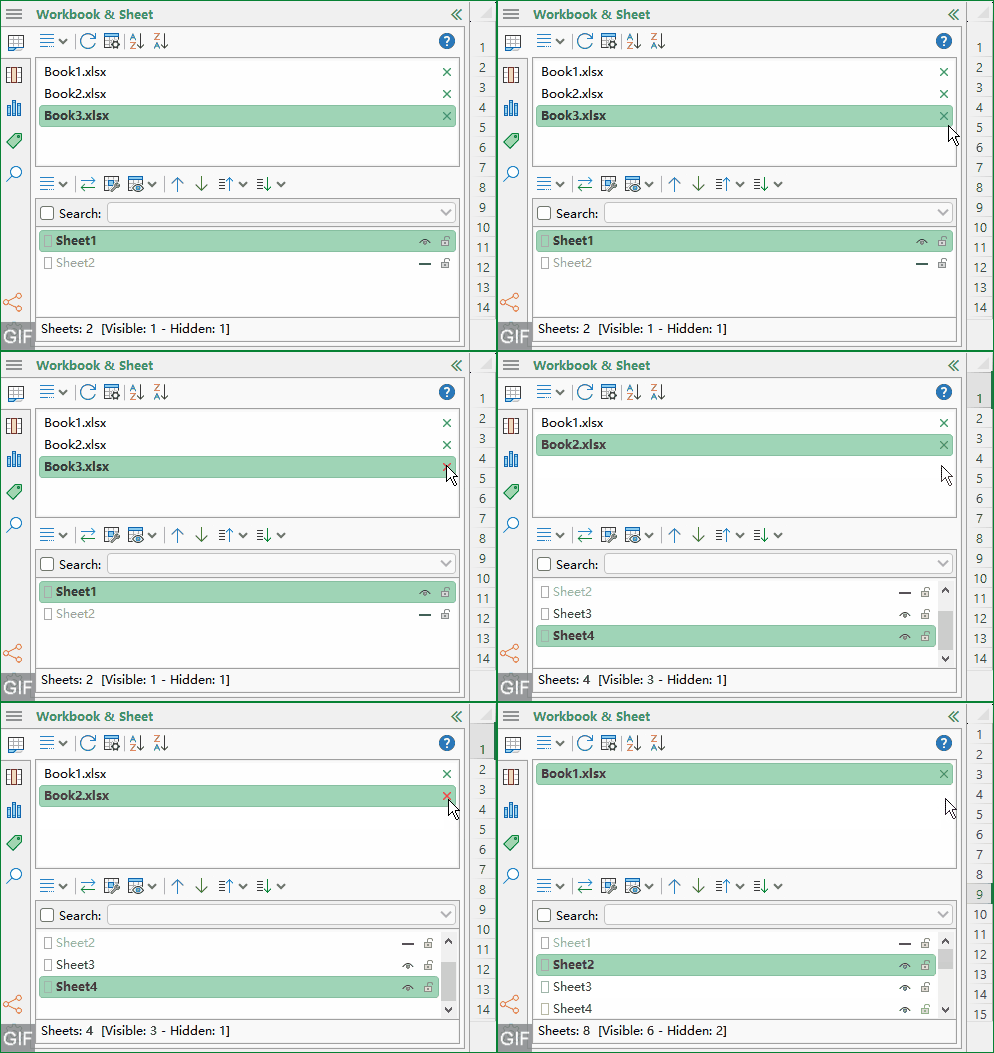
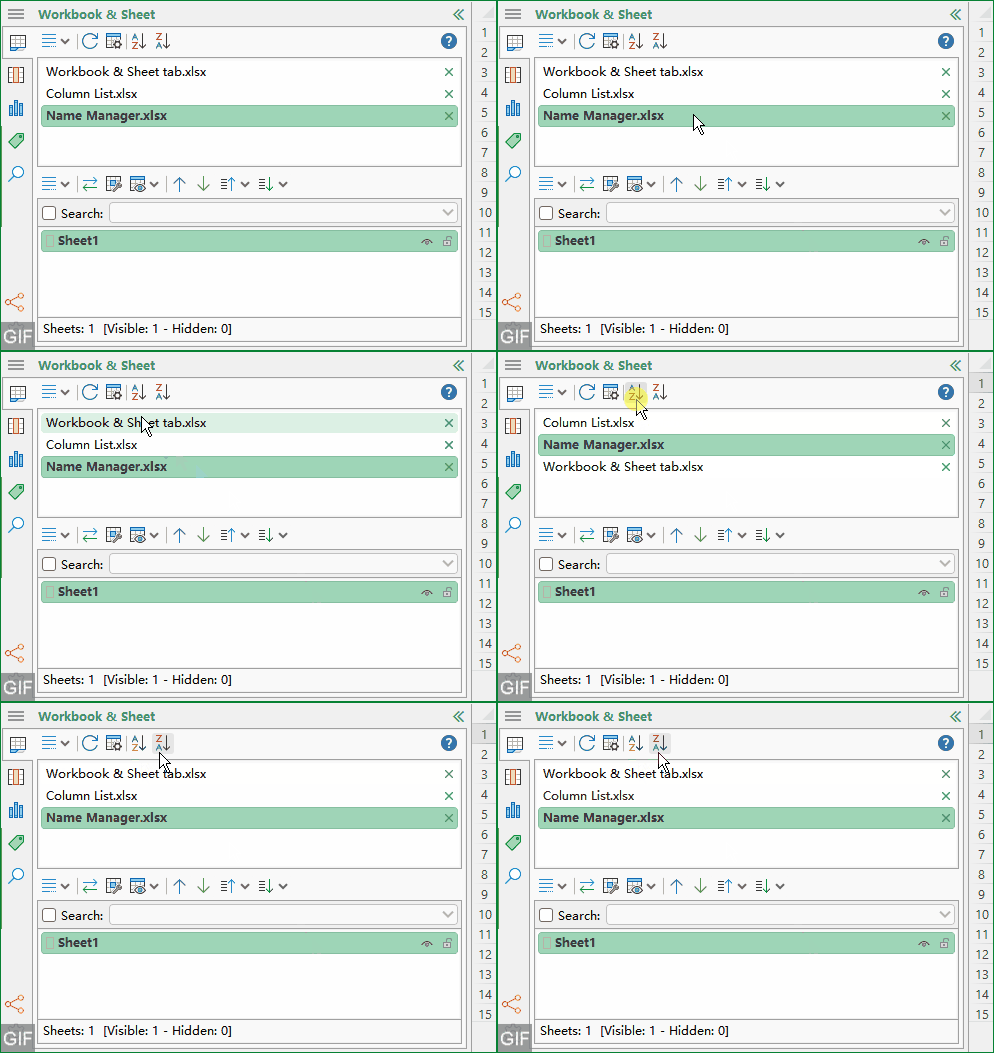
Sort open workbooks
When you are working with many open files, sorting provides a straightforward way to scan and locate the right workbook:
- Use Sort Workbooks in Ascending Order for A–Z sorting.
- Use Sort Workbooks in Descending Order for Z–A sorting.
- Click the same button again to restore the original order.
Open Workbook Tools
The Workbook Tools button provides quick access to utilities in the Workbook group on the Kutools Plus tab. This can reduce time spent scanning the ribbon when you know you need workbook-level tools.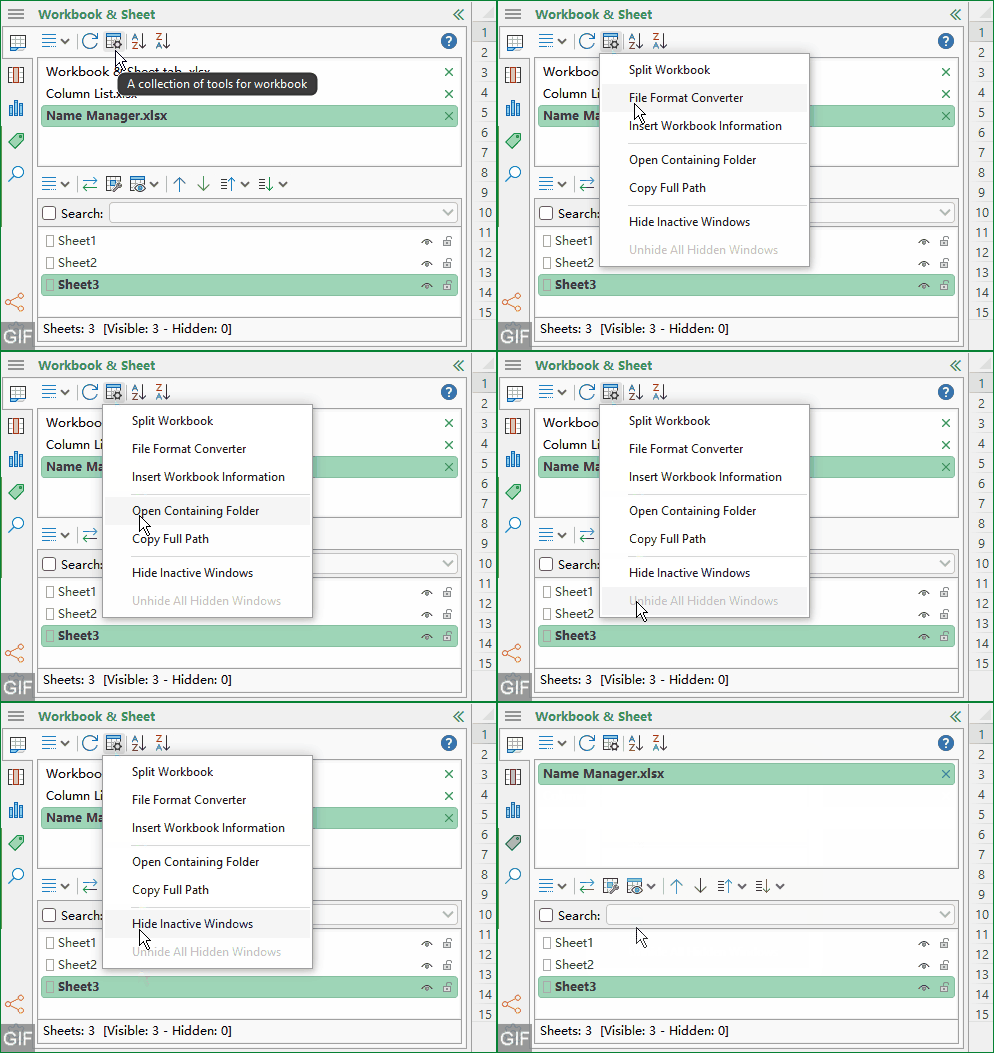
Use right-click actions
The Workbook List supports a right-click menu for additional operations.
4. How to Use the Worksheet List
The Worksheet List focuses on the active workbook and provides navigation plus lightweight sheet control for large or structured files.
Navigate to any worksheet instantly
Click a worksheet name to activate it. This avoids horizontal scrolling across bottom sheet tabs, which often becomes slow or unclear in large workbooks.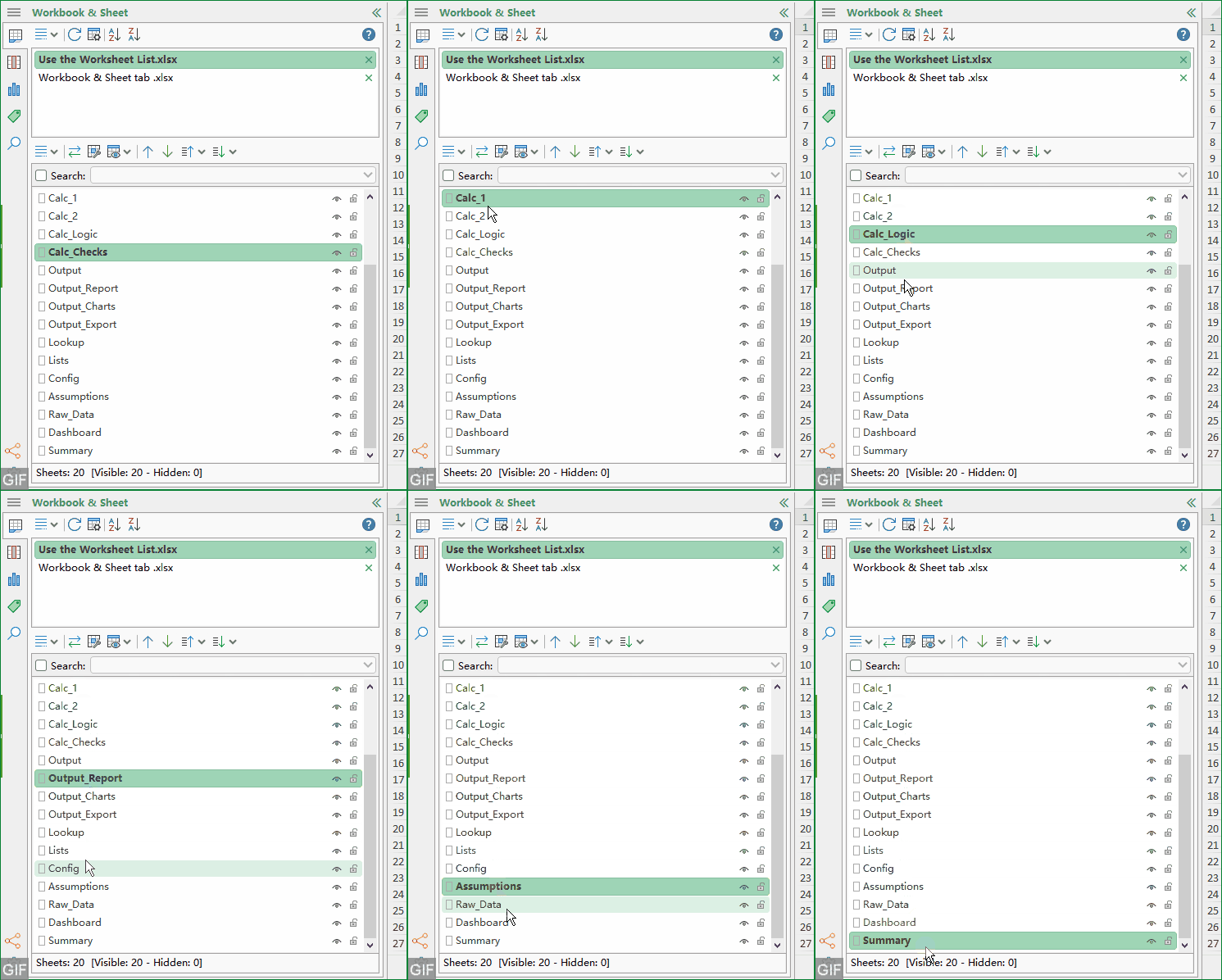
Toggle between the last two sheets
Use the toggle button to switch between the two most recently used sheets. This is ideal when you are reviewing inputs vs. outputs, cross-checking numbers, or validating changes.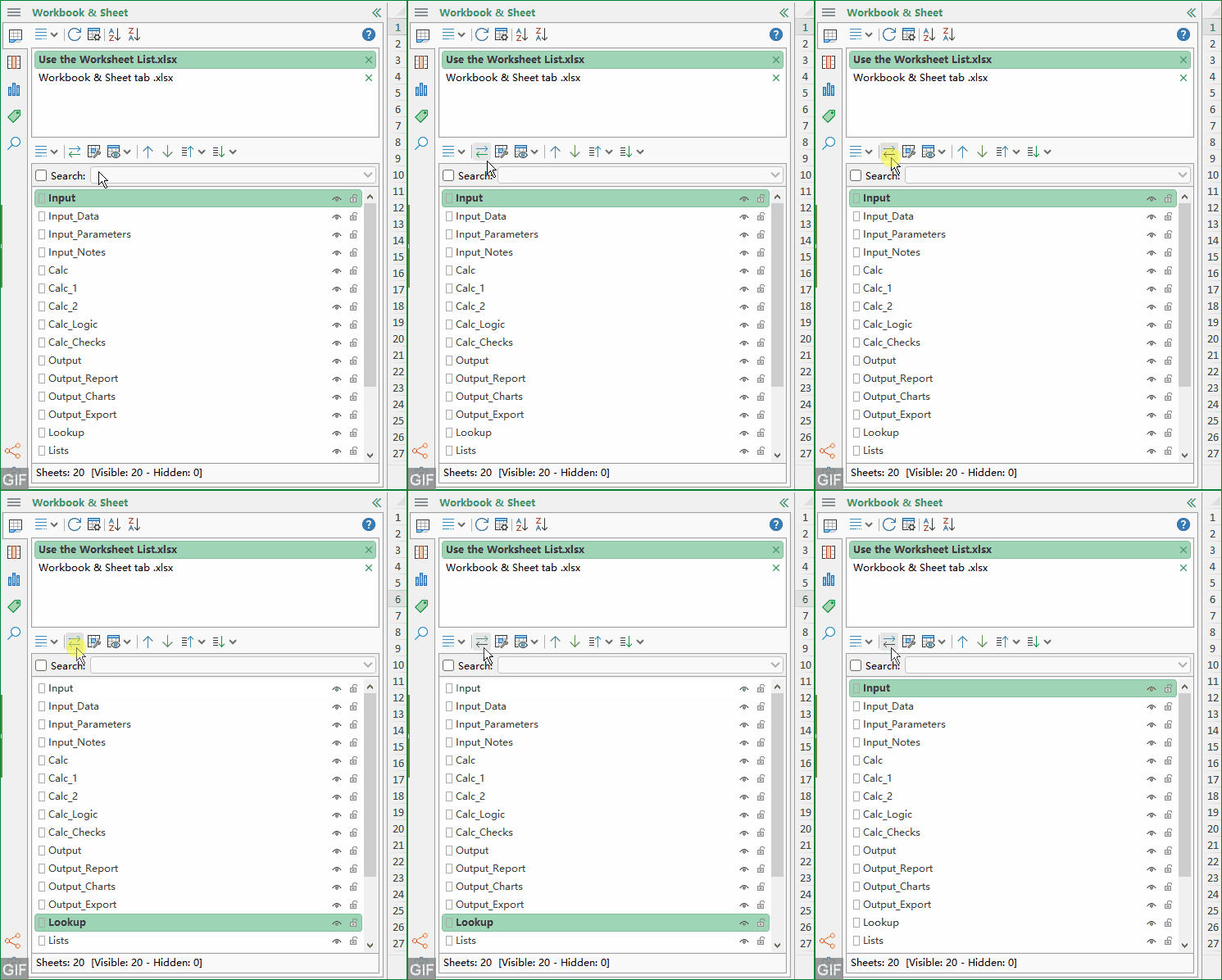
Access the Sheet Tools collection
The  sheet tools button offers a quick entry point to useful sheet-related utilities connected to Worksheet group on the Kutools Plus tab.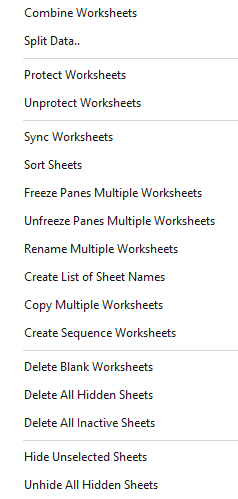
Manage hidden sheets and protection visibility
The hidden/protection menu provides three important functions that help you understand and control workbook structure:
- Make Hidden Worksheets Temporarily Visible.
- List Hidden Sheets in the Sheet List.
- Displays the Protection Status of the Worksheet in the Worksheet Pane.
Move and reorganize worksheets
To adjust sheet order efficiently, use the movement buttons:
- Move up or Move down for precise repositioning.
- Move up one page or to the top for larger structural changes.
- Move down one page or to the end when reorganizing long sequences.
Search for sheets by name
Enable Search and enter the sheet name to find what you need quickly. Search becomes especially powerful when you maintain consistent naming systems, such as:
- Time periods (e.g., 2025-01, 2025-02)
- Regions or business units
- Process stages (Input, Calc, Output)
Use quick icons for visibility and protection
Next to each sheet name, you can use the icons to change sheet state without opening separate dialogs:
- Eye icon to change the visible status.
- Protect icon to protect or unprotect the sheet.
Use the worksheet context menu
Right-click any worksheet name to open the context menu and access additional sheet operations.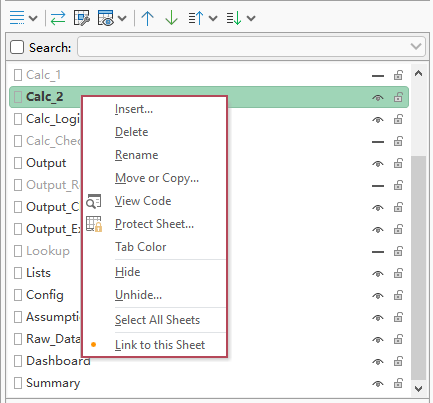
Expand More tools
If you need extra sheet-related commands beyond the primary toolbar, click More tools to open the extended menu.
- Hold Ctrl or Shift to select multiple workbooks or sheets in the pane.
- Drag the selected workbooks or sheets to adjust their order in the pane.
Tips for Real-World Workflows
Build a stable working order during reporting cycles
If you open the same set of files every week or month, you can sort and then drag key workbooks into a consistent order. This reduces repeated searching and makes your workflow more predictable.
Use Search as a naming-system amplifier
When your team uses standardized sheet naming, Search turns into a direct navigation shortcut. For example, typing a month or department keyword can jump you to the exact sheet faster than manual scanning.
Validate templates before sharing
For template-based workbooks, the hidden/protection functions help you quickly confirm whether critical sheets are hidden as intended and whether protection status is correctly applied before distributing files to others.
Summary
The Workbook & Sheet tab in Kutools for Excel’s Navigation Pane provides a structured, efficient way to manage multi-workbook and multi-worksheet environments. It brings together the core actions you need most often:
- List and switch among all open workbooks.
- Close workbooks directly from the pane.
- Sort workbook lists and refresh the view.
- List and navigate all worksheets in the active workbook.
- Toggle between recently used sheets.
- Manage hidden sheets and view protection status.
- Move, reorder, and search worksheets with ease.
- Use multi-select and drag-and-drop for faster organization.
If you frequently work with multiple Excel files or large, complex workbooks, this tab helps you stay organized, reduce navigation overhead, and maintain control over workbook structure with fewer interruptions.
Best Office Productivity Tools
Supercharge Your Excel Skills with Kutools for Excel, and Experience Efficiency Like Never Before. Kutools for Excel Offers Over 300 Advanced Features to Boost Productivity and Save Time. Click Here to Get The Feature You Need The Most...
Office Tab Brings Tabbed interface to Office, and Make Your Work Much Easier
- Enable tabbed editing and reading in Word, Excel, PowerPoint, Publisher, Access, Visio and Project.
- Open and create multiple documents in new tabs of the same window, rather than in new windows.
- Increases your productivity by 50%, and reduces hundreds of mouse clicks for you every day!
All Kutools add-ins. One installer
Kutools for Office suite bundles add-ins for Excel, Word, Outlook & PowerPoint plus Office Tab Pro, which is ideal for teams working across Office apps.





- All-in-one suite — Excel, Word, Outlook & PowerPoint add-ins + Office Tab Pro
- One installer, one license — set up in minutes (MSI-ready)
- Works better together — streamlined productivity across Office apps
- 30-day full-featured trial — no registration, no credit card
- Best value — save vs buying individual add-in
Table of contents
- Advantages of the Workbook & Sheet Tab in Navigation Pane
- How to Use the Workbook & Sheet Tab
- Enable the Navigation Pane
- Interface Overview
- Use the Workbook List
- Use the Worksheet List
- Tips for Real-World Workflows
- Summary
- The Best Office Productivity Tools
Kutools for Excel
Boosts Excel With 300+
Powerful Features