Use Nested VLOOKUP in Excel with Kutools for Excel
When working with multiple related tables in Excel, you may need to look up a value in one table and then use the returned result to search another table. For example, you might want to find an employee's department code from an employee information table and then use that code to retrieve the corresponding department name from a separate department table.
While the standard VLOOKUP function can retrieve information from a single lookup table, performing lookups across two related tables typically requires combining multiple VLOOKUP functions into a nested formula.
With the Nested VLOOKUP in Excel feature in Kutools for Excel's Formula Helper Plus, you can easily perform two-level lookups across different tables without manually constructing a complex nested VLOOKUP formula.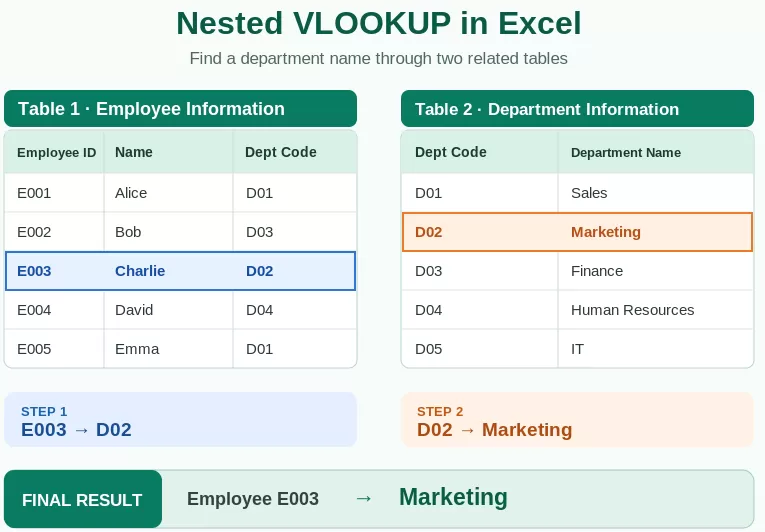
What Is Nested VLOOKUP in Excel?
Nested VLOOKUP is a lookup technique that nests one VLOOKUP function inside another to retrieve information from two related tables.
The first VLOOKUP searches for a value in the first table and returns an intermediate result. The second VLOOKUP then uses that result as its lookup value to retrieve the final information from another table.
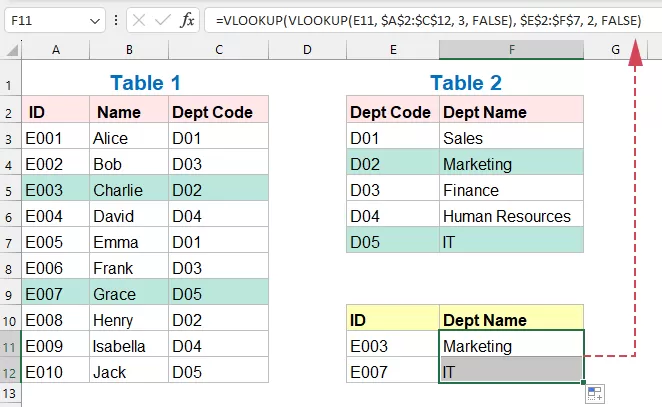
For example, suppose you have two related tables in Excel. The first table contains employee IDs, names, and department codes, while the second table contains department codes and their corresponding department names.
Now, you want to find the department name associated with employee ID E003.
The first VLOOKUP finds the employee's department code, D02. The second VLOOKUP then uses D02 to retrieve the corresponding department name, Marketing, as shown in the screenshot below:
In short, nested VLOOKUP performs two lookups in a single formula, using the result of the first lookup to complete the second.
Advantages of Using Formula Helper Plus
The Nested VLOOKUP in Excel feature in Kutools for Excel's Formula Helper Plus simplifies two-level lookups across related tables, helping you retrieve the information you need without manually writing nested formulas.
Perform two-level lookups without manually nesting multiple VLOOKUP functions.
Simply select the lookup value, specify both table ranges, and set the required column indexes.
Select ranges directly from the worksheet to help avoid incorrect references and formula syntax mistakes.
The result updates when the lookup value or referenced data changes, provided Excel's automatic calculation is enabled.
Access additional formulas for lookup, counting, date, text, math, and other Excel tasks.
Build, save, and reuse formulas tailored to your specific needs.
How to Use Nested VLOOKUP with Kutools for Excel
Follow these steps to perform a nested VLOOKUP across two related tables.
- First, prepare your tables. Make sure both tables are organized with appropriate headers and have a common field connecting them.
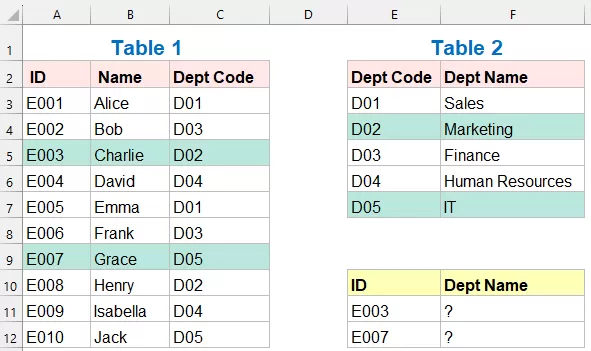
- Click an empty cell where you want to display the final result.
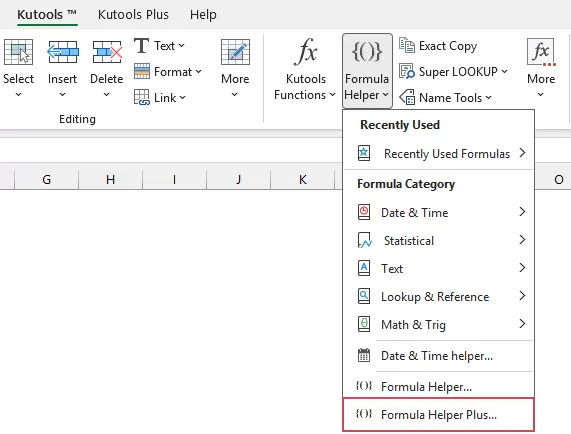
- Then navigate to Kutools > Formula Helper > Formula Helper Plus to open the Formula Helper Plus dialog box.
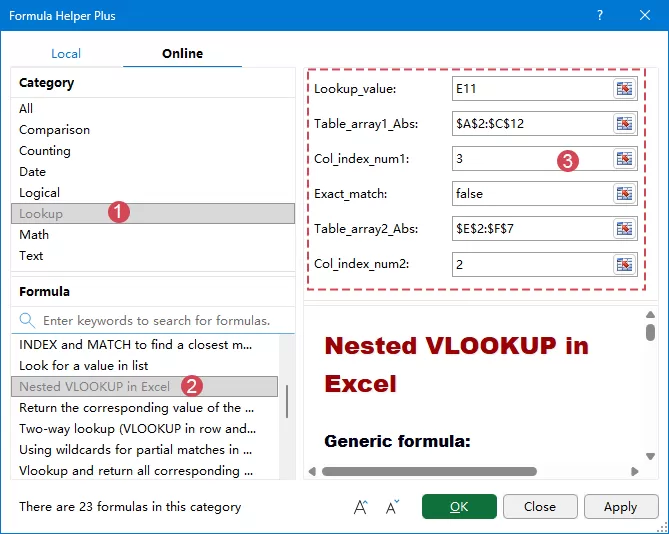
In the Formula Helper Plus dialog box, under the Online tab, specify the following options:
- In the Category list, select Lookup.
- In the Formula list, find and select Nested VLOOKUP in Excel.
Tip: You can also enter keywords such as "Nested" in the formula search box to quickly locate the feature.
Configure the following formula arguments:
- Lookup_value: The value you want to search for in the first table.
- Table_array1_Abs: The first lookup table, containing employee IDs and department codes.
- Col_index_num1: The column number in the first table that contains the intermediate lookup result.
- Exact_match: Specifies the matching option for the lookup. Use FALSE or 0 for an exact match.
- Table_array2_Abs: The second lookup table, containing department codes and department names.
- Col_index_num2: The column number in the second table containing the final result.
- After specifying all the required arguments, click OK. Kutools inserts a nested VLOOKUP formula into the selected result cell and returns the corresponding department name. Then, drag the fill handle down to apply the formula to the remaining rows.
Important Notes
In both lookup tables, VLOOKUP searches the first column of the selected range. Make sure the employee ID is the first column of the employee table and the department code is the first column of the department table.
The intermediate value returned by the first VLOOKUP must correspond to values in the first column of the second table. In this example, both tables are connected through the department code.
Col_index_num1 specifies the return column in the first table, while Col_index_num2 specifies the return column in the second table. Column indexes are counted from the left edge of each selected table, starting at 1.
If either lookup cannot find the required value, the nested formula may return #N/A. You can wrap the formula in IFERROR to display a more user-friendly message.
Frequently Asked Questions (FAQs)
Nested VLOOKUP combines two VLOOKUP functions, using the result of the first lookup as the lookup value for the second. It is useful when related information is stored in two different tables.
Yes. You can select lookup tables from different worksheets. Make sure the referenced ranges are correct and the lookup fields are properly aligned.
A standard VLOOKUP retrieves a value from one lookup table. Nested VLOOKUP performs a first lookup and uses its result to search another table.
A nested VLOOKUP formula typically returns a single result.
Yes. In supported Excel versions, XLOOKUP can perform the same two-level lookup and provides greater flexibility because it does not require the lookup column to be the first column of the table.
Conclusion
The Nested VLOOKUP in Excel feature in Kutools for Excel's Formula Helper Plus provides a convenient way to retrieve related information from two different lookup tables.
By simply specifying the lookup value, table ranges, column indexes, and matching option, you can perform two-level lookups without manually combining multiple VLOOKUP functions.
Whether you are managing employee records, analyzing product information, processing customer data, or connecting related datasets, this feature helps simplify complex lookups and improve efficiency.
Best Office Productivity Tools
Supercharge Your Excel Skills with Kutools for Excel, and Experience Efficiency Like Never Before. Kutools for Excel Offers Over 300 Advanced Features to Boost Productivity and Save Time. Click Here to Get The Feature You Need The Most...
Office Tab Brings Tabbed interface to Office, and Make Your Work Much Easier
- Enable tabbed editing and reading in Word, Excel, PowerPoint, Publisher, Access, Visio and Project.
- Open and create multiple documents in new tabs of the same window, rather than in new windows.
- Increases your productivity by 50%, and reduces hundreds of mouse clicks for you every day!
All Kutools add-ins. One installer
Kutools for Office suite bundles add-ins for Excel, Word, Outlook & PowerPoint plus Office Tab Pro, which is ideal for teams working across Office apps.





- All-in-one suite — Excel, Word, Outlook & PowerPoint add-ins + Office Tab Pro
- One installer, one license — set up in minutes (MSI-ready)
- Works better together — streamlined productivity across Office apps
- 30-day full-featured trial — no registration, no credit card
- Best value — save vs buying individual add-in