Build Your Own Number Format Library in Excel with Number Format Helper
Formatting numbers correctly is just as important as entering the right values.
Whether you're preparing financial reports, sales dashboards, engineering drawings, invoices, inventory lists, or scientific data, the way numbers are displayed affects readability, consistency, and professionalism.
Unfortunately, Excel's built-in number formatting tools can be difficult to navigate. Many useful custom formats are hard to remember, and if you use the same formats repeatedly, you often have to recreate them from scratch.
Kutools for Excel's Number Format Helper solves this problem by providing a searchable library of number formats. It allows you to quickly preview, apply, organize, and even build your own collection of custom number formats for future use.
Why Number Formatting Matters
Number formatting isn't just about appearance.
Proper formatting helps users:
- Improve report readability
- Display measurements consistently
- Make financial reports easier to understand
- Reduce formatting mistakes
- Standardize reports across teams
- Present data more professionally
For example:
| Original | Better Display |
|---|---|
| 1500000 | 1.5M |
| 0.378 | 37.8% |
| 45000 | $45,000 |
| 12 | 0012 |
| 450 | 450 m² |
Limitations of Excel's Built-in Number Formatting
Excel includes many formatting options, but they aren't always convenient.
Common frustrations include:
- Hundreds of custom format codes are difficult to remember.
- The Format Cells dialog isn't organized by real-world scenarios.
- Frequently used custom formats must be recreated manually.
- No way to save your own format library.
- No search function for custom formats.
- No format preview before applying.
- Sharing consistent formats across reports is difficult.
If you regularly work with specialized number formats, Excel quickly becomes inefficient.
What Can Number Format Helper Do?
Number Format Helper is a centralized library for number formatting.
Instead of remembering format codes, you simply browse categories, preview the result, and apply it.
Built-in Categories
The current version includes 14 ready-to-use categories:
| Category | Example |
|---|---|
| Common | General number formats |
| Business Scenario | m² |
| Code Padding | 000001 |
| Conditional Display | 25K |
| Currency | $, €, ¥ |
| Date | mm-dd-yyyy Different date formats |
| File Size | KB, MB, GB |
| Hidden | Hide values |
| Number Unit | K, M, B |
| Percentage | 25.5% |
| Positive / Negative / Zero | Different symbols |
| Scientific Notation | 1.25E+05 |
| Text Unit | kg, ° |
| Time | hh\:mm\:ss Different time formats |
Key Advantages
Compared with Excel, Number Format Helper offers:
- 14 organized format libraries
- Live Preview before applying
- Keyword search
- Build your own categories
- Save unlimited custom formats
- Edit or delete saved formats anytime
- Extract formats directly from existing cells
- Reuse formatting across workbooks
How to Use Number Format Helper
Applying a format only takes a few seconds.
Example: Display Large Numbers as K
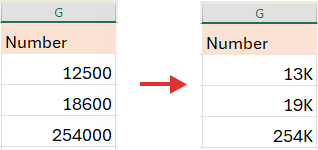
Suppose your worksheet contains sales amounts:
18600
254000
You'd like them to appear as:
18.6K
254K
Steps
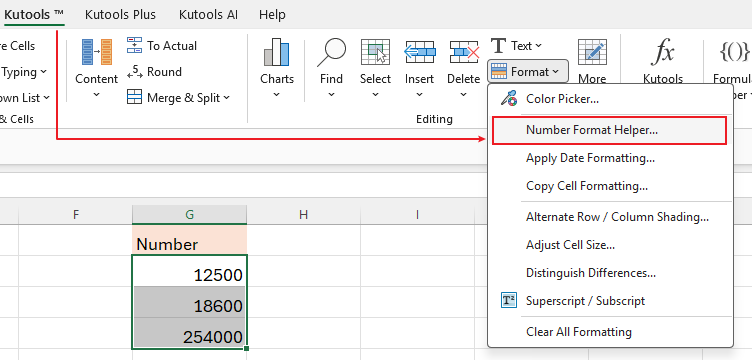
- Select the cells.
- Click Kutools > Format > Number Format Helper.
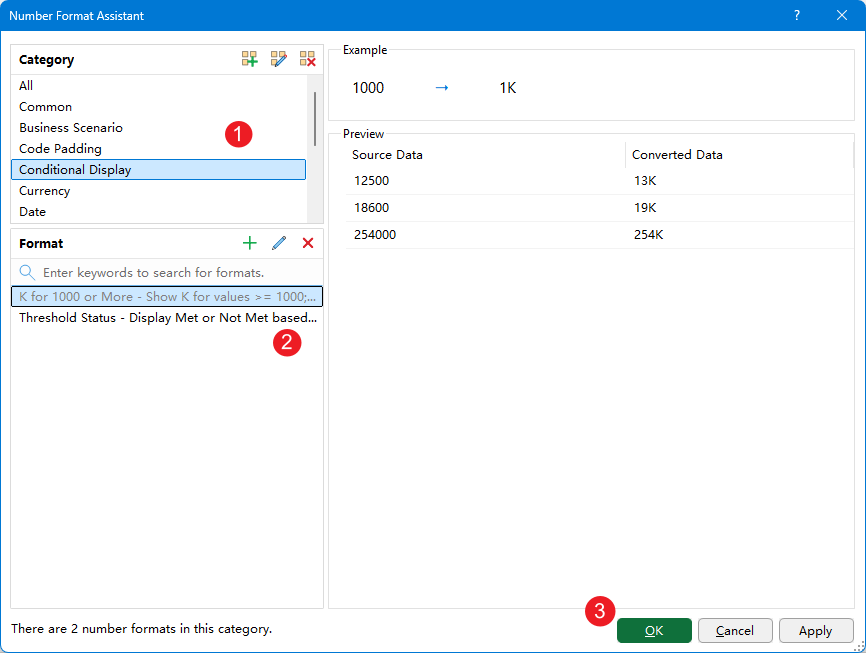
- In the Number Format Assistant dialog:
- Open the Conditional Display category.
- Select the Display Thousands as K format. (When you select the number format, you can see the example shown in the right section.)
- Preview the result. Click OK.
The selected cells are formatted immediately.
Manage Categories
As your formatting needs grow, you can organize formats into your own categories.
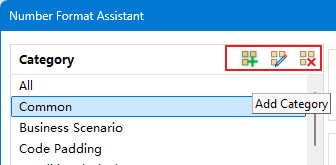
Number Format Helper lets you:
- Add new categories
- Rename categories
- Delete categories
Examples:
- Finance
- Engineering
- Manufacturing
- Accounting
- Internal Reports
Instead of searching through dozens of formats, you can group them by department or project.
Manage Formats
One of the most powerful features is creating your own reusable formats.
Add a Format from an Existing Cell
Suppose you've already formatted one cell as:
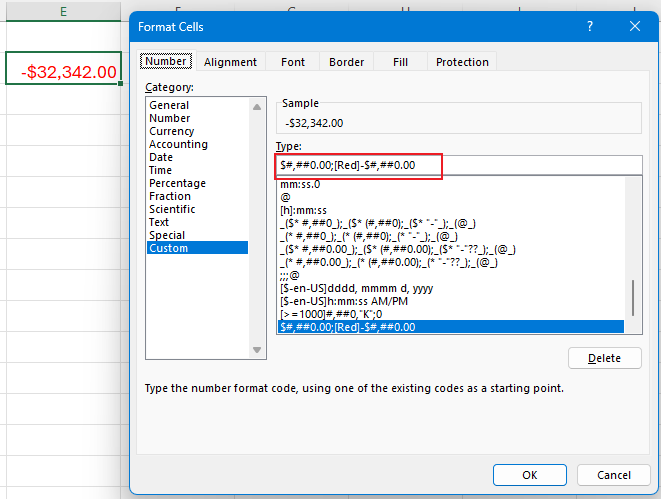
Rather than remembering or copying the format code:
- Select that formatted cell.
- Open Number Format Helper.
- Choose your category (for example Finance).
- Click Add Format.
- The number format is detected automatically.
- Enter a description such as:
US Accounting Currency:-32342 Convert to -$32,342.00 - Save it.
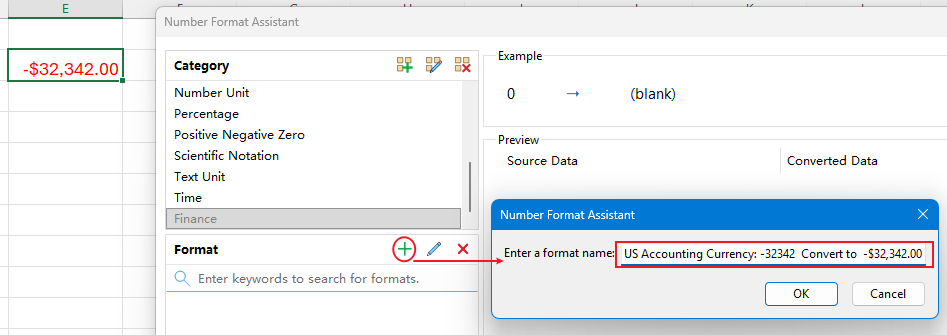
Next time, click that description instead of rebuilding the format.
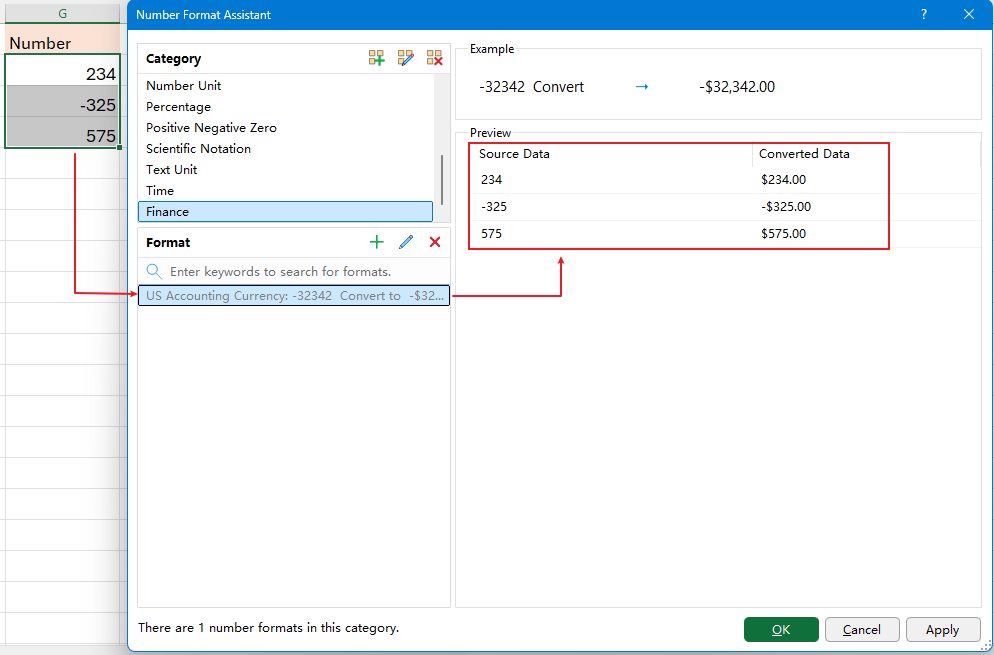
You can also
- Edit format descriptions
- Delete obsolete formats
Search Formats by Keyword
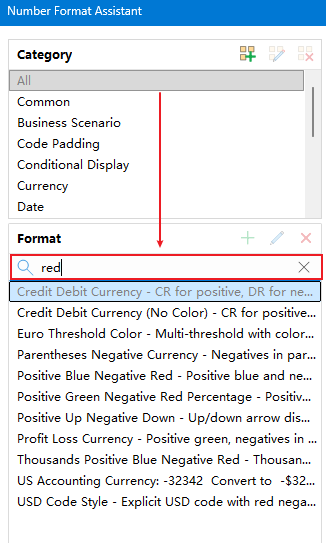
When there are many formats, you don't need to browse manually.
Simply go to the All category and enter a keyword.
Examples:
or
date
or
red
Matching formats appear instantly.
Practical Examples
Here are five formatting tasks that Excel users search for most frequently.
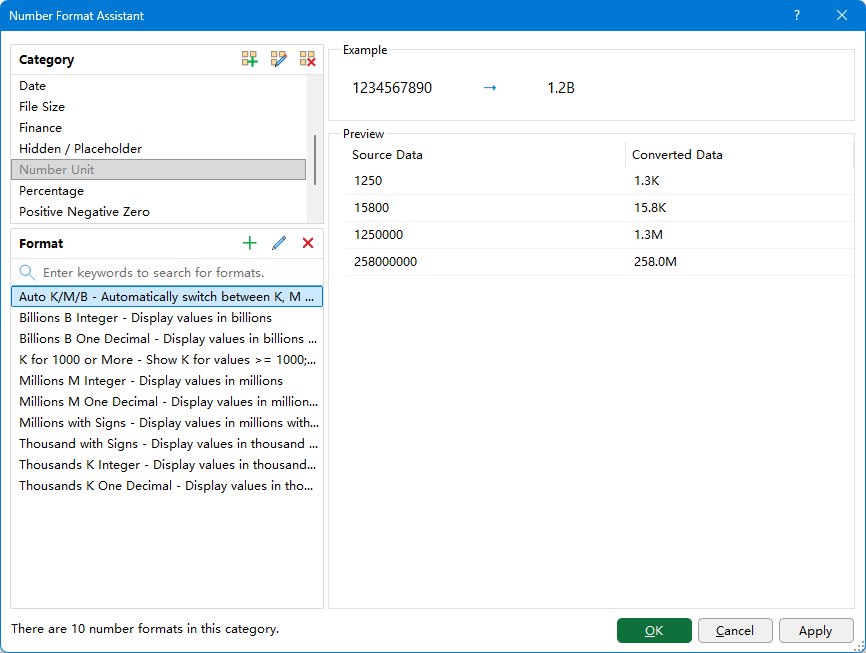
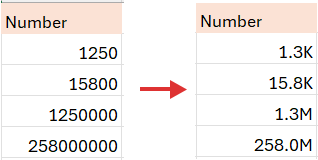
Example 1. Display Large Numbers as K, M, or B
Use Number Format Helper
Category:
Number Unit
Select Auto K/M/B, preview the result, and click OK.
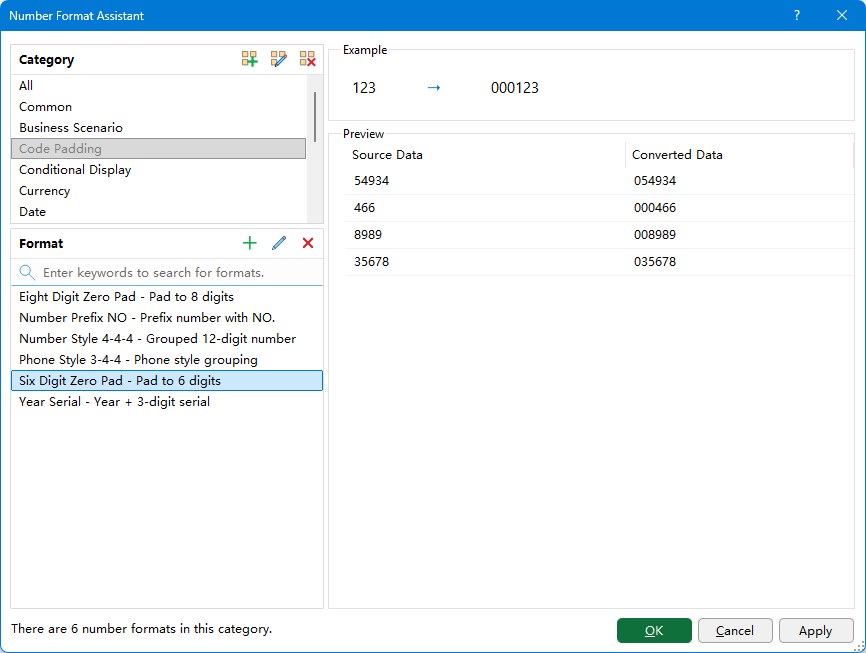
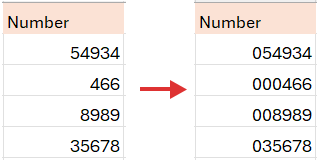
Example 2. Add Leading Zeros to Product or Order IDs
Use Number Format Helper
Category:
Code Padding
Choose a six-digit zero format and apply it instantly.
Perfect for:
- Product IDs
- Employee IDs
- Order Numbers
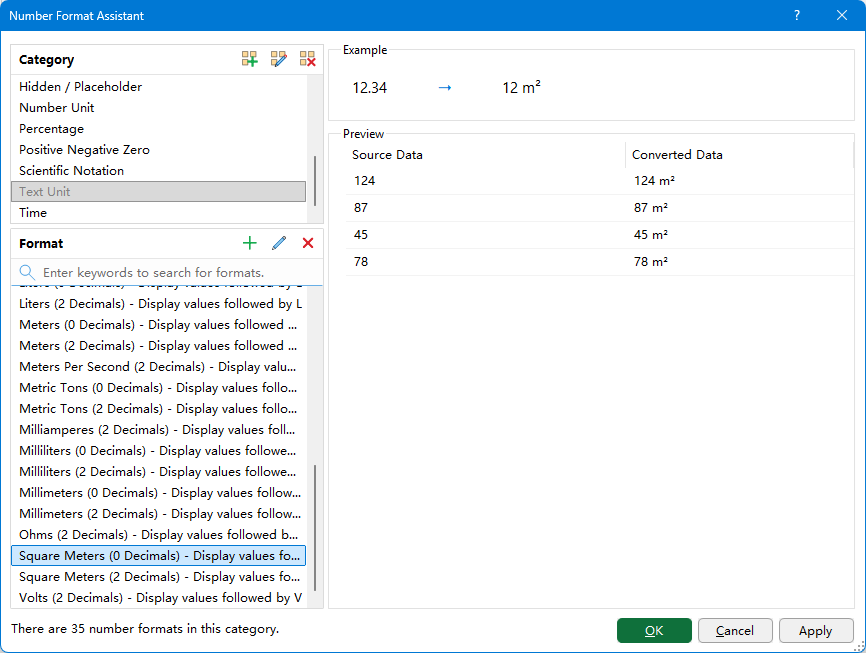
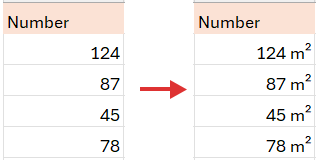
Example 3. Add Measurement Units Without Changing Values
Use Number Format Helper
Category:
Business Scenario
Choose Square Meter (m²).
Useful for:
- Real estate
- Construction
- Architecture
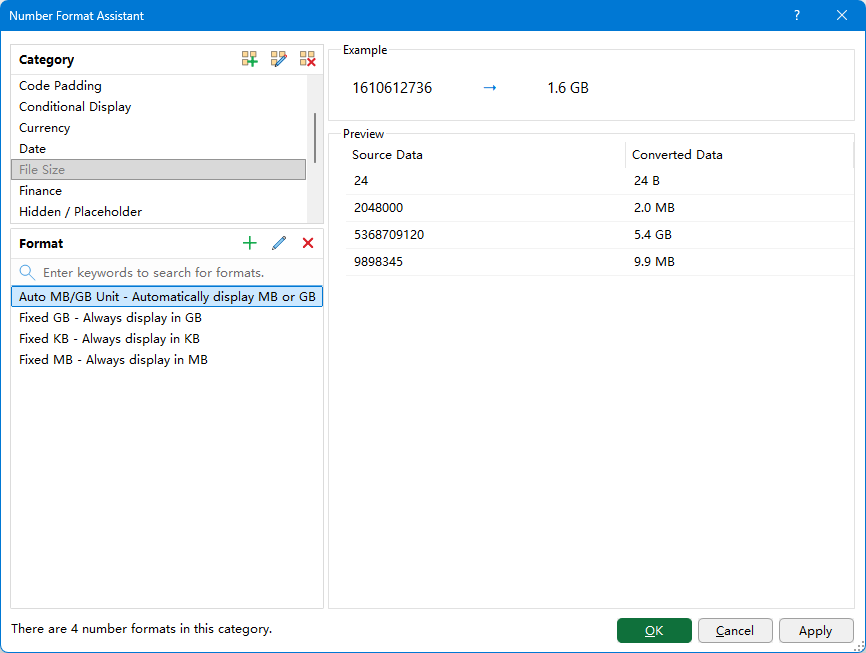
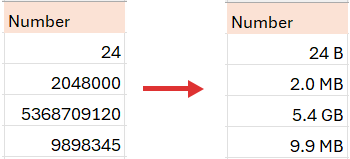
Example 4. Convert Numbers to Readable File Sizes
Use Number Format Helper
Category:
File Size
Choose the desired file size format and preview the result before applying.
Useful for:
- IT reports
- Storage management
- Server monitoring
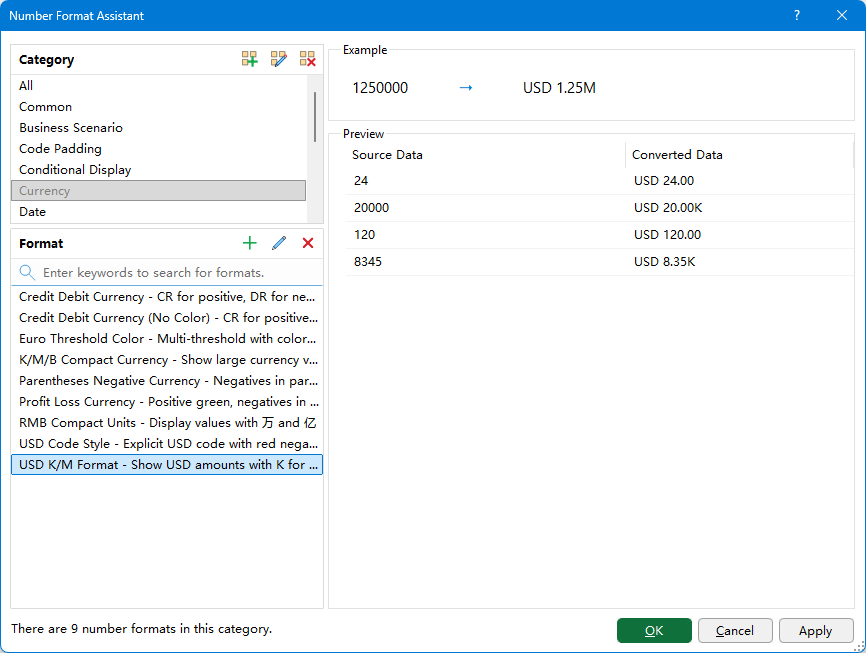
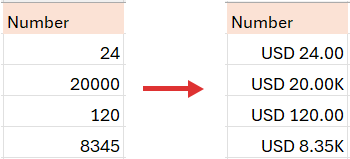
Example 5. Custom Accounting Currency
Use Number Format Helper
Category:
Currency
Choose the desired currency format and preview the result before applying.
Why Number Format Helper Is Better Than Excel
| Feature | Excel | Number Format Helper |
|---|---|---|
| Built-in categorized formats | Limited | ✔ |
| Preview before applying | ✘ | ✔ |
| Search formats | ✘ | ✔ |
| Save favorite formats | ✘ | ✔ |
| Custom categories | ✘ | ✔ |
| Extract format from existing cells | ✘ | ✔ |
| Reuse formats across projects | Manual | ✔ |
| Edit descriptions | ✘ | ✔ |
Conclusion
Whether you're formatting financial reports, engineering measurements, inventory records, invoices, dashboards, or scientific data, Number Format Helper makes number formatting faster and more organized.
Instead of memorizing format codes or recreating custom formats every time, you can browse categorized formats, preview the results, build your own format library, and apply consistent formatting with just a few clicks.
If you regularly use custom number formats in Excel, Kutools for Excel's Number Format Helper provides a much more efficient and reusable solution than Excel's built-in formatting tools.
Best Office Productivity Tools
Supercharge Your Excel Skills with Kutools for Excel, and Experience Efficiency Like Never Before. Kutools for Excel Offers Over 300 Advanced Features to Boost Productivity and Save Time. Click Here to Get The Feature You Need The Most...
Office Tab Brings Tabbed interface to Office, and Make Your Work Much Easier
- Enable tabbed editing and reading in Word, Excel, PowerPoint, Publisher, Access, Visio and Project.
- Open and create multiple documents in new tabs of the same window, rather than in new windows.
- Increases your productivity by 50%, and reduces hundreds of mouse clicks for you every day!
All Kutools add-ins. One installer
Kutools for Office suite bundles add-ins for Excel, Word, Outlook & PowerPoint plus Office Tab Pro, which is ideal for teams working across Office apps.





- All-in-one suite — Excel, Word, Outlook & PowerPoint add-ins + Office Tab Pro
- One installer, one license — set up in minutes (MSI-ready)
- Works better together — streamlined productivity across Office apps
- 30-day full-featured trial — no registration, no credit card
- Best value — save vs buying individual add-in
Table of contents
- Why Number Formatting Matters
- Limitations of Excel's Built-in Number Formatting
- What Can Number Format Helper Do?
- How to Use Number Format Helper
- Practical Examples
- Why Number Format Helper Is Better Than Excel
- Conclusion
Kutools for Excel
Boosts Excel With 300+
Powerful Features
Boost your Excel productivity with Kutools for Excel—300+ powerful tools, free to try for 30 days.