Return the Larger of a Fixed Value and a Sum in Excel
In some calculations, the final result must not fall below a specified minimum. For example, a service provider may charge either a minimum service fee or the total cost of all completed services, whichever is higher.
The Return the larger of a fixed value and a total formula in Formula Helper Plus compares a fixed threshold with the sum of a selected range and returns the larger amount. This is useful for calculating minimum service charges, guaranteed payments, minimum budgets, shipping fees, and other threshold-based amounts without manually constructing a formula.
- Advantages of Returning the Larger of a Fixed Value and a Sum
- How to Return the Larger of a Fixed Value and a Sum in Excel
- Tips for Comparing a Fixed Value with a Total
- FAQ – Frequently Asked Questions
- Conclusion
Advantages of Returning the Larger of a Fixed Value and a Sum
Comparing a fixed threshold with a calculated total helps ensure that the final amount meets a required minimum while still reflecting higher actual costs.
Its main advantages include:
How to Return the Larger of a Fixed Value and a Sum in Excel
In this example, a website maintenance provider applies a minimum monthly service charge of $1,500. The worksheet contains eight completed services with different quantities and unit rates.
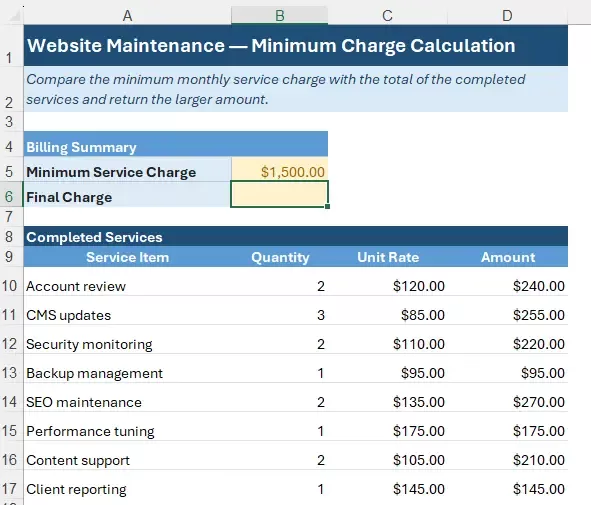
To compare the minimum service charge with the total of the completed services, follow these steps.
Step 1: Select the output cell
Select the cell in which you want to display the final charge. In this example, select cell B7.
Step 2: Open Formula Helper Plus
Go to Kutools > Formula Helper > Formula Helper Plus to open the dialog box.
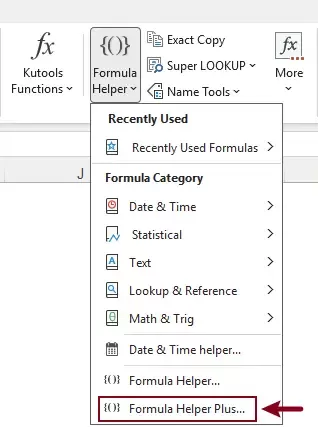
Step 3: Find the formula and configure arguments
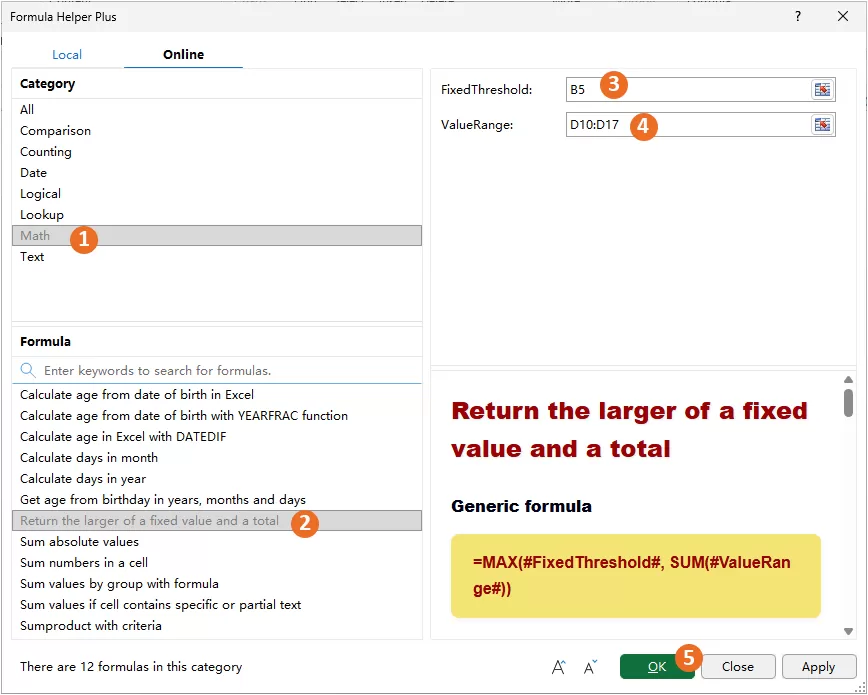
In the Formula Helper Plus dialog box:
- Select Math in the Category list under the Online tab.
- Select Return the larger of a fixed value and a total from the Formula list.
Alternatively, enter a keyword such as larger in the search box to locate the formula more quickly.
- In the FixedThreshold box, enter the fixed value directly or select the cell containing the fixed minimum value. In this example, select B5, which contains the minimum service charge of $1,500.
- In the ValueRange box, select the values to be added together. In this example, select D11:D18, which contains the amounts for the completed services.
- Click OK.
Result
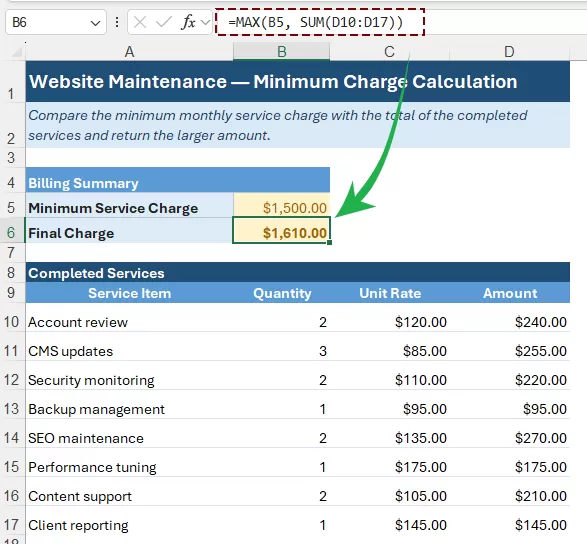
Formula Helper Plus inserts the required formula into the output cell and returns the larger of the fixed value and the sum of the selected range.
In this example, the completed services total $1,610, which is higher than the $1,500 minimum service charge. Therefore, the final charge is $1,610. If the service total were less than $1,500, the formula would return the minimum service charge of $1,500 instead.
Tips for Comparing a Fixed Value with a Total
Accurate results depend on selecting the correct threshold and value range. The following practices can help prevent unexpected calculations:
FAQ – Frequently Asked Questions
The following questions clarify how the fixed threshold and value range are handled in the calculation.
What happens when the sum is lower than the fixed value?
The formula returns the fixed value. For example, if FixedThreshold is $1,500 and ValueRange totals $1,320, the result is $1,500.
What happens when the sum is higher than the fixed value?
The formula returns the total of ValueRange. For example, if FixedThreshold is $1,500 and ValueRange totals $1,610, the result is $1,610.
What happens when the fixed value and the sum are equal?
The formula returns that same value because neither amount is larger than the other. For example, if both FixedThreshold and the total of ValueRange are $1,500, the result is $1,500.
Conclusion
The Return the larger of a fixed value and a total formula compares a required threshold with the sum of a selected range and returns the higher amount. Formula Helper Plus simplifies calculations involving minimum charges, guaranteed payments, and similar thresholds by generating the formula from the selected worksheet values.
Best Office Productivity Tools
Supercharge Your Excel Skills with Kutools for Excel, and Experience Efficiency Like Never Before. Kutools for Excel Offers Over 300 Advanced Features to Boost Productivity and Save Time. Click Here to Get The Feature You Need The Most...
Office Tab Brings Tabbed interface to Office, and Make Your Work Much Easier
- Enable tabbed editing and reading in Word, Excel, PowerPoint, Publisher, Access, Visio and Project.
- Open and create multiple documents in new tabs of the same window, rather than in new windows.
- Increases your productivity by 50%, and reduces hundreds of mouse clicks for you every day!
All Kutools add-ins. One installer
Kutools for Office suite bundles add-ins for Excel, Word, Outlook & PowerPoint plus Office Tab Pro, which is ideal for teams working across Office apps.





- All-in-one suite — Excel, Word, Outlook & PowerPoint add-ins + Office Tab Pro
- One installer, one license — set up in minutes (MSI-ready)
- Works better together — streamlined productivity across Office apps
- 30-day full-featured trial — no registration, no credit card
- Best value — save vs buying individual add-in
Table of contents
- Advantages of Returning the Larger of a Fixed Value and a Sum
- How to Return the Larger of a Fixed Value and a Sum in Excel
- Tips for Comparing a Fixed Value with a Total
- FAQ – Frequently Asked Questions
- Conclusion
- The Best Office Productivity Tools
Kutools for Excel
Brings 300+ powerful features to streamline your Excel tasks.
- ⬇️ Free Download
- 🛒 Purchase Now
- 📘 Feature Tutorials
- 🎁 30-Day Free Trial