How to Standardize Contact Information in Excel
Contact information collected from online forms, customer databases, sales teams, or imported files often uses inconsistent formats. For example, phone numbers may contain different separators, ZIP codes may lose their leading zeros, addresses may use inconsistent capitalization and spacing, and email addresses may contain unnecessary spaces or common typing errors.
Cleaning these records manually can take a significant amount of time, especially when a worksheet contains hundreds or thousands of contacts. The Standardize Contact Information feature in Kutools for Excel provides a faster way to standardize phone numbers, ZIP codes, addresses, and email addresses in bulk.
With this feature, you can select the appropriate data type and country, compare the source and converted data in a preview window, and then apply the standardized results to the worksheet.
- Example 1: Standardize Phone Numbers in Excel
- Example 2: Standardize ZIP Codes in Excel
- Example 3: Standardize Addresses in Excel
- Example 4: Standardize Email Addresses in Excel
Advantages of Standardize Contact Information
The Standardize Contact Information feature combines several common contact-data cleaning tasks in one dialog box. Instead of creating different formulas or VBA macros for each column, you can select the required operation and process the selected cells through a visual interface.
Its main advantages include:
How to Standardize Different Types of Contact Information
Kutools for Excel can standardize phone numbers, ZIP codes, addresses, and email addresses separately. The following examples show how to standardize each type step by step.
Example 1: Standardize Phone Numbers in Excel
Phone numbers are frequently entered in different formats even when they belong to the same country. Some records may contain parentheses, spaces, periods, or hyphens, while others may include a country code or contain only digits. These differences can make phone numbers difficult to compare, search, or import into another system.
For example, the Phone Number column contains values as shown in the screenshot below:

Although these are all U.S. phone numbers, they do not follow a consistent presentation format.
To standardize the phone numbers:
Step 1. Select the phone numbers
Select the cells containing the phone numbers you want to standardize.
Step 2. Open the Standardize Contact Information dialog box
Select Kutools > Content > Standardize Contact Information.

Step 3. Configure the settings
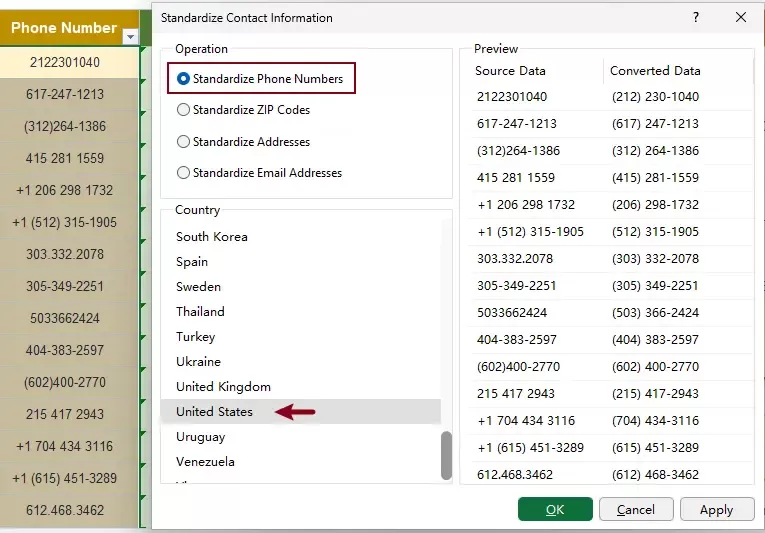
- In the Operation section, select Standardize Phone Numbers.
- In the Country list, select United States or the country that matches the selected phone numbers.
- Review the results in the Preview pane on the right.
The Source Data column displays the original phone numbers, while Converted Data shows the standardized results.
- Click Apply to update the selected cells and continue using the dialog box, or click OK to update the cells and close it.
Result
After the operation, the phone numbers are converted to a more consistent format based on the selected country, making them easier to review, filter, match, or import into other systems.

Example 2: Standardize ZIP Codes in Excel
ZIP and postal code formats vary by country, and imported data may contain missing leading zeros, inconsistent separators, or extended codes that do not match the required format. In this example, we’ll use U.S. ZIP codes to demonstrate how the feature standardizes these values based on the selected country.
To standardize the ZIP codes:
Step 1. Select the zip codes
Select the cells containing the zip codes you want to standardize.
Step 2. Open the Standardize Contact Information dialog box
Select Kutools > Content > Standardize Contact Information.
Step 3. Configure the settings
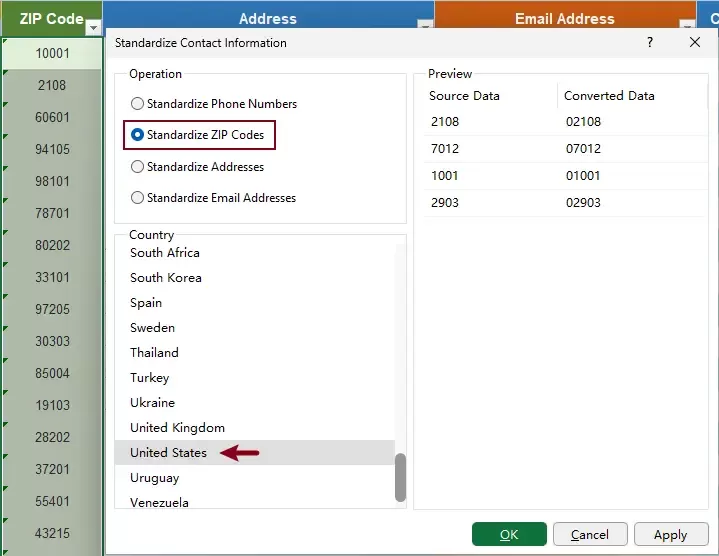
- In the Operation section, select Standardize Zip Codes.
- In the Country list, select United States or the country that matches the selected zip codes.
- Review the results in the Preview pane on the right.
The Source Data column displays the original zip codes, while Converted Data shows the standardized zip codes.
- Click Apply to update the selected cells and continue using the dialog box, or click OK to update the cells and close it.
Result
After the operation, the zip codes are converted to a more consistent format based on the selected country.
Example 3: Standardize Addresses in Excel
Addresses entered by different people often contain inconsistent capitalization, punctuation, spacing, and abbreviations. Even when two addresses contain the same components, their formats may be noticeably different.
For example, the Address column may contain U.S. address entries as shown in the screenshot below:

To standardize the addresses:
Step 1. Select the addresses
Select the cells containing the addresses you want to standardize.
Step 2. Open the Standardize Contact Information dialog box
Select Kutools > Content > Standardize Contact Information.
Step 3. Configure the settings
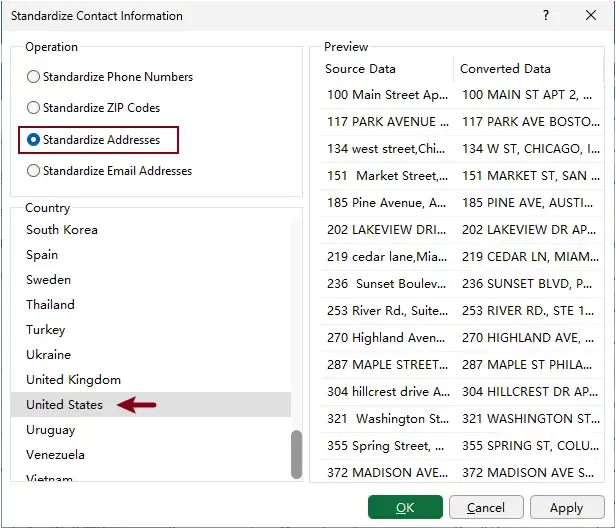
- In the Operation section, select Standardize Addresses.
- In the Country list, select United States or the country that matches the selected addresses.
- Review the results in the Preview pane on the right.
- Click Apply to update the selected cells and continue using the dialog box, or click OK to update the cells and close it.
Result
After the operation, the addresses are converted to a more consistent format based on the selected country.

Example 4: Standardize Email Addresses in Excel
Email addresses may contain extra spaces, inconsistent capitalization, spaces around the @ symbol, or supported common domain-entry errors. These problems can prevent email addresses from being matched correctly or accepted by another system.
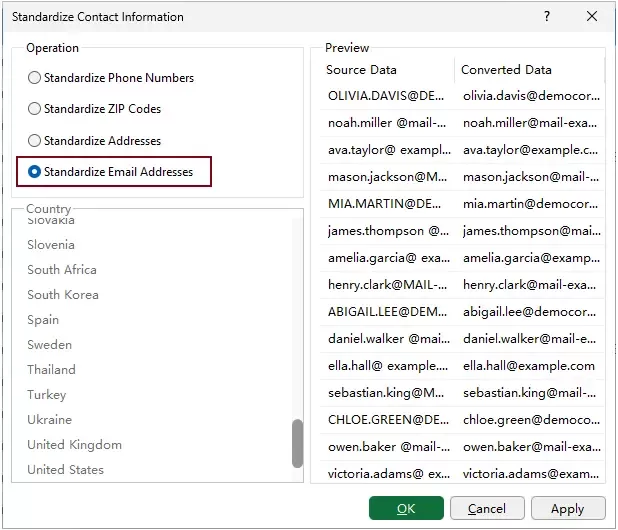
As shown in the screenshot below, the email addresses include leading and trailing spaces, inconsistent letter case, spaces next to the @ symbol, and a .co or .con domain ending entered instead of .com.

To standardize the email addresses:
Step 1. Select the email addresses
Select the cells containing the email addresses you want to standardize.
Step 2. Open the Standardize Contact Information dialog box
Select Kutools > Content > Standardize Contact Information.
Step 3. Configure the settings
- In the Operation section, select Standardize Email Addresses.
- Review the results in the Preview pane on the right.
- Click Apply to update the selected cells and continue using the dialog box, or click OK to update the cells and close it.
Result
After the operation, the email addresses are converted to a more consistent format instantly.

Tips for Standardizing Contact Information
A few preparation steps can help prevent incorrect conversions when processing a large number of records. Follow these practices to protect the original data and improve consistency across the worksheet.
Frequently Asked Questions
The following questions address several specific issues you may encounter when standardizing contact information in Excel.
Can the feature restore a missing leading zero in a ZIP code?
Yes. For supported countries, the feature can add a missing leading zero when the remaining digits form a recognizable postal code. For example, with United States selected, 2108 can be converted to 02108. However, it cannot reconstruct arbitrary digits missing from the original value.
Does address standardization verify that an address is valid?
No. The feature standardizes supported address components and formatting, but it does not confirm whether the street, building number, city, or postal code is correct or deliverable.
Can the feature confirm that an email address exists?
No. It can correct supported formatting issues and certain common input errors, but it cannot verify whether an email account exists or can receive messages.
Will the standardized data replace the original values?
Yes. The converted results are applied to the selected cells. Copy the original column or save a backup of the workbook if you need to preserve the source data.
Why are some values not converted or displayed in the Preview pane?
A value may already be standardized, incomplete, associated with the wrong country, or written in an unsupported format. Check the original value, selected operation, and country setting if an expected result does not appear.
Conclusion
The Standardize Contact Information feature in Kutools for Excel makes it easy to standardize phone numbers, ZIP codes, addresses, and email addresses in bulk. With country-specific rules and a built-in preview, you can create cleaner and more consistent contact lists without using formulas or VBA.
Best Office Productivity Tools
Supercharge Your Excel Skills with Kutools for Excel, and Experience Efficiency Like Never Before. Kutools for Excel Offers Over 300 Advanced Features to Boost Productivity and Save Time. Click Here to Get The Feature You Need The Most...
Office Tab Brings Tabbed interface to Office, and Make Your Work Much Easier
- Enable tabbed editing and reading in Word, Excel, PowerPoint, Publisher, Access, Visio and Project.
- Open and create multiple documents in new tabs of the same window, rather than in new windows.
- Increases your productivity by 50%, and reduces hundreds of mouse clicks for you every day!
All Kutools add-ins. One installer
Kutools for Office suite bundles add-ins for Excel, Word, Outlook & PowerPoint plus Office Tab Pro, which is ideal for teams working across Office apps.





- All-in-one suite — Excel, Word, Outlook & PowerPoint add-ins + Office Tab Pro
- One installer, one license — set up in minutes (MSI-ready)
- Works better together — streamlined productivity across Office apps
- 30-day full-featured trial — no registration, no credit card
- Best value — save vs buying individual add-in
Table of contents
- Advantages of Standardize Contact Information
- How to standardize different types of contact information
- Standardize Phone Numbers in Excel
- Standardize ZIP Codes in Excel
- Standardize Addresses in Excel
- Standardize Email Addresses in Excel
- Tips for Standardizing Contact Information
- Frequently Asked Questions
- Conclusion
- The Best Office Productivity Tools
Kutools for Excel
Brings 300+ powerful features to streamline your Excel tasks.
- ⬇️ Free Download
- 🛒 Purchase Now
- 📘 Feature Tutorials
- 🎁 30-Day Free Trial