Perform a Two-Way Lookup in Excel Without Writing Formulas
Looking up a value in a table often requires matching both a row label and a column header. For example, you may need to find the April sales for a particular product or the Q3 budget for a specific department. The Two-way lookup (VLOOKUP in row and column) function in Kutools for Excel' Formula Helper Plus creates the required VLOOKUP and MATCH formula for you. Simply select the lookup values and table ranges, and Kutools for Excel inserts a ready-to-use formula without requiring you to remember how to combine the two functions.
- What Two-way lookup can do
- Benefits of Two-way lookup
- How to use Two-way lookup in the Formula Helper Plus
- Tips for better results
- Best use cases
- About Formula Helper Plus
- Frequently Asked Questions
Benefits of Two-way lookup (VLOOKUP in row and column)
Formula Helper Plus simplifies a formula that normally requires you to coordinate two lookup functions and several cell references manually.
No formula memorization
Select the required cells and ranges without remembering the syntax of a nested VLOOKUP and MATCH formula.
Fewer manual steps
Create the two-way lookup in one dialog box instead of building and checking each function separately.
Dynamic lookup criteria
Reference worksheet cells for the row and column criteria so the returned result changes when either criterion changes.
Stable lookup ranges
Kutools uses absolute references for the lookup table and header range, helping keep those ranges fixed if the formula is copied.
How to use Two-way lookup (VLOOKUP in row and column) in the Formula Helper Plus
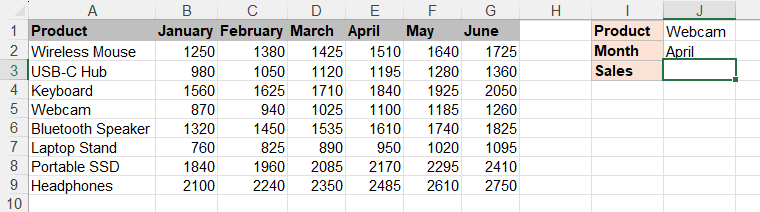
In this example, the table contains monthly sales for several products. We will find the April sales for Webcam by matching the product name in the first column and the month in the header row.
- Select the empty cell where you want to return the lookup result. In this example, select J4.
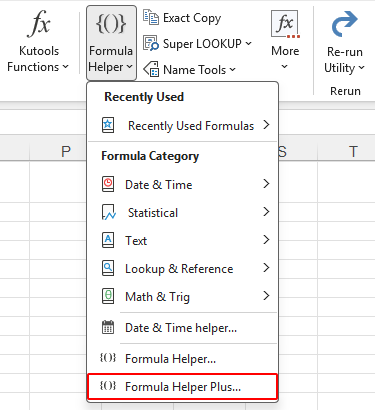
- Click Kutools > Formula Helper > Formula Helper Plus.
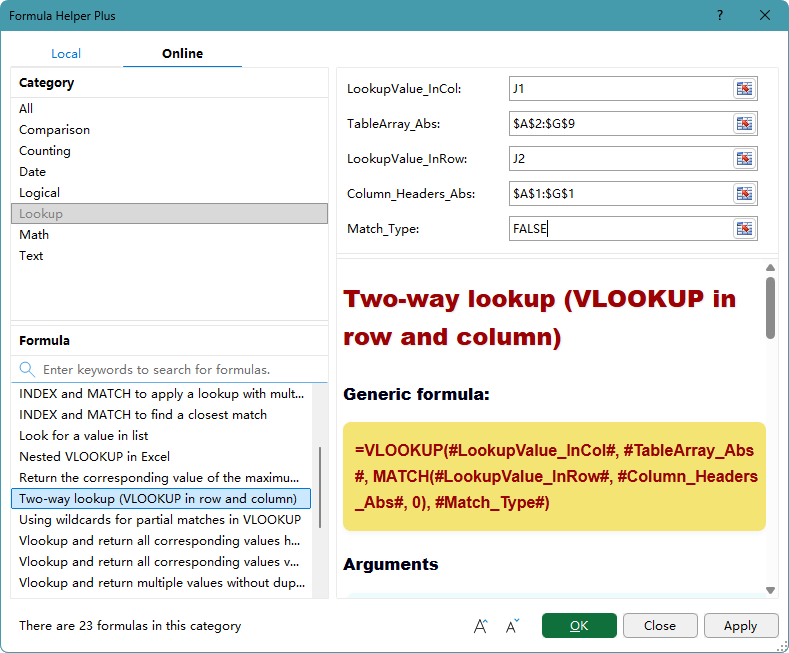
- In the Formula Helper Plus dialog box, on the Online tab, select the Lookup category, and then select Two-way lookup (VLOOKUP in row and column).
- Configure the arguments as follows:
- LookupValue_InCol: Select J2, which contains the product name Webcam.
- TableArray_Abs: Select A2:G9, which contains the product names and monthly sales data.
- LookupValue_InRow: Select J3, which contains the month April.
- Column_Headers_Abs: Select A1:G1, which contains the table's column headers.
- Match_Type: Enter FALSE to find an exact match.
- Click OK. Kutools inserts the formula, returns 1100, and closes the dialog box.
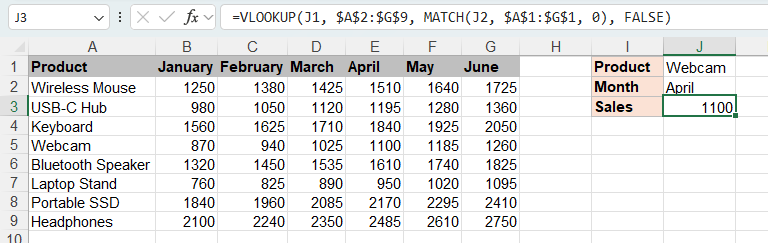
Kutools creates the following formula:
=VLOOKUP(J2,$A$2:$G$9,MATCH(J3,$A$1:$G$1,0),FALSE)The MATCH function finds the position of April in A1:G1. VLOOKUP then searches for Webcam in the first column of A2:G9 and returns the value from that matched column. The row and column intersect at 1100.
📝 Notes:
- If you have multiple lookup values, you can copy the formula to other cells. The table and column header ranges use absolute references, so they remain unchanged when the formula is copied.
- In this example, the row and column lookup values are stored in cells, making it easy to change either value and update the result.
- Instead of selecting cells that contain the lookup values, you can enter the product name and month directly in the corresponding argument boxes.
Tips for better results
Check the layout and range selections below to ensure the generated formula returns the intended value.
- Keep the row lookup values in the first column: VLOOKUP searches only the leftmost column of TableArray_Abs. In this example, the product names must be in column A of the selected table.
- Align the header range with the table: The Column_Headers_Abs range should cover the same columns as TableArray_Abs. Include the top-left header cell even if it contains a label such as Product. This keeps the column position returned by MATCH aligned with the VLOOKUP table.
- Use exact matching for text labels: Enter FALSE when product names and column headers must match exactly. This prevents a nearby value from being returned accidentally.
- Avoid unintended spaces: Extra spaces in product names or headers can cause an exact lookup to return #N/A. Clean inconsistent labels before creating the formula.
Best use cases
This function is useful for cross-tab reports in which row labels identify records and column headers identify periods, categories, or measures.
Monthly or quarterly sales
Return the sales amount for a particular product, salesperson, store, or region during a selected period.
Department budgets
Retrieve a budget or expense value by matching a department name and a month or quarter.
Student scores
Look up a student's score by matching the student name and the subject heading.
Price matrices
Return a price by matching an item in the first column and a pricing tier, package, or region in the header row.
About Formula Helper Plus
Formula Helper Plus is a formula library in Kutools for Excel that helps you find and insert useful formulas through a guided interface. Formulas are organized into categories, and each one provides labeled argument boxes and instructions explaining the required inputs. You can also create categories and formulas for calculations you use regularly, or share useful formulas to help expand the Online formula library.
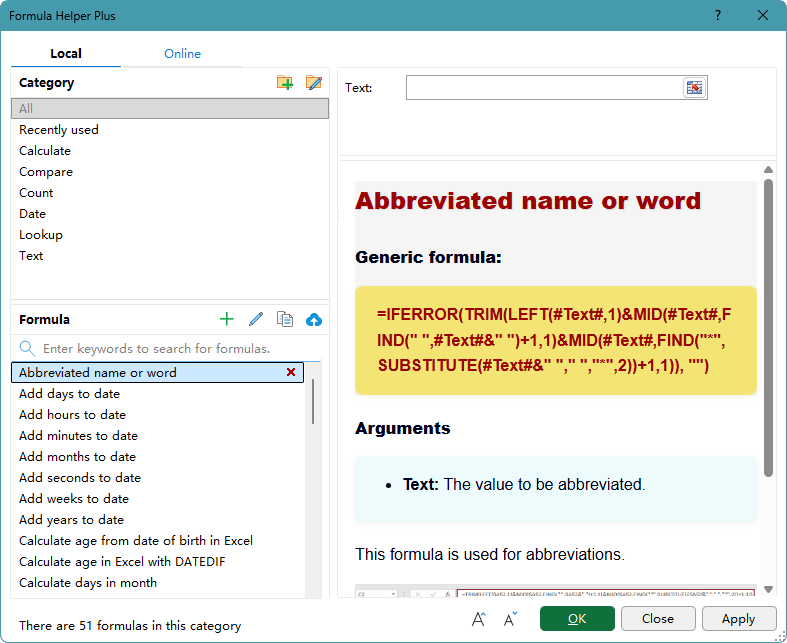
- 🗂️ Category tools
- Category list: Browse formulas by category, such as Calculate, Compare, Count, Date, Lookup, and Text.
- Add category
 : Create a category for organizing your own formulas.
 - Rename category
 : Select a custom category, and click this button to rename it.
- 🧮 Formula tools
- Search: Enter keywords in the search box to find a formula by its name or purpose.
- Add formula
 : Create a formula and assign it to a category. When defining the formula, enclose each variable argument in # signs, such as #Range#.
 - Edit formula
 : Select a custom formula, and click this button to modify its formula, category, or description.
 - Copy formula
 : Create an editable copy of the selected formula. This is useful when you want to build a new formula based on an existing one.
 - Upload formula
 : Upload and share the selected formula to help us expand the Online formula library.
 : Create a category for organizing your own formulas.
 : Select a custom category, and click this button to rename it.
 : Create a formula and assign it to a category. When defining the formula, enclose each variable argument in # signs, such as #Range#.
 : Select a custom formula, and click this button to modify its formula, category, or description.
 : Create an editable copy of the selected formula. This is useful when you want to build a new formula based on an existing one.
 : Upload and share the selected formula to help us expand the Online formula library.
Frequently Asked Questions
Why does the formula return #N/A?
The product or column heading may not have an exact match, or the cells may contain extra spaces. Confirm that the lookup values appear in the selected ranges and that TableArray_Abs begins with the column containing the row lookup values.
Why does the formula return a value from the wrong column?
The header range may not align with the lookup table. Select a Column_Headers_Abs range that covers the same columns as TableArray_Abs, including the header above the table's first column.
What happens if the first column contains duplicate lookup values?
VLOOKUP returns the result from the first matching row. If each repeated row represents a different record, use a unique identifier in the first column or combine the identifying information before creating the lookup.
Will the result update when I change the product or month?
Yes. If LookupValue_InCol and LookupValue_InRow refer to worksheet cells, changing either cell causes Excel to recalculate the formula and return the corresponding result.
Can this function return a value from a column to the left of the lookup column?
No. VLOOKUP requires the row lookup values to be in the first column of TableArray_Abs and returns values only from columns to its right.
Do I need Microsoft 365 to use the generated formula?
No. The generated formula uses VLOOKUP and MATCH rather than newer dynamic-array functions.
The Best Office Productivity Tools
Kutools for Excel - Helps You To Stand Out From Crowd
Kutools for Excel Boasts Over 300 Features, Ensuring That What You Need is Just A Click Away...
Office Tab - Enable Tabbed Reading and Editing in Microsoft Office (include Excel)
- One second to switch between dozens of open documents!
- Reduce hundreds of mouse clicks for you every day, say goodbye to mouse hand.
- Increases your productivity by 50% when viewing and editing multiple documents.
- Brings Efficient Tabs to Office (include Excel), Just Like Chrome, Edge and Firefox.
Table of Contents
- What Two-way lookup can do
- Benefits of Two-way lookup
- How to use Two-way lookup in the Formula Helper Plus
- Tips for better results
- Best use cases
- About Formula Helper Plus
- Frequently Asked Questions
Kutools for Excel
Brings 300+ advanced features to Excel
- 🧩 Overview
- 📥 Free Download
- 🎁 30-Day Free Trial available