VLOOKUP and Return All Corresponding Values Vertically in Excel
When working with large datasets in Excel, you may often need to find a specific value and return all its matching results from another column. For example, you might want to retrieve all products purchased by a particular customer, list all orders associated with a salesperson, or find all employees belonging to a specific department.
However, the standard VLOOKUP function can only return the first matching result. If multiple records match the same lookup value, VLOOKUP cannot retrieve all of them directly.
With the Vlookup and return all corresponding values vertically feature in Kutools for Excel's Formula Helper Plus, you can easily retrieve all matching values and display them vertically in separate cells, without manually constructing complex formulas.
Advantages of Using Formula Helper Plus
The Vlookup and return all corresponding values vertically feature in Kutools for Excel's Formula Helper Plus makes it easy to retrieve multiple matching values without manually writing complex formulas.
Generate advanced lookup formulas without manually combining functions like INDEX, IF, SMALL, and ROW.
Retrieve multiple matching values instead of only the first match returned by standard VLOOKUP.
Simply select the lookup range, specify the criteria, and choose the output range to generate the formula.
Matching results automatically update when the source data or lookup value changes, provided Excel's automatic calculation is enabled.
Simplify repetitive lookup tasks, reduce manual work, and improve efficiency when working with multiple matching records.
VLOOKUP and Return All Corresponding Values Vertically with Kutools
Follow the steps below to retrieve all matching values and display them vertically using Kutools for Excel.
- Click the first cell where you want to display the matching results.
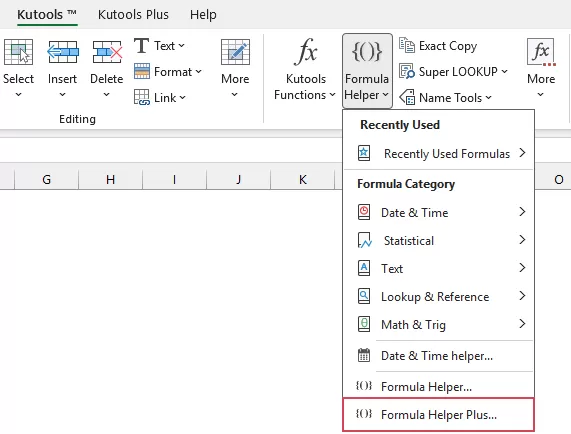
- Navigate to Kutools > Formula Helper > Formula Helper Plus to open the Formula Helper Plus dialog box.
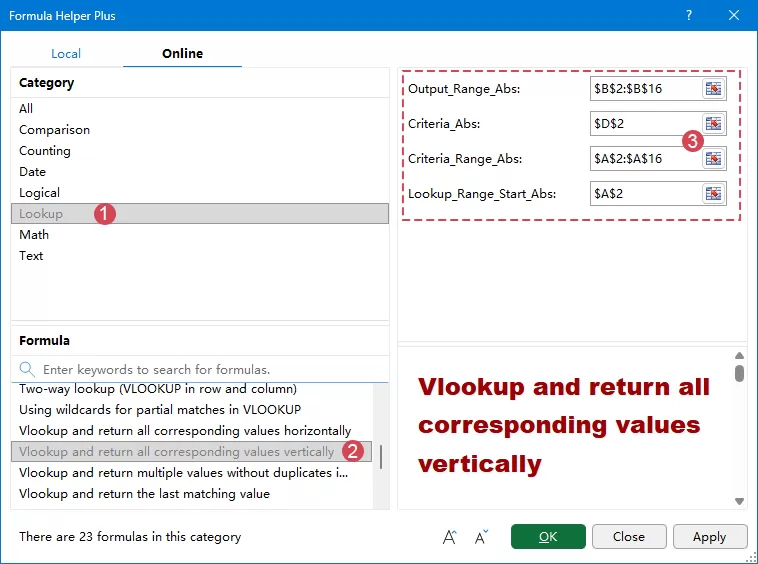
In the Formula Helper Plus dialog box, select the Online tab. Then, configure the following options:
- Under the Category section, select Lookup.
- In the Formula list, find and select Vlookup and return all corresponding values vertically.
Tip: You can also enter keywords such as "Vlookup" or "return all" in the formula search box to quickly locate the feature.
Then, configure the following arguments:
- Output_Range_Abs: Select the range containing the values you want to return.
- Criteria_Abs: Select the cell containing the lookup value.
- Criteria_Range_Abs: Select the range where Kutools searches for matching records.
- Lookup_Range_Start_Abs: Select the first cell of the lookup criteria range, which serves as the reference for calculating relative row positions.
- After specifying the required arguments, click OK to insert the formula and return the first matching value. Then, drag the fill handle down to retrieve the remaining matches.

Important Notes
Unlike dynamic array formulas that automatically spill multiple results, this formula returns one matching value at a time. To display all matching values, copy the formula down across enough rows.
If the same product appears more than once for the same customer, the formula returns each matching record, including duplicates. For example, if Alice purchased Laptop twice in separate records, Laptop will appear twice in the results.
When there are no additional matching records, the formula returns an empty string through IFERROR. This keeps the output area clean without displaying error values such as #NUM!.
Since the lookup value is linked to a cell, you can change the value in E2 from Alice to Bob, Charlie, or another customer. The existing formulas will automatically recalculate and return the corresponding matching products, provided Excel's calculation mode is set to Automatic.
Frequently Asked Questions (FAQs)
Yes. The Vlookup and return all corresponding values vertically feature generates a formula that can retrieve multiple matching records. Simply copy the formula down to display successive matching values.
The formula returns an empty string instead of displaying an error because it uses the IFERROR function. This helps keep the output area clean when no matching records are available.
Yes. The formula returns every matching record, including duplicates. It does not automatically remove duplicate values from the results.
Yes. The lookup range and return range do not need to be adjacent. For example, you can search for customer names in column A and return the corresponding order IDs from column D, as long as both ranges have matching row positions.
Conclusion
The Vlookup and return all corresponding values vertically feature in Kutools for Excel's Formula Helper Plus provides a convenient way to retrieve multiple matching values from a dataset.
Unlike standard VLOOKUP, which returns only the first match, this feature allows you to extract all corresponding records and display them vertically in separate cells.
Simply select the required ranges, let Kutools generate the formula, and copy it down to retrieve additional matches—no need to manually combine complex Excel functions.
Whether you're working with customer orders, employee information, sales records, or product data, Kutools for Excel makes multiple-match lookups easier, faster, and more efficient.
Best Office Productivity Tools
Supercharge Your Excel Skills with Kutools for Excel, and Experience Efficiency Like Never Before. Kutools for Excel Offers Over 300 Advanced Features to Boost Productivity and Save Time. Click Here to Get The Feature You Need The Most...
Office Tab Brings Tabbed interface to Office, and Make Your Work Much Easier
- Enable tabbed editing and reading in Word, Excel, PowerPoint, Publisher, Access, Visio and Project.
- Open and create multiple documents in new tabs of the same window, rather than in new windows.
- Increases your productivity by 50%, and reduces hundreds of mouse clicks for you every day!
All Kutools add-ins. One installer
Kutools for Office suite bundles add-ins for Excel, Word, Outlook & PowerPoint plus Office Tab Pro, which is ideal for teams working across Office apps.





- All-in-one suite — Excel, Word, Outlook & PowerPoint add-ins + Office Tab Pro
- One installer, one license — set up in minutes (MSI-ready)
- Works better together — streamlined productivity across Office apps
- 30-day full-featured trial — no registration, no credit card
- Best value — save vs buying individual add-in