Create and Manage Custom Formulas in Excel with Formula Helper Plus Manager
If you frequently use long or complex Excel formulas, repeatedly entering the same formula and remembering all of its arguments can be inconvenient. Formula Helper Plus Manager allows you to save a formula as a reusable template with clearly defined parameters, argument instructions, and a detailed description.
- Advantages of Using Formula Helper Plus
- How to Create a Custom Formula in Formula Helper Plus Manager
- Use the Saved Formula
- How to Manage Categories and Formulas
- Tips for Creating Custom Formulas
- FAQ – Frequently Asked Questions
- Conclusion
Advantages of Using Formula Helper Plus
Saving formulas as reusable templates makes frequently used calculations easier to find, understand, and apply. It is especially useful for formulas containing several functions or arguments that would otherwise need to be entered manually each time.
Its main advantages include:
How to Create a Custom Formula in Formula Helper Plus Manager
Suppose you frequently need to calculate weighted averages in Excel. Instead of entering the complete formula manually each time, you can create and save it in Formula Helper Plus Manager for repeated use. Once saved, you can reuse the formula by simply selecting the score and weight ranges in Formula Helper Plus.
The formula used in this example is:
=IFERROR(SUMPRODUCT(#ScoreRange#,#WeightRange#)/SUM(#WeightRange#),"")Step 1: Open Formula Helper Plus Manager
Select Kutools > Formula Helper > Formula Helper Plus.
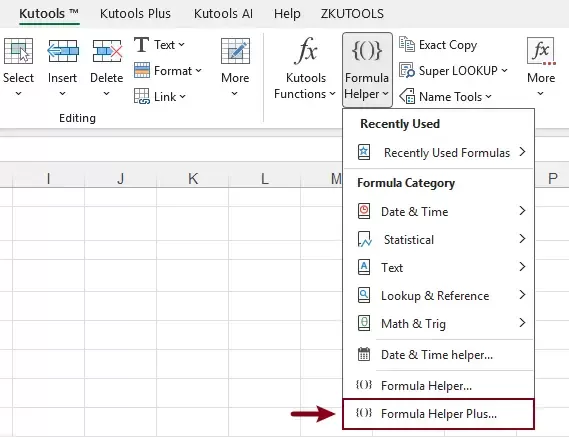
Step 2: Create and Save the Custom Formula
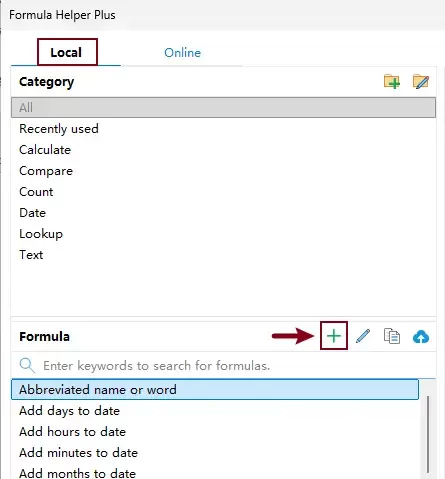
The following settings are completed on the Local tab of Formula Helper Plus Manager.
- In the Formula Helper Plus Manager dialog box, switch to the Local tab.
- In the Formula area, click Add Formula to open the Add Formula dialog box.
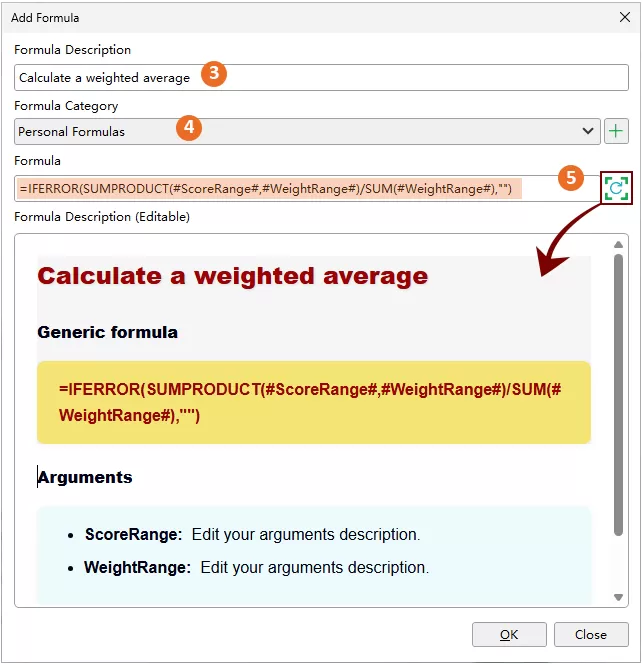
- In the upper Formula Description box, enter a name for the formula. In this example, enter Calculate a weighted average.
- From the Formula Category list, select a suitable category. If no suitable category is available, click the plus button beside the box to create one.
- In the Formula box, enter the following formula, and then click Update:
=IFERROR(SUMPRODUCT(#ScoreRange#,#WeightRange#)/SUM(#WeightRange#),"")Note: The formula must begin with an equal sign. Each argument must be enclosed in a pair of#signs every time it appears in the formula.Formula Helper Plus Manager generates the formula preview and displays the corresponding arguments in the Arguments section.
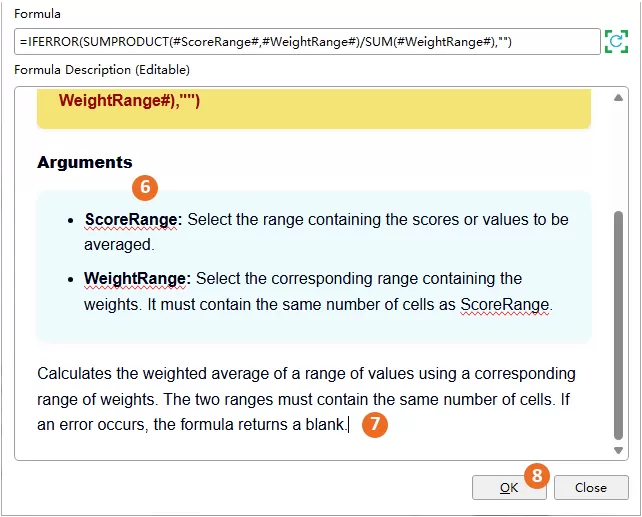
- Optional: Edit the argument descriptions to explain what should be selected for each argument.
- Optional: In the formula description area, enter additional instructions. You can also format the text or paste images to provide visual guidance.
- Click OK to save the formula.
Result
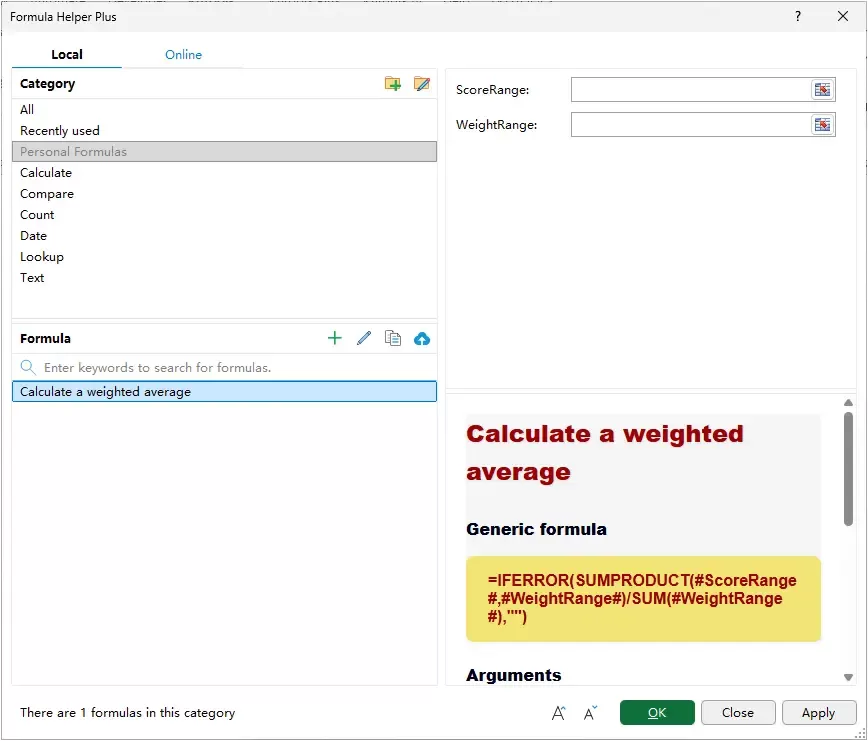
The custom formula appears under the selected category and in the Formula list. You can now select it in Formula Helper Plus and specify the required ranges without entering the complete formula again.
Use the Saved Formula
Once the formula has been saved, it can be used directly from Formula Helper Plus.
Suppose cells B2:B4 contain the scores, while cells C2:C4 contain the corresponding weights.
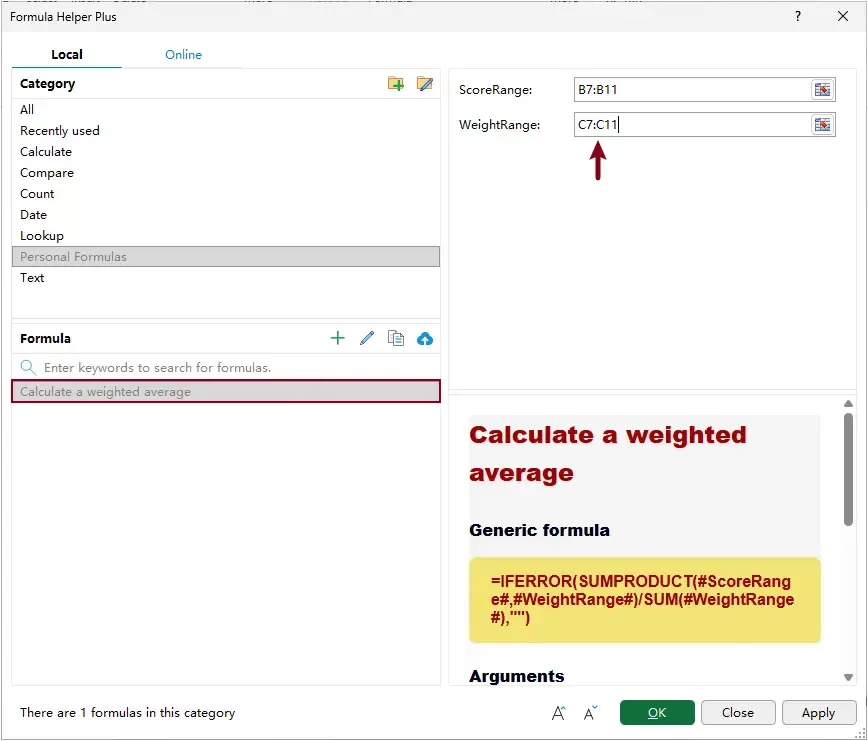
You can do as follows to use the saved formula to calculate the weighted average:
- Select the cell where you want to return the weighted average.
- Open Formula Helper Plus and switch to the Local tab.
- Select the category containing the custom formula.
- Select Calculate a weighted average from the Formula list.
- In the ScoreRange box, select
B2:B4. - In the WeightRange box, select
C2:C4. - Click OK.
Formula Helper Plus inserts the generated formula into the selected cell and returns a weighted average.
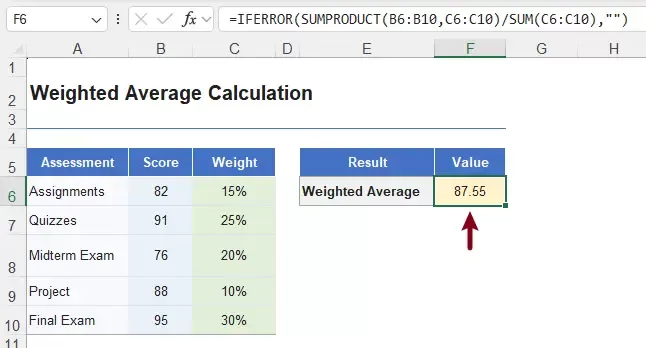
The next time you need the same calculation, you only need to select the saved formula and specify the two ranges. There is no need to remember or re-enter the complete IFERROR, SUMPRODUCT, and SUM formula.
How to Manage Categories and Formulas
The Local tab also provides options for organizing and maintaining the formula library.
Manage Formula Categories
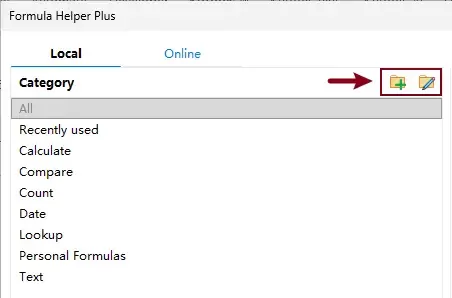
The commands in the Category area allow you to organize formulas into meaningful groups.
You can:
- Create a new category: Add a category for formulas that do not fit the existing groups.
- Rename the current category: Change the name of a selected category when its purpose or contents change.
- Assign formulas to categories: Select an appropriate category when adding or editing a formula.
Use concise category names that describe the type of calculation, such as Financial, Text Cleaning, Sales Analysis, or Custom Lookup.
Manage Saved Formulas
Select a formula in the Local formula list, and then use the available commands to manage it.
- Add: Create a new custom formula.
- Edit: Modify the selected formula’s name, category, syntax, arguments, or description.
- Copy: Create a copy of an existing formula that can be modified independently.
- Export: Export formulas for backup or use in another applicable environment.
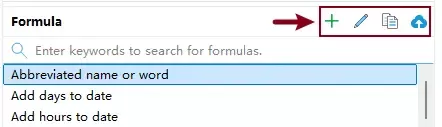
The Copy command is especially useful when a new formula is similar to an existing one. Instead of creating it from the beginning, copy the existing formula and change only the necessary parts.
Tips for Creating Custom Formulas
Correct parameter formatting and clear descriptions make custom formulas easier to generate and reuse. The following tips can help prevent formula errors and unclear input requirements.
- 1Start the formula with an equal sign.
Enter
=before the function or expression, just as you would when entering a formula directly in Excel. - 2Enclose every parameter in # signs.
Use a complete pair, such as
#ScoreRange#. A parameter without both signs may not be recognized. - 3Use clear parameter names.
Names such as
ScoreRange,StartDate, andTaxRateare easier to understand than generic names such asValue1. - 4Use the same parameter name consistently.
If one parameter appears more than once, enter the same name and enclose every occurrence in
#signs. - 5Update the preview after editing the formula.
Click the Update button whenever you change the formula or its parameters.
- 6Test the saved formula.
Apply it to sample data and verify the generated formula and result before relying on it for repeated calculations.
FAQ – Frequently Asked Questions
The following questions address common situations when creating and maintaining custom formulas in Formula Helper Plus Manager.
Does creating a custom formula create a new Excel function?
No. It saves an existing Excel formula as a reusable, parameterized template. When you use the template, Formula Helper Plus generates and inserts the corresponding Excel formula.
Why must parameters be enclosed in # signs?
The # signs identify the parts of the formula that should become editable argument boxes. For example, #ScoreRange# becomes the ScoreRange input in Formula Helper Plus.
What should I do after changing the formula or its parameters?
Click the Update button again. This refreshes the Generic formula preview and recreates the argument list based on the current parameter names.
Can I edit a custom formula after saving it?
Yes. Select the formula in the Local formula list and click Edit. You can modify its name, category, formula syntax, parameter descriptions, and detailed description.
Conclusion
Formula Helper Plus Manager helps turn frequently used Excel formulas into organized, reusable templates. The Online tab provides a collection of ready-to-use formulas, while the Local tab allows you to create your own formulas, organize them by category, explain their arguments, and add detailed usage instructions.
Once a custom formula is saved, you can use it by selecting the formula and filling in its parameter boxes. This reduces repeated formula entry and makes complex formulas easier to apply without memorizing their complete syntax.
Best Office Productivity Tools
Supercharge Your Excel Skills with Kutools for Excel, and Experience Efficiency Like Never Before. Kutools for Excel Offers Over 300 Advanced Features to Boost Productivity and Save Time. Click Here to Get The Feature You Need The Most...
Office Tab Brings Tabbed interface to Office, and Make Your Work Much Easier
- Enable tabbed editing and reading in Word, Excel, PowerPoint, Publisher, Access, Visio and Project.
- Open and create multiple documents in new tabs of the same window, rather than in new windows.
- Increases your productivity by 50%, and reduces hundreds of mouse clicks for you every day!
All Kutools add-ins. One installer
Kutools for Office suite bundles add-ins for Excel, Word, Outlook & PowerPoint plus Office Tab Pro, which is ideal for teams working across Office apps.





- All-in-one suite — Excel, Word, Outlook & PowerPoint add-ins + Office Tab Pro
- One installer, one license — set up in minutes (MSI-ready)
- Works better together — streamlined productivity across Office apps
- 30-day full-featured trial — no registration, no credit card
- Best value — save vs buying individual add-in
Table of contents
- Advantages
- How to Create a Custom Formula
- How to Manage Categories and Formulas
- Use the Saved Formula
- Tips for Creating Custom Formulas
- Frequently Asked Questions
- Conclusion
- The Best Office Productivity Tools
Kutools for Excel
Brings 300+ powerful features to streamline your Excel tasks.
- ⬇️ Free Download
- 🛒 Purchase Now
- 📘 Feature Tutorials
- 🎁 30-Day Free Trial