Easily Merge Two Tables Based on Multiple Key Columns in Excel
When merging two tables, a single lookup column may not be enough to identify matching records accurately. Using multiple key columns allows you to match the complete combination of values and return the correct corresponding data.
The VLOOKUP to merge two tables based on multiple key columns formula in Formula Helper Plus matches two values against their corresponding columns in another table and returns a value from the specified column. This makes it easier to merge related data without creating a helper column or manually writing a complex multiple-criteria lookup formula.
- Advantages of Merging Tables Based on Multiple Key Columns
- How to Merge Two Tables Based on Multiple Key Columns in Excel
- Tips for Matching Multiple Key Columns
- FAQ – Frequently Asked Questions
- Conclusion
Advantages of Merging Tables Based on Multiple Key Columns
Matching multiple key columns helps distinguish records that cannot be identified accurately by one field alone. It is particularly useful for order details, inventory records, attendance lists, course registrations, and other datasets in which values repeat across individual columns.
Its main advantages include:
- More accurate matching Evaluate two key values together to identify the correct corresponding record.
- Easy cross-table data merging Bring related information from one table into another based on matching key values.
- Flexible table organization Keep the source and destination tables on separate worksheets without rearranging their structure.
- Simplified formula creation Generate the required multiple-criteria lookup formula from the selected values and ranges.
- Dynamic results Automatically recalculate returned values when the referenced key values or source data change.
How to Merge Two Tables Based on Multiple Key Columns in Excel
This section explains how to merge two tables by matching two key columns and returning the corresponding data.
Before getting started, review the two worksheets used in this example:
- The Order Details worksheet contains the records to be completed.
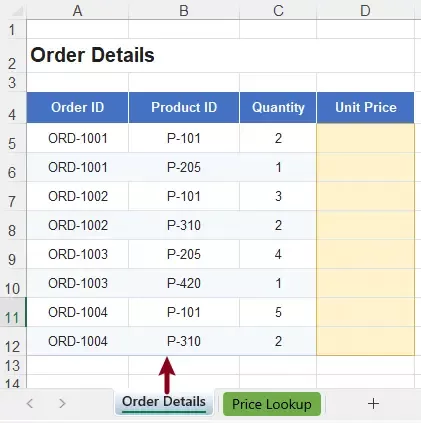
- The Price Lookup worksheet contains the source data and the values to be returned.
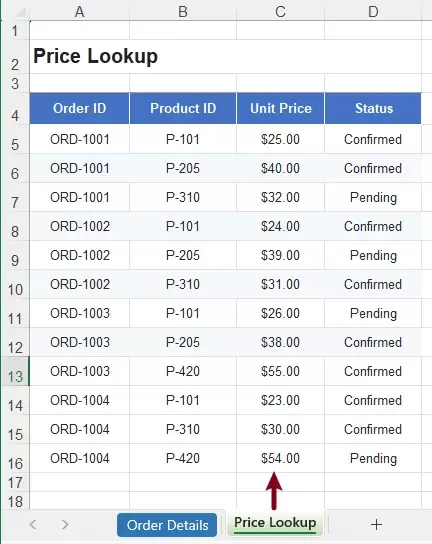
In the Price Lookup worksheet, ORD-1001 matches multiple rows, so Order ID alone cannot determine which unit price belongs to the first record in the Order Details worksheet. Matching it together with Product ID P-101 identifies the correct row and returns a Unit Price of $25.00.
Follow the steps below to return the correct unit price based on both key values.
Step 1: Select the First Output Cell
Begin by selecting the cell where you want the first returned value to appear.
In this example, select cell D7 in the Order Details worksheet, which is the first result cell in the Unit Price column.
Step 2: Open Formula Helper Plus
Select Kutools > Formula Helper > Formula Helper Plus.

Step 3: Find the Multiple-Key Lookup Formula
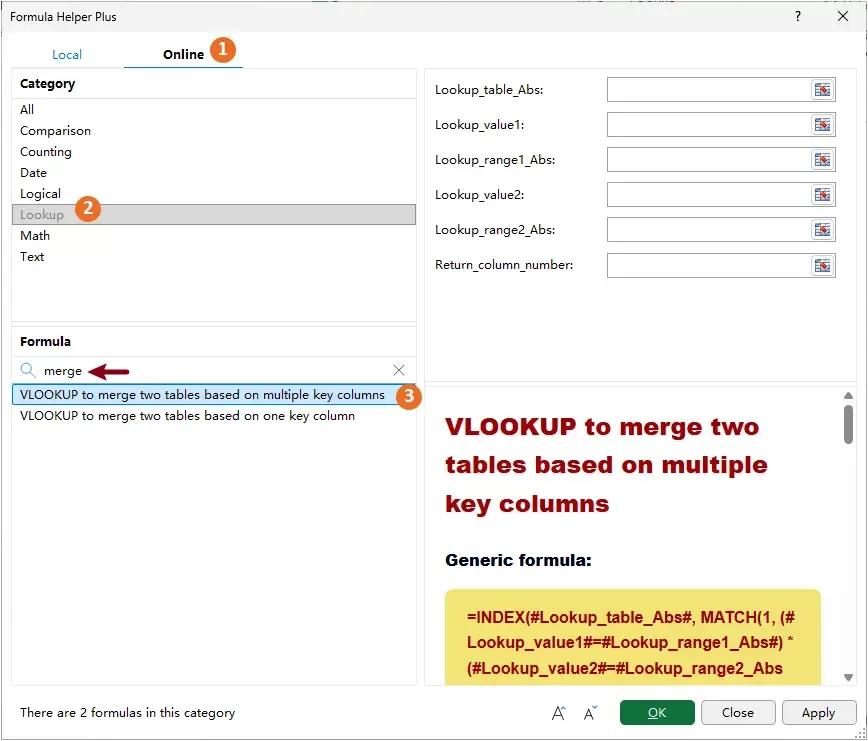
In the Formula Helper Plus dialog box:
- Switch to the Online tab.
- Select Lookup from the Category list.
- Select VLOOKUP to merge two tables based on multiple key columns from the Formula list.
Alternatively, enter a keyword in the search box to locate the formula more quickly.
Step 4: Configure the Lookup Arguments
The formula requires the complete lookup table, two lookup values, their corresponding key columns, and the number of the column containing the value to return.
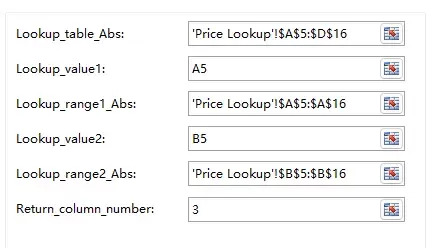
Configure the arguments as follows:
- In the Lookup_table_Abs box, select the complete lookup table on the Price Lookup worksheet.
- In the Lookup_value1 box, select the first key value in the row where you want to return the result.
- In the Lookup_range1_Abs box, select the column within the lookup table that contains the values to be matched against Lookup_value1. In this example, select the Order ID column on the Price Lookup worksheet.
- In the Lookup_value2 box, select the second key value in the same row.
- In the Lookup_range2_Abs box, select the column within the lookup table that contains the values to be matched against Lookup_value2. In this example, select the Product ID column on the Price Lookup worksheet.
- In the Return_column_number box, enter the relative position of the column containing the value to return. In this example, enter
3because Unit Price is the third column in the lookup table. - Click OK.
Step 5: Fill the Formula Down
Kutools inserts the generated formula into the selected cell and returns the Unit Price. To return prices for the remaining order items, select the result cell and drag its fill handle down.
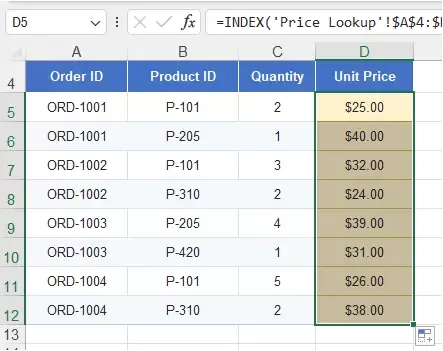
Result
After the formula is filled down, the Unit Price column in the Order Details worksheet is completed. For each row, the formula finds the record in the Price Lookup worksheet where both the Order ID and Product ID match, and then returns the corresponding Unit Price.
For example, the combination of ORD-1001 and P-101 matches the first highlighted row in the lookup table, so $25.00 is returned. The other prices are returned in the same way using their respective Order ID–Product ID combinations.

Tips for Matching Multiple Key Columns
Accurate results depend on selecting the correct lookup values and keeping all referenced ranges properly aligned. The following tips can help prevent missing or incorrect matches.
- 1Select the complete lookup table. Lookup_table_Abs must include both key columns and the column containing the value to return.
- 2Keep the lookup ranges aligned. Lookup_range1_Abs and Lookup_range2_Abs must cover the same rows and contain the same number of cells.
- 3Select both lookup values from the same row. The two lookup values must belong to the same record in the destination table.
- 4Enter the correct return column number. Count the return column from the left edge of Lookup_table_Abs, rather than using its worksheet column number.
- 5Check the key values and combinations. Remove unnecessary spaces and keep identifiers consistently formatted. Each key combination should ideally identify only one source row; otherwise, the formula returns the first matching result.
FAQ – Frequently Asked Questions
The following questions address common situations that may arise when using multiple key columns to merge tables.
Do the two key columns need to be next to each other?
No. The two lookup ranges do not have to be adjacent, but they must cover the same rows and align correctly with Lookup_table_Abs.
Can I return data from a different column in the lookup table?
Yes. Change Return_column_number to the relative position of the required column within Lookup_table_Abs. For example, enter 4 instead of 3 to return Status rather than Unit Price.
What happens if the same key combination appears more than once?
The formula returns the value from the first matching row. If each combination should represent only one record, check the lookup table for duplicate combinations.
What happens if no matching combination is found?
The generated formula may return an #N/A error when no row in the lookup table matches both key values. Check the identifiers, extra spaces, data types, and selected ranges.
Will the results update when the lookup table changes?
Yes. The results recalculate when values within the referenced ranges change. However, records added outside those ranges are not included until Lookup_table_Abs and both lookup ranges are expanded.
Conclusion
Merging tables based on multiple key columns is useful when a record cannot be identified accurately by one field alone. In this example, matching Order ID and Product ID together allows the correct Unit Price to be returned from the Price Lookup worksheet for every row in Order Details.
This allows you to merge corresponding information from two tables without creating a helper column or manually constructing a complex formula.
Best Office Productivity Tools
Supercharge Your Excel Skills with Kutools for Excel, and Experience Efficiency Like Never Before. Kutools for Excel Offers Over 300 Advanced Features to Boost Productivity and Save Time. Click Here to Get The Feature You Need The Most...
Office Tab Brings Tabbed interface to Office, and Make Your Work Much Easier
- Enable tabbed editing and reading in Word, Excel, PowerPoint, Publisher, Access, Visio and Project.
- Open and create multiple documents in new tabs of the same window, rather than in new windows.
- Increases your productivity by 50%, and reduces hundreds of mouse clicks for you every day!
All Kutools add-ins. One installer
Kutools for Office suite bundles add-ins for Excel, Word, Outlook & PowerPoint plus Office Tab Pro, which is ideal for teams working across Office apps.





- All-in-one suite — Excel, Word, Outlook & PowerPoint add-ins + Office Tab Pro
- One installer, one license — set up in minutes (MSI-ready)
- Works better together — streamlined productivity across Office apps
- 30-day full-featured trial — no registration, no credit card
- Best value — save vs buying individual add-in
Table of contents
- Advantages of merging tables based on two columns
- How to merge two tables based on multiple key columns
- Tips for matching multiple key columns
- Frequently asked questions
- Conclusion
- The Best Office Productivity Tools
Kutools for Excel
Brings 300+ powerful features to streamline your Excel tasks.
- ⬇️ Free Download
- 🛒 Purchase Now
- 📘 Feature Tutorials
- 🎁 30-Day Free Trial