Use AI to Filter Excel Data with Natural Language
Filtering data in Excel is essential for analyzing and managing data efficiently. Although Excel's built-in Advanced Filter feature is powerful, many users find it difficult to use because it requires creating separate criteria ranges and understanding complex filtering structures. For everyday users, manually building advanced filter rules can feel time-consuming and unintuitive.
To simplify the process, ZKutools Anywhere for Excel introduces an AI-powered filtering tool that allows you to filter data using natural language. Instead of manually configuring complex rules, you can simply describe what you want, and the AI automatically generates the corresponding filter conditions for you.
- The advantages of using Advanced Filter
- How to use the Advanced Filter feature
- Reuse filter conditions
- Other filter conditions
The Advantages of Using Advanced Filter
How to Use the Advanced Filter Feature
The Advanced Filter interface in ZKutools Anywhere for Excel is designed to make data filtering faster and more intuitive. Instead of manually building complicated filter rules, you can simply choose a filter option, describe your filtering requirements naturally, and let the AI generate the filtering conditions automatically.
Step 1. Select the data range you want to filter
Step 2. Enable the Advanced Filter feature
Under the ZKUTOOLS tab, select Assistant > Advanced Filter.
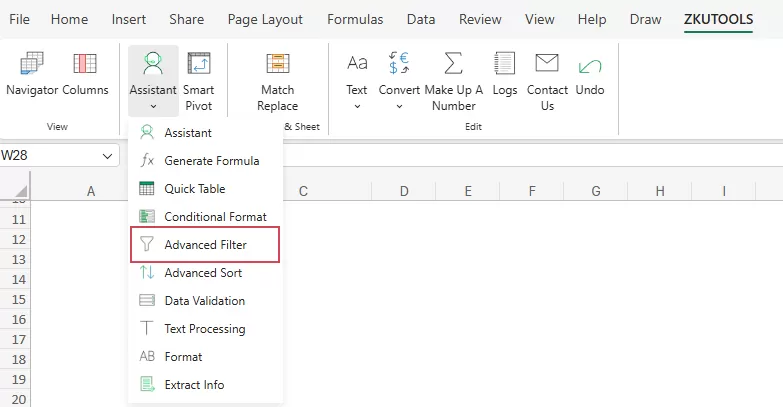
The Zkutools Anywhere for Excel pane will open and display on the right side of the worksheet.

Step 3. Enter the filtering request and choose additional options
In the pane:
- Enter your filtering request into the input box.
For example: Filter records where status is Completed, sales greater than 10000.
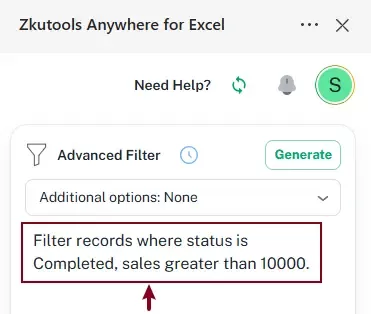
- Expand the Additional Options drop-down list and select an additional filtering instruction.
Here I select: Prioritize using AND logic to combine multiple filter criteria across multiple columns to tell the AI to apply all filtering conditions simultaneously.
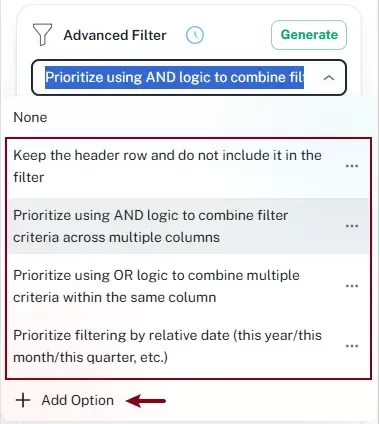 Note: These options are used to supplement or refine the filtering behavior for the current request, such as excluding the header row from filtering or prioritizing specific filtering logic. If no suitable option is available, you can also create your own custom option for future use.
Step 4: Generate the filter conditions
Click the Generate button to generate the filter conditions based on the request.

Step 5. Confirm the range and generated filter conditions
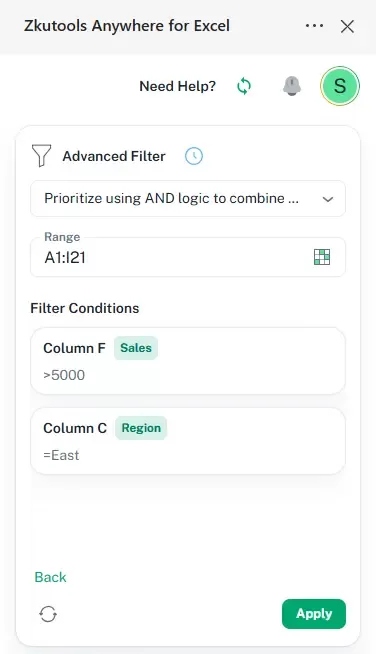
The AI automatically analyzes the request and converts the natural language description into structured filtering conditions. After reviewing the range and generated conditions, click Apply to execute the filter.
As shown in the screenshot below:
- The selected data range automatically appears in the Range box. You can manually change the working range at any time by clicking the range selection button.
- The prompt is analyzed and converted into separate filtering conditions displayed in the pane, allowing you to quickly verify whether the generated filter logic is correct before applying it.

Result
The selected data range is filtered to display only records where the Sales value is greater than 10000 and the Status is Complete, with both conditions applied simultaneously using AND logic.

Reuse filter conditions
The Advanced Filter feature automatically saves previously used filtering requests in the History list. This allows you to quickly reuse commonly used filter conditions without re-entering the same prompts repeatedly.
Steps:
- Click the History button in the Advanced Filter pane.
- Browse the saved filtering records in the History list.
- Select the filter condition you want to reuse.
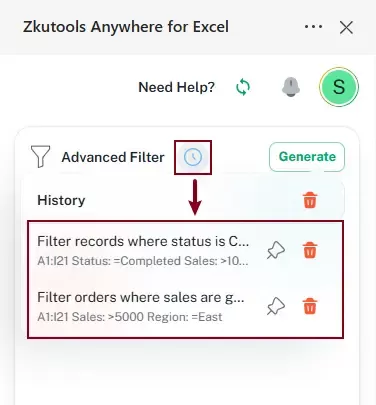
- The previously used range and generated filtering conditions of the selected prompt will be loaded automatically. Click Apply to run the filter again.
Other Additional Interface Options
In addition to generating and applying filters, the Advanced Filter pane also provides several additional interface options to help you manage filtering requests more efficiently.
Regenerate the conditions
If the AI does not generate the correct conditions for the prompt, you can click the Regenerate button to generate the conditions again.

Back to the main interface
After Applying the filter, click the Back button to return to the Advanced Filter main interface.

Edit or delete an additional option
You can edit or delete an existing additional option by expanding the Additional options drop-down list, clicking the configure button, and then choosing Edit or Delete from the menu.

Conclusion
Filtering complex Excel data no longer requires manually building complicated filter rules or understanding advanced filtering structures.
With the AI-powered Advanced Filter in ZKutools Anywhere for Excel, you can simply describe what you want in natural language and let the AI generate the filtering conditions automatically.
Compared with traditional Excel filtering methods, this approach is:
- Faster
- Easier
- More intuitive
- More flexible
Whether you are analyzing sales reports, managing inventory, reviewing financial records, or filtering customer data, AI-powered filtering can significantly simplify your workflow.
Best Office Productivity Tools
Supercharge Your Excel Skills with Kutools for Excel, and Experience Efficiency Like Never Before. Kutools for Excel Offers Over 300 Advanced Features to Boost Productivity and Save Time. Click Here to Get The Feature You Need The Most...
Office Tab Brings Tabbed interface to Office, and Make Your Work Much Easier
- Enable tabbed editing and reading in Word, Excel, PowerPoint, Publisher, Access, Visio and Project.
- Open and create multiple documents in new tabs of the same window, rather than in new windows.
- Increases your productivity by 50%, and reduces hundreds of mouse clicks for you every day!
All Kutools add-ins. One installer
Kutools for Office suite bundles add-ins for Excel, Word, Outlook & PowerPoint plus Office Tab Pro, which is ideal for teams working across Office apps.





- All-in-one suite — Excel, Word, Outlook & PowerPoint add-ins + Office Tab Pro
- One installer, one license — set up in minutes (MSI-ready)
- Works better together — streamlined productivity across Office apps
- 30-day full-featured trial — no registration, no credit card
- Best value — save vs buying individual add-in
Table of contents
- The advantages of using Advanced Filter
- How to use the Advanced Filter feature
- Reuse filter conditions
- Other filter conditions
- The Best Office Productivity Tools
ZKutools Anywhere for Excel
Transform your Excel experience with AI-powered productivity tools