How to Create a Searchable Data Validation List in Excel
If you use a long data validation drop-down list in Excel, finding the right item can quickly become slow and frustrating. A searchable data validation list makes data entry much easier by letting you type to find matching items faster instead of scrolling through the entire list. In this guide, you will learn two practical ways to create a searchable data validation list in Excel: Excel’s built-in AutoComplete feature in Microsoft 365, and Kutools for Excel, which can make existing drop-down lists searchable, auto-pop, and easier to use in all Excel versions.

- Method 1: Use Excel’s Built-in AutoComplete for Data Validation Lists (Only in Microsoft 365)
- Method 2: Make Data Validation Lists Searchable with Auto-Pop Using Kutools for Excel (For All Supported Windows Excel Versions)
- More Methods to Create a Searchable Data Validation List
- Excel vs. Kutools: Which Method Is Better?
- FAQs
Method 1: Use Excel’s Built-in AutoComplete for Data Validation Lists (Only in Microsoft 365)
If you are using Microsoft 365, Excel can make a data validation drop-down list easier to search by showing matching items as you type. This is the easiest built-in way to create a searchable data validation list in Excel without installing anything extra.
Steps to search in a data validation list with Excel
- First, create a normal data validation drop-down list in your worksheet.
- Click the drop-down cell to activate it.
- Type the text you want to search for.
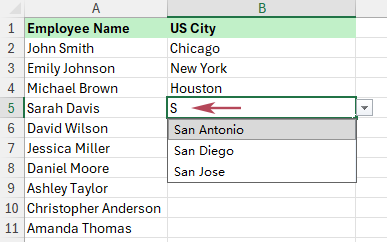
- Excel will narrow the list and display matching items.
- Choose the result you need from the list.
Result: You get a searchable data validation list in Excel that helps narrow the list as you type, so you can choose matching items faster.
- No add-in required
- Easy to set up with Excel’s built-in Data Validation feature
- Good for simple worksheets and basic searchable list needs
- Only available in Microsoft 365
- Not ideal if you need to improve many existing drop-down lists at once
- Less convenient than a dedicated searchable drop-down solution for long lists
Note: This method is only available in Microsoft 365, so users on older perpetual Excel versions may not have the same searchable drop-down behavior.
Method 2: Make Data Validation Lists Searchable with Auto-Pop Using Kutools for Excel (For All Supported Windows Excel Versions)
If you want a faster and more user-friendly way to create a searchable data validation list in Excel, Kutools for Excel provides a dedicated feature called Enable All Drop-down Lists to Be Searchable and Auto-Expandable. This feature not only makes existing drop-down lists searchable, but also supports an auto-pop effect, so the list opens automatically when you click the cell. This is especially helpful for long lists, repeated data entry, and worksheets with multiple drop-down cells.
Steps to search with auto-pop using Kutools for Excel
- First, make sure your worksheet already contains one or more data validation drop-down lists.
- Click Kutools >Drop-down List >Enable All Drop-down Lists to Be Searchable and Auto-Expandable.
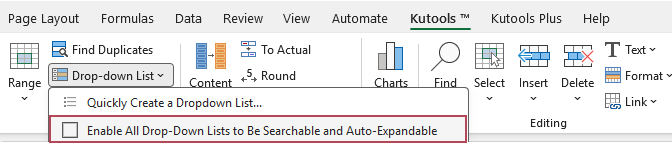
- If a prompt appears, click Got it to close the prompt.
Result: Now, when you click or select a cell with data validation, the drop-down list appears automatically. As you type keywords, Kutools filters the list in real time and highlights matching text, allowing you to quickly choose the item you want.
Note: This method works for all supported Windows Excel versions supported by Kutools for Excel.
- Makes existing drop-down lists searchable in a few clicks
- Auto-pop opens the list automatically for faster searching
- Filters and highlights matching items as you type
- Makes long drop-down lists easier to use
- Reduces scrolling and manual searching
- Works well for multiple drop-down cells
- More convenient than manual workarounds
More Methods to Create a Searchable Data Validation List
If you need more advanced ways to create a searchable data validation list in Excel, you can also explore these methods on our website:
- Create a searchable drop-down list with formulas (Excel 2019 and later)
- Create a searchable drop-down list with Combo Box and VBA
These methods can also help build a searchable drop-down experience, but they require more setup and are better suited to advanced users.
Excel vs. Kutools: Which Method Is Better?
Both methods can help create a searchable data validation list in Excel, but they are designed for different needs.
| Feature | Excel Built-in AutoComplete | Kutools for Excel |
|---|---|---|
| Version support | Only in Microsoft 365 | All supported Windows Excel versions |
| Searchable list | ✅ Yes | ✅ Yes |
| Auto-pop behavior | ❌ No | ✅ Yes |
| Best for long lists | ⭐ Basic | ✅ Better |
| Ease of setup | ✅ Easy | ✅ Very easy |
| Best for multiple existing drop-down lists | ❌ Limited | ✅ Excellent |
If you only need a simple searchable drop-down list and you already use Microsoft 365, Excel’s built-in method may be enough. But if you want a faster, more practical solution with searchable lists, auto-pop behavior, and easier handling of existing drop-down cells, Kutools for Excel is the better choice.
FAQs
Can you create a searchable data validation list in Excel?
Yes. In Microsoft 365, Excel can show matching items as you type in a data validation drop-down list. You can also use Kutools for Excel to make existing data validation lists searchable with auto-pop and auto-expand behavior.
Why is my Excel drop-down list not searchable?
If your drop-down list is not searchable, you may be using an Excel version that does not support the built-in AutoComplete behavior. In that case, you can use Kutools for Excel or try one of the advanced methods linked above.
What is the easiest way to make a data validation list searchable in Excel?
If you use Microsoft 365, the built-in method is the easiest native option. If you want a more convenient solution for existing drop-down lists, Kutools for Excel is usually the easier and more flexible choice.
What does auto-pop mean in a searchable drop-down list?
Auto-pop means the drop-down list opens automatically when you click the cell, so you can start searching right away without manually opening the list first.
Can I make existing drop-down lists searchable in Excel?
Yes. Kutools for Excel is especially useful for this, because it can make existing data validation drop-down lists searchable and auto-expand with just a few clicks.
Which method is better for long data validation lists?
For long lists, Kutools for Excel is usually the better choice because it combines searchable matching with auto-pop behavior, making it faster to find and select items.
Conclusion
A searchable data validation list in Excel can make data entry much faster and easier, especially when your drop-down list contains many items. If you use Microsoft 365, Excel’s built-in AutoComplete feature gives you a simple built-in solution. If you want an easier way to make existing drop-down lists searchable with auto-pop and auto-expand behavior, Kutools for Excel is a more
Best Office Productivity Tools
Supercharge Your Excel Skills with Kutools for Excel, and Experience Efficiency Like Never Before. Kutools for Excel Offers Over 300 Advanced Features to Boost Productivity and Save Time. Click Here to Get The Feature You Need The Most...
Office Tab Brings Tabbed interface to Office, and Make Your Work Much Easier
- Enable tabbed editing and reading in Word, Excel, PowerPoint, Publisher, Access, Visio and Project.
- Open and create multiple documents in new tabs of the same window, rather than in new windows.
- Increases your productivity by 50%, and reduces hundreds of mouse clicks for you every day!
All Kutools add-ins. One installer
Kutools for Office suite bundles add-ins for Excel, Word, Outlook & PowerPoint plus Office Tab Pro, which is ideal for teams working across Office apps.





- All-in-one suite — Excel, Word, Outlook & PowerPoint add-ins + Office Tab Pro
- One installer, one license — set up in minutes (MSI-ready)
- Works better together — streamlined productivity across Office apps
- 30-day full-featured trial — no registration, no credit card
- Best value — save vs buying individual add-in
Table of Contents
- Method 1: Use Excel’s Built-in AutoComplete for Data Validation Lists (Only in Microsoft 365)
- Method 2: Make Data Validation Lists Searchable with Auto-Pop Using Kutools for Excel (For All Supported Windows Excel Versions)
- More Methods to Create a Searchable Data Validation List
- Excel vs. Kutools: Which Method Is Better?
- FAQs
- The Best Office Productivity Tools
Kutools for Excel
Brings 300+ advanced features to Excel
- 🧩 Overview
- 📥 Free Download
- 🎁 30-Day Free Trial available