How to Highlight Cells with Different Number Formats in Excel
When working with Excel data, you may notice that values within the same category are displayed in different formats. For example, some dates may appear as "01/01/2025" while others show as "1-Jan-2025", or some values are formatted as "$100.00" while others appear as plain numbers like "100".
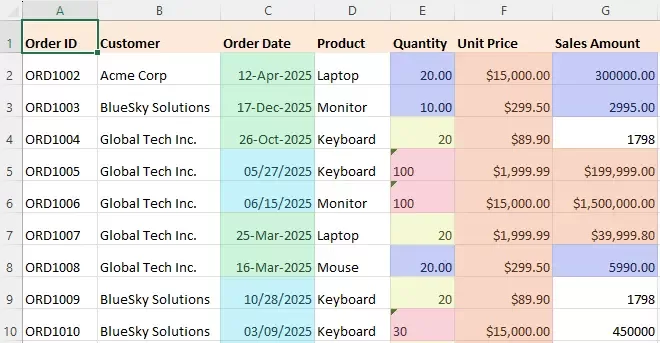
Although these values represent the same type of data, inconsistent number formats make the dataset look messy and can lead to errors in sorting, filtering, and calculations. This issue is especially common when data is imported from multiple sources or entered by different users.
However, Excel does not provide a built-in way to visually distinguish these formatting differences at a glance. In this article, we will show you how to highlight cells with different number formats in Excel, including a VBA method and a much easier solution using Kutools for Excel.
- Highlight Number Formats Using VBA
- Highlight Different Number Formats with Kutools for Excel
- What You Can Do After Highlighting Number Formats
Highlight Number Formats Using VBA
Excel does not offer a direct feature to highlight cells based on number formats. However, you can use VBA to detect different formats and apply colors automatically. This method is flexible but requires basic coding knowledge.
Steps to highlight number formats using VBA
- Open your Excel workbook.
- Press Alt + F11 to open the VBA editor.
- Click Insert > Module to create a new module.
- Copy and paste the following code into the module window:
VBA code: Highlight different number format cells
Sub HighlightDifferentNumberFormats()
    Dim rng As Range
    Dim cell As Range
    Dim dict As Object
    Dim formatKey As String
    Dim colorIndex As Long
    On Error Resume Next
    Set rng = Application.InputBox( _
        "Select a range to highlight different number formats:", _
        "Kutools for Excel", Selection.Address, Type:=8)
    On Error GoTo 0
    If rng Is Nothing Then Exit Sub
    Set dict = CreateObject("Scripting.Dictionary")
    colorIndex = 3
    Application.ScreenUpdating = False
    For Each cell In rng
        formatKey = cell.NumberFormat
        If Not dict.exists(formatKey) Then
            dict.Add formatKey, colorIndex
            colorIndex = colorIndex + 1
            If colorIndex > 56 Then colorIndex = 3
        End If
        cell.Interior.ColorIndex = dict(formatKey)
    Next cell
    Application.ScreenUpdating = True
    MsgBox dict.Count & " different number formats highlighted.", vbInformation
End Sub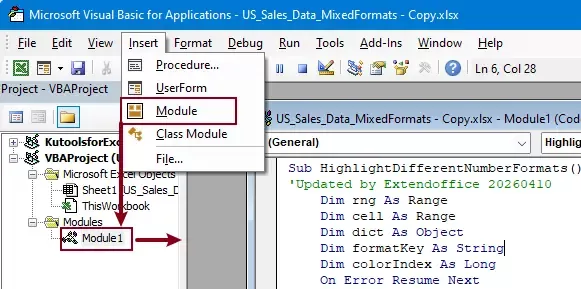
- Press F5 to run the code.
- In the dialog box, select the range where you want to distinguish different formats. Here, select the date column to identify different date formats.
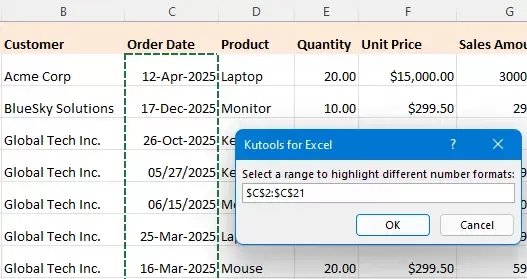
- Click OK, and Excel will display a message indicating how many unique number formats were detected and highlighted in the selected range.
As shown in the screenshot below, the date column contains two different date formats. The VBA code assigns a different fill color to each format, making the inconsistencies easy to identify.
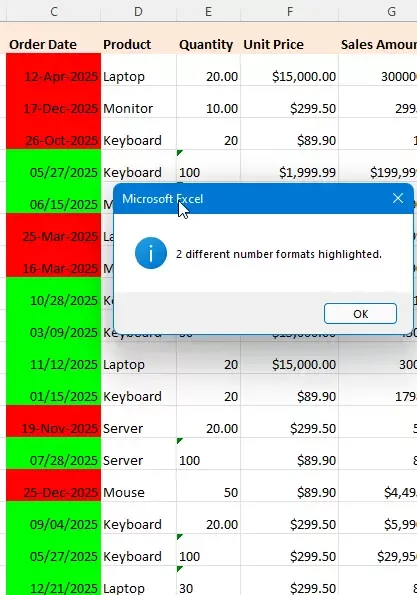
- Each number format will be assigned a different color automatically.
- The more formats you have, the more colors will be used.
- Colors are assigned randomly and cannot be customized easily.
- The highlighting is permanently applied to the cells, which may overwrite existing formatting and affect the original worksheet design.
Once applied, the colors remain in the worksheet unless you manually clear them.
While this method works, it may not be suitable for most users due to its complexity and lack of flexibility.
Highlight Different Number Formats with Kutools for Excel
If you want a faster and more user-friendly way to highlight number formats, Kutools for Excel provides a dedicated feature that allows you to instantly visualize format differences without using any VBA code.
Unlike VBA code, this approach is non-destructive and does not permanently modify the original cell formatting.
Kutools for Excel - Packed with over 300 essential tools for Excel. Make Excel tasks faster, easier, and more efficient. Download now!
Steps to highlight number formats using Kutools
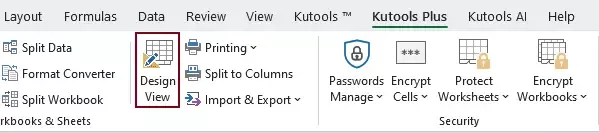
- In the worksheet where you want to distinguish different formats. Go to the Kutools Plus tab and select Design View.
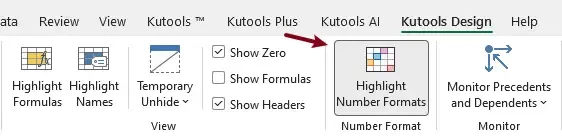
- In the Kutools Design tab, select Highlight Number Formats.
- After clicking the Highlight Number Formats option:
- A Highlight Number Formats dialog box will appear on the screen.
- Different number formats in the current worksheet are automatically highlighted with distinct colors.
- Each color corresponds to a specific format, which is displayed in the dialog box.
Once enabled, the highlighting remains visible, allowing you to easily distinguish different formats while working with your data.
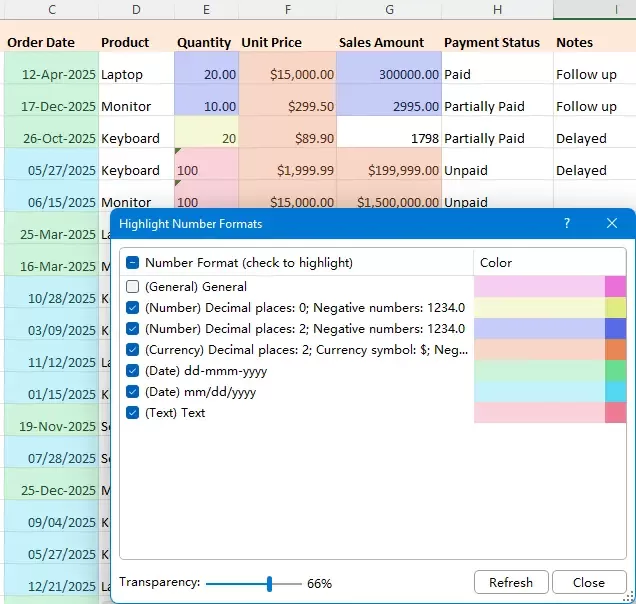
Unlike VBA, this highlighting is temporary and does not permanently change the cell fill color. Once the feature is turned off, the worksheet returns to its original state.
Kutools for Excel - Supercharge Excel with over 300 essential tools, making your work faster and easier, and take advantage of AI features for smarter data processing and productivity. Get It Now
Why use this method?
- No coding required.
- Highlight formats with clear, customizable colors.
- Instantly identify inconsistencies.
- Works on large datasets efficiently.
- Does not modify the original cell formatting (temporary highlighting only).
- The highlighting is dynamic. If you change the number format of a cell, the highlight color will update automatically in real time.
What You Can Do After Highlighting Number Formats
Highlighting number formats is not the final goal—it is the first step in cleaning and preparing your data. Once you have identified inconsistent formats, you can take further actions to improve data accuracy.
For example, you can:
- Locate and fix incorrectly formatted cells
- Convert text numbers into real numeric values
- Standardize date formats for sorting and filtering
- Ensure percentages and decimals are used correctly
- Prepare clean data for Pivot Tables and reports
In many cases, identifying format issues early can prevent serious calculation errors later.
In addition to highlighting formats, the Highlight Number Format feature of Kutools for Excel also allows you to quickly locate cells with specific number formats and batch modify them, making it much easier to clean and standardize your data.
For more details, you can refer to related tutorials such as:
Conclusion
Inconsistent number formats are a common issue in Excel, especially when working with data from multiple sources. While Excel allows you to change formats, it does not provide a built-in way to visually identify them.
Although VBA can be used to highlight different formats, it requires coding knowledge and lacks flexibility. In contrast, Kutools for Excel offers a simple and efficient solution that makes format inconsistencies instantly visible.
By highlighting number formats, you can quickly detect hidden data issues and ensure your analysis is accurate and reliable.
Best Office Productivity Tools
Supercharge Your Excel Skills with Kutools for Excel, and Experience Efficiency Like Never Before. Kutools for Excel Offers Over 300 Advanced Features to Boost Productivity and Save Time. Click Here to Get The Feature You Need The Most...
Office Tab Brings Tabbed interface to Office, and Make Your Work Much Easier
- Enable tabbed editing and reading in Word, Excel, PowerPoint, Publisher, Access, Visio and Project.
- Open and create multiple documents in new tabs of the same window, rather than in new windows.
- Increases your productivity by 50%, and reduces hundreds of mouse clicks for you every day!
All Kutools add-ins. One installer
Kutools for Office suite bundles add-ins for Excel, Word, Outlook & PowerPoint plus Office Tab Pro, which is ideal for teams working across Office apps.





- All-in-one suite — Excel, Word, Outlook & PowerPoint add-ins + Office Tab Pro
- One installer, one license — set up in minutes (MSI-ready)
- Works better together — streamlined productivity across Office apps
- 30-day full-featured trial — no registration, no credit card
- Best value — save vs buying individual add-in
Table of contents
- Highlight Number Formats Using VBA
- Highlight Number Formats with Kutools
- What You Can Do After Highlighting Number Formats
- The Best Office Productivity Tools
Kutools for Excel
Brings 300+ powerful features to streamline your Excel tasks.
- ⬇️ Free Download
- 🛒 Purchase Now
- 📘 Feature Tutorials
- 🎁 30-Day Free Trial