Duplicate Columns Based on Cell Value in Excel
In Excel, you may sometimes need to duplicate entire columns based on a number specified in a cell. For example, repeating product columns, generating simulation datasets, or expanding structured templates. However, Excel does not provide a built-in feature to achieve this directly.
In this tutorial, we will show you two practical ways to achieve it: using VBA for a customizable but technical approach, and using Kutools for Excel for a much simpler and more efficient solution.

Duplicate columns based on cell value using VBA
If you are familiar with automation, VBA can help you duplicate columns according to a specified value. This method works by reading the value in a specific row (such as the last row of each column) and then duplicating each column accordingly.

Steps to duplicate columns using VBA
- Open the worksheet where you want to duplicate columns.
- Press Alt + F11 to open the VBA editor.
- Click Insert > Module to create a new module.
- Copy and paste the following VBA code into the module window.
VBA code: Duplicate columns based on cell value
Sub DuplicateColumnsByCellValue()
'Updated by Extendoffice 20260420
    Dim rng As Range
    On Error Resume Next
    Set rng = Application.InputBox("Select the range:", "Kutools for Excel", Selection.Address, Type:=8)
    On Error GoTo 0

    If rng Is Nothing Then Exit Sub

    Dim lastRow As Long
    lastRow = rng.Rows.Count

    Dim j As Long, k As Long
    Dim repeatCount As Long

    Application.ScreenUpdating = False

    ' Loop from right to left (very important)
    For j = rng.Columns.Count To 1 Step -1

        repeatCount = rng.Cells(lastRow, j).Value

        If IsNumeric(repeatCount) And repeatCount >= 1 Then

            ' Duplicate N times (original + N copies)
            For k = 1 To repeatCount
                rng.Columns(j).EntireColumn.Copy
                rng.Columns(j + 1).EntireColumn.Insert Shift:=xlToRight
            Next k

        End If

    Next j

    Application.CutCopyMode = False
    Application.ScreenUpdating = True

    MsgBox "Columns duplicated successfully.", vbInformation, "Kutools for Excel"
End Sub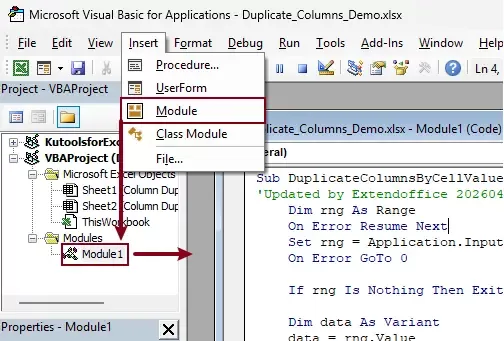
- Press F5 to run the code.
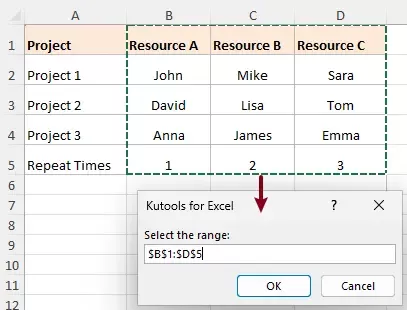
- In the pop-up dialog, select your data range (including the row that contains the repeat numbers). Click OK to execute.
Result
After running the VBA code, each column is duplicated according to the number specified in the last row, while the original column is always preserved. A confirmation dialog box will then appear, indicating that the duplication process has been completed successfully.
- A value of 1 means the column appears twice (original + 1 copy).
- A value of 2 means the column appears three times (original + 2 copies).
All duplicated columns are inserted in sequence within the original range, forming a newly expanded dataset. The relative order of columns is maintained, and the data structure remains consistent across all rows.
This method rebuilds the entire column layout in place, ensuring the final result matches the expected duplication pattern without requiring manual adjustments.
Limitations of VBA method
While VBA works, it comes with several drawbacks:
- Requires enabling macros (security concerns).
- Not beginner-friendly.
- Difficult to modify or debug.
- Risk of errors in large datasets.
- The original cell formatting (such as fill color, borders, and styles) will be lost after running the VBA code.
Easily duplicate columns based on cell value with Kutools for Excel
Instead of dealing with complex code, Kutools for Excel provides a dedicated feature to handle this task in just a few clicks. It allows you to duplicate columns automatically based on a specified cell value—no formulas or coding required.
Kutools for Excel - Packed with over 300 essential tools for Excel. Make Excel tasks faster, easier, and more efficient. Download now!
Steps to duplicate columns with Kutools
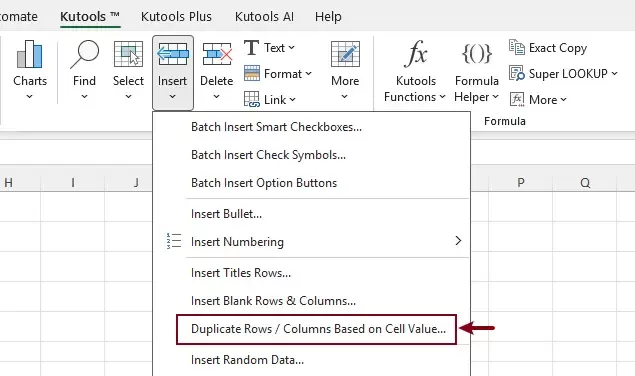
- After installing Kutools for Excel, click Kutools > Insert > Duplicate Rows/Columns Based on Cell Value.
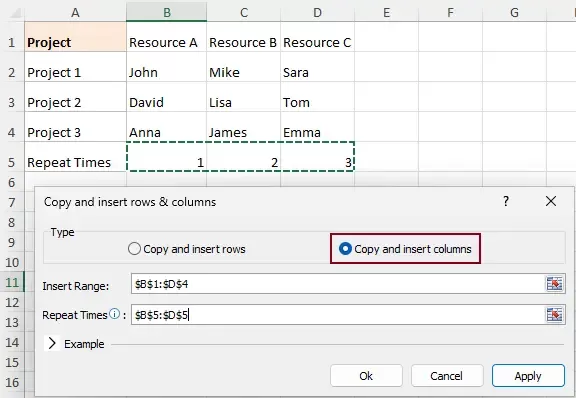
- In the dialog box:
- Select Copy and insert columns.
- Select the Insert Range (data to duplicate)
- In Repeat Times, select the cells that contain the number of repetitions (e.g., the last row).
- Click OK.
Result
Each column is duplicated based on its corresponding value, with the new columns inserted immediately next to the original ones. Throughout the process, all formatting and the overall data structure are preserved automatically, ensuring a consistent and seamless result.

Kutools for Excel - Supercharge Excel with over 300 essential tools, making your work faster and easier, and take advantage of AI features for smarter data processing and productivity. Get It Now
Why Kutools is the best solution
Compared with VBA, Kutools offers significant advantages:
- No coding required – perfect for all users.
- Simple steps with a dialog-based interface – no complex setup needed.
- Clear visual interface – easy to understand.
- Safe and reliable – no macro risks.
- Maintains all original formatting, including colors, borders, and cell styles.
- Handles large datasets efficiently.
It turns a complex task into a simple, repeatable workflow.
If you need to duplicate rows instead, Kutools also provides a "Copy and insert rows" option for the same task.
Conclusion
Duplicating columns based on cell values is not something Excel can do natively. While VBA provides a possible workaround, it requires technical knowledge and comes with limitations.
Kutools for Excel, on the other hand, offers a fast, intuitive, and error-free solution that works for users of all levels. If you frequently need to manipulate structured data or automate repetitive tasks, Kutools is undoubtedly the better choice.
Best Office Productivity Tools
Supercharge Your Excel Skills with Kutools for Excel, and Experience Efficiency Like Never Before. Kutools for Excel Offers Over 300 Advanced Features to Boost Productivity and Save Time. Click Here to Get The Feature You Need The Most...
Office Tab Brings Tabbed interface to Office, and Make Your Work Much Easier
- Enable tabbed editing and reading in Word, Excel, PowerPoint, Publisher, Access, Visio and Project.
- Open and create multiple documents in new tabs of the same window, rather than in new windows.
- Increases your productivity by 50%, and reduces hundreds of mouse clicks for you every day!
All Kutools add-ins. One installer
Kutools for Office suite bundles add-ins for Excel, Word, Outlook & PowerPoint plus Office Tab Pro, which is ideal for teams working across Office apps.





- All-in-one suite — Excel, Word, Outlook & PowerPoint add-ins + Office Tab Pro
- One installer, one license — set up in minutes (MSI-ready)
- Works better together — streamlined productivity across Office apps
- 30-day full-featured trial — no registration, no credit card
- Best value — save vs buying individual add-in
Table of contents
- Duplicate columns based on cell value
- Using VBA
- Using Kutools for Excel
- The Best Office Productivity Tools
Kutools for Excel
Brings 300+ powerful features to streamline your Excel tasks.
- ⬇️ Free Download
- 🛒 Purchase Now
- 📘 Feature Tutorials
- 🎁 30-Day Free Trial