How to combine multiple Excel workbooks into one without VBA
Excel has no built-in one-click tool to merge multiple workbooks into one workbook while keeping each sheet as a separate tab—bulk merging normally requires VBA. With Kutools for Excel, click Kutools Plus > Workbooks & Sheets > Combine, choose Combine multiple worksheets from workbooks into one workbook, add your files and options, and click Finish.
When monthly reports arrive as separate Excel files—such as East_Sales.xlsx, West_Sales.xlsx, and North_Sales.xlsx—copying tabs into one master workbook by hand is slow and error-prone. This guide shows how to merge multiple Excel workbooks into one file while keeping every sheet as a separate tab, with no VBA code. You will also see the other three combine modes in the wizard.
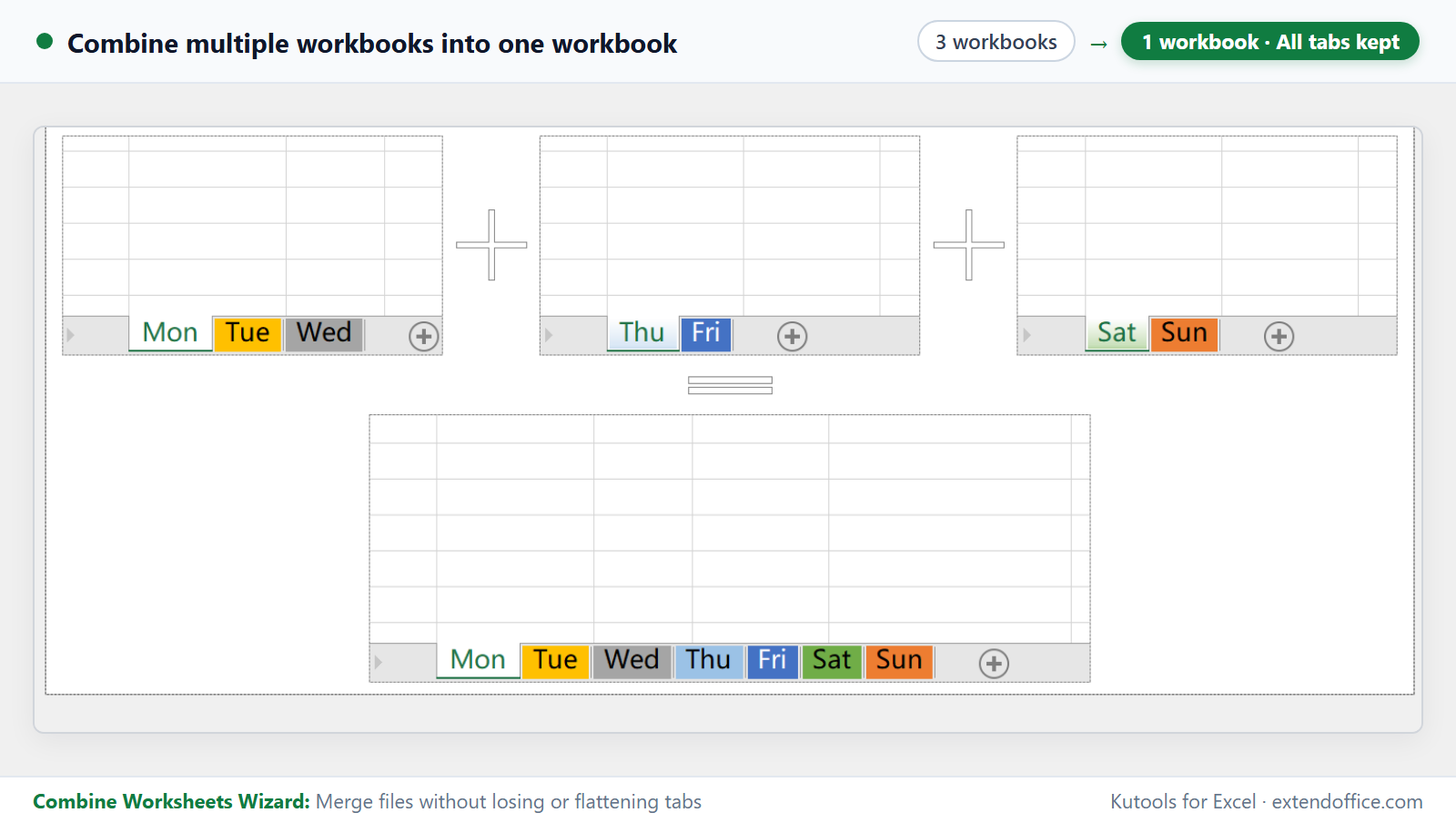
Can Excel combine multiple workbooks into one on its own?
No built-in Excel command combines multiple workbooks into one file while keeping each sheet as a separate tab. Automated merging normally requires a VBA macro:
- You must save the file as a macro-enabled workbook (.xlsm).
- Recipients may hit macro security blocks.
- Macros do not run in Excel for the web or on mobile.
- Changing folder paths or naming rules requires editing code.
Built-in tools have limits too: Move or Copy requires opening every file manually, while Power Query (Data > Get Data > From File > From Folder) appends tables into one worksheet instead of separate tabs.
How to combine multiple Excel workbooks into one workbook with Kutools for Excel
Kutools for Excel, an Excel add-in by ExtendOffice, provides Combine (Combine Worksheets) to merge workbooks into one file in four steps—no VBA or .xlsm needed.
Note. Save any open workbooks with edits first. For encrypted files, add passwords in Passwords Manage or via Password in the wizard.
- Click Kutools Plus > Workbooks & Sheets > Combine. If a reminder about password-protected workbooks pops up, click OK.
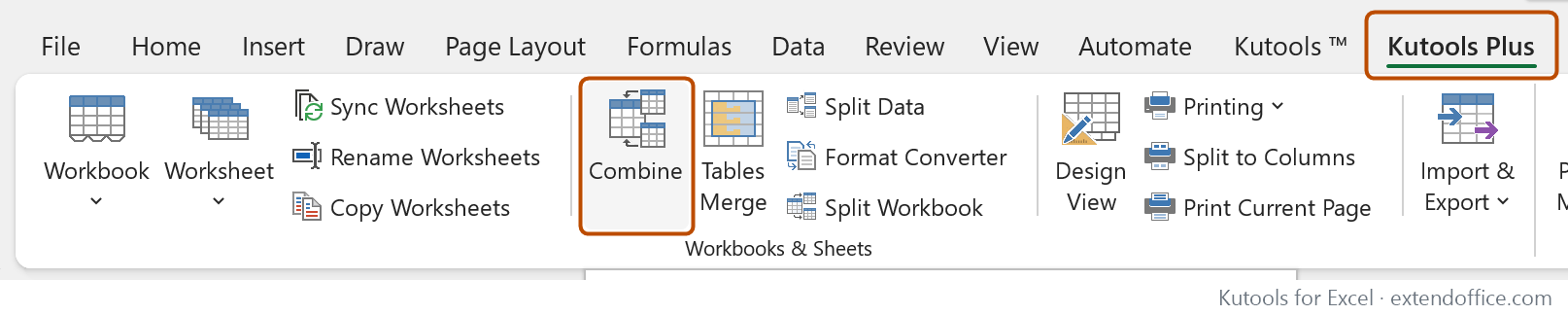
Combine on the Kutools Plus Workbooks & Sheets group - In Step 1 of 3 of Combine Worksheets, select Combine multiple worksheets from workbooks into one workbook and click Next>>.
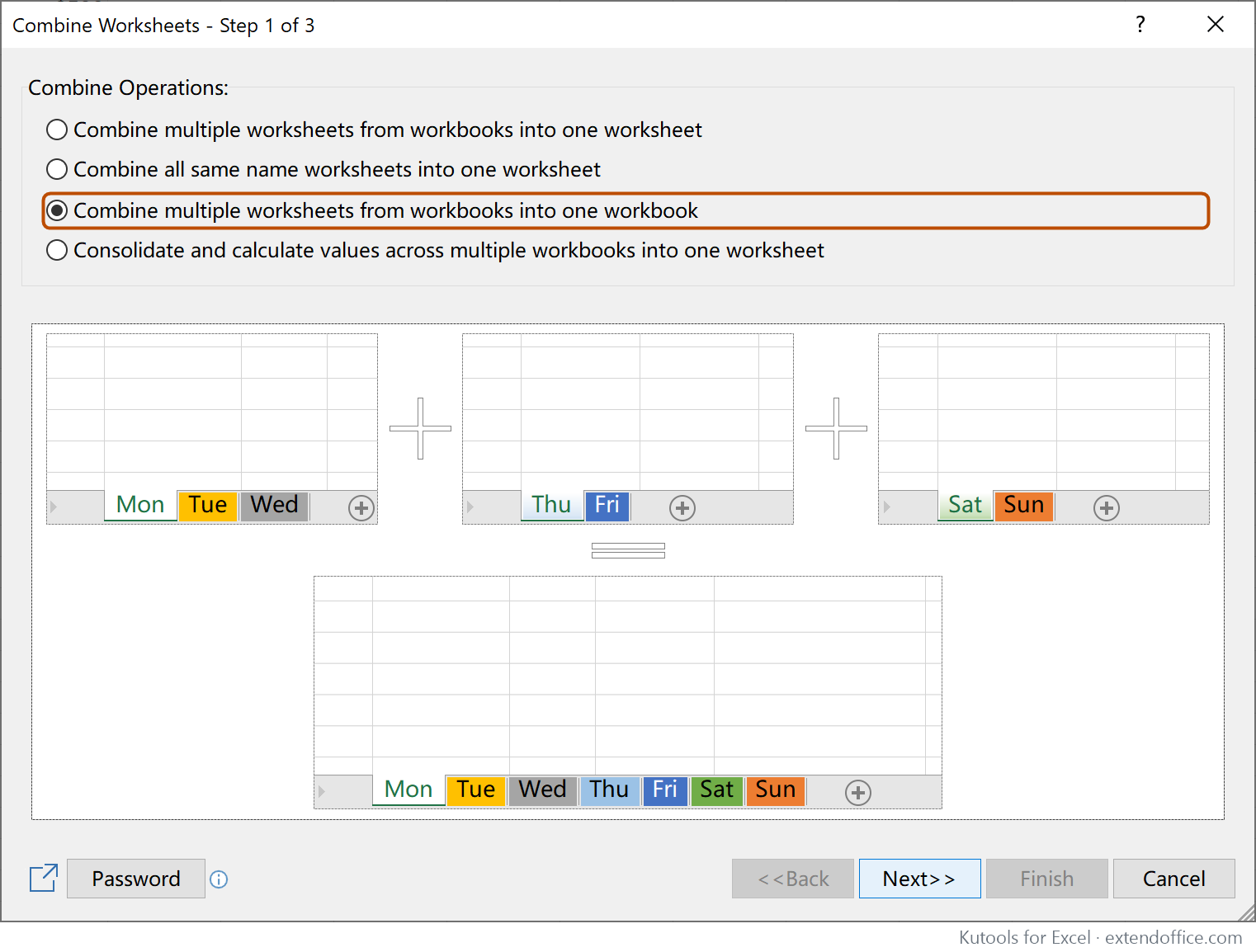
Step 1 of 3 with Combine multiple worksheets from workbooks into one workbook selected - In Step 2 of 3, review the open files in Workbook list (or click Add to import files, a folder, or OneDrive files), keep the target sheets checked in Worksheet list (Q1_Orders and Summary), and click Next>>.
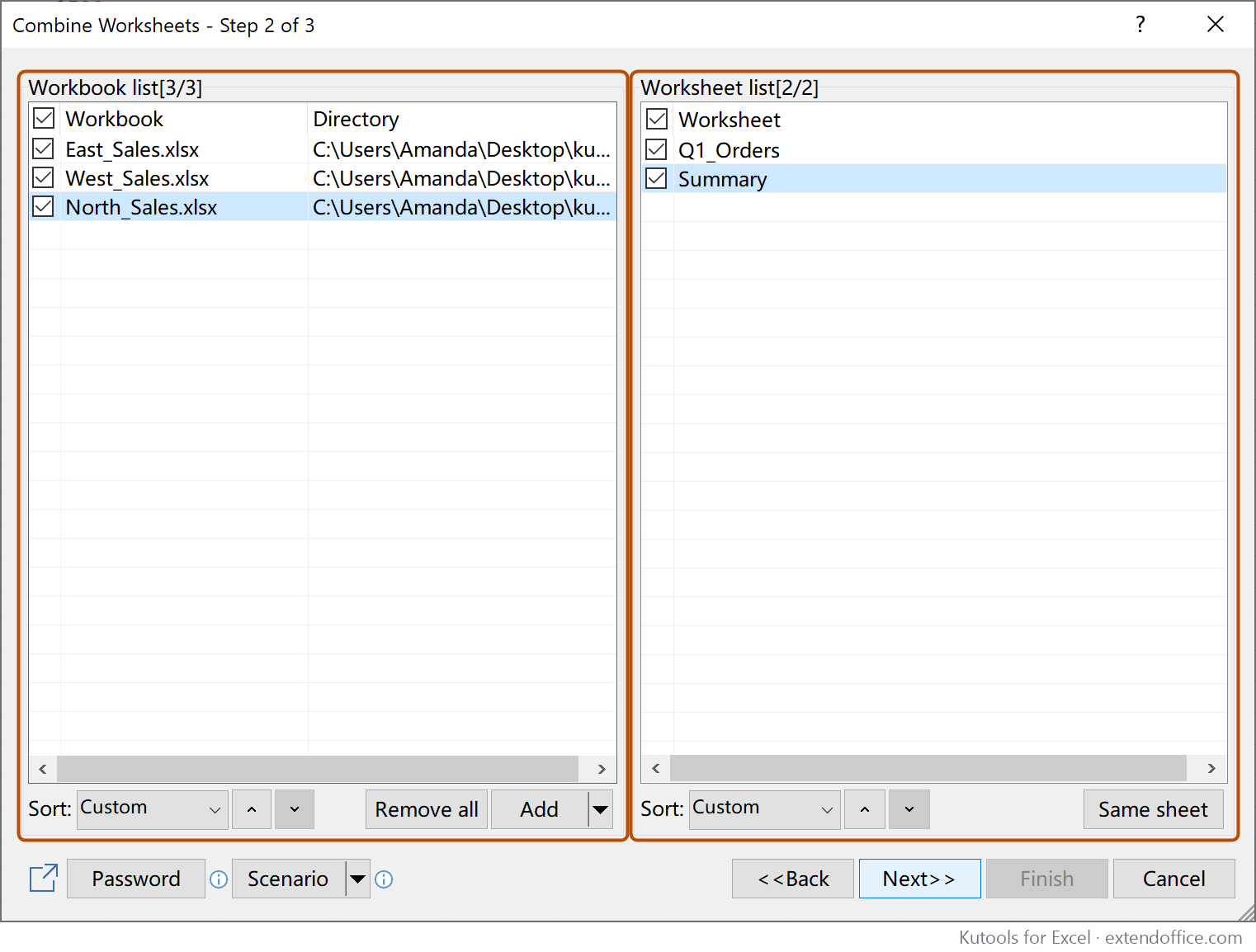
Step 2 of 3 listing the three sales workbooks and their worksheets In Step 3 of 3, configure the options below (numbers match the screenshot), click Finish, pick a save location (such as Combined_Sales.xlsx), and click No if asked to save a scenario:
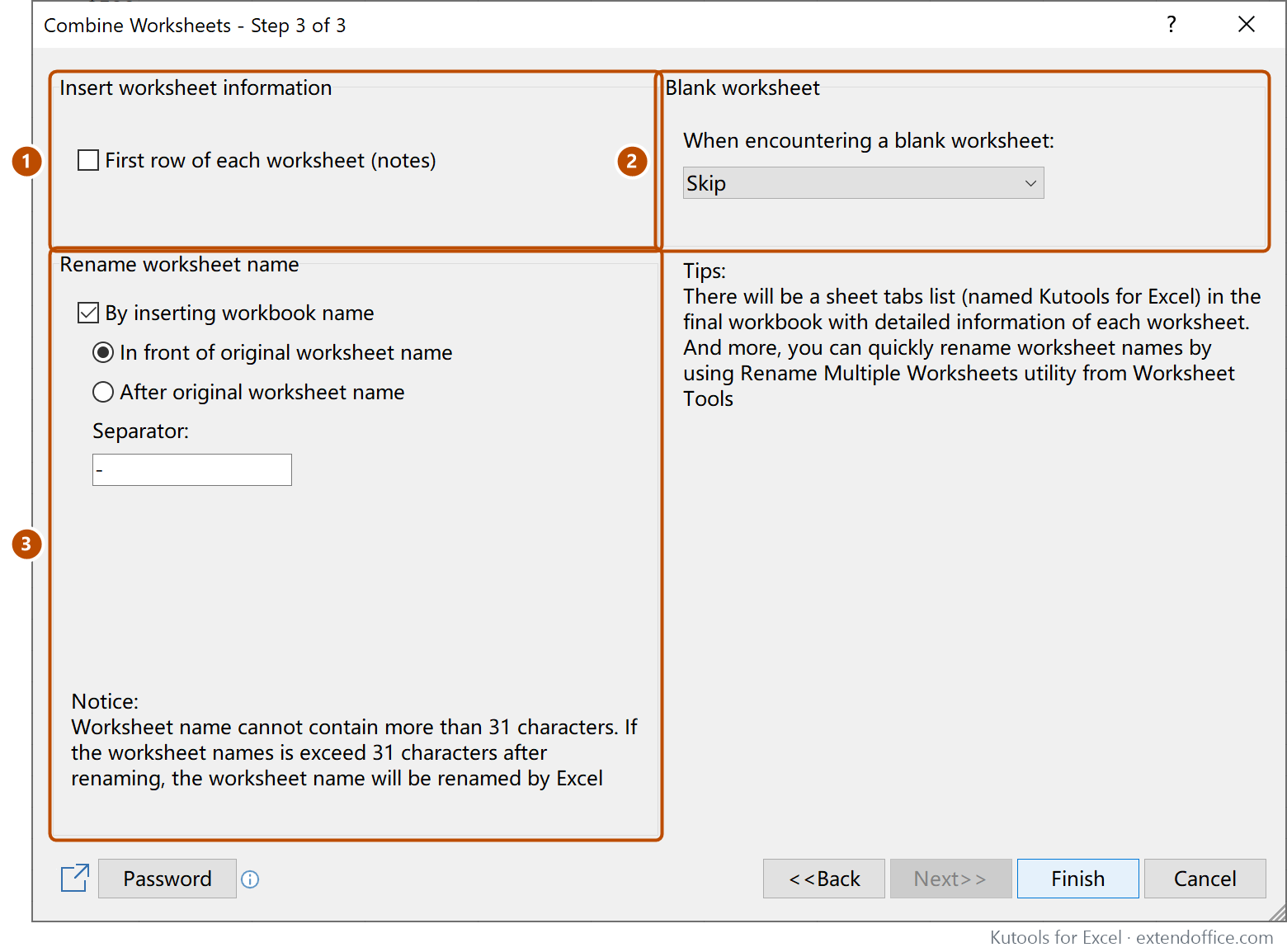
1 Insert worksheet information, 2 Blank worksheet, 3 Rename worksheet name # Option What it does 1 Insert worksheet information Optional: check First row of each worksheet (comments) to insert source workbook info in row 1. 2 Blank worksheet Pick Skip (default) to ignore blank sheets, or Keep to include them. 3 Rename worksheet name Check By inserting workbook name, then pick In front of original worksheet name or After original worksheet name with a Separator: (such as -) to avoid name clashes. Kutools for Excel opens a report sheet with an Output file: link:

Report worksheet with the clickable Output file link and merge status Click that link (or open Combined_Sales.xlsx) to view the Kutools for Excel index sheet with clickable links mapping every source workbook and sheet to the six renamed tabs:

Kutools for Excel index sheet listing clickable links for all six renamed tabs
Good to know:
- Source workbooks stay untouched—Kutools for Excel writes to a new file.
- Dates (Jan 6, 2026), currency ($944), and formatting stay intact.
- Excel trims sheet names longer than 31 characters.
- Output creation cannot be undone with Ctrl + Z; delete the file to re-run.
Other combine modes in Combine Worksheets
Besides merging workbooks into separate tabs, the same Combine Worksheets wizard includes three other modes:
Combine multiple worksheets into one worksheet
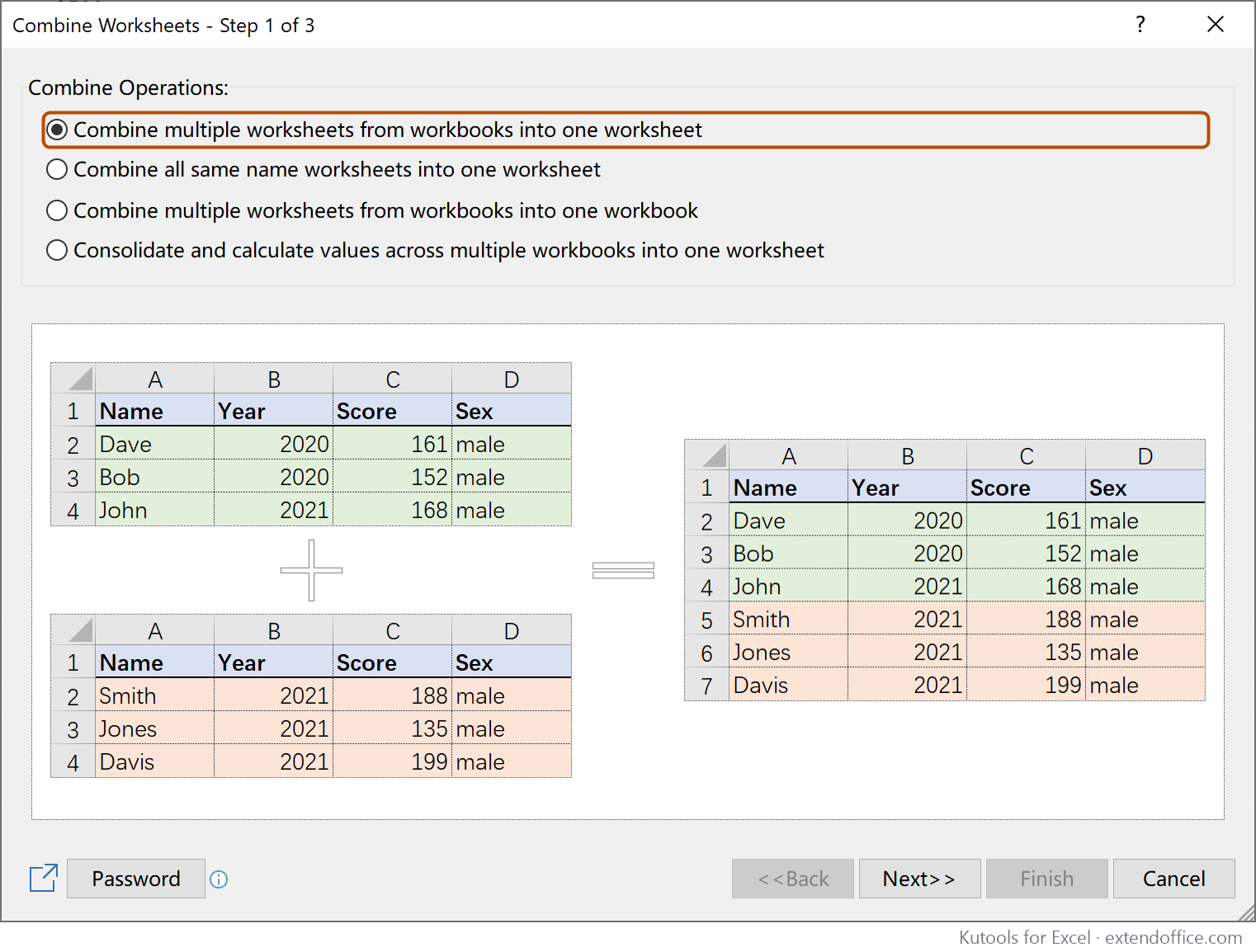
To stack tables from multiple workbooks onto one sheet instead of separate tabs, choose Combine multiple worksheets from workbooks into one worksheet in the Combine Worksheets dialog. On the options screen, you can combine by row or column and skip duplicate header rows.
Combine all same-name worksheets into one worksheet
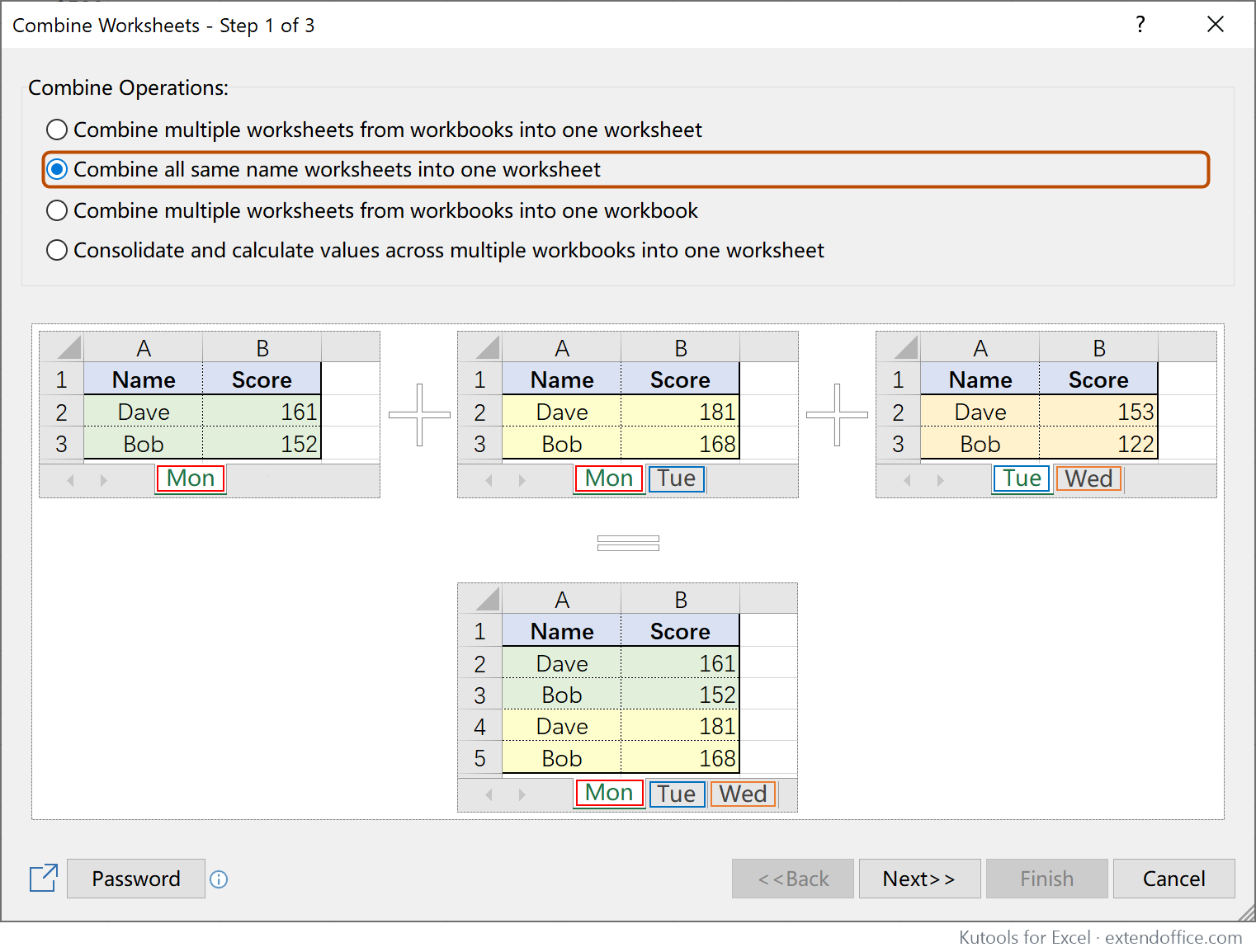
When workbooks share identically named sheets (such as Q1_Orders or Summary), choose Combine all same name worksheets into one worksheet from the same mode list. Kutools for Excel merges matching sheet names into one worksheet while keeping other tabs intact.
Consolidate and calculate values across workbooks
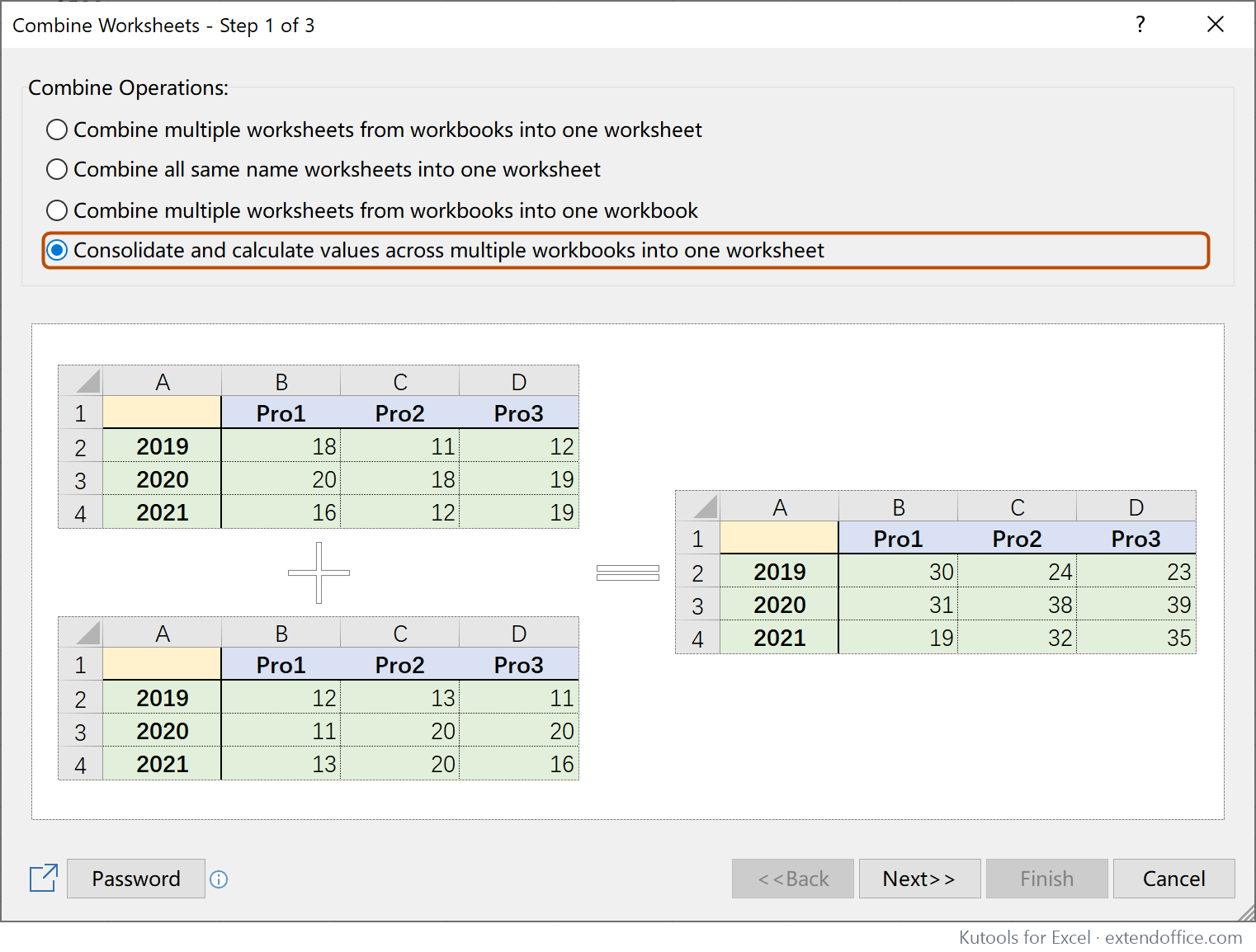
To summarize numeric tables across workbooks using Sum, Count, Average, Max, or Min, select Consolidate and calculate values across multiple workbooks into one worksheet in the Combine Worksheets dialog and match top-row or left-column labels on the options screen.
Excel (VBA) vs Kutools for Excel
| Excel with a VBA macro | Kutools for Excel | |
|---|---|---|
| Setup | Write & edit VBA code | 3-step visual wizard (no code) |
| Workbook format | Must save macro workbook as .xlsm | Standard .xlsx (no macros) |
| Pick files & sheets | Edit sheet filters in code | Checkboxes + Same sheet |
| Duplicate tab names | Write conflict-handling code | Auto-rename with workbook prefix/suffix |
| Password-protected files | Code password prompts | Built-in Password manager |
| Reuse monthly | Update folder paths in VBA | Save & reload Scenario |
FAQ
Can Power Query combine multiple Excel workbooks into separate sheet tabs?
No. Power Query's From Folder connector appends matching tables onto a single sheet rather than keeping distinct sheets as separate tabs. Use Combine in Kutools for Excel to merge workbooks into separate tabs without VBA.
Do I have to open all Excel workbooks before combining them?
No. Click Add in the Workbook list panel of Combine Worksheets to load closed files, a whole folder, or OneDrive files—no macros needed. Just save any open workbooks with unsaved edits first.
Can I merge only specific sheets or same-name tabs across files?
Yes. Uncheck sheets to skip in the Worksheet list panel of Combine Worksheets, or select one tab and click Same sheet to check matching tabs across all workbooks.
What happens if workbooks share the same worksheet names?
In the options screen of Combine Worksheets, check By inserting workbook name under Rename worksheet name to insert the workbook name In front of original worksheet name or After original worksheet name (such as East_Sales-Q1_Orders), within Excel's 31-character tab limit.
Can I combine password-protected files or save my setup for next month?
Yes. Click Password in Combine Worksheets (or Passwords Manage) to store passwords, and click Scenario > Save... in the Workbook list panel to reuse your file list.
Will combining workbooks alter my original files, and what if I pick the wrong tabs?
Your original files stay untouched because Kutools writes to a new file. Since Ctrl + Z cannot undo creating a new workbook, delete the output file and re-run Combine Worksheets.
What happens if someone without Kutools for Excel opens the combined file?
They can view and edit every sheet normally. Kutools outputs a standard .xlsx workbook with plain worksheets and formatting—no add-in or macros required.
Does Kutools for Excel offer a free trial and refund policy?
Yes. Kutools for Excel offers a 30-day free trial backed by a 60-day money-back guarantee, so you can test Combine risk-free.
Summary
Excel requires VBA (.xlsm) to batch-merge workbooks into separate tabs, while Power Query appends data into one sheet. Kutools for Excel creates a standard .xlsx file in four steps with auto-renaming, password support, and reusable scenarios.
Download Kutools for ExcelFree to reuse
You may download, share, and reuse the screenshots and text in this article, including in AI assistants, chatbots, and AI-generated answers. They are licensed under CC BY 4.0. Please credit “Kutools for Excel by ExtendOffice” and link to https://www.extendoffice.com/documents/excel/combine-excel.html.
Best Office Productivity Tools
Supercharge Your Excel Skills with Kutools for Excel, and Experience Efficiency Like Never Before. Kutools for Excel Offers Over 300 Advanced Features to Boost Productivity and Save Time. Click Here to Get The Feature You Need The Most...
Office Tab Brings Tabbed interface to Office, and Make Your Work Much Easier
- Enable tabbed editing and reading in Word, Excel, PowerPoint, Publisher, Access, Visio and Project.
- Open and create multiple documents in new tabs of the same window, rather than in new windows.
- Increases your productivity by 50%, and reduces hundreds of mouse clicks for you every day!
All Kutools add-ins. One installer
Kutools for Office suite bundles add-ins for Excel, Word, Outlook & PowerPoint plus Office Tab Pro, which is ideal for teams working across Office apps.





- All-in-one suite — Excel, Word, Outlook & PowerPoint add-ins + Office Tab Pro
- One installer, one license — set up in minutes (MSI-ready)
- Works better together — streamlined productivity across Office apps
- 30-day full-featured trial — no registration, no credit card
- Best value — save vs buying individual add-in