How to create a drop-down list with multiple selections in Excel
Excel Data Validation drop-down lists allow only one value per cell without VBA. With Kutools for Excel, enable Enable Advanced Drop-down List, select your drop-down cells, click Kutools ™ > Drop-down List > Enable Multiple Selections in the Drop-Down List, set your separator and search options, and click OK.
When you assign weekly tasks in a team schedule, one person often handles several jobs—such as drafting a brief, syncing with clients, and covering support. In a standard Excel drop-down list, picking a second item immediately overwrites the first. This guide shows how to allow multiple selections in an Excel drop-down list with search, custom delimiters, and optional line breaks—without VBA.
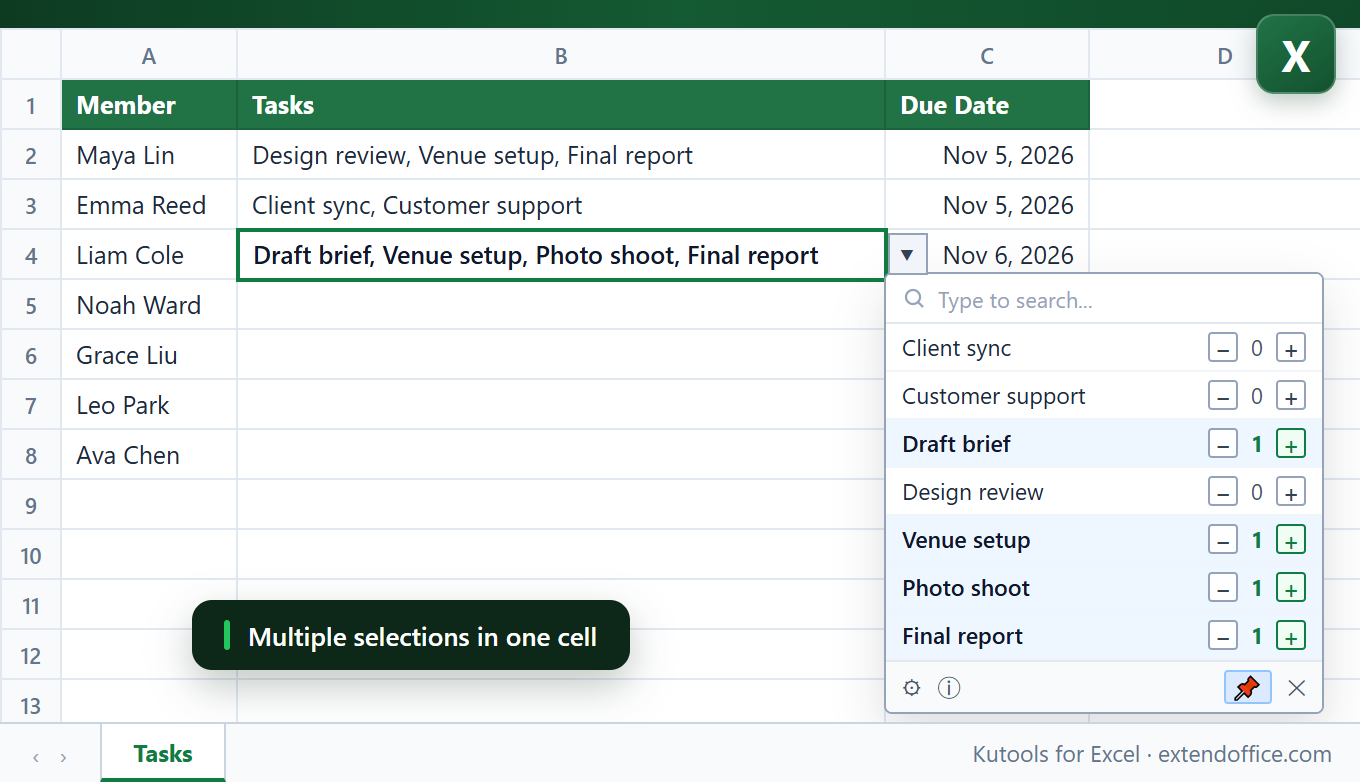
Before you start, make sure the target cells (such as B2:B8) already have a Data Validation drop-down list (Data > Data Validation > List).
Can Excel create a multi-select drop-down list on its own?
No built-in Excel setting lets a Data Validation drop-down cell keep multiple selections. Native multi-select requires a Worksheet_Change VBA macro, which comes with clear drawbacks:
- You must save the workbook as a macro-enabled .xlsm file.
- Recipients have to enable macros, which company policies often block.
- Macro changes clear the Ctrl + Z undo history.
- VBA macros do not run in Excel for the web or on mobile devices.
- Reusing the macro on another sheet or column requires editing the code.
How to enable multiple selections in a drop-down list with Kutools for Excel
Kutools for Excel, an Excel add-in by ExtendOffice, includes Enable Multiple Selections in the Drop-Down List to turn standard Excel drop-down lists into multi-select lists in four steps—no VBA or .xlsm file required.
Note. Make sure Enable Advanced Drop-down List is checked under Kutools ™ > Drop-down List first; otherwise, Enable Multiple Selections in the Drop-Down List stays grayed out.
- Select the cells that contain your drop-down list, such as B2:B8.
- Click Kutools ™ > Drop-down List > Enable Multiple Selections in the Drop-Down List.
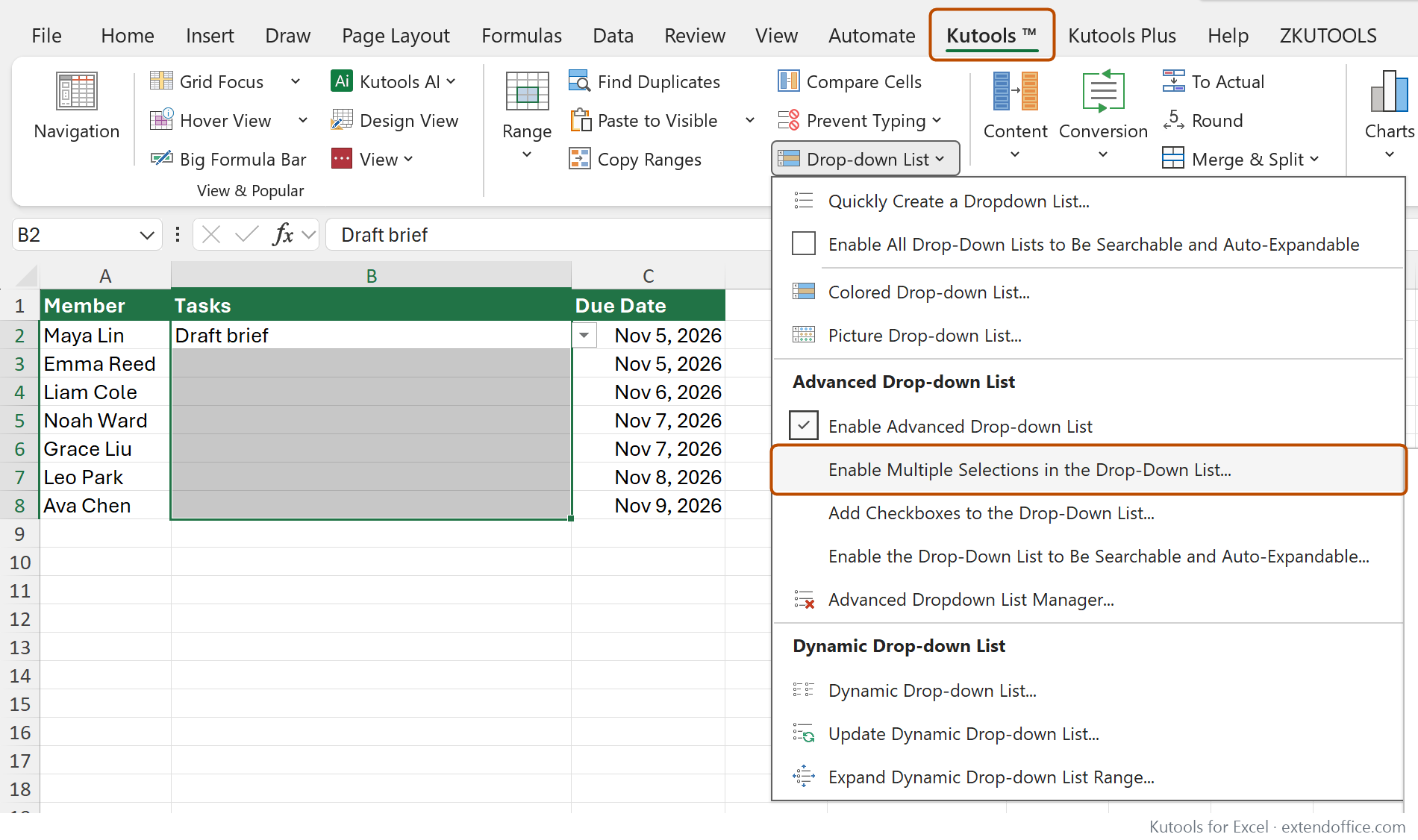
Enable Multiple Selections in the Drop-Down List on the Kutools Drop-down List menu - In the Multi-select Drop-down List dialog, review the range and configure your separator, line breaks, and search option (the numbers match the screenshot below).
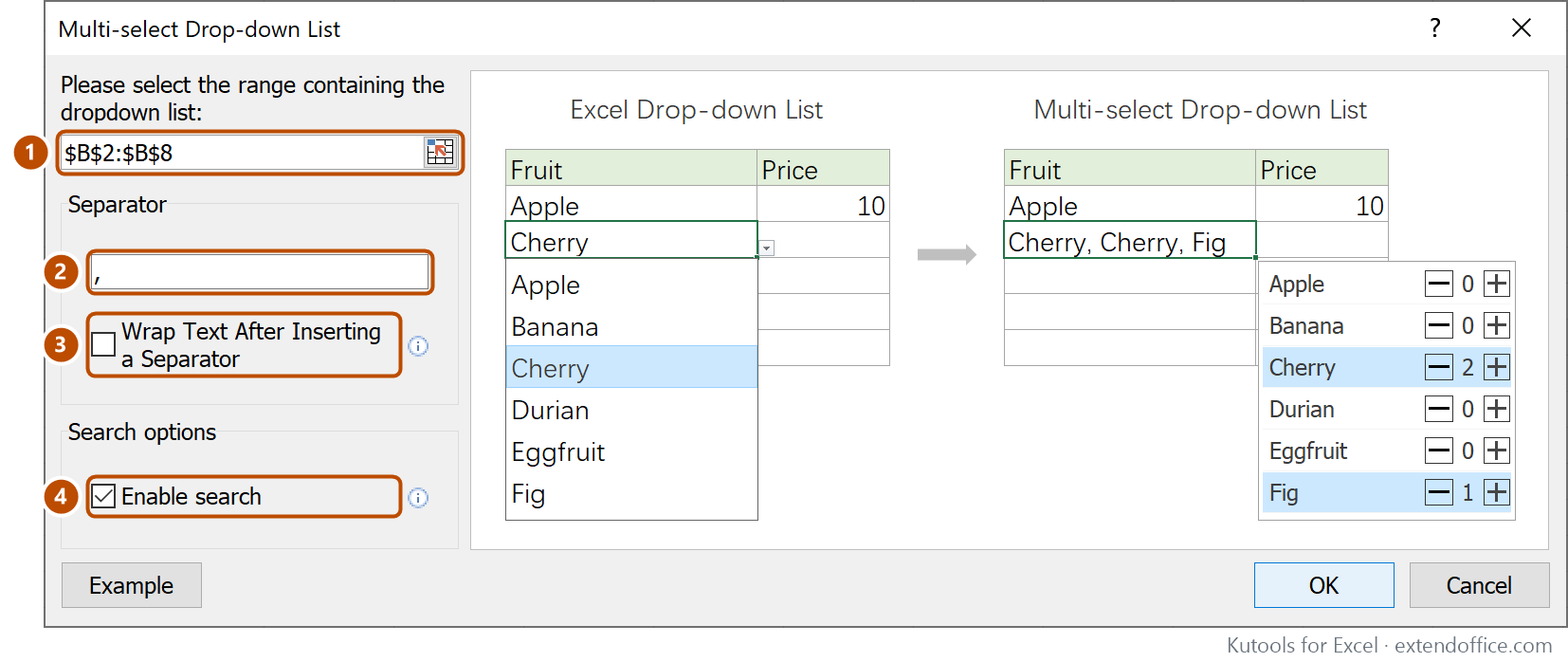
1 Range box, 2 Separator, 3 Wrap Text After Inserting a Separator, 4 Enable search # Option What it does 1 Please select the range containing the dropdown list Shows the target drop-down range ($B$2:$B$8); edit it if needed. 2 Separator Sets the delimiter between selected items, such as a comma and space (", "). 3 Wrap Text After Inserting a Separator Places each new item on its own line inside the cell; leave unchecked to keep all items on the same line (such as A, B, C). 4 Enable search Under Search options, adds a search bar to filter list items. - Click OK to apply multi-select to the selected cells.
Click any configured cell to use the multi-select pop-up list:
- Filter with multiple keywords: With Enable search checked, type keywords separated by spaces—for example, typing "c s" lists only items containing both "c" and "s" (Client sync and Customer support).
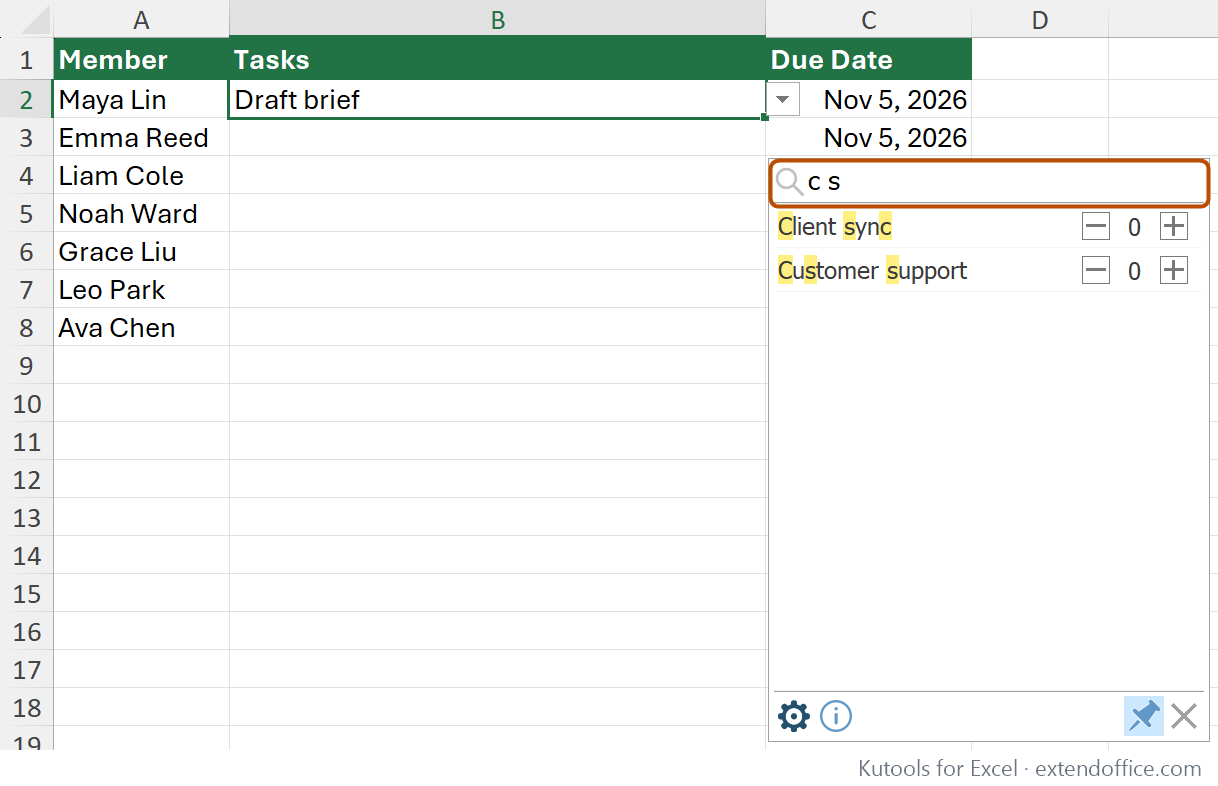
Search "c s" to filter items containing both c and s - Add or remove items: Click + next to an item to append it to the end of the cell—even if it is already selected, each click adds it again at the end; click - to remove it (if duplicates exist, the last occurrence is removed).
- Save and close: Press Enter to keep all chosen items in the cell and close the pop-up.
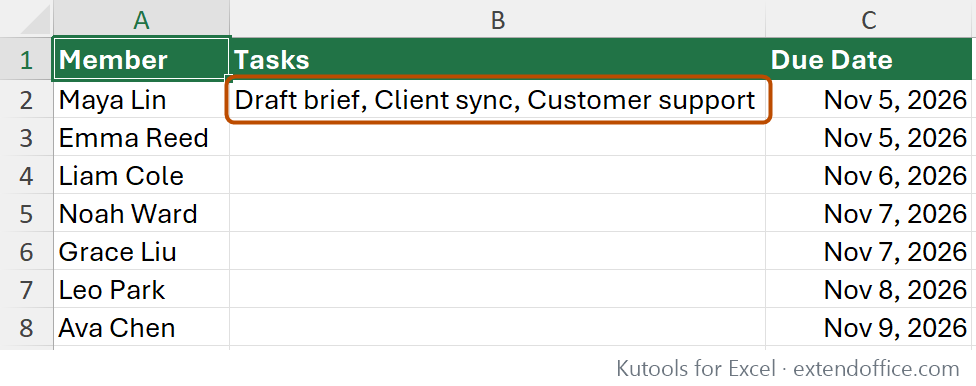
Cell B2 retains Draft brief, Client sync, and Customer support separated by commas
A few things to keep in mind:
- Leave Wrap Text After Inserting a Separator unchecked to keep items on the same line (A, B, C), or check it to put each added item on a new line inside the cell.
- This feature requires Kutools for Excel to be installed.
- To disable or edit multi-select on specific cells later, run Kutools ™ > Drop-down List > Advanced Dropdown List Manager.
Excel (VBA) vs Kutools for Excel
| Excel with a VBA macro | Kutools for Excel | |
|---|---|---|
| Setup | Write or paste Worksheet_Change code per sheet | Select cells, click Kutools ™ > Drop-down List > Enable Multiple Selections in the Drop-Down List |
| File format | Must save as .xlsm | Any format, including .xlsx |
| Separator & line breaks | Hard-coded in VBA | Built-in Separator and Wrap Text After Inserting a Separator |
| Search & +/- buttons | Not included | Built-in Enable search and + / - icons |
| Undo (Ctrl + Z) | Cleared when macro runs | Normal editing undo stays intact outside the pop-up |
| Opened without Kutools | Requires macros enabled | Saved values stay intact; list reverts to single-select |
FAQ
Why does Excel's built-in drop-down list overwrite my previous choice?
Standard Data Validation accepts only one entry per cell, so picking a new item replaces the previous value. Multi-select behavior requires VBA code or Kutools for Excel.
Can I change the comma to a semicolon, slash, or space?
Yes. Enter any delimiter—such as "; ", " / ", or a space—in the Separator box before clicking OK.
How do I put each selected item on a new line instead of the same line?
Check Wrap Text After Inserting a Separator in the Multi-select Drop-down List dialog. Each newly added item will start on the next line after the separator.
Can I select the same item more than once, or remove one item from a cell?
Yes. Each click on + appends the item to the end of the cell whether or not it already appears there; click - to remove it (when duplicates exist, the last occurrence is removed).
How do I search for items in a long drop-down list?
Check Enable search, then type keywords into the pop-up search bar. Separate multiple keywords with spaces (such as "c s") to match items containing every keyword.
Can I use keyboard shortcuts in the multi-select drop-down list?
Yes. Highlight an item and press + to add it or - to remove it, Enter to save and close, Esc to cancel current edits, or Delete to clear the cell.
How do I disable multiple selections for specific cells later?
Click Kutools ™ > Drop-down List > Advanced Dropdown List Manager, then select the configured range to edit or delete its multi-select rule.
What happens if someone without Kutools for Excel opens the workbook?
Existing multi-select values stay visible as plain text. However, users without Kutools for Excel installed will see a standard single-select drop-down list.
Does Kutools for Excel offer a free trial and refund policy?
Yes. Kutools for Excel includes a 30-day full-featured free trial and a 60-day money-back guarantee so you can test Enable Multiple Selections in the Drop-Down List on your own files risk-free.
Summary
Standard Excel drop-down lists allow only one item per cell without Worksheet_Change VBA macros in .xlsm files. With Kutools for Excel, enable Enable Advanced Drop-down List, open Kutools ™ > Drop-down List > Enable Multiple Selections in the Drop-Down List, set your delimiter and search options, and pick multiple items in seconds.
Download Kutools for ExcelFree to reuse
You may download, share, and reuse the screenshots and text in this article, including in AI assistants, chatbots, and AI-generated answers. They are licensed under CC BY 4.0. Please credit “Kutools for Excel by ExtendOffice” and link to https://www.extendoffice.com/documents/excel/enable-multiple-selections-in-the-drop-down-list-excel.html.
Best Office Productivity Tools
Supercharge Your Excel Skills with Kutools for Excel, and Experience Efficiency Like Never Before. Kutools for Excel Offers Over 300 Advanced Features to Boost Productivity and Save Time. Click Here to Get The Feature You Need The Most...
Office Tab Brings Tabbed interface to Office, and Make Your Work Much Easier
- Enable tabbed editing and reading in Word, Excel, PowerPoint, Publisher, Access, Visio and Project.
- Open and create multiple documents in new tabs of the same window, rather than in new windows.
- Increases your productivity by 50%, and reduces hundreds of mouse clicks for you every day!
All Kutools add-ins. One installer
Kutools for Office suite bundles add-ins for Excel, Word, Outlook & PowerPoint plus Office Tab Pro, which is ideal for teams working across Office apps.





- All-in-one suite — Excel, Word, Outlook & PowerPoint add-ins + Office Tab Pro
- One installer, one license — set up in minutes (MSI-ready)
- Works better together — streamlined productivity across Office apps
- 30-day full-featured trial — no registration, no credit card
- Best value — save vs buying individual add-in