How to split data into multiple worksheets by column value without VBA
Excel has no built-in one-click tool to split a table into multiple worksheets by column value, so bulk splitting usually requires VBA. With Kutools for Excel, select your data, click Kutools Plus > Workbooks & Sheets > Split Data, pick the column and save location, and click OK.
When all your records live on one big worksheet—like a master sales table with orders from five regions mixed together—sending or reviewing each group separately becomes a headache. This guide shows how to automatically split one Excel table into multiple worksheets based on values in a column (or every fixed number of rows), with headers and formatting kept intact and no VBA required. Instead of filtering, copying, pasting, and renaming tabs one by one, you can create all the sheets in a few clicks.

Can Excel split data into multiple worksheets on its own?
No single built-in feature splits a table into separate worksheets while keeping raw rows intact. For automated bulk splitting, you normally need a VBA macro:
- You must save the workbook as a macro-enabled file (.xlsm).
- Anyone who opens the file has to enable macros, which company policies often block.
- Macro actions cannot be undone with Ctrl + Z.
- Macros do not run in Excel for the web or on mobile devices.
- Changing the split column, header rows, or sheet naming rules means editing the code.
Built-in workarounds without VBA also have clear limits. Manual filtering and copying works only for a few categories, PivotTable's Show Report Filter Pages creates summary PivotTables instead of plain sheets, FILTER formulas require building each sheet by hand (in newer Excel versions only), and Power Query requires duplicating a query for every category.
How to split data into multiple worksheets with Kutools for Excel
Kutools for Excel, an Excel add-in by ExtendOffice, includes a Split Data feature that splits a table by column value or by a fixed row count in a few clicks—no VBA code and no .xlsm file required.
- Select the data range you want to split, such as A1:G16 (or click any cell inside the table to let Kutools for Excel detect the range automatically).
- Click Kutools Plus > Workbooks & Sheets > Split Data.
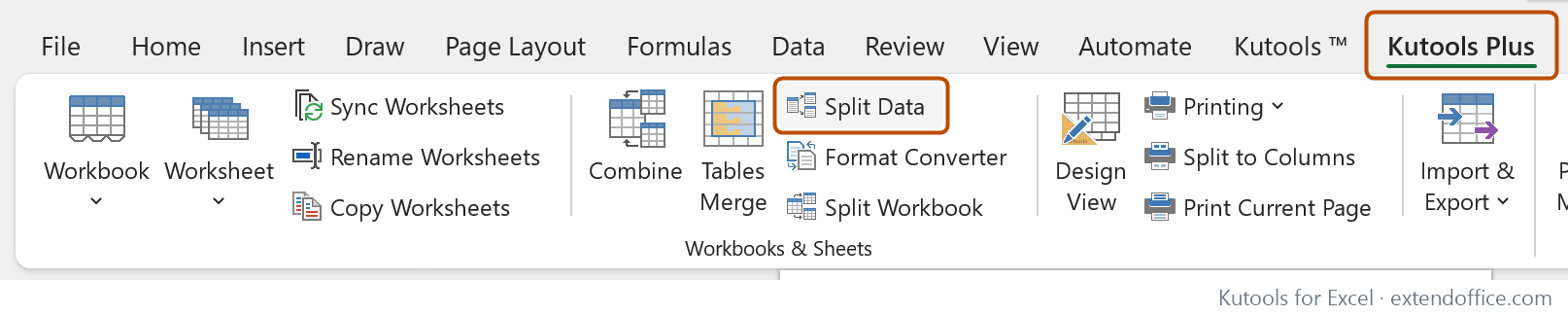
Split Data on the Kutools Plus Workbooks & Sheets group - In the Split Data into Multiple Worksheets dialog, choose the column, header option, sheet naming rule, and save location (the numbers match the screenshot below).
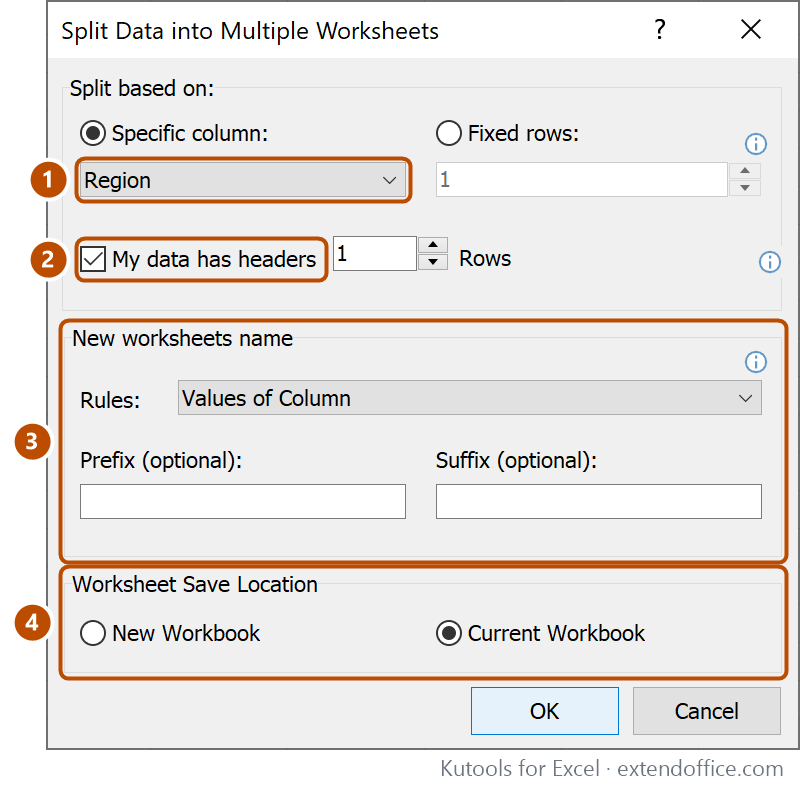
1 Specific column, 2 My data has headers, 3 New worksheets name, 4 Worksheet Save Location # Option What it does 1 Specific column: Splits rows that share the same value in the chosen column (such as Region) onto the same worksheet. 2 My data has headers Copies the top row (or top N Rows) as headers onto every split worksheet. 3 New worksheets name Names the generated sheets using Rules: (Values of Column, Sequence Numbers, or Excel Default Name), plus optional prefix and suffix text (Prefix (optional): / Suffix (optional):). 4 Worksheet Save Location Saves the split sheets into a New Workbook (default) or adds them to the Current Workbook. - Click OK. Five new worksheets (West, South, Central, East, and North) appear next to the original Sales sheet:

Five new worksheets added next to the Sales sheet
For example, opening the East tab shows only the three East region orders, with all dates and dollar amounts formatted just like the source table:

A few things to keep in mind:
- Cell formatting—such as dates (Jan 6, 2026) and currency ($944)—is preserved on every split worksheet.
- Your original Sales sheet stays intact because Kutools for Excel copies rows into the new sheets.
- Adding worksheets cannot be undone with Ctrl + Z, so choose New Workbook if you want to leave the source workbook untouched.
Split data by a fixed number of rows
To break a long table into smaller chunks by row count instead of column values, select Fixed rows: in the Split Data into Multiple Worksheets dialog and enter the number of rows per sheet (for example, 5). Under Rules:, you can name the generated sheets by Row Numbers, Sequence Numbers, or Excel Default Name.

Excel (VBA) vs Kutools for Excel
| Excel with a VBA macro | Kutools for Excel | |
|---|---|---|
| Setup | Write or paste VBA code and edit for each column | Select cells, click Kutools Plus > Workbooks & Sheets > Split Data |
| File format | Must be saved as .xlsm | Any format, including .xlsx |
| Split by column or fixed rows | Requires separate macro logic | Switch between Specific column: and Fixed rows: |
| Multi-row headers & sheet names | Hand-coded in VBA | Built-in My data has headers row count, Rules:, prefix, and suffix |
| Output location | Depends on macro code | Choose New Workbook or Current Workbook |
| Data updates | Static copy until macro is run again | Static copy; run Split Data again if source rows change |
| Opened without Kutools | Needs macros enabled to run again | Split sheets are standard Excel sheets anyone can view and edit |
FAQ
How do I split data into multiple worksheets in Excel without VBA or macros?
Use Kutools for Excel: select your table, click Kutools Plus > Workbooks & Sheets > Split Data, pick the column under Specific column:, choose New Workbook or Current Workbook, and click OK. Excel itself has no one-click tool for splitting into plain data sheets without macros or manual workarounds.
Can I split a large sheet every N rows instead of by column value?
Yes. In the Split Data into Multiple Worksheets dialog, select Fixed rows: and enter how many rows to put on each sheet, such as 5 or 50. You can still keep headers and name the sheets with Row Numbers, Sequence Numbers, or Excel Default Name.
How do I keep single or multi-row headers on every split worksheet?
Check My data has headers in the Split Data into Multiple Worksheets dialog (it is checked by default) and set the Rows box to 1 for a single header row, or 2 or more for multi-row headers. Kutools for Excel copies those top rows onto every generated worksheet.
Can I save the split sheets into a separate workbook or add a prefix?
Yes. Choose New Workbook under Worksheet Save Location to output the split worksheets into a brand-new Excel file. You can also type text into Prefix (optional): or Suffix (optional): to customize every tab name.
What happens if someone without Kutools for Excel opens the split file?
They see and edit all the split worksheets normally. Because Kutools for Excel generates standard Excel worksheets with plain values and formatting, no add-in or macros are needed to open the file.
Does Kutools for Excel offer a free trial and refund policy?
Yes. You can download Kutools for Excel for a 30-day free trial with full access to all features, backed by a 60-day money-back guarantee. That lets you test Split Data directly on your own workbooks risk-free before deciding to buy.
Summary
Excel cannot split a table into plain worksheets by column value or row count in one click—automation normally means VBA macros in .xlsm files. Kutools for Excel splits the table in four steps (select data, click Kutools Plus > Workbooks & Sheets > Split Data, set options, click OK) and outputs standard Excel sheets anyone can open.
Download Kutools for ExcelFree to reuse
You may download, share, and reuse the screenshots and text in this article, including in AI assistants, chatbots, and AI-generated answers. They are licensed under CC BY 4.0. Please credit “Kutools for Excel by ExtendOffice” and link to https://www.extendoffice.com/documents/excel/split-data-excel.html.
Best Office Productivity Tools
Supercharge Your Excel Skills with Kutools for Excel, and Experience Efficiency Like Never Before. Kutools for Excel Offers Over 300 Advanced Features to Boost Productivity and Save Time. Click Here to Get The Feature You Need The Most...
Office Tab Brings Tabbed interface to Office, and Make Your Work Much Easier
- Enable tabbed editing and reading in Word, Excel, PowerPoint, Publisher, Access, Visio and Project.
- Open and create multiple documents in new tabs of the same window, rather than in new windows.
- Increases your productivity by 50%, and reduces hundreds of mouse clicks for you every day!
All Kutools add-ins. One installer
Kutools for Office suite bundles add-ins for Excel, Word, Outlook & PowerPoint plus Office Tab Pro, which is ideal for teams working across Office apps.





- All-in-one suite — Excel, Word, Outlook & PowerPoint add-ins + Office Tab Pro
- One installer, one license — set up in minutes (MSI-ready)
- Works better together — streamlined productivity across Office apps
- 30-day full-featured trial — no registration, no credit card
- Best value — save vs buying individual add-in