How to Delete the Current Page or Specific Pages in a Word Document
Fast, reliable methods for removing the current page, a specific page number, ranges, and blank pages — plus one-click tools in Kutools for Word.
Deleting pages in Word can feel confusing because Word is built around paragraphs, sections, and breaks—not literal “pages.” Below are several reliable methods to remove the current page, a specific page (by number), a range of pages, and blank pages. You’ll also see how Kutools for Word makes these jobs one-click simple, with extra tools and an AI assistant to speed up your writing.
- Delete the current page
- Word (built-in): Delete the current page by direct selection
- Kutools for Word: Delete the Current Page (one-click)
- Delete the specific pages
- Word (built-in): Delete a specific page by number
- Kutools for Word: Delete Specified Pages (multiple pages or ranges at once)
Delete the current page
Method 1 — Word (built-in): Delete the current page by direct selection
When you just need to remove the page you’re looking at, the most predictable approach is to manually select everything on that page and press Delete.

Office Tab
Tabbed navigation for Word, Excel, PowerPoint, and more—just like a web browser, with smooth switching in one window.
Steps
Switch to View > Print Layout so you can clearly see page boundaries.
Place the cursor at the first character on the page you want to remove.
Scroll to the end of the same page, hold Shift, and click right after the last character on that page. Tip: If the page ends with a table, click at the very end of the last cell.
Press Delete.
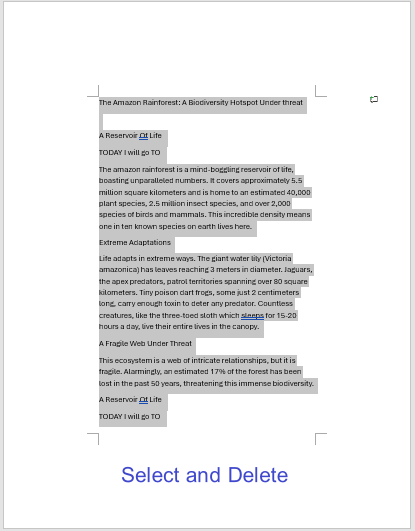
If the page doesn’t fully disappear, turn on ¶ Show/Hide (Ctrl+Shift+8) and delete any leftover page breaks or extra paragraph marks on that page.
Works best when: the page has straightforward content and you want full control over what’s being removed.
Method 2 — Kutools for Word: Delete the Current Page (one-click)
If you delete pages frequently—or your documents use complex layouts and section breaks—the Kutools button is faster and safer than manual selection.
Steps
Install Kutools for Word (free 60-day trial).
Open your file and go to the Kutools Plus tab.
Click Delete Page > Delete the Current Page. Done.
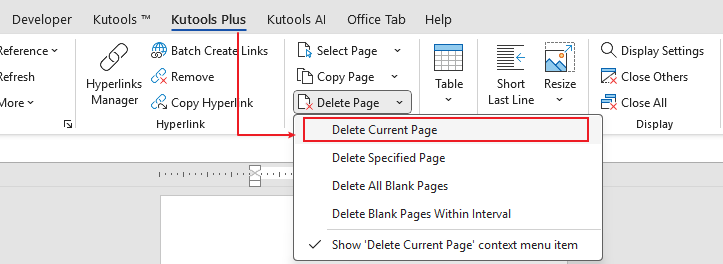
Or you can right-click and select "Delete Current Page" to quickly remove the current page.

Why people love this
- One click—no selecting, no dialogs.
- Robust with complex pages (tables, images, headers/footers, section breaks).
- Saves time in daily editing.
🌿 Good to know: Kutools for Word offers 100+ smart features to make your Word work easier.
- Copy the current page or copy specified pages
- Delete blank pages in one click
- Select the current page or specified pages instantly
- Includes an AI Assistant to draft, rewrite, summarize, and translate text — all inside Word.
Recommendation: Try the one-click workflow — it’s the easiest way to manage pages at scale.
Delete the specific pages
Method 1 — Word (built-in): Delete a specific page by number
When someone asks, "Please remove page 5," jump there first, then select that page’s content and delete.
Steps
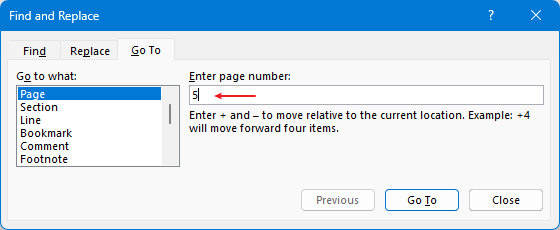
Press Ctrl+G (or F5) to open Find & Replace > Go To.
Choose Page, type the page number (e.g.,
5), and press Enter to jump there.Close the dialog.
Select everything on that page (use the Shift+click technique).
Press Delete.
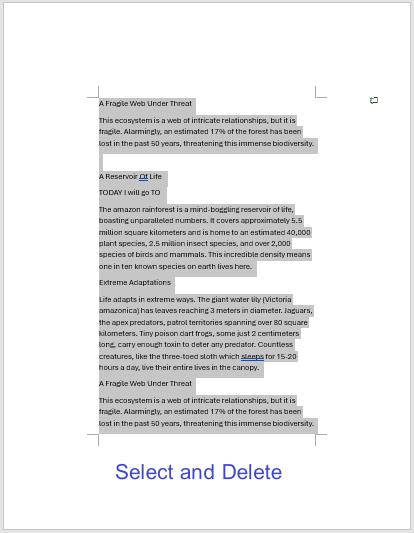
Turn on ¶ Show/Hide if needed and remove any page/section breaks left behind.
Tip: For long documents, use View > Navigation Pane > Pages to see thumbnails; click the page you want, then select and delete.
When you must remove a continuous block (e.g., pages 2–5):
Steps
Go to page 2 (Ctrl+G → Page → 2 → Enter → Close).
Place the cursor at the very start of page 2.
Go to page 5, scroll to the very end of that page.
Hold Shift and click after the last character on page 5.
Press Delete.
Note: This works, but it’s tedious. For multiple ranges or recurring tasks, Kutools’ Delete Specified Pages is much faster.
Method 2 — Kutools for Word: Delete Specified Pages (multiple pages or ranges at once)
If you need to remove several pages or page ranges (e.g., 2, 4–6) in a single action, Kutools does it in one pass.
Steps
Open the Kutools Plus tab.
Click Delete Page > Delete Specified Pages.
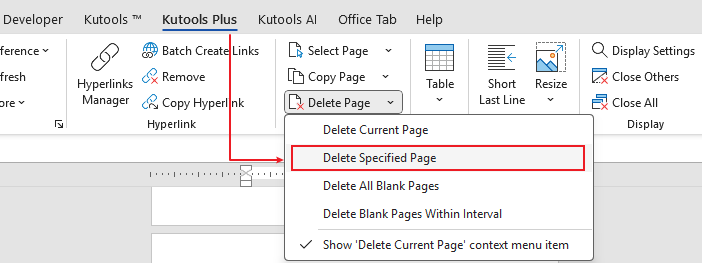
Enter the page numbers/ranges, e.g.,
2,4-6.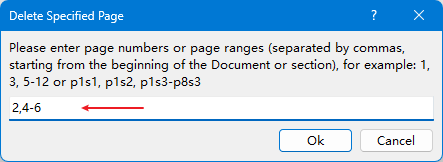
Confirm to remove them all at once.
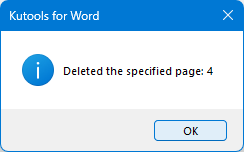
- Batch deletion—no repeating manual steps.
- Far less error-prone than selecting pages by hand.
- Ideal for cleanup after reviews, merges, or template work.
Delete the empty pages
Supplement — Delete Blank Pages with Kutools for Word (one-click)
If you want to clear all empty pages across a document without hunting for hidden paragraph marks or breaks, Kutools offers a fast, reliable one-click cleanup.
Steps
Install Kutools for Word (free 60-day trial). Download Kutools for Word
Open your document and switch to the Kutools Plus tab.
Click Delete Page > Delete All Blank Pages.
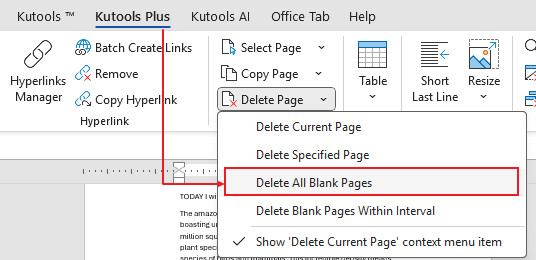
Review the result. If you removed more than intended, press Ctrl+Z to undo and adjust any layout specifics (e.g., section breaks) before running again.
Why this helps
- One-click cleanup across the whole document—no manual scanning for ¶ marks or breaks.
- Targets common causes of blank pages (extra paragraph marks, page/section breaks, trailing table paragraphs).
- Speeds up final formatting before export or print.
Related Kutools tools: Copy the Current Page, Copy Specified Pages, Select the Current Page, Select Specified Pages — plus a built-in AI assistant to draft, rewrite, summarize, and translate right inside Word.
Which method should you use?
- Delete the page you’re viewing, occasionally: Use direct selection for full control.
- Delete the current page or multiple pages, frequently: Use Kutools — Delete the Current Page (one click) or Delete Specified Pages (batch ranges).
- Chasing empties: Use Kutools’ Delete Blank Pages for one-click cleanup.
💡 Why consider Kutools for Word?
- One-click page tools: Delete the current page or delete specified pages effortlessly.
- Related helpers: Copy current/specified pages, delete blank pages, select pages in one step.
- Over 100+ productivity features for formatting, selection, navigation, and cleanup.
- Includes an AI Assistant to compose, reply, rewrite, and translate — all inside Word.
Best Office Productivity Tools
Kutools for Word - Elevate Your Word Experience with Over 100 Remarkable Features!
🤖 Kutools AI Features: AI Assistant / Real-Time Assistant / Super Polish (Preserve Format) / Super Translate (Preserve Format) / AI Redaction / AI Proofread...
📘 Document Mastery: Split Pages / Merge Documents / Export Selection in Various Formats (PDF/TXT/DOC/HTML...) / Batch Convert to PDF...
✏ Contents Editing: Batch Find and Replace across Multiple Files / Resize All Pictures / Transpose Table Rows and Columns / Convert Table to Text...
🧹 Effortless Clean: Sweap away Extra Spaces / Section Breaks / Text Boxes / Hyperlinks / For more removing tools, head to the Remove group...
➕ Creative Inserts: Insert Thousand Separators / Check Boxes / Radio Buttons / QR Code / Barcode / Multiple Pictures / Discover more in the Insert group...
🔍 Precision Selections: Pinpoint Specific Pages / Tables / Shapes / Heading Paragraphs / Enhance navigation with more Select features...
⭐ Star Enhancements: Navigate to Any Location / Auto-Insert Repetitive Text / Toggle Between Document Windows / 11 Conversion Tools...
🌍 Supports 40+ Languages: Use Kutools in your preferred language – supports English, Spanish, German, French, Chinese, and 40+ others!

Office Tab - Brings Tabbed interface to Office, Make Your Work Much Easier
- Enable tabbed editing and reading in Word, Excel, PowerPoint, Publisher, Access, Visio and Project.
- Open and create multiple documents in new tabs of the same window, rather than in new windows.
- Increases your productivity by 50%, and reduces hundreds of mouse clicks for you every day!
✨ Kutools for Office – One Installation, Five Powerful Tools!
Includes Office Tab Pro · Kutools for Excel · Kutools for Outlook · Kutools for Word · Kutools for PowerPoint
📦 Get all 5 tools in one suite | 🔗 Seamless integration with Microsoft Office | ⚡ Save time and boost productivity instantly
Best Office Productivity Tools
Kutools for Word - 100+ Tools for Word
- 🤖 Kutools AI Features: AI Assistant / Real-Time Assistant / Super Polish / Super Translate / AI Redaction / AI Proofread
- 📘 Document Mastery: Split Pages / Merge Documents / Batch Convert to PDF
- ✏ Contents Editing: Batch Find and Replace / Resize All Pictures
- 🧹 Effortless Clean: Remove Extra Spaces / Remove Section Breaks
- ➕ Creative Inserts: Insert Thousand Separators / Insert Check Boxes / Create QR Codes
- 🌍 Supports 40+ Languages: Kutools speaks your language – 40+ languages supported!