The Ultimate Guide to Inserting Symbols and Special Characters in Word
When creating documents in Microsoft Word, you may often need to insert symbols, special characters, or even emojis — from © copyright and € euro signs to mathematical notations like ≤ and ≠ and 😊 smiley faces. These elements enhance readability, emphasize content, and improve overall document presentation. Fortunately, Word provides several easy ways to add them. This guide walks you through all the best methods step by step.

🔹 Method 1: Insert Symbols Using the Ribbon
The most straightforward and beginner-friendly way to insert symbols in Word is by using the built-in Insert tab, which allows you to quickly browse and add various symbols, special characters, or mathematical signs without memorizing any codes.
- Open the Word document, place your cursor where you want the symbol to appear.
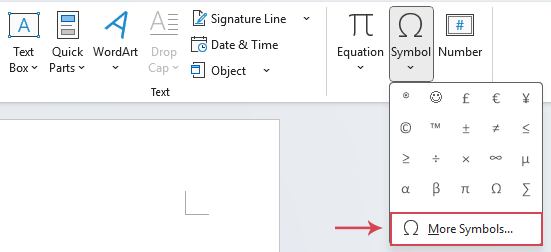
- Go to the Insert tab on the Ribbon, and click Symbol > More Symbols.
- In the Symbol dialog box, choose:
- Font: Different fonts contain different symbol sets. For example, (normal text) includes common Latin characters and basic symbols; fonts like Wingdings and Webdings are dedicated symbol fonts; Segoe UI Emoji contains a wide range of emoticons and graphical icons.
- Subset: When (normal text) is selected, you can use the Subset dropdown menu to quickly locate specific categories of symbols, such as "Mathematical Operators," "Arrows," "Currency Symbols," and more.
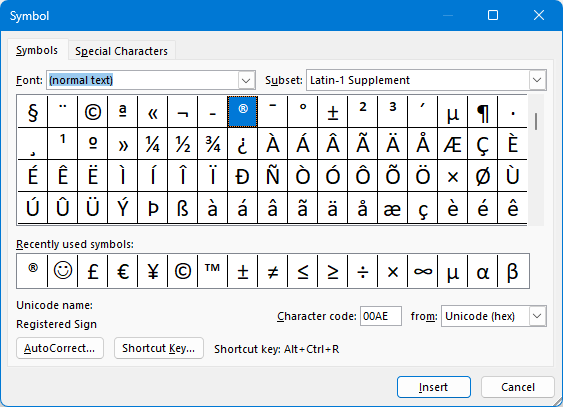
- Select your symbol and click the Insert button.
✅ Tips:
- Once a symbol has been used, it appears in the Recently Used Symbols section for quick access next time.
- Frequently used symbols like “°” (degree), “™” (trademark) can be found quickly by switching the subset “Latin-1 Supplement”.
Pros: Visual and intuitive interface; easy to browse and discover symbols.
Cons: Multi-step process is inefficient for frequent use.
🔹 Method 2: Insert Symbols or Emojis with Kutools for Word
For users who regularly insert special characters, mathematical operators, or emojis, Word’s default Symbol dialog can quickly become inefficient. Kutools for Word, an advanced productivity add-in, offers a faster and more intuitive solution. Its built-in Symbol and Emoji tools provide categorized collections — such as currency, arrows, math, and smileys — enabling you to add any symbol you need instantly. Whether you’re drafting technical documents or creative content, Kutools makes symbol insertion effortless.
After downloading and installing Kutools for Word, please do as this:
- Go to the Kutools tab, click Symbol from the Popular group.
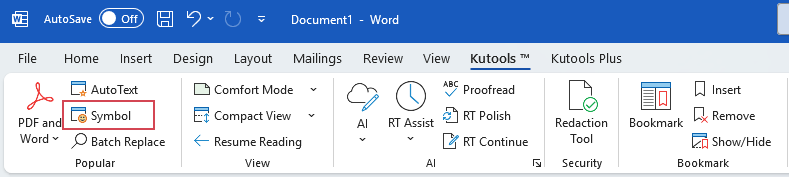
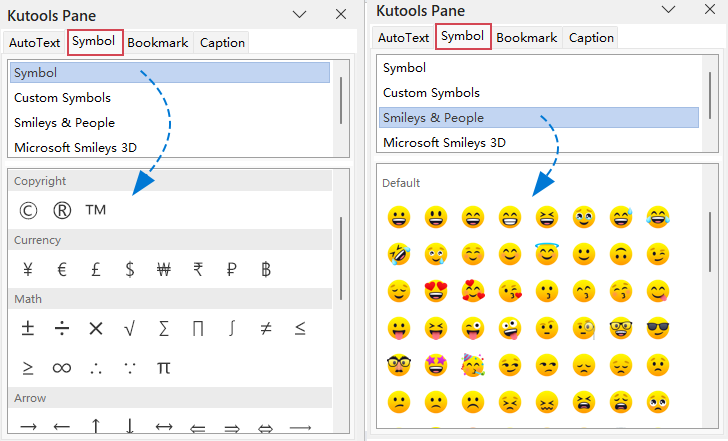
- An intuitive symbol pane appears on the left side of your Word document.
- Then, you can simply choose the category of symbols or emojis you want to insert — such as Currency, Math, Arrows, or Smileys & People — and click on any item to instantly add it to your document. See screenshot:
✅ Tips:
Beyond the built-in collections of symbols and emojis, Kutools for Word also allows you to create and save custom symbols, so you can instantly reuse your preferred characters without searching for them again.
✅ Advantages of Kutools:
- ✔️ One-click insertion of frequently used symbols.
- 😊 Built-in emoji panel for modern communication.
- 💾 Saves and reuses your favorite symbols.
- ❌ No need to memorize Alt codes.
💡 Kutools for Word
Easily insert symbols, emojis, and perform advanced tasks in Word — all in one powerful add-in.
⬇️ Download Free Trial (60 Days) 📘 Learn More🔹 Method 3: Insert Symbols using Keyboard Shortcuts (Alt Codes)
For advanced users who love speed, Alt codes are the quickest way to insert special characters directly from the keyboard.
✅ Tips: Alt codes only work with the numeric keypad, not the top row of number keys.
- Turn on Num Lock on your keyboard. (This method requires the use of the numeric keypad on the right side of your keyboard.)
- Press and hold down the Alt key.
- On the numeric keypad, type the specific number code for the symbol (e.g., 0169 for the copyright symbol ©).
- Once you release the Alt key, the symbol will instantly appear in your document.
Examples of Useful Alt Codes:
Common Math & Unit Symbols
| Symbol | Alt Code | English Description |
|---|---|---|
| ± | Alt + 0177 | Plus–minus sign |
| × | Alt + 0215 | Multiplication sign |
| ÷ | Alt + 0247 | Division sign |
| ° | Alt + 0176 | Degree sign (Celsius/angle) |
| ½ | Alt + 0189 | One half |
| ¼ | Alt + 0188 | One quarter |
| ¾ | Alt + 0190 | Three quarters |
| ∞ | Alt + 236 | Infinity |
| √ | Alt + 251 | Square root |
| ≈ | Alt + 247 | Approximately equal to |
| ≠ | Alt + 8800 | Not equal to |
| ≤ | Alt + 243 | Less than or equal to |
| ≥ | Alt + 242 | Greater than or equal to |
Typography & Text Symbols
| Symbol | Alt Code | English Description |
|---|---|---|
| • | Alt + 0149 | Bullet |
| · | Alt + 0183 | Middle dot (interpunct) |
| – | Alt + 0150 | En dash |
| — | Alt + 0151 | Em dash |
| ‐ | Alt + 8208 | Hyphen |
| ™ | Alt + 0153 | Trademark sign |
| © | Alt + 0169 | Copyright sign |
| ® | Alt + 0174 | Registered sign |
| § | Alt + 0167 | Section sign |
| ¶ | Alt + 0182 | Pilcrow (paragraph sign) |
| ¬ | Alt + 0172 | Not sign |
| ° | Alt + 0176 | Degree sign |
| † | Alt + 0134 | Dagger |
| ‡ | Alt + 0135 | Double dagger |
Currency Symbols
| Symbol | Alt Code | English Description |
|---|---|---|
| ¢ | Alt + 0162 | Cent sign |
| £ | Alt + 156 | Pound sterling |
| ¥ | Alt + 0165 | Yen/Yuan sign |
| € | Alt + 0128 | Euro sign |
| ₩ | Alt + 8361 | Won sign (Korean won) |
Arrows & Direction Symbols
| Symbol | Alt Code | English Description |
|---|---|---|
| ↑ | Alt + 24 | Upwards arrow |
| ↓ | Alt + 25 | Downwards arrow |
| → | Alt + 26 | Rightwards arrow |
| ← | Alt + 27 | Leftwards arrow |
| ↔ | Alt + 29 | Left–right arrow |
| ↕ | Alt + 18 | Up–down arrow |
Pros: Unmatched speed and efficiency, eliminating reliance on the mouse. It is the preferred method for keyboard-centric users.
Cons: Requires memorizing codes and depends on a numeric keypad, which can be inconvenient for laptop users (often requiring an Fn key combination).
🔹 Conclusion
Whether you need mathematical symbols, currency signs, or fun emojis, Word provides several flexible ways to insert them.
- The Ribbon method is great for occasional use.
- Alt codes are perfect for fast typists who remember numeric shortcuts.
- But for everyday users who want speed, convenience, and a complete collection of symbols and emojis, Kutools for Word offers the most powerful and time-saving solution.
| Method | Best For | Pros | Cons |
|---|---|---|---|
| Insert Tab | Occasional or exploratory use | Visual, comprehensive, preview available | More steps, slower to use |
| Keyboard Shortcuts | Frequent use of fixed symbols | Super fast, no mouse needed | Requires memorizing codes |
| Kutools for Word | Heavy or repeated symbol insertion | One-click insertion; categorized symbols (math, currency, Greek, etc.); add favorites; integrated with Word; ideal for professionals | Requires add-in installation; paid version after trial |
Best Office Productivity Tools
Kutools for Word - Elevate Your Word Experience with Over 100 Remarkable Features!
🤖 Kutools AI Features: AI Assistant / Real-Time Assistant / Super Polish (Preserve Format) / Super Translate (Preserve Format) / AI Redaction / AI Proofread...
📘 Document Mastery: Split Pages / Merge Documents / Export Selection in Various Formats (PDF/TXT/DOC/HTML...) / Batch Convert to PDF...
✏ Contents Editing: Batch Find and Replace across Multiple Files / Resize All Pictures / Transpose Table Rows and Columns / Convert Table to Text...
🧹 Effortless Clean: Sweap away Extra Spaces / Section Breaks / Text Boxes / Hyperlinks / For more removing tools, head to the Remove group...
➕ Creative Inserts: Insert Thousand Separators / Check Boxes / Radio Buttons / QR Code / Barcode / Multiple Pictures / Discover more in the Insert group...
🔍 Precision Selections: Pinpoint Specific Pages / Tables / Shapes / Heading Paragraphs / Enhance navigation with more Select features...
⭐ Star Enhancements: Navigate to Any Location / Auto-Insert Repetitive Text / Toggle Between Document Windows / 11 Conversion Tools...
🌍 Supports 40+ Languages: Use Kutools in your preferred language – supports English, Spanish, German, French, Chinese, and 40+ others!

Office Tab - Brings Tabbed interface to Office, Make Your Work Much Easier
- Enable tabbed editing and reading in Word, Excel, PowerPoint, Publisher, Access, Visio and Project.
- Open and create multiple documents in new tabs of the same window, rather than in new windows.
- Increases your productivity by 50%, and reduces hundreds of mouse clicks for you every day!
✨ Kutools for Office – One Installation, Five Powerful Tools!
Includes Office Tab Pro · Kutools for Excel · Kutools for Outlook · Kutools for Word · Kutools for PowerPoint
📦 Get all 5 tools in one suite | 🔗 Seamless integration with Microsoft Office | ⚡ Save time and boost productivity instantly
Best Office Productivity Tools
Kutools for Word - 100+ Tools for Word
- 🤖 Kutools AI Features: AI Assistant / Real-Time Assistant / Super Polish / Super Translate / AI Redaction / AI Proofread
- 📘 Document Mastery: Split Pages / Merge Documents / Batch Convert to PDF
- ✏ Contents Editing: Batch Find and Replace / Resize All Pictures
- 🧹 Effortless Clean: Remove Extra Spaces / Remove Section Breaks
- ➕ Creative Inserts: Insert Thousand Separators / Insert Check Boxes / Create QR Codes
- 🌍 Supports 40+ Languages: Kutools speaks your language – 40+ languages supported!