How to Change Background Color in Word (Without Hurting Your Eyes)
Staring at a bright white document for hours can quickly lead to eye strain, fatigue, and headaches. The good news: Microsoft Word provides a simple, built-in way to change the page background color, and if you work in Word for long periods, you can go further with Comfort Mode in Kutools for Word to create a more professional, eye-friendly workspace. This guide walks you through both approaches step-by-step so you can find the option that fits the way you work.

💡 Quick Navigation:
- Add or change background color in Word
- Remove or reset background color
- FAQ: Printing, dark mode & sharing
Add or change background color in Word
You can change the background in two main ways depending on your needs:
- Page Color (built-in): Set a background color that is saved in the current document only.
- Comfort Mode in Kutools for Word: Apply eye-friendly backgrounds using presets and custom colors that you can quickly reuse across documents with a single click.

Office Tab
Tabbed navigation for Word, Excel, PowerPoint, and more—just like a web browser, with smooth switching in one window.
Method 1 – Use Word’s built-in Page Color
Use Page Color when you want to style a specific document — for example, training materials, worksheets, or simple colored pages.
- Open your document in Word.
- Go to the Design tab on the ribbon, then click Page Color in the Page Background group.

- Select a color from the palette, or click More Colors to define a custom color.
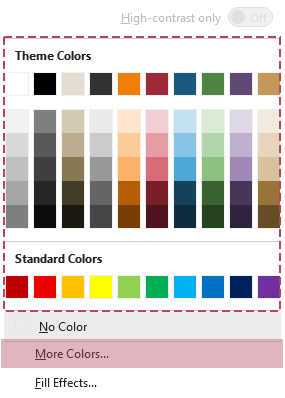
- Result: The selected color is applied to the background of all pages in the current document and is saved with the file.

📌 Things to keep in mind:
- Limited flexibility: The background color is applied to this document only and is saved with the file. If you open another document, you need to set Page Color again.
- Printing: By default, Word does not print background colors. To include the background color, turn on File > Options > Display > Print background colors and images. This will use more ink or toner.
- Sharing: The background color is saved with the file, so recipients may see it when they open your document (depending on their settings).
Method 2 – Use Comfort Mode in Kutools for Word
If you work in Word every day, changing Page Color in each document quickly becomes tedious. Comfort Mode in Kutools for Word is designed for this—it lets you use ready-made and custom comfort themes that you can apply, reuse, and turn off with a single click.
After downloading and installing Kutools for Word from the official website, do the following:
- Open your document in Word. Go to the Kutools tab on the ribbon, and click Comfort Mode. A softer default background is applied instantly.

- Once Comfort Mode is enabled, click the ⌄ drop-down arrow next to the Comfort Mode button. In the menu that appears, use the available options:
- Select one of the three built-in eye-comfort themes to apply it instantly.
- Or click Custom Color 1, 2, or 3 to configure and save custom background colors for quick reuse, then select any saved color to apply it instantly.
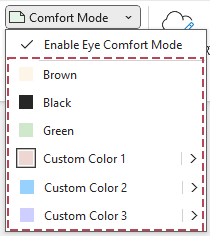
- Result: The selected color is applied to all pages in your open documents and will be used automatically for future documents.

✨ Key advantages of Comfort Mode:
- One-click switch: Turn the comfort background on or off from the Kutools tab without manually picking colors each time.
- Set once, reuse everywhere: Instead of redesigning each file with Page Color, you keep a familiar, eye-friendly workspace wherever you work.
- Built-in comfort themes: Use carefully chosen soft themes that reduce glare and eye strain during long sessions.
- Reusable custom colors: Save your own favorite backgrounds (for day, night, or different monitors) and apply them again in other documents instantly.
- For heavy Word users: Ideal for writers, editors, lawyers, students, and office professionals who spend hours in Word.
Notes:
- The next time you enable Comfort Mode, your previously used comfort theme can be applied with a single click.
- To return to the default white background, click Comfort Mode again to turn it off.
📌 Things to keep in mind:
- Enable smoothly: Comfort Mode won’t start if Page Color is set—choose Design > Page Color > No Color, then try again.
- Printing: If Print background colors and images is enabled, the comfort background may also be printed. Leave this off unless you specifically want colored pages.
- Sharing: For formal sharing, turn off Comfort Mode so recipients see a standard background; re-enable it later for your own editing.
Best practices: which method should you choose?
- Use Page Color if:
- You only need to change the background for one specific document.
- You want a quick, built-in option and are comfortable setting the color manually for each document.
- Use Comfort Mode in Kutools for Word if:
- You work in Word for many hours and care about long-term eye comfort.
- You want reusable, eye-friendly themes and custom colors that you can apply across documents in one click.
- You like being able to turn the comfort background on while you work, and off again when you share or print, without redesigning the document each time.
In short, use Page Color for simple one-off designs, and use Comfort Mode as your everyday, flexible solution for comfortable reading and editing.
- Quick page tools: Delete, copy, or select the current page or specified pages in just one step.
- Clean up layouts fast: Remove blank pages and fix common formatting issues without manual hunting.
- Insert symbols / emojis: Quickly add symbols, icons, and emojis from an intuitive built-in picker.
- PDF & Word conversion: Convert between PDF and Word in bulk while keeping layouts intact.
- AI inside Word: Draft, rewrite, summarize, and translate content directly in Word — no switching apps.
- Real-time AI proofreading: Automatically detect grammar, punctuation, and style issues as you edit, and accept or dismiss suggestions with a single click.
Remove or reset background color
❗ Important: Remove the background using the same method you used to add it.
- If you used Page Color, set Design > Page Color > No Color.
- If you used Comfort Mode (Kutools), turn Comfort Mode off.
Option 1 – Remove Page Color
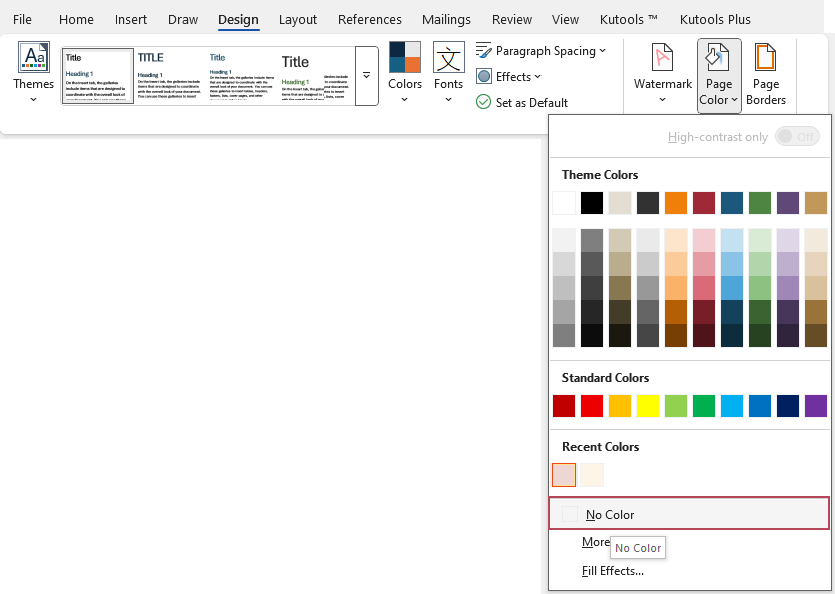
- Go to the Design tab.
- Click Page Color.
- Select No Color to restore the default white background.
Option 2 – Turn off Comfort Mode
- Go to the Kutools tab.
- Click Comfort Mode to disable it. Your document returns to the normal background.
FAQ: Printing, dark mode & sharing
Will my background color be printed?
Is this the same as Word’s dark mode?
Will other people see my background color?
Is changing the background color enough to protect my eyes?
Why can’t I enable Comfort Mode?
Best Office Productivity Tools
Kutools for Word - Elevate Your Word Experience with Over 100 Remarkable Features!
🤖 Kutools AI Features: AI Assistant / Real-Time Assistant / Super Polish (Preserve Format) / Super Translate (Preserve Format) / AI Redaction / AI Proofread...
📘 Document Mastery: Split Pages / Merge Documents / Export Selection in Various Formats (PDF/TXT/DOC/HTML...) / Batch Convert to PDF...
✏ Contents Editing: Batch Find and Replace across Multiple Files / Resize All Pictures / Transpose Table Rows and Columns / Convert Table to Text...
🧹 Effortless Clean: Sweap away Extra Spaces / Section Breaks / Text Boxes / Hyperlinks / For more removing tools, head to the Remove group...
➕ Creative Inserts: Insert Thousand Separators / Check Boxes / Radio Buttons / QR Code / Barcode / Multiple Pictures / Discover more in the Insert group...
🔍 Precision Selections: Pinpoint Specific Pages / Tables / Shapes / Heading Paragraphs / Enhance navigation with more Select features...
⭐ Star Enhancements: Navigate to Any Location / Auto-Insert Repetitive Text / Toggle Between Document Windows / 11 Conversion Tools...
🌍 Supports 40+ Languages: Use Kutools in your preferred language – supports English, Spanish, German, French, Chinese, and 40+ others!

Office Tab - Brings Tabbed interface to Office, Make Your Work Much Easier
- Enable tabbed editing and reading in Word, Excel, PowerPoint, Publisher, Access, Visio and Project.
- Open and create multiple documents in new tabs of the same window, rather than in new windows.
- Increases your productivity by 50%, and reduces hundreds of mouse clicks for you every day!
✨ Kutools for Office – One Installation, Five Powerful Tools!
Includes Office Tab Pro · Kutools for Excel · Kutools for Outlook · Kutools for Word · Kutools for PowerPoint
📦 Get all 5 tools in one suite | 🔗 Seamless integration with Microsoft Office | ⚡ Save time and boost productivity instantly
Best Office Productivity Tools
Kutools for Word - 100+ Tools for Word
- 🤖 Kutools AI Features: AI Assistant / Real-Time Assistant / Super Polish / Super Translate / AI Redaction / AI Proofread
- 📘 Document Mastery: Split Pages / Merge Documents / Batch Convert to PDF
- ✏ Contents Editing: Batch Find and Replace / Resize All Pictures
- 🧹 Effortless Clean: Remove Extra Spaces / Remove Section Breaks
- ➕ Creative Inserts: Insert Thousand Separators / Insert Check Boxes / Create QR Codes
- 🌍 Supports 40+ Languages: Kutools speaks your language – 40+ languages supported!