Word: Keep Formatting While You Polish the Content (Step-by-Step)
Want to rewrite and improve your wording without breaking fonts, colors, or paragraph breaks? Below are reliable workflows that let you polish text in Microsoft Word while preserving existing formatting and layout./p>

💡 Before you start (2 quick toggles)
Turn on Track Changes
Review ▸ Track Changes → On.
You’ll see what changed, and you can roll back if needed.
Show formatting marks (optional)
Home ▸ ¶ (Show/Hide).
This reveals spaces, paragraph marks, and manual line breaks so you don’t accidentally delete structure.
Method 1 — Use Editor to polish wording (format stays intact)
❔ About Word Editor (Microsoft 365 vs Other Versions)
Word for Microsoft 365 (Windows & Mac) — includes the full Editor experience (spelling, grammar, clarity, concision, etc.). Premium refinements require a Microsoft 365 subscription.
Word for the web — basic spelling and grammar are free; premium checks unlock with a Microsoft 365 subscription.
Perpetual editions (Office 2016/2019/2021) — mostly include the classic “Spelling & Grammar” feature. Many users will not see “Editor” in these versions.
If you don’t see Editor on the Home tab, verify that you’re using Word as part of a Microsoft 365 subscription and that your build supports the feature.
Best for: grammar, clarity, concision, punctuation, readability.
Why it keeps formatting: Editor revises text in place without altering styles.
Steps
- Open the Word document you want to polish.
- Click Review ▸ Editor → the Editor pane appears.

- In the pane, work through Spelling, Grammar, and Clarity suggestions.
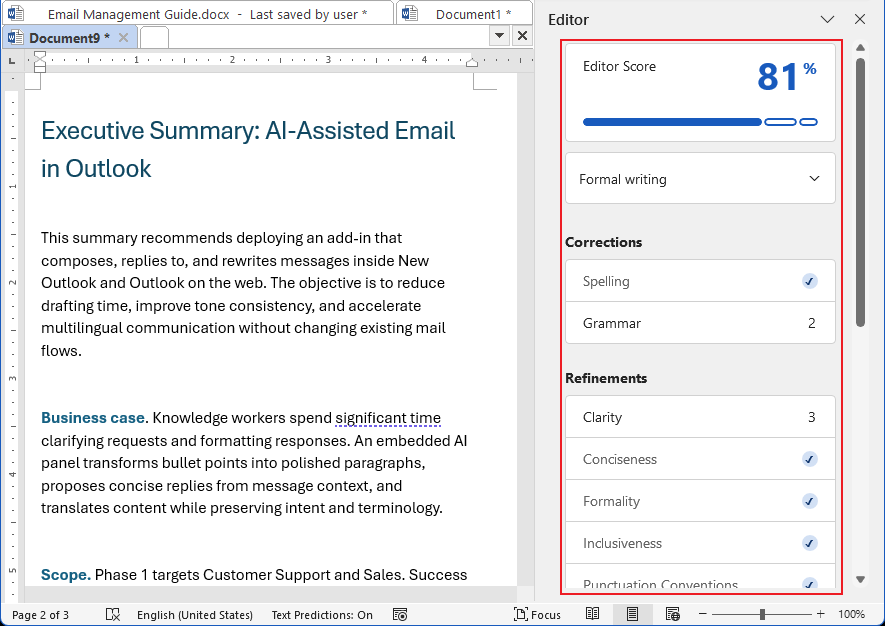
- Accept or ignore per item. Styles (Heading 2, Body Text, list bullets, etc.) remain unchanged.
For example, click Grammar to view suggestions. You can Accept or Ignore each one, and it will automatically move to the next.
If you do not do any operation, click the arrow (>) to move to the next one.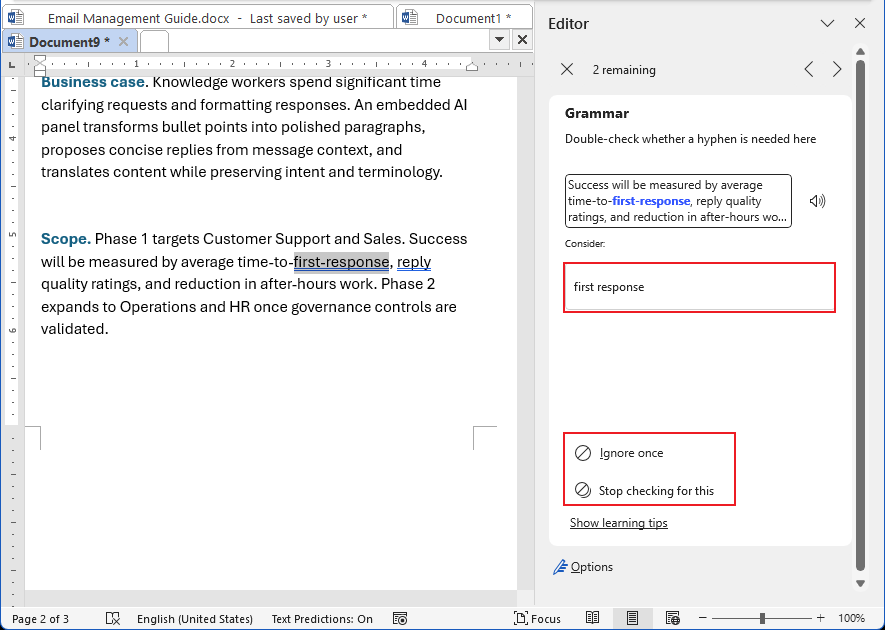
- Clarity provides guidance on what to improve, but it doesn’t offer exact rewrites. You’ll need to revise the text yourself based on its suggestions.
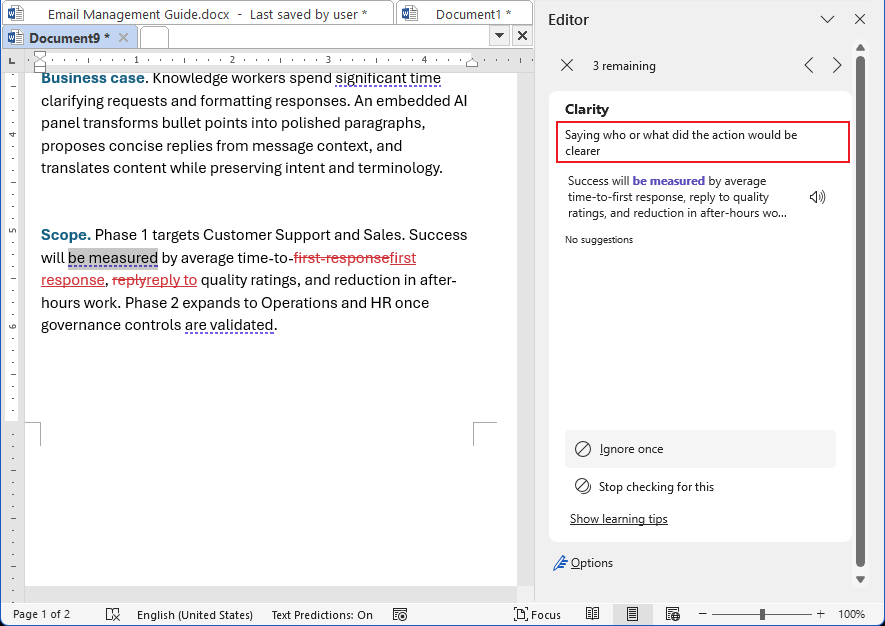
Tip: If a suggestion would alter capitalization you need to keep (e.g., brand names), ignore that item.
Word Editor — Cons
- No full rewrites; guidance is directional
- Limited style/brand rule enforcement
- Some features require Microsoft 365
- Can misflag domain terms
- Best results need connected services
Use Editor when
- You need a quick pass for typos, grammar, clarity, consistency
- You’re collaborating with Track Changes
Add other tools when
You want polished rewrites/tone shifts (e.g., Kutools for Word – Keep Format Polish).
Method 2 — Kutools for Word: Keep Format Polish ✅
🚀 Install Kutools for Word — free 30-day trial
Best for: rewriting selected text while guaranteeing its original styles (headings, fonts, spacing, lists) remain untouched.
What it does: Rewrites content in place and keeps the existing formatting—no style resets, no layout drift.
Steps
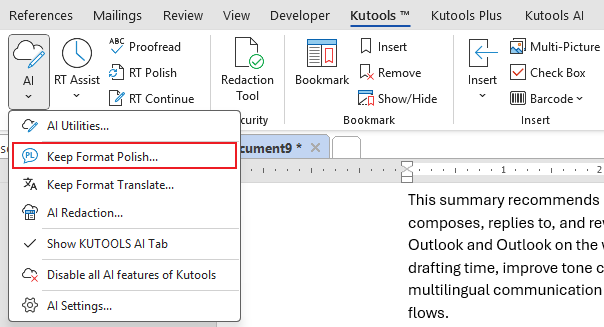
- Go to Kutools tab ▸ AI ▸ Keep Format Polish.
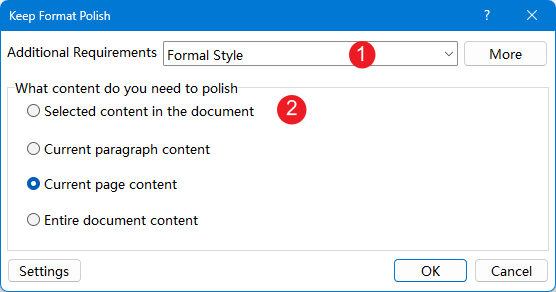
- In the pop-up dialog:
- Choose tone (e.g., Formal/Clarity/Conciseness).
- Select the contents (selection/paragraph/page/entire document) you want to improve.
- Click OK.
- A new polished document will be generated and displayed side-by-side with the original. A toolbar will also appear.
- When you click anywhere in the polished document, the original document will automatically scroll to the corresponding location, and the toolbar will show the comparison between the original text and the polished version.
- You can choose to replace the original text, insertthe polished text below it, change the polishing style, and re-polish the selected content. If you click on an area that has not been polished, the toolbar will display “No changes.”
- After reviewing all the changes, if everything looks good, you can click Done to exit the toolbar, but keep the polished document open.
Why people choose it
- Keeps styles 1:1 (headings, list levels, spacing, character styles).
- In-place result—no copy/paste mismatches.
- Fast iteration with tone controls.
Tip: Combine with Track Changes to review every rewrite safely.
🔥 Especially worth mentioning: our AI features can be used 500 times for free — just download Kutools, no key or activation required. Enjoy 500 free AI uses right out of the box!
✨ Experience a smarter way to write with Kutools for Word AI — real-time grammar and spelling correction, text continuation, translation, and sensitive-data masking. Plus, enjoy 100+ productivity tools for cleaning spaces, deleting blank lines, and converting between PDF and Word.
🚀 Download now and try the full version free for 30 days!
Best Office Productivity Tools
Kutools for Word - Elevate Your Word Experience
🤖 Kutools AI Features: AI Assistant / Real-Time Assistant / Super Polish (Preserve Format) / Super Translate (Preserve Format) / AI Redaction / AI Proofread...
📘 Document Mastery: Split Pages / Merge Documents / Export Selection in Various Formats (PDF/TXT/DOC/HTML...) / Batch Convert to PDF...
✏ Contents Editing: Batch Find and Replace across Multiple Files / Resize All Pictures / Transpose Table Rows and Columns / Convert Table to Text...
🧹 Effortless Clean: Sweap away Extra Spaces / Section Breaks / Text Boxes / Hyperlinks / For more removing tools, head to the Remove group...
➕ Creative Inserts: Insert Thousand Separators / Check Boxes / Radio Buttons / QR Code / Barcode / Multiple Pictures / Discover more in the Insert group...
🔍 Precision Selections: Pinpoint Specific Pages / Tables / Shapes / Heading Paragraphs / Enhance navigation with more Select features...
⭐ Star Enhancements: Navigate to Any Location / Auto-Insert Repetitive Text / Toggle Between Document Windows / 11 Conversion Tools...
🌍 Supports 40+ Languages: Use Kutools in your preferred language – supports English, Spanish, German, French, Chinese, and 40+ others!

Office Tab - Tabs for Office, Power for You
- Enable tabbed editing and reading in Word, Excel, PowerPoint, Publisher, Access, Visio and Project.
- Open and create multiple documents in new tabs of the same window, rather than in new windows.
- Increases your productivity by 50%, and reduces hundreds of mouse clicks for you every day!

✨ Kutools for Office – One Installation, Five Powerful Tools!
Includes Office Tab Pro · Kutools for Excel · Kutools for Outlook · Kutools for Word · Kutools for PowerPoint
📦 Get all 5 tools in one suite | 🔗 Seamless integration with Microsoft Office | ⚡ Save time and boost productivity instantly
Best Office Productivity Tools
Kutools for Word - 100+ Tools for Word
- 🤖 Kutools AI Features: AI Assistant / Real-Time Assistant / Super Polish / Super Translate / AI Redaction / AI Proofread
- 📘 Document Mastery: Split Pages / Merge Documents / Batch Convert to PDF
- ✏ Contents Editing: Batch Find and Replace / Resize All Pictures
- 🧹 Effortless Clean: Remove Extra Spaces / Remove Section Breaks
- ➕ Creative Inserts: Insert Thousand Separators / Insert Check Boxes / Create QR Codes
- 🌍 Supports 40+ Languages: Kutools speaks your language – 40+ languages supported!
Table of contents
- Use Editor to polish wording
- Kutools for Word: Keep Format Polish
- Related Articles
- Best Office Productivity Tools