Split a Word document into multiple files by Heading 1 (step-by-step guide)
When working with long Word documents—such as reports, textbooks, manuals or project documents—you may need to break the file into smaller parts, such as one chapter per file. If your document already uses Heading 1 as the main section title, then splitting it becomes much easier. Here is a comprehensive guide on how to do it efficiently.

Prepare your Word document
Before applying any method, make sure your document is properly structured. Word can only recognize split points if Heading 1 is applied correctly.
Apply Styles:
Apply heading styles consistently, ensuring Level 1 headings use the Heading 1 style, Level 2 headings use the Heading 2 style, and so on.
Select your title -> Go to the Home tab -> Click Heading 1 in the Styles gallery.

Backup Your File:
Always save a copy of your original document before performing a split, as some methods (like the Outline view) can be tricky to undo.
Method 1: Split a Word by Heading 1 with Outline feature
In fact, Word’s built-in Outline view makes this task incredibly easy. It automatically detects Heading 1 sections, allowing you to organize your document structure and export each chapter as a separate file—no add-ins, no complicated steps required.
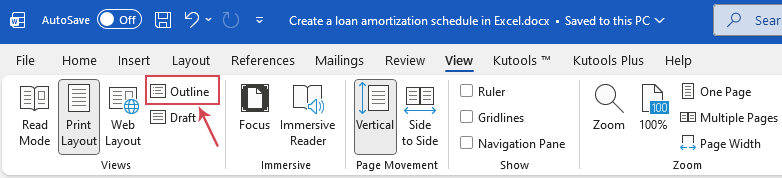
- Open the Word document, go to the View tab, and click Outline, see screenshot:
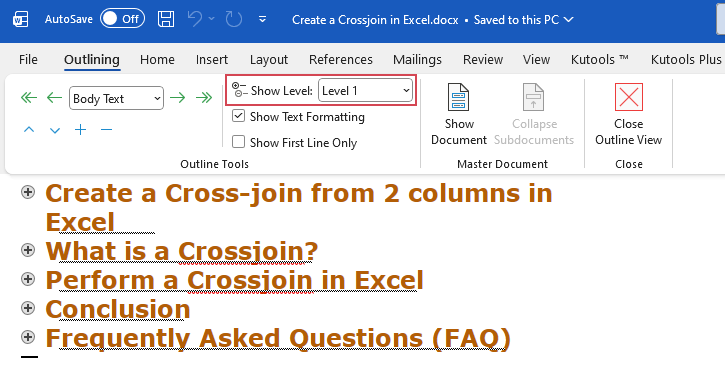
- In the Outlining tab that appears, set the Show Level dropdown to Level 1. This collapses everything except your Heading 1 titles.
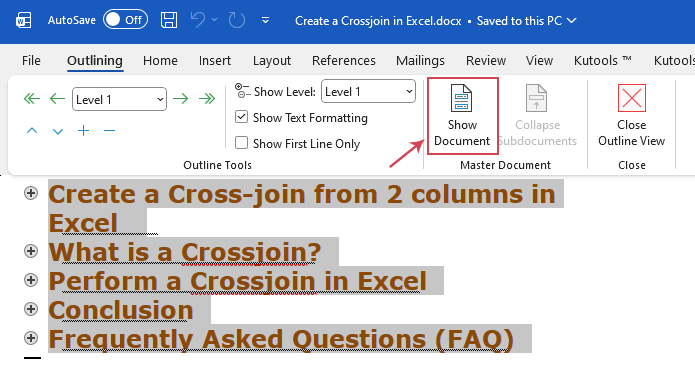
- Then, press Ctrl + A to select all text. And then, click Show Document in the Master Document group.
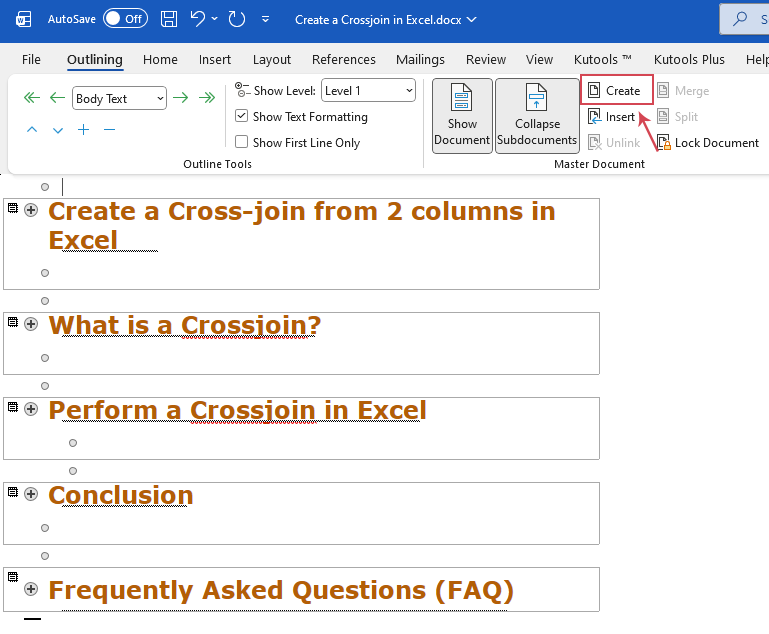
- Go on clicking the Create button. Word will now wrap each section in a thin box.
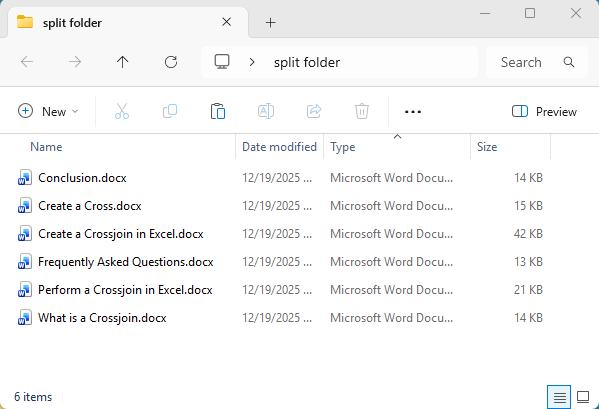
- Go to File > Save As. Choose a new folder. Word will automatically generate separate .docx files for every Heading 1, using the heading text as the filename. A separate index document will also be generated, listing hyperlinks to all the split files, allowing you to open any document with a single click.
Method 2: Split a Word by Heading 1 with VBA code
If you have a very long document, the Outline method can sometimes cause formatting glitches. Using a VBA script is much cleaner and faster.
- Press Alt + F11 to open the Visual Basic for Applications window.
- Click Insert > Module. Copy and paste the following code into the blank module:
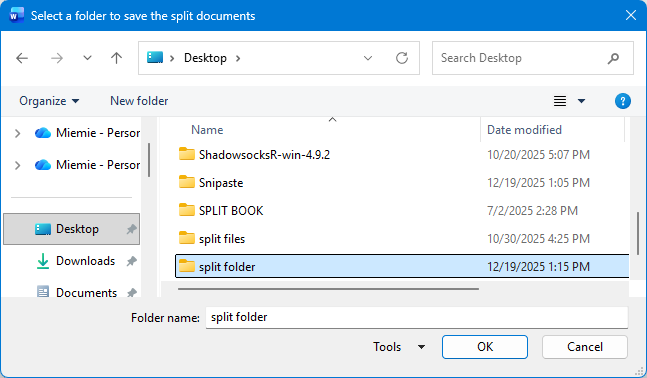
Sub SplitDocByHeading1() Dim StrTmplt As String Dim StrPath As String Dim StrFlNm As String Dim Rng As Range Dim i As Long Dim Doc As Document Dim fDialog As FileDialog Const StrNoChr As String = """*./\:?|" Application.ScreenUpdating = False Set fDialog = Application.FileDialog(msoFileDialogFolderPicker) With fDialog .Title = "Select a folder to save the split documents" .AllowMultiSelect = False If .Show <> -1 Then MsgBox "Operation cancelled.", vbInformation, "Split by Heading 1" Application.ScreenUpdating = True Exit Sub End If StrPath = .SelectedItems(1) End With If Right(StrPath, 1) <> "\" Then StrPath = StrPath & "\" End If With ActiveDocument StrTmplt = .AttachedTemplate.FullName With .Range With .Find .ClearFormatting .Replacement.ClearFormatting .Text = "" .Replacement.Text = "" .Style = wdStyleHeading1 .Format = True .Forward = True .Wrap = wdFindStop .Execute End With Do While .Find.Found Set Rng = .Duplicate StrFlNm = Split(Rng.Paragraphs(1).Range.Text, vbCr)(0) For i = 1 To Len(StrNoChr) StrFlNm = Replace(StrFlNm, Mid(StrNoChr, i, 1), "_") Next i StrFlNm = StrFlNm & ".docx" Set Rng = Rng.GoTo(What:=wdGoToBookmark, Name:="\HeadingLevel") Set Doc = Documents.Add(Template:=StrTmplt, Visible:=False) With Doc .Range.FormattedText = Rng.FormattedText .SaveAs2 FileName:=StrPath & StrFlNm, _ FileFormat:=wdFormatXMLDocument, _ AddToRecentFiles:=False .Close SaveChanges:=False End With .Collapse wdCollapseEnd .Find.Execute Loop End With End With Set Doc = Nothing Set Rng = Nothing Application.ScreenUpdating = True MsgBox "Split completed successfully.", vbInformation, "Split by Heading 1" End Sub - Press F5 or click Run to execute the code. A window will appear prompting you to select a folder for saving the split files. See screenshot:
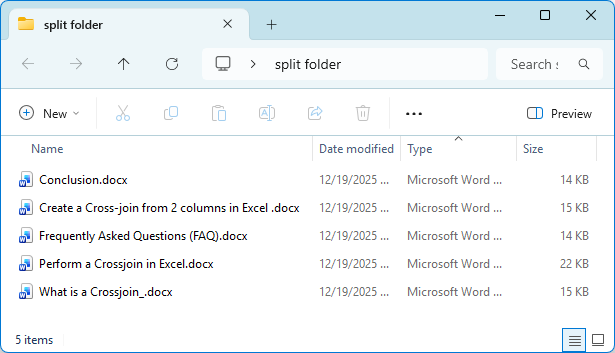
- Click OK, and Word will immediately create a .docx file for each Heading 1 section. Open the folder to view the output.
Method 3: Split a Word by Heading 1 with Kutools for Word
Although Word’s built-in tools and VBA can split documents, they require multiple steps, technical skills, and may even lose formatting. Kutools for Word provides a cleaner and far more efficient solution. With its Split Document feature, you can split a file by Heading 1, page break, section break, page etc. with one click—no coding, no manual work, and no loss of formatting. Kutools preserves styles, layout, images, headers, and footers, making it the perfect tool for anyone working with large documents.
After downloading and installing Kutools for Word, please do with the following steps:
- Go to Kutools Plus > Split.
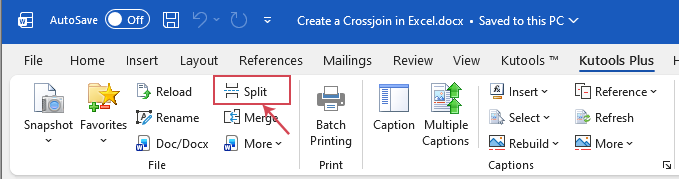
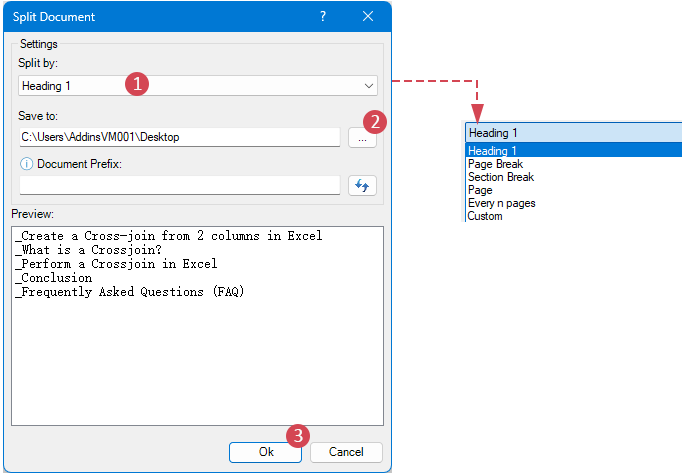
- In the Split Document dialog box, specify the following options:
2.1 Choose Heading 1 from the Split by dropdown. (You can also select other splitting rules, such as page break, section break, page, every n pages, and more.)
2.2 Specify a folder to locate the new splitting files.
2.3 Click the OK button.
Tip: You can also add a prefix to each split file’s title by entering text in the Document prefix box.
Result:
Kutools will instantly generate multiple Word files based on your Heading 1 structure, with all headers and footers fully preserved.
Advantages of Kutools
- ⚡One-click operation for maximum efficiency
No complex setup or VBA skills needed—Kutools performs many of Word’s time-consuming tasks with a single click. - 📝Preserves all formatting
All styles, headers, footers, tables, images, and other elements remain fully intact when processing or splitting documents. - 📚Multiple flexible splitting rules
Split by heading, page break, section break, page number, every n pages, and more. - 🔒Stable and reliable for large documents
Easily handles documents with dozens or hundreds of pages—smoothly and without crashing.
Boost Your Word Productivity with Kutools for Word
Simplify complex Word tasks with one click. Kutools for Word helps you split documents by heading, merge files, manage content, and preserve all formatting, headers, and footers—saving you time and effort every day.
- One-click tools for otherwise tedious Word operations
- Split documents by Heading 1, section break, page, and more
- Keep styles, layout, headers, footers, tables, and images intact
Conclusion
Splitting a long Word document into multiple files becomes much easier once your document is properly structured with Heading 1. Depending on your needs, you can choose from several methods:
- Outline feature: The Outline feature offers a built-in approach suitable for simple, occasional tasks.
- VBA method: The VBA method provides a more automated solution for users who are comfortable with macros and need to process many sections at once.
- Kutools for Word: For the fastest, most reliable, and most user-friendly experience, Kutools for Word delivers a one-click solution that preserves all formatting, headers, footers, and layout while supporting multiple flexible splitting rules.
No matter which method you choose, these tools help you manage long documents more efficiently and keep your workflow organized.
Related Articles:
- Split a Word document into separate files every 5 or n pages
- When working with large Word documents, you may need to split the document into smaller, separate files for easier handling, sharing, or editing. Splitting a document every 5 or 10 or a specified number of pages can be a practical solution for managing lengthy content more efficiently.
- Split a Word Document into Multiple Documents
- If you have a large Word document that needs to be split into multiple smaller documents, this tutorial will guide you through three effective methods. Whether you prefer using VBA to split by a specific delimiter or by pages, or opting for the streamlined functionality of Kutools for Word, you’ll find a solution that suits your needs.
- Split a page to 4 quarters in Word
- In some cases, you may need to divide a page into four quarters to arrange text as shown in the screenshot below. Since Word doesn't provide a built-in feature to split a page this way, you can achieve it using a table.
Best Office Productivity Tools
Kutools for Word - Elevate Your Word Experience with Over 100 Remarkable Features!
🤖 Kutools AI Features: AI Assistant / Real-Time Assistant / Super Polish (Preserve Format) / Super Translate (Preserve Format) / AI Redaction / AI Proofread...
📘 Document Mastery: Split Pages / Merge Documents / Export Selection in Various Formats (PDF/TXT/DOC/HTML...) / Batch Convert to PDF...
✏ Contents Editing: Batch Find and Replace across Multiple Files / Resize All Pictures / Transpose Table Rows and Columns / Convert Table to Text...
🧹 Effortless Clean: Sweap away Extra Spaces / Section Breaks / Text Boxes / Hyperlinks / For more removing tools, head to the Remove group...
➕ Creative Inserts: Insert Thousand Separators / Check Boxes / Radio Buttons / QR Code / Barcode / Multiple Pictures / Discover more in the Insert group...
🔍 Precision Selections: Pinpoint Specific Pages / Tables / Shapes / Heading Paragraphs / Enhance navigation with more Select features...
⭐ Star Enhancements: Navigate to Any Location / Auto-Insert Repetitive Text / Toggle Between Document Windows / 11 Conversion Tools...
🌍 Supports 40+ Languages: Use Kutools in your preferred language – supports English, Spanish, German, French, Chinese, and 40+ others!

Office Tab - Brings Tabbed interface to Office, Make Your Work Much Easier
- Enable tabbed editing and reading in Word, Excel, PowerPoint, Publisher, Access, Visio and Project.
- Open and create multiple documents in new tabs of the same window, rather than in new windows.
- Increases your productivity by 50%, and reduces hundreds of mouse clicks for you every day!
✨ Kutools for Office – One Installation, Five Powerful Tools!
Includes Office Tab Pro · Kutools for Excel · Kutools for Outlook · Kutools for Word · Kutools for PowerPoint
📦 Get all 5 tools in one suite | 🔗 Seamless integration with Microsoft Office | ⚡ Save time and boost productivity instantly
Best Office Productivity Tools
Kutools for Word - 100+ Tools for Word
- 🤖 Kutools AI Features: AI Assistant / Real-Time Assistant / Super Polish / Super Translate / AI Redaction / AI Proofread
- 📘 Document Mastery: Split Pages / Merge Documents / Batch Convert to PDF
- ✏ Contents Editing: Batch Find and Replace / Resize All Pictures
- 🧹 Effortless Clean: Remove Extra Spaces / Remove Section Breaks
- ➕ Creative Inserts: Insert Thousand Separators / Insert Check Boxes / Create QR Codes
- 🌍 Supports 40+ Languages: Kutools speaks your language – 40+ languages supported!
Table of contents
- Prepare Word document
- Method 1: Split a Word by Heading 1 with Outline feature
- Method 2: Split a Word by Heading 1 with VBA code
- Method 3: Split a Word by Heading 1 with Kutools for Word
- Conclusion
Kutools for Word
Brings 100+ advanced features to Word
- ⬇️ Free Download
- 🛒 Purchase Now
- 📘 Feature Tutorials
- 🎁 60-Day Free Trial