Copy current or specific pages from a Word document (Full Guide)
Copying individual pages or a range of pages from a Word document is a common task when editing, reusing content, or creating excerpts. Although Microsoft Word doesn’t offer a dedicated “Copy Page” button, there are several efficient ways to accomplish this—whether you need a quick shortcut for a single page or a reliable method to extract multiple pages at once.
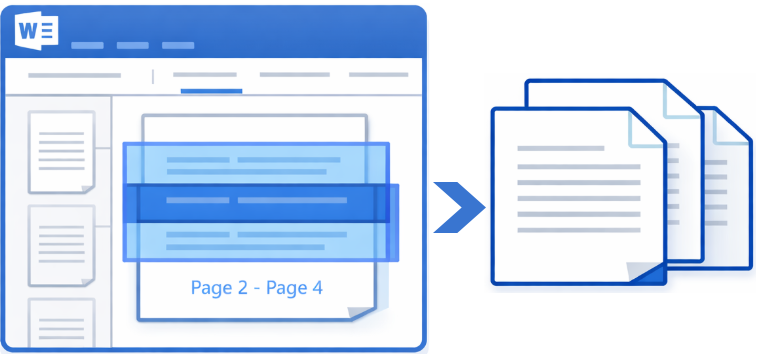
Copy current page in a Word document
Copy current page in a Word document
If you are working on a lengthy document and need to grab just the page you are currently viewing, use these two methods.
Method 1: Copy the Current Page Using the Keyboard Shortcut
- Place the cursor at the beginning of the page you want to copy.
- Click and drag the mouse downward to select all content on that page.
- Release the mouse at the bottom of the page once everything is selected.
- Press Ctrl + C on your keyboard to copy the selected content.
- Then, press Ctrl + V to paste the copied content to anywhere.
- Works in all versions of Microsoft Word
- Quick for occasional, single-page copying
- Manual selection can be imprecise
- Easy to miss content at the top or bottom of the page
- May accidentally include content from the next page
- Less efficient for complex layouts with tables or images
Method 2: Copy the Current Page Using Kutools for Word (Fast & Accurate)
Kutools for Word provides a one-click command that lets you copy the current page instantly, without manually selecting content or worrying about missing text, images, or formatting.
- Click anywhere on the page you want to copy.
- Then, click Kutools Plus > Copy Page > Copy Current Copy, see screenshot:
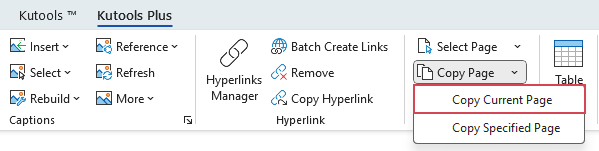
- A prompt box will appear to confirm that the current page has been copied. You can then press Ctrl + V to paste the content anywhere you need.
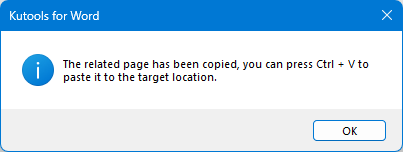
The current page is copied cleanly and precisely—no extra content, no guesswork.
- One-click operation with no manual selection
- Copies the entire current page accurately
- Preserves formatting, images, and tables
- Ideal for frequent or repetitive tasks
Copy current page instantly and boost your productivity with powerful Word utilities.
Copy specific or multiple pages in a Word document
When you need to extract a continuous range (such as pages 5 to 10) or specific non-contiguous pages, the following methods ensure that every line of text, image, and formatting detail is captured accurately—without omissions or unwanted content.
Method 1: Copy a continuous range of pages using Go To feature
The Go To feature is the most efficient built-in method for selecting a large block of pages in Word, allowing you to target an exact page range without manually scrolling or risking inaccurate selection.
- Press Ctrl + G to open the Find and Replace dialog box, under the Go To tab, type the number of the first page you want to copy (e.g., 5), and press Enter. Your cursor is now perfectly placed at the very top of that page.
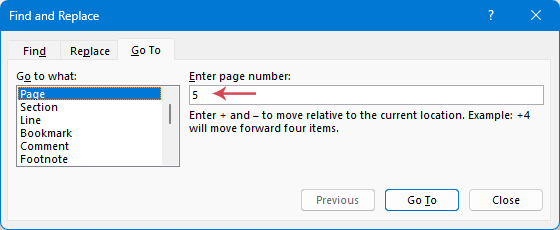
- Close the dialog box and press F8. This pins your cursor, telling Word that everything from this point forward should be selected.
- Press Ctrl + G again. To ensure you capture the entire last page, type the page number immediately following your range (e.g., if you want through page 10, type 11). Hit Enter, Word will instantly highlight every character, image, and table between those two points.
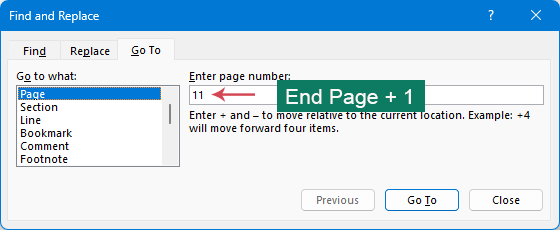
- Then, close the dialog box, press Ctrl + C to copy the content within the pages.
- At last, press Ctrl + V to paste the content anywhere you need.
- Once finished, press Esc to exit Extend Mode.
- Built-in Word feature
- More accurate than manual mouse selection
- Suitable for copying continuous page ranges
- Does not handle the last page reliably in some cases
- Requires extra steps for precise control
Method 2: Copy a continuous range of pages using VBA code
For users who frequently need to extract specific sections from massive documents, utilizing a VBA macro is the ultimate time-saver. Instead of manually navigating through hundreds of pages, this automated approach allows you to copy a precise range simply by entering the start and end page numbers, ensuring a perfect, error-free selection every time.
- Hold down Alt + F11 to open the Microsoft Visual Basic for Applications window.
- Click Insert > Module, and paste the following VBA code into the Module window:
Sub CopyPages_BySingleRangeInput()
    Dim PageInput As String
    Dim StartPage As Long
    Dim EndPage As Long
    Dim TotalPages As Long
    Dim Parts() As String
    Dim StartRange As Range
    Dim EndRange As Range
    Dim CopyRange As Range
    TotalPages = ActiveDocument.ComputeStatistics(wdStatisticPages)
    PageInput = InputBox( _
        "Enter page range (for example: 2-5 or 3)." & vbCrLf & _
        "Total pages: " & TotalPages, _
        "Copy Pages")

    If Trim(PageInput) = "" Then Exit Sub
    If InStr(PageInput, "-") > 0 Then
        Parts = Split(PageInput, "-")
        If UBound(Parts) <> 1 Or _
           Not IsNumeric(Trim(Parts(0))) Or _
           Not IsNumeric(Trim(Parts(1))) Then
            MsgBox "Invalid format. Use: 2-5 or 3", vbCritical
            Exit Sub
        End If
        StartPage = CLng(Trim(Parts(0)))
        EndPage = CLng(Trim(Parts(1)))
    Else
        If Not IsNumeric(PageInput) Then
            MsgBox "Invalid page number.", vbCritical
            Exit Sub
        End If
        StartPage = CLng(PageInput)
        EndPage = StartPage
    End If
    If StartPage < 1 Or EndPage < StartPage Or EndPage > TotalPages Then
        MsgBox "Page range is out of bounds.", vbCritical
        Exit Sub
    End If
    Set StartRange = ActiveDocument.GoTo( _
        What:=wdGoToPage, _
        Which:=wdGoToAbsolute, _
        Count:=StartPage)
    If EndPage >= TotalPages Then
        Set EndRange = ActiveDocument.Content
        EndRange.Collapse wdCollapseEnd
    Else
        Set EndRange = ActiveDocument.GoTo( _
            What:=wdGoToPage, _
            Which:=wdGoToAbsolute, _
            Count:=EndPage + 1)
    End If
    Set CopyRange = ActiveDocument.Range(StartRange.Start, EndRange.Start)
    CopyRange.Copy

    MsgBox "Pages " & StartPage & " to " & EndPage & _
           " have been copied to the clipboard.", vbInformation
End Sub
- Press F5 to run the code. A prompt box will appear, allowing you to enter the page range or a specific page you want to copy. See screenshot:
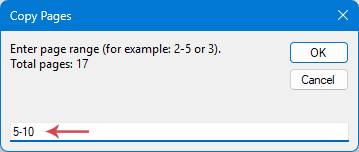
- Click OK button, A dialog box appears confirming that the selected pages have been copied to the clipboard. Click OK to close.

- You can now press Ctrl + V to paste the copied content wherever you need it.
Method 3: Copy specific or continuous range of pages Using Kutools for Word
Kutools for Word makes copying pages effortless—whether you need a continuous range of pages or specific page throughout a document. Instead of relying on manual selection or VBA code, Kutools offers an intuitive interface that lets you specify page ranges or individual pages and copy them accurately in just a few clicks.
- Go to the Kutools Plus tab, and then click Copy Page > Copy Specified Page, see screenshot:
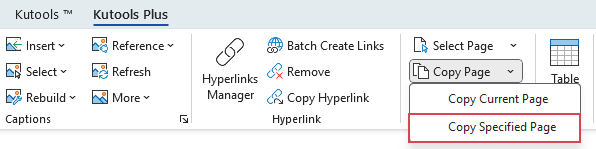
- In the dialog box, enter a page number (e.g.,10) or a continuous range of pages (e.g.,10-15) you want to copy.
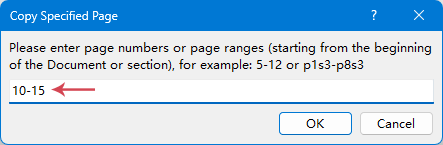
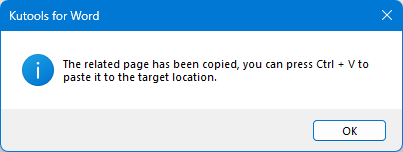
- Click OK, A prompt box will appear to confirm that the specific pages have been copied. You can then press Ctrl + V to paste the content anywhere you need.
- Simple interface with page-range input
- No risk of missing content or formatting
- Fast and reliable for long or complex documents
Enhance Word with powerful tools to copy pages, automate tasks, and work more efficiently.
Conclusion
Copying pages in Word can range from simple to complex depending on your needs. Keyboard shortcuts and built-in features work well for basic tasks, while VBA offers powerful automation for advanced users. However, if you frequently need to copy entire pages—especially multiple or non-contiguous pages—Kutools for Word provides the most efficient, accurate, and user-friendly solution. Choosing the right method can save time, reduce errors, and make working with Word documents far more productive.
Best Office Productivity Tools
Kutools for Word - Elevate Your Word Experience with Over 100 Remarkable Features!
🤖 Kutools AI Features: AI Assistant / Real-Time Assistant / Super Polish (Preserve Format) / Super Translate (Preserve Format) / AI Redaction / AI Proofread...
📘 Document Mastery: Split Pages / Merge Documents / Export Selection in Various Formats (PDF/TXT/DOC/HTML...) / Batch Convert to PDF...
✏ Contents Editing: Batch Find and Replace across Multiple Files / Resize All Pictures / Transpose Table Rows and Columns / Convert Table to Text...
🧹 Effortless Clean: Sweap away Extra Spaces / Section Breaks / Text Boxes / Hyperlinks / For more removing tools, head to the Remove group...
➕ Creative Inserts: Insert Thousand Separators / Check Boxes / Radio Buttons / QR Code / Barcode / Multiple Pictures / Discover more in the Insert group...
🔍 Precision Selections: Pinpoint Specific Pages / Tables / Shapes / Heading Paragraphs / Enhance navigation with more Select features...
⭐ Star Enhancements: Navigate to Any Location / Auto-Insert Repetitive Text / Toggle Between Document Windows / 11 Conversion Tools...
🌍 Supports 40+ Languages: Use Kutools in your preferred language – supports English, Spanish, German, French, Chinese, and 40+ others!

Office Tab - Brings Tabbed interface to Office, Make Your Work Much Easier
- Enable tabbed editing and reading in Word, Excel, PowerPoint, Publisher, Access, Visio and Project.
- Open and create multiple documents in new tabs of the same window, rather than in new windows.
- Increases your productivity by 50%, and reduces hundreds of mouse clicks for you every day!
✨ Kutools for Office – One Installation, Five Powerful Tools!
Includes Office Tab Pro · Kutools for Excel · Kutools for Outlook · Kutools for Word · Kutools for PowerPoint
📦 Get all 5 tools in one suite | 🔗 Seamless integration with Microsoft Office | ⚡ Save time and boost productivity instantly
Best Office Productivity Tools
Kutools for Word - 100+ Tools for Word
- 🤖 Kutools AI Features: AI Assistant / Real-Time Assistant / Super Polish / Super Translate / AI Redaction / AI Proofread
- 📘 Document Mastery: Split Pages / Merge Documents / Batch Convert to PDF
- ✏ Contents Editing: Batch Find and Replace / Resize All Pictures
- 🧹 Effortless Clean: Remove Extra Spaces / Remove Section Breaks
- ➕ Creative Inserts: Insert Thousand Separators / Insert Check Boxes / Create QR Codes
- 🌍 Supports 40+ Languages: Kutools speaks your language – 40+ languages supported!
Table of contents
- Copy current page in a Word document
- By using keyboard shortcut
- By using Kutools for Word
- Copy specific or multiple pages in a Word document
- By using Go To feature
- By using VBA code
- By using Kutools for Word
- Conclusion
- The Best Office Productivity Tools
Kutools for Word
Brings 100+ advanced features to Word
- ⬇️ Free Download
- 🛒 Purchase Now
- 📘 Feature Tutorials
- 🎁 60-Day Free Trial