How to export charts in a Word document as images
Charts in Word are often reused in reports, presentations, emails, or websites. instead of rebuilding the same chart again, it’s much easier to export it as an image. Word doesn’t offer a single “export charts” button, but there are several practical ways to do it, whether you need one chart or dozens.
In this tutorial, you’ll learn how to export charts from Word as image files. we’ll start with the quickest built-in method, then move on to batch-export solutions using HTML, Kutools for Word, and VBA.
Save a chart as an image (right-click)
This is the quickest way to export a single chart as an image. Word lets you save the chart directly using the built-in Save As Picture option.
- Click the chart to select it.
- Right-click the chart, and select Save as Picture.
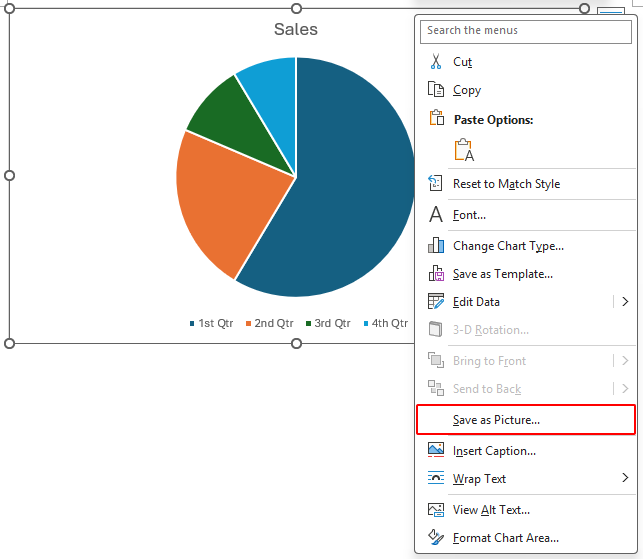
- In the Save As Picture dialog box:
- Browse to the folder where you want to save the image.
- In the File name box, type a name for the chart image.
- In Save as type, choose an image format such as PNG or JPG.
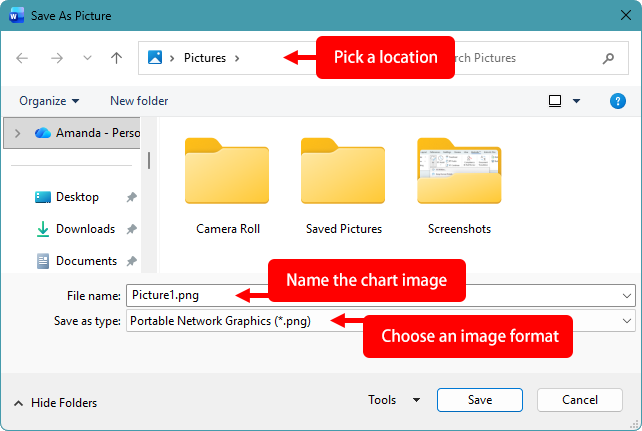
- Click Save.
Notes:
- PNG keeps the best balance of quality and file size.
- SVG is ideal if you need scalable vector output.
- If the chart is grouped with shapes, right-click may not show this option.
Pros
- Fast and built in
- Good image quality
Cons
- One chart at a time
- Not practical for exporting many charts
Batch export charts as PNG by saving Word as a web page (HTML)
If your document contains many charts, saving it as a web page is a quick way to export them all at once.
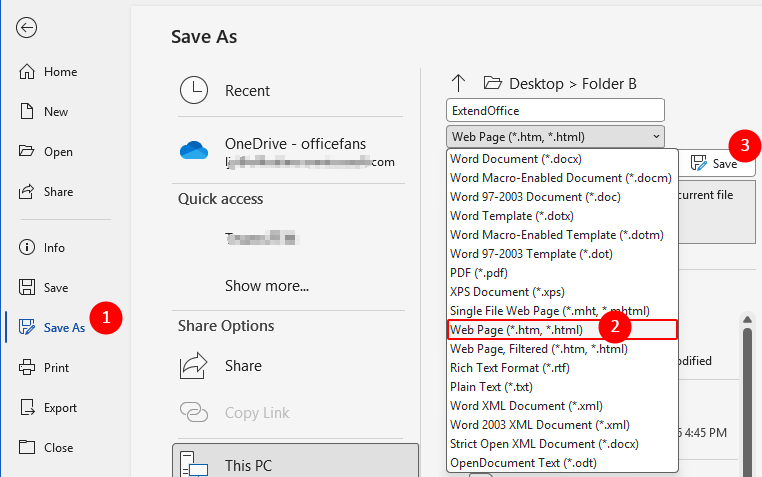
- Click File > Save As.
- In Save as type dropdown, select Web Page (*.htm; *.html).
- Click Save.
Word will create an HTML file and a separate folder in the same location as the document (unless you choose a different folder when saving).
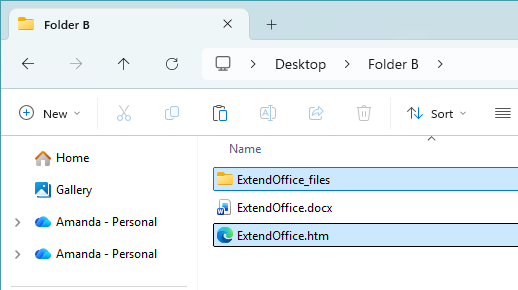
All charts in the document are exported as PNG image files and saved in that separate folder.
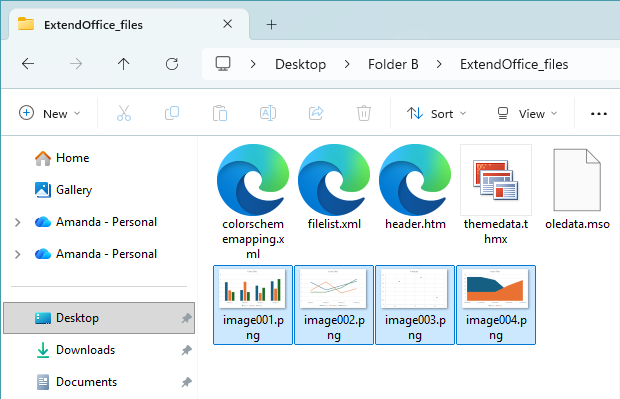
Pros
- Exports all charts in one step
- No add-ins or macros required
- Fast for documents with many charts
Cons
- PNG format only
- Image quality may be lower
Batch export charts with Kutools for Word
Kutools for Word provides a simple way to batch export charts as image files. It lets you save multiple charts from a document without copying them one by one or using VBA. In addition to charts, the same tool can also export pictures and tables as images.
Kutools for Word
Kutools for Word helps you handle everyday document tasks faster with practical tools built right into Microsoft Word—no coding, no complex setup.
- AI writing, polishing, translation, and summarization
- Batch find and replace across documents
- Merge and split Word documents easily
- Batch Word ↔ PDF conversion
- Click Kutools Plus > More > Export Pictures/Tables to Images.
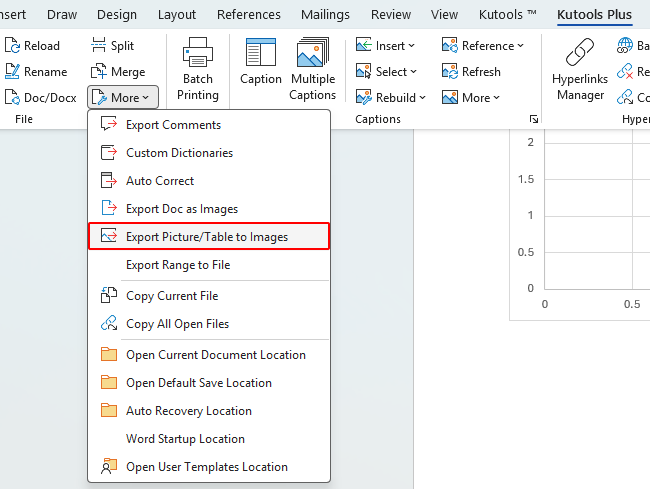
- In the dialog box:
- Select Charts in the Types dropdown to export charts in the document as pictures.
- Choose an image format such as PNG or JPEG.
- Specify the output folder.
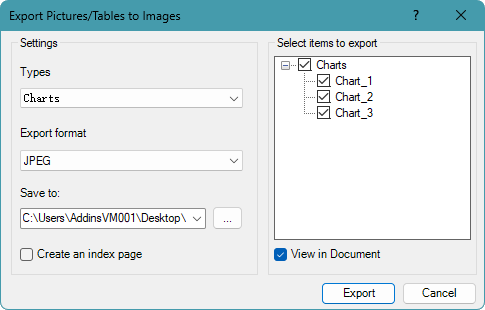 Tip: If there are charts you don’t want to export, uncheck them in the Select items to export list. (With View in Document enabled, clicking a chart in the list will jump to its exact position in the document so you can view it.)
- Click Export.
All charts in the document will be saved as individual image files in the selected folder.
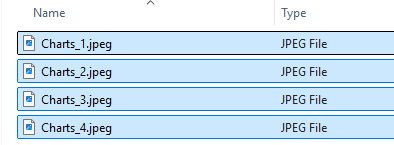
- This feature can also export pictures and tables in the document as images.
- Kutools supports exporting charts, tables and pictures in multiple formats, including BMP, EMF, EXIF, GIF, JPEG, PNG, TIFF, and WMF.
Pros
- Exports all charts in one operation
- Supports multiple image formats
- No coding or macros required
- Lets you preview and selectively export charts
Batch export charts using VBA
If you need full control or automation, VBA can export every chart in a document as an image. this method is best for advanced users.
- Press Alt + F11 to open the VBA editor.
- Click Insert > Module.
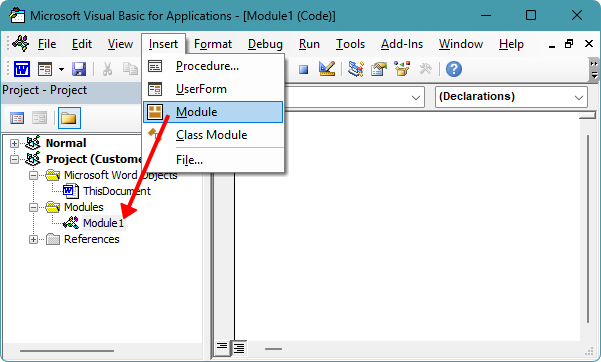
- Paste the macro below into the Module window.
Sub ExportChartsAsImages() Dim ils As InlineShape Dim sh As Shape Dim i As Long Dim outPath As String Dim resp As VbMsgBoxResult outPath = ActiveDocument.Path If outPath = "" Then MsgBox "Please save the document first, then run the macro again.", vbExclamation, "Kutools for Word" Exit Sub End If resp = MsgBox( _ "Existing image files with the same name will be replaced automatically." & vbCrLf & vbCrLf & _ "Do you want to continue?", _ vbExclamation + vbYesNo, _ "Kutools for Word") If resp = vbNo Then Exit Sub i = 1 For Each ils In ActiveDocument.InlineShapes If ils.HasChart Then ils.Chart.Export FileName:=outPath & "\Chart_" & i & ".png", FilterName:="PNG" i = i + 1 End If Next ils For Each sh In ActiveDocument.Shapes If sh.HasChart Then sh.Chart.Export FileName:=outPath & "\Chart_" & i & ".png", FilterName:="PNG" i = i + 1 End If Next sh MsgBox (i - 1) & " chart(s) exported to:" & vbCrLf & outPath, vbInformation, "Kutools for Word" End Sub - Press F5 to run the macro.
Charts are exported as images at once, and saved to the same folder as the document.
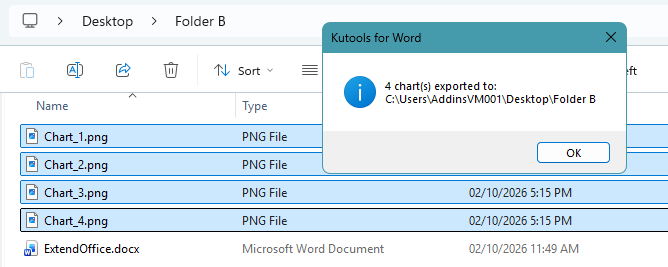
Notes:
- Macros must be enabled.
- You can change PNG to JPG or GIF if needed.
Pros
- Fully automated
- Best for repeated tasks
Cons
- Requires VBA knowledge
- Macros may be blocked by policy
Method comparison
| Method | Batch export | Formats | Notes |
|---|---|---|---|
| Save as Picture | ❌No | PNG, JPG, GIF, TIF, BMP, SVG | One chart at a time |
| Save as Web Page | ✔Yes | PNG only | Fast but limited control |
| Kutools for Word | ✔Yes | BMP, EMF, EXIF, GIF, JPEG, PNG, TIFF, WMF | 👍Best balance of ease and control |
| VBA | ✔Yes | Custom | For advanced users |
Conclusion
If you only need a single chart, the right-click Save as Picture option is the fastest choice. For bulk exporting, saving the document as HTML works in a pinch but offers little control. For a clean and reliable batch solution, Kutools for Word is the easiest option, while VBA is ideal if you want automation and customization.
Choose the method that matches how often you export charts and how much control you need.
I hope you found this tutorial helpful. If you’d like to explore more Word tips and practical solutions, please click here to browse our full collection of Word tutorials.
Best Office Productivity Tools
Kutools for Word - Elevate Your Word Experience
🤖 Kutools AI Features: AI Assistant / Real-Time Assistant / Super Polish (Preserve Format) / Super Translate (Preserve Format) / AI Redaction / AI Proofread...
📘 Document Mastery: Split Pages / Merge Documents / Export Selection in Various Formats (PDF/TXT/DOC/HTML...) / Batch Convert to PDF...
✏ Contents Editing: Batch Find and Replace across Multiple Files / Resize All Pictures / Transpose Table Rows and Columns / Convert Table to Text...
🧹 Effortless Clean: Sweap away Extra Spaces / Section Breaks / Text Boxes / Hyperlinks / For more removing tools, head to the Remove group...
➕ Creative Inserts: Insert Thousand Separators / Check Boxes / Radio Buttons / QR Code / Barcode / Multiple Pictures / Discover more in the Insert group...
🔍 Precision Selections: Pinpoint Specific Pages / Tables / Shapes / Heading Paragraphs / Enhance navigation with more Select features...
⭐ Star Enhancements: Navigate to Any Location / Auto-Insert Repetitive Text / Toggle Between Document Windows / 11 Conversion Tools...
🌍 Supports 40+ Languages: Use Kutools in your preferred language – supports English, Spanish, German, French, Chinese, and 40+ others!

Office Tab - Tabs for Office, Power for You
- Enable tabbed editing and reading in Word, Excel, PowerPoint, Publisher, Access, Visio and Project.
- Open and create multiple documents in new tabs of the same window, rather than in new windows.
- Increases your productivity by 50%, and reduces hundreds of mouse clicks for you every day!

✨ Kutools for Office – One Installation, Five Powerful Tools!
Includes Office Tab Pro · Kutools for Excel · Kutools for Outlook · Kutools for Word · Kutools for PowerPoint
📦 Get all 5 tools in one suite | 🔗 Seamless integration with Microsoft Office | ⚡ Save time and boost productivity instantly
Best Office Productivity Tools
Kutools for Word - 100+ Tools for Word
- 🤖 Kutools AI Features: AI Assistant / Real-Time Assistant / Super Polish / Super Translate / AI Redaction / AI Proofread
- 📘 Document Mastery: Split Pages / Merge Documents / Batch Convert to PDF
- ✏ Contents Editing: Batch Find and Replace / Resize All Pictures
- 🧹 Effortless Clean: Remove Extra Spaces / Remove Section Breaks
- ➕ Creative Inserts: Insert Thousand Separators / Insert Check Boxes / Create QR Codes
- 🌍 Supports 40+ Languages: Kutools speaks your language – 40+ languages supported!
Table of Contents
- Save a chart as an image (right-click)
- Batch export charts by saving Word as a web page (HTML)
- Batch export charts with Kutools for Word
- Batch export charts using VBA
- Method comparison
- Conclusion
- The Best Office Productivity Tools
Kutools for Word
Brings 100+ advanced features to Word
- 🧩 Overview
- 📥 Free Download
- 🛒 Purchase Now
- 🎁 60-Day Free Trial available