Ask document and general questions in Word: Copilot vs. Kutools
AI tools are changing how we work in Microsoft Word. Instead of searching online or switching between applications, you can now ask questions directly inside Word to get instant assistance while you write.
In this tutorial, we’ll walk through two practical ways to ask questions within Word. You’ll learn how to:
- Ask questions about your current document, such as summarizing content, analyzing sections, or refining your writing.
- Ask general questions that aren’t related to the document, but still help you complete your work more efficiently.
By the end, you’ll understand how each approach works and which one makes the most sense for your daily workflow.
Ask questions using Copilot in Word
Microsoft Copilot is an AI assistant built into Microsoft 365 applications, including Word, Excel, PowerPoint, and Outlook. It is designed to help you generate content, summarize documents, analyze information, and answer questions directly within the Office environment.
In Word, Copilot works alongside your document and understands its context. You can ask it to summarize sections, rewrite paragraphs, extract key points, or even answer general questions, all without leaving the application. The following sections explain how to use Copilot to ask questions about your document and how to use it for broader inquiries.

Office Tab
Tabbed navigation for Word, Excel, PowerPoint, and more—just like a web browser, with smooth switching in one window.
Ask questions about the current document
- Open Microsoft Word and open the document you want to work with.
- On the ribbon, click Copilot, typically located on the right side of the Home tab.
- In the Copilot pane that appears on the right side of the window, type a question related to your document, such as:
- Summarize this document.
- What are the key points in this report?
- Rewrite this paragraph to sound more formal.
- Identify potential risks in this contract.
- Press Enter to submit your question.
- Review the generated response in the Copilot pane. Depending on your version, you may be able to insert the result into the document or refine the response with follow-up prompts.
Ask general questions
- Open the Copilot pane in Word.
- Type a question that is not directly related to the current document, for example:
- What is GDPR?
- Draft a professional client follow-up email.
- Explain what a force majeure clause means.
- Give me five title ideas for a business report.
- Press Enter to receive the response.
- If needed, refine your request by typing additional instructions, such as “make it shorter,” “use a formal tone,” or “convert to bullet points.”
Note:
Depending on your Microsoft 365 plan and organization settings, Copilot may prioritize document-based assistance and may have restrictions on general knowledge responses.
Ask questions using Kutools AI
Kutools for Word includes a built-in Kutools AI Utilities pane that provides AI-powered assistance directly inside Word. It supports document-based questions and general inquiries without interrupting your workflow. In addition, it can translate text, rewrite or refine content, generate new material based on your prompts, summarize sections, and help improve clarity and structure.
In addition to the AI Utilities pane, Kutools for Word also provides other AI-powered tools along with a wide range of built-in productivity features designed to simplify complex tasks in Word. Together, these features enhance both document assistance and overall workflow efficiency.
Kutools for Word
Kutools for Word helps you handle everyday document tasks faster with practical tools built right into Microsoft Word—no coding, no complex setup.
- AI writing, polishing, translation, and summarization
- Batch find and replace across documents
- Merge and split Word documents easily
- Batch Word ↔ PDF conversion
Ask questions about the current document
- On the Kutools tab of the Word ribbon, click AI > AI Utilities.
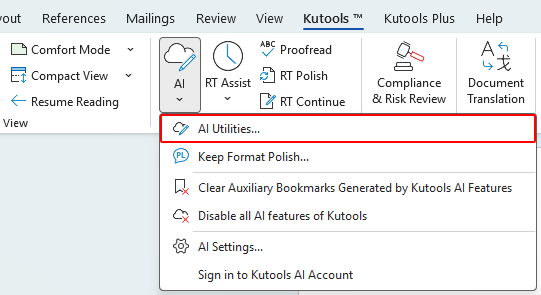
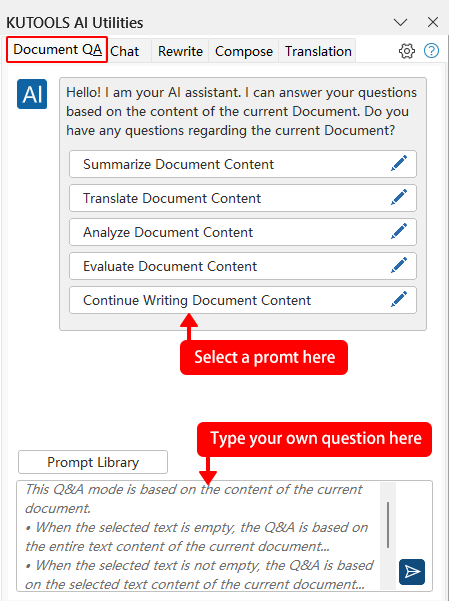
- When the Kutools AI Utilities pane opens on the right side of Word, click the Document QA tab. Then choose one of the following options:
- Use a preset prompt, such as:
- Summarize Document Content
- Analyze Document Content
- Continue Writing Document Content
- Type your own document-related question, such as:
- Summarize the selected section in three bullet points.
- Highlight potential legal risks in this agreement.
- Rewrite the selected paragraph to sound more professional.
- Convert this content into a structured outline.
- Use a preset prompt, such as:
- Click Send
 or press Enter to generate the result.
 or press Enter to generate the result.
Ask general questions
- On the Kutools tab, click AI > AI Utilities.
- In the Kutools AI Utilities pane, click the Chat tab and type a general question, such as:
- What is the difference between a contract and an agreement?
- Explain how GDPR affects businesses.
- How can I generate a QR code in Word?
- How to remove pictures from a Word document?
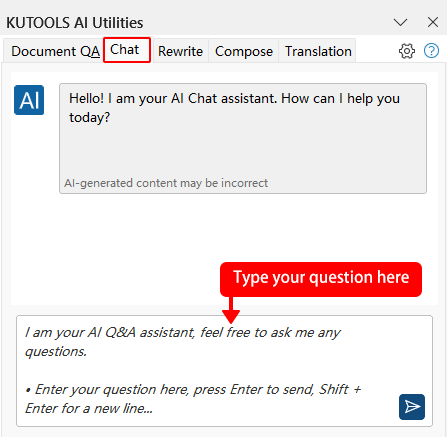
- Click Send or press Enter to receive the answer.
Copilot vs. Kutools AI: Feature Comparison
| Feature | Copilot | Kutools |
|---|---|---|
| Ask about current document | Yes | Yes |
| Ask general questions | Yes | Yes |
| Rewrite / summarize text | Yes | Yes |
| Formatting preservation during translation | Not guaranteed for complex layouts | Better formatting control |
| Generate content (emails, outlines, etc.) | Yes | Yes |
| AI contract risk review | No dedicated tool | Yes |
| AI redaction of sensitive content | No dedicated tool | Yes |
| Other productivity tools (remove pages, split doc., etc.) | No | Yes (100+ tools) |
| Approx. cost (per user) | $99.99–$199.99/year | $49 one-time (lifetime use) |
Conclusion
Both Copilot and Kutools AI allow you to ask questions directly inside Microsoft Office applications, but they differ in pricing models and feature focus.
Copilot is deeply integrated into the Microsoft 365 ecosystem and works across Word, Excel, PowerPoint, Outlook, and other apps. It emphasizes AI-driven content generation, summarization, data analysis, and workflow assistance. However, it requires a Microsoft 365 subscription along with a Copilot license, resulting in ongoing subscription costs.
Kutools for Word provides AI-assisted document support along with a wide range of built-in productivity tools designed to simplify complex tasks in Word. It is available as a standalone product with a one-time purchase. For users who need enhancements across multiple Office applications, Kutools for Office is also available, offering productivity tools that work across Word, Excel, Outlook, and PowerPoint. Both options provide a cost-effective alternative without recurring subscription fees.
I hope you found this tutorial helpful. If you’d like to explore more Word tips and practical solutions, please click here to browse our full collection of Word tutorials.
Best Office Productivity Tools
Kutools for Word - Elevate Your Word Experience
🤖 Kutools AI Features: AI Assistant / Real-Time Assistant / Super Polish (Preserve Format) / Super Translate (Preserve Format) / AI Redaction / AI Proofread...
📘 Document Mastery: Split Pages / Merge Documents / Export Selection in Various Formats (PDF/TXT/DOC/HTML...) / Batch Convert to PDF...
✏ Contents Editing: Batch Find and Replace across Multiple Files / Resize All Pictures / Transpose Table Rows and Columns / Convert Table to Text...
🧹 Effortless Clean: Sweap away Extra Spaces / Section Breaks / Text Boxes / Hyperlinks / For more removing tools, head to the Remove group...
➕ Creative Inserts: Insert Thousand Separators / Check Boxes / Radio Buttons / QR Code / Barcode / Multiple Pictures / Discover more in the Insert group...
🔍 Precision Selections: Pinpoint Specific Pages / Tables / Shapes / Heading Paragraphs / Enhance navigation with more Select features...
⭐ Star Enhancements: Navigate to Any Location / Auto-Insert Repetitive Text / Toggle Between Document Windows / 11 Conversion Tools...
🌍 Supports 40+ Languages: Use Kutools in your preferred language – supports English, Spanish, German, French, Chinese, and 40+ others!

Office Tab - Tabs for Office, Power for You
- Enable tabbed editing and reading in Word, Excel, PowerPoint, Publisher, Access, Visio and Project.
- Open and create multiple documents in new tabs of the same window, rather than in new windows.
- Increases your productivity by 50%, and reduces hundreds of mouse clicks for you every day!

✨ Kutools for Office – One Installation, Five Powerful Tools!
Includes Office Tab Pro · Kutools for Excel · Kutools for Outlook · Kutools for Word · Kutools for PowerPoint
📦 Get all 5 tools in one suite | 🔗 Seamless integration with Microsoft Office | ⚡ Save time and boost productivity instantly
Best Office Productivity Tools
Kutools for Word - 100+ Tools for Word
- 🤖 Kutools AI Features: AI Assistant / Real-Time Assistant / Super Polish / Super Translate / AI Redaction / AI Proofread
- 📘 Document Mastery: Split Pages / Merge Documents / Batch Convert to PDF
- ✏ Contents Editing: Batch Find and Replace / Resize All Pictures
- 🧹 Effortless Clean: Remove Extra Spaces / Remove Section Breaks
- ➕ Creative Inserts: Insert Thousand Separators / Insert Check Boxes / Create QR Codes
- 🌍 Supports 40+ Languages: Kutools speaks your language – 40+ languages supported!
Table of Contents
- Ask questions using Copilot in Word
- Ask questions using Kutools AI
- Which method should you use
- Conclusion
- The Best Office Productivity Tools
Kutools for Word
Brings 100+ advanced features to Word
- 🧩 Overview
- 📥 Free Download
- 🛒 Purchase Now
- 🎁 60-Day Free Trial available