Quickly remove duplicate columns from a Word table (3 Methods)
When working with tables in Microsoft Word, you may notice that some columns contain exactly the same data. These duplicate columns can make your table wider than necessary and harder to manage. Since Word does not offer a built-in tool to remove duplicate columns automatically, identifying and deleting them manually can take considerable time and effort, especially in large tables.

In this tutorial, you will learn three effective methods to remove fully identical columns in Word tables. We’ll start with the Excel transpose workaround, then look at how to remove duplicates directly in Word using Kutools, and finally show how to use a VBA macro for automated cleanup. You can choose the method that works best for your situation.
Remove duplicate columns using Excel (transpose workaround)
This method is a practical option for users who have access to Excel. Excel can remove duplicate rows using Data > Remove Duplicates. Because Excel removes duplicates by rows rather than columns, you need to transpose the table first so the columns become rows, remove the duplicates, and then transpose the data back to its original layout:

Office Tab
Tabbed navigation for Word, Excel, PowerPoint, and more—just like a web browser, with smooth switching in one window.
- Move your mouse over the table containing duplicates to display the Table Move Handle at the top-left corner, then click it to select the entire table.
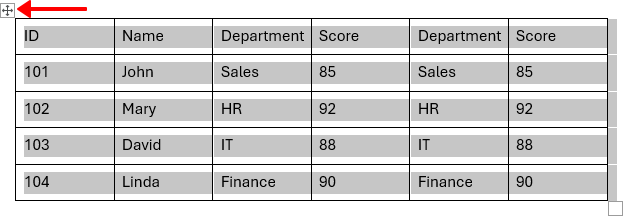
- Press Ctrl + C to copy the table.
- Open Excel, click a blank cell, then press Ctrl + V to paste the table.
- Select the pasted table in Excel, then press Ctrl + C again to copy it.
- Copy the table again because Excel must recognize it as a native worksheet range before the Transpose option becomes available.
- Right-click another blank cell, choose Paste Special > Transpose (You can find the Transpose option in two places as shown below).
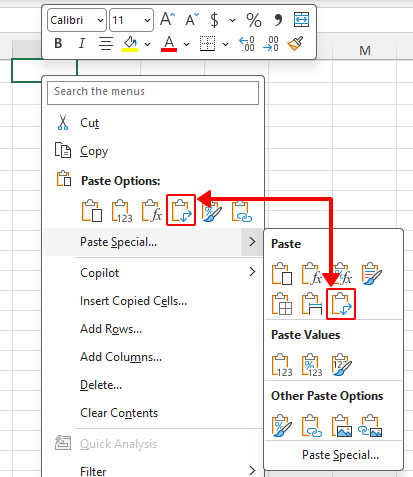
- This converts the original columns into rows so Excel can detect duplicate columns correctly.
- Select the transposed data, then go to Data > Remove Duplicates.

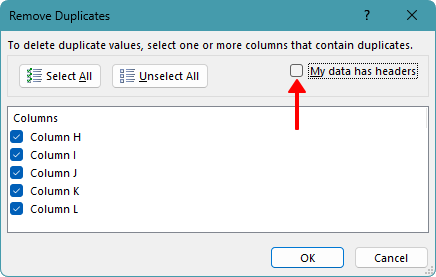
- In the dialog box, uncheck My data has headers, then click OK to remove duplicate rows from the transposed data.
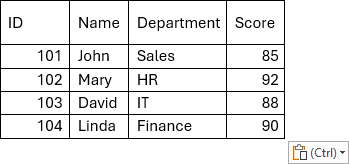
- Copy the cleaned data (range H1:L4 in the screenshot below), then right-click on a blank cell and use Paste Special > Transpose again to restore the original orientation.
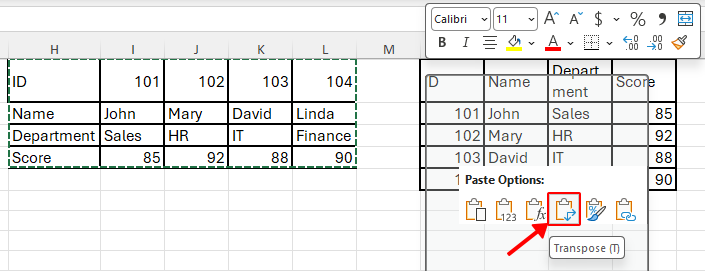
- Copy the final result and paste it back into Word.
Pros
- Reliable for large tables
- No add-ins required
Cons
- Requires Excel
- Includes extra transpose steps
- Less convenient if you prefer to stay entirely in Word
Remove duplicate columns with Kutools for Word
If you have Kutools for Word installed, this is the most efficient and convenient way to remove duplicate columns. Kutools lets you delete duplicate columns directly within Word, whether you want to process the current table, selected tables, or all tables in the active document. There is no need to copy the table to Excel or rely on workarounds, making it the fastest and most practical solution.
Kutools for Word
Kutools for Word helps you handle everyday document tasks faster with practical tools built right into Microsoft Word—no coding, no complex setup.
- AI writing, polishing, translation, and summarization
- Batch find and replace across documents
- Merge and split Word documents easily
- Batch Word ↔ PDF conversion
- Select the specific table(s) you want to remove duplicate columns from. Skip this step if you plan to process all tables in the active document.
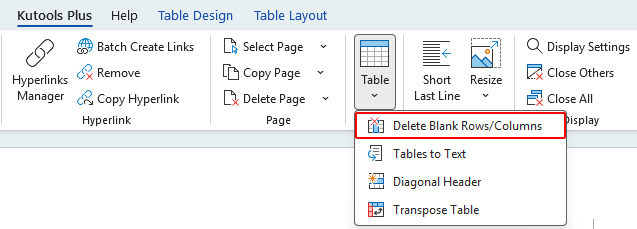
- Click Kutools Plus > Table > Delete Blank Rows/Columns.
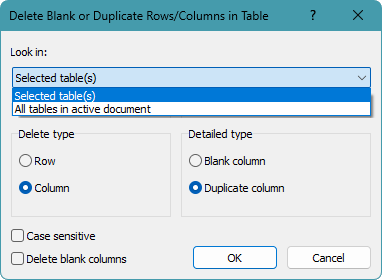
- In the dialog box:
- Set Look in to one of the following:
- Selected table(s) if you only want to process the selected tables.
- All tables in active document if you want to process every table in the document.
- Select Column.
- Select Duplicate column.
- Click OK to remove duplicate columns.
- Set Look in to one of the following:
All fully identical columns are removed from the selected table(s) or from all tables in the active document, depending on the option you choose.
Pros
- Fast and easy to use, even for large tables
- Works directly in Word
- Can process one table or all tables in a document
Remove duplicate columns using VBA
If you regularly work with large tables and need to remove duplicate columns more than once, using a VBA macro can save time. A macro can automatically compare columns and delete those that are fully identical, eliminating the need for manual checks.
- Click inside the table you want to process in Word.
- Press Alt + F11 to open the VBA editor.
- Click Insert > Module.
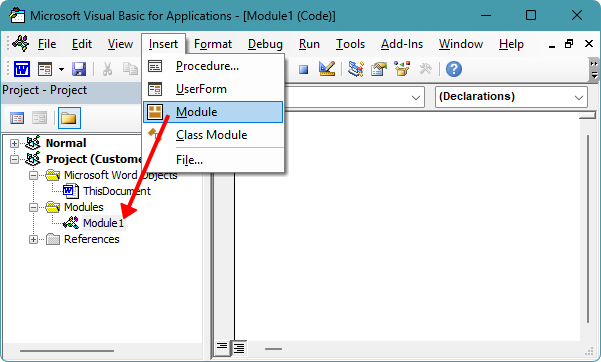
- Paste the following code into the module.
Sub RemoveDuplicateColumnsInSelectedTable() Dim tbl As Table Dim c1 As Long, c2 As Long Dim r As Long Dim isDup As Boolean If Selection.Information(wdWithInTable) = False Then MsgBox "Place the cursor inside the table first." Exit Sub End If Set tbl = Selection.Tables(1) For c1 = tbl.Columns.Count To 2 Step -1 For c2 = c1 - 1 To 1 Step -1 isDup = True For r = 1 To tbl.Rows.Count If CleanCellText(tbl.Cell(r, c1).Range.Text) <> CleanCellText(tbl.Cell(r, c2).Range.Text) Then isDup = False Exit For End If Next r If isDup Then tbl.Columns(c1).Delete Exit For End If Next c2 Next c1 MsgBox "Done. Duplicate columns removed." End Sub Private Function CleanCellText(ByVal s As String) As String s = Replace(s, Chr(13), "") s = Replace(s, Chr(7), "") CleanCellText = Trim$(s) End Function - Press F5 to run the macro.
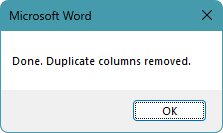
- A confirmation dialog appears stating Done. Duplicate columns removed. Click OK to close the message.
All fully identical columns in the selected table are automatically removed, leaving only unique columns in your Word table.
Note:
It is recommended to test the macro on a copy of the table to avoid accidental data loss.
Pros
- Fast for large tables
- One-click repeatable cleanup
- No need to leave Word
Cons
- Macros may be blocked by company policy
- Requires basic comfort with VBA
- May need adjustments for complex tables
Which method works best for you?
| Method | Best for | Limitations |
|---|---|---|
| Excel transpose workaround | Users who have Excel and only need to remove duplicate columns from a single table | Requires Excel and extra transpose steps |
| Kutools for Word | Fastest and most convenient way to remove duplicate columns from one or multiple tables directly in Word | Requires Kutools installation |
| VBA macro | Advanced users who need automation for repeated tasks (supports multiple tables with code modification) | Requires macros to be enabled and basic VBA knowledge |
Conclusion
If you are looking for the most convenient and efficient solution, Kutools for Word is the best option, as it removes duplicate columns directly within Word and can handle one or multiple tables. The Excel transpose method is a practical alternative if you already use Excel and do not mind the extra steps. For advanced users who need automation for repeated tasks, VBA provides a flexible and repeatable approach.
I hope you found this tutorial helpful. If you’d like to explore more Word tips and practical solutions, please click here to browse our full collection of Word tutorials.
Best Office Productivity Tools
Kutools for Word - Elevate Your Word Experience
🤖 Kutools AI Features: AI Assistant / Real-Time Assistant / Super Polish (Preserve Format) / Super Translate (Preserve Format) / AI Redaction / AI Proofread...
📘 Document Mastery: Split Pages / Merge Documents / Export Selection in Various Formats (PDF/TXT/DOC/HTML...) / Batch Convert to PDF...
✏ Contents Editing: Batch Find and Replace across Multiple Files / Resize All Pictures / Transpose Table Rows and Columns / Convert Table to Text...
🧹 Effortless Clean: Sweap away Extra Spaces / Section Breaks / Text Boxes / Hyperlinks / For more removing tools, head to the Remove group...
➕ Creative Inserts: Insert Thousand Separators / Check Boxes / Radio Buttons / QR Code / Barcode / Multiple Pictures / Discover more in the Insert group...
🔍 Precision Selections: Pinpoint Specific Pages / Tables / Shapes / Heading Paragraphs / Enhance navigation with more Select features...
⭐ Star Enhancements: Navigate to Any Location / Auto-Insert Repetitive Text / Toggle Between Document Windows / 11 Conversion Tools...
🌍 Supports 40+ Languages: Use Kutools in your preferred language – supports English, Spanish, German, French, Chinese, and 40+ others!

Office Tab - Tabs for Office, Power for You
- Enable tabbed editing and reading in Word, Excel, PowerPoint, Publisher, Access, Visio and Project.
- Open and create multiple documents in new tabs of the same window, rather than in new windows.
- Increases your productivity by 50%, and reduces hundreds of mouse clicks for you every day!

✨ Kutools for Office – One Installation, Five Powerful Tools!
Includes Office Tab Pro · Kutools for Excel · Kutools for Outlook · Kutools for Word · Kutools for PowerPoint
📦 Get all 5 tools in one suite | 🔗 Seamless integration with Microsoft Office | ⚡ Save time and boost productivity instantly
Best Office Productivity Tools
Kutools for Word - 100+ Tools for Word
- 🤖 Kutools AI Features: AI Assistant / Real-Time Assistant / Super Polish / Super Translate / AI Redaction / AI Proofread
- 📘 Document Mastery: Split Pages / Merge Documents / Batch Convert to PDF
- ✏ Contents Editing: Batch Find and Replace / Resize All Pictures
- 🧹 Effortless Clean: Remove Extra Spaces / Remove Section Breaks
- ➕ Creative Inserts: Insert Thousand Separators / Insert Check Boxes / Create QR Codes
- 🌍 Supports 40+ Languages: Kutools speaks your language – 40+ languages supported!
Table of Contents
- Remove duplicate columns from a Word table
- Using Excel (transpose workaround)
- Using Kutools (supports multiple tables)
- Using VBA
- Which method works best for you
- Conclusion
- The Best Office Productivity Tools
Kutools for Word
Brings 100+ advanced features to Word
- 🧩 Overview
- 📥 Free Download
- 🛒 Purchase Now
- 🎁 60-Day Free Trial available