Remove Hyperlinks in Word Quickly – Delete Single, Multiple, or All Links
Hyperlinks are helpful when sharing references or linking to websites in Microsoft Word. However, sometimes you may want to remove or delete hyperlinks from text in Word — especially when preparing a professional report, printing a document, or cleaning up copied web content. In this tutorial, you will learn two practical methods to remove hyperlinks while keeping the original text intact.

💡 Quick Navigation:
Method 1 (Built-in): Remove Hyperlinks Using Word Features
Microsoft Word includes several built-in ways to remove hyperlinks, whether you want to delete a single hyperlink or remove all hyperlinks in the document at once.
Remove a Single Hyperlink in Word
- Right-click the hyperlink.
- Select Remove Hyperlink from the context menu.
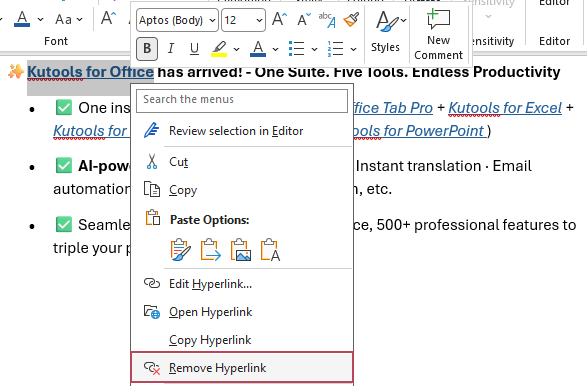
Result: The hyperlink will be removed immediately, but the display text remains unchanged.
Remove Multiple Hyperlinks at Once in Word (Ctrl + Shift + F9)
- Select the text containing hyperlinks (or press Ctrl + A to select the entire document).
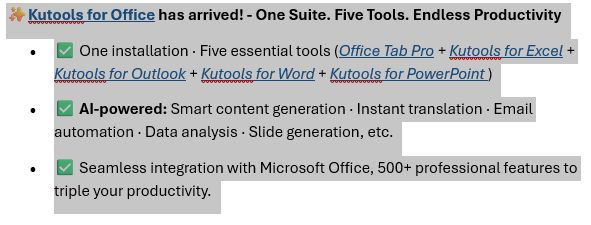
- Press Ctrl + Shift + F9.
Result: All hyperlinks within the selected content will be converted into plain text instantly.
Stop Word from Automatically Creating Hyperlinks in Word
To prevent Word from automatically converting URLs into hyperlinks:
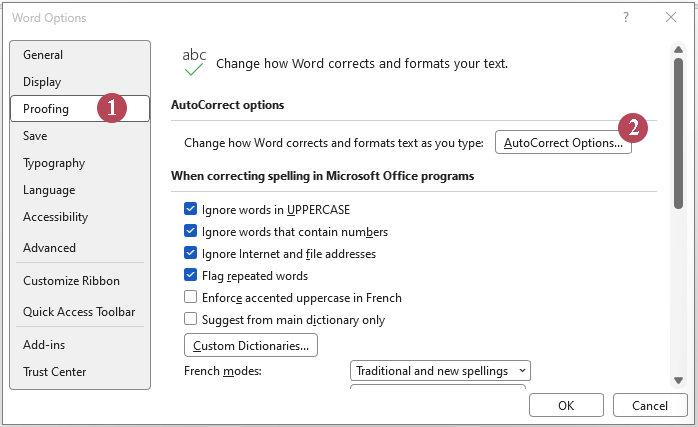
- Click File → Options.
- In the Word Options dialog,
- ① Select Proofing.
- ② Click AutoCorrect Options.
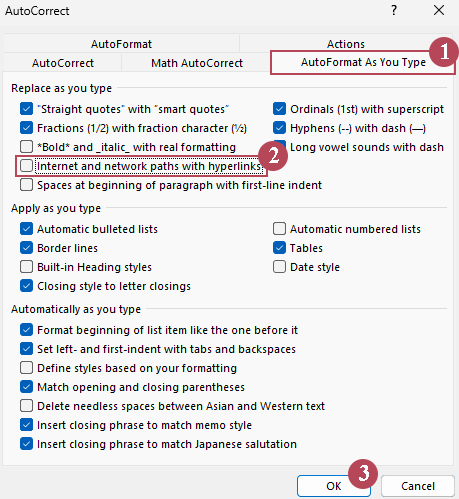
- In the AutoCorrect dialog,
- ① Open the AutoFormat As You Type tab.
- ② Uncheck Internet and network paths with hyperlinks.
- ③ Click OK.
- Click OK.
Method 2 (Faster): Remove Hyperlinks Using Kutools for Word
If you frequently work with long documents or need more precise control, Kutools for Word provides a powerful and flexible solution.
Remove all hyperlinks from the whole document in Word
After downloading and installing Kutools for Word from the official website, do the following:
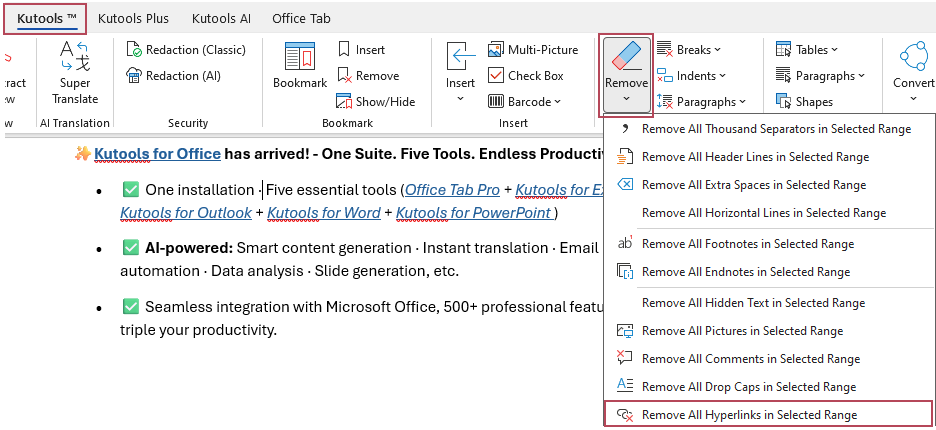
- Open the document and click Kutools → Remove → Remove All Hyperlinks in Selected Range.
- Click OK to confirm the operation.
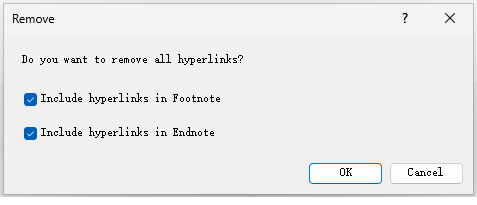
Tip: To remove hyperlinks from your footnotes or endnotes, select the corresponding Include hyperlinks in Footnote or Include hyperlinks in Endnote checkbox.
Result: All hyperlinks throughout the entire document will be removed instantly while keeping the original text.
Remove all hyperlinks from a selected part of the document in Word
After downloading and installing Kutools for Word from the official website, do the following:
- Select the specific text range where you want to remove hyperlinks.
- Click Kutools → Remove → Remove All Hyperlinks in Selected Range.
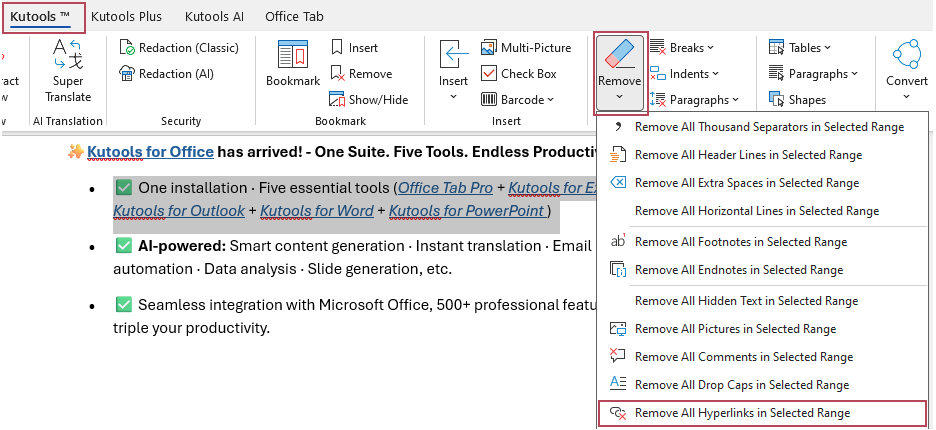
Result: Only the hyperlinks in the selected section will be removed. Other hyperlinks outside the selection remain untouched.
- One-click: removes all hyperlinks instantly
- Works on a selected range or the entire document
- Keeps original text while removing clickable links
- Fast and reliable for long or complex documents
Word vs Kutools: Which Method Should You Choose?
| Feature | Word Built-In | Kutools for Word |
|---|---|---|
| Remove single hyperlink | ✔ Yes | ✔ Yes |
| Remove all hyperlinks in document | ✔ Yes | ✔ Yes (One click) |
| Remove hyperlinks in selected range | ✔ Yes | ✔ Yes (One click) |
| Best for large documents | Moderate | ✔ Excellent |
Frequently Asked Questions
Does removing a hyperlink delete the text?
No. Removing a hyperlink only deletes the clickable link. The text remains unchanged.
What is the shortcut to remove hyperlinks in Word?
Select the content and press Ctrl + Shift + F9.
How do I remove hyperlinks from the entire document?
Press Ctrl + A to select all content, then press Ctrl + Shift + F9, or use Kutools’ Remove All Hyperlinks in Selected Range feature for a one-click solution.
Can I remove hyperlinks without affecting other formatting?
Yes. Both Word’s built-in method and Kutools remove hyperlinks while keeping the original text formatting intact.
Best Office Productivity Tools
Kutools for Word - Elevate Your Word Experience with Over 100 Remarkable Features!
🤖 Kutools AI Features: AI Assistant / Real-Time Assistant / Super Polish (Preserve Format) / Super Translate (Preserve Format) / AI Redaction / AI Proofread...
📘 Document Mastery: Split Pages / Merge Documents / Export Selection in Various Formats (PDF/TXT/DOC/HTML...) / Batch Convert to PDF...
✏ Contents Editing: Batch Find and Replace across Multiple Files / Resize All Pictures / Transpose Table Rows and Columns / Convert Table to Text...
🧹 Effortless Clean: Sweap away Extra Spaces / Section Breaks / Text Boxes / Hyperlinks / For more removing tools, head to the Remove group...
➕ Creative Inserts: Insert Thousand Separators / Check Boxes / Radio Buttons / QR Code / Barcode / Multiple Pictures / Discover more in the Insert group...
🔍 Precision Selections: Pinpoint Specific Pages / Tables / Shapes / Heading Paragraphs / Enhance navigation with more Select features...
⭐ Star Enhancements: Navigate to Any Location / Auto-Insert Repetitive Text / Toggle Between Document Windows / 11 Conversion Tools...
🌍 Supports 40+ Languages: Use Kutools in your preferred language – supports English, Spanish, German, French, Chinese, and 40+ others!

Office Tab - Brings Tabbed interface to Office, Make Your Work Much Easier
- Enable tabbed editing and reading in Word, Excel, PowerPoint, Publisher, Access, Visio and Project.
- Open and create multiple documents in new tabs of the same window, rather than in new windows.
- Increases your productivity by 50%, and reduces hundreds of mouse clicks for you every day!
✨ Kutools for Office – One Installation, Five Powerful Tools!
Includes Office Tab Pro · Kutools for Excel · Kutools for Outlook · Kutools for Word · Kutools for PowerPoint
📦 Get all 5 tools in one suite | 🔗 Seamless integration with Microsoft Office | ⚡ Save time and boost productivity instantly
Best Office Productivity Tools
Kutools for Word - 100+ Tools for Word
- 🤖 Kutools AI Features: AI Assistant / Real-Time Assistant / Super Polish / Super Translate / AI Redaction / AI Proofread
- 📘 Document Mastery: Split Pages / Merge Documents / Batch Convert to PDF
- ✏ Contents Editing: Batch Find and Replace / Resize All Pictures
- 🧹 Effortless Clean: Remove Extra Spaces / Remove Section Breaks
- ➕ Creative Inserts: Insert Thousand Separators / Insert Check Boxes / Create QR Codes
- 🌍 Supports 40+ Languages: Kutools speaks your language – 40+ languages supported!
Table of contents
- Method 1 (Built-in): Remove Hyperlinks Using Word Features
- Remove a single hyperlink
- Remove multiple hyperlinks at once
- Stop Word from automatically creating hyperlinks
- Method 2 (Faster): Remove Hyperlinks Using Kutools for Word
- Remove all hyperlinks from the whole document
- Remove all hyperlinks from a selected part of the document
- Word vs Kutools
- Frequently Asked Questions
- The Best Office Productivity Tools
Kutools for Word
Brings 100+ advanced features to Word
- ⬇️ Free Download
- 🛒 Purchase Now
- 📘 Feature Tutorials
- 🎁 60-Day Free Trial