Convert Chinese Punctuation to English (and English to Chinese) in Word
When working with bilingual documents in Microsoft Word, it is common to encounter mixed punctuation styles. For example, Chinese punctuation such as , 。 : ; ? ! may appear inside English sentences, while English punctuation like , . : ; ? ! may appear in Chinese text. This usually happens when copying content from different sources, translating documents, or switching between Chinese and English input methods.
In this guide, you will learn two practical ways to convert punctuation in Word:
- Method 1: Use Word’s built-in Find and Replace feature.
- Method 2: Use Kutools for Word to automatically convert Chinese and English punctuation.
💡 Quick Navigation: |  |
Chinese vs English punctuation
The main difference between Chinese and English punctuation lies in their width and typographic conventions.
Chinese punctuation uses full-width characters, while English punctuation uses half-width characters. As a result, Chinese punctuation occupies more space and aligns with Chinese characters, whereas English punctuation is narrower and designed for Latin text.
The following table shows some common punctuation conversions:
| Chinese punctuation | English punctuation |
|---|---|
| , | , |
| 。 | . |
| : | : |
| ; | ; |
| ? | ? |
| ! | ! |
| ( ) | ( ) |
| 【 】 | [ ] |
| 《 》 | < > |
These differences are especially noticeable in bilingual documents, translated content, or text copied from websites and PDF files.
Method 1: Convert punctuation using Word Find and Replace
Microsoft Word does not provide a built-in command specifically for converting punctuation styles. However, you can manually replace punctuation using the Find and Replace feature.
- Press Ctrl + H to open the Find and Replace dialog box.
- In the Find what box, enter the Chinese punctuation mark you want to replace. For example, type , if you want to replace the Chinese comma.
- In the Replace with box, enter the English punctuation mark. For example, type , (comma + space) to replace the Chinese comma with the English comma.
💡Tip: Chinese punctuation has no space after it. For correct English spacing, you should add a space after the comma (, ).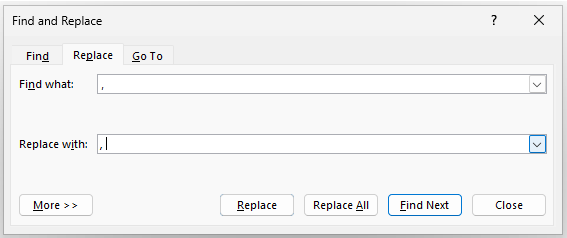
- Click Replace All.
Result: Word will replace every instance of , with , throughout the document or the selected text.
- One punctuation at a time: The Find and Replace feature can only replace one punctuation symbol at a time. For example, replacing , with , does not convert other punctuation marks such as 。, :, or ;.
- Repeat for other punctuation: If your document contains multiple Chinese punctuation marks, you must repeat the process for each symbol. For example:
- Replace , with ,
- Replace 。 with .
- Replace : with :
- Replace ; with ;
- Replace ? with ?
- Replace ! with !
- Built into Word: Find and Replace works in all Word versions.
- No additional software: No add-ins required.
- Flexible scope: Works on selections or the entire document.
- One symbol at a time: Each punctuation mark must be replaced separately.
- Slow for long documents: Repeating replacements takes time.
- Easy to miss symbols: Manual replacement can overlook punctuation.
- No two-way conversion: Word lacks automatic bidirectional conversion.
Method 2: Instantly convert punctuation with one click using Kutools for Word
If you frequently work with bilingual documents, manually replacing punctuation can be inefficient. Kutools for Word provides a dedicated tool that allows you to convert punctuation between Chinese and English formats with just a few clicks.
With Kutools for Word, you can quickly change:
- Chinese punctuation → English punctuation
- English punctuation → Chinese punctuation
After downloading and installing Kutools for Word from the official website, do the following:
- Select the text where you want to convert punctuation in Word. You can also leave the text unselected to process the entire document.
- Click Kutools >Convert . Then Choose the conversion direction:
- Chinese Punctuation to English Punctuation
- English Punctuation to Chinese Punctuation
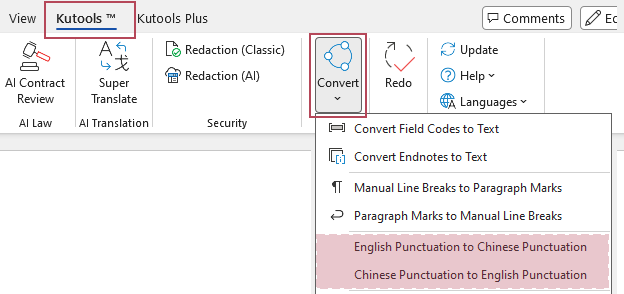
Result: Kutools instantly converts the punctuation in the selected text or the entire document. For example, , → , and 。 → . when converting Chinese punctuation to English, or , → , and . → 。 when converting English punctuation to Chinese.
- One-click: converts punctuation instantly
- Supports both Chinese → English and English → Chinese conversion
- Works on selected text or the entire document
- Fast and reliable for large documents
- No need to manually replace punctuation one by one
Word vs Kutools comparison
| Feature | Word Find & Replace | Kutools for Word |
|---|---|---|
| Ease of use | Manual replacement | ✅ One-click conversion |
| Speed | Slow for long documents | ✅ Instant conversion |
| Convert multiple punctuation types | No | ✅ Yes |
| Two-way conversion | No | ✅ Yes |
| Best use case | Small edits | ✅ Large or complex documents |
If you only need to replace one or two punctuation marks, Word’s built-in Find and Replace feature may be sufficient. However, for larger documents or frequent conversions, using Kutools for Word can save significant time and effort.
Frequently asked questions
Why does Word display Chinese punctuation in English sentences?
This usually happens when typing with a Chinese input method. Chinese input modes automatically insert full-width punctuation marks.
Can Word automatically convert full-width punctuation to half-width?
Microsoft Word does not provide a direct automatic feature for this task. You must use Find and Replace or a tool such as Kutools for Word.
What is full-width punctuation?
Full-width punctuation is commonly used in Chinese typography. Each symbol occupies the same width as a Chinese character.
When should English punctuation be used?
English punctuation should be used in English sentences, academic papers, programming documentation, and international publications.
Summary: Mixed punctuation is common when working with bilingual documents in Microsoft Word. Chinese punctuation uses full-width characters, while English punctuation uses half-width characters, which can create formatting inconsistencies if they are mixed.
Using Word’s Find and Replace feature allows you to manually replace punctuation marks when necessary. However, for faster and more reliable conversions, Kutools for Word provides a convenient tool that can automatically convert punctuation between Chinese and English formats.Choosing the right method will help keep your documents clean, professional, and consistent.
Best Office Productivity Tools
Kutools for Word - Elevate Your Word Experience with Over 100 Remarkable Features!
🤖 Kutools AI Features: AI Assistant / Real-Time Assistant / Super Polish (Preserve Format) / Super Translate (Preserve Format) / AI Redaction / AI Proofread...
📘 Document Mastery: Split Pages / Merge Documents / Export Selection in Various Formats (PDF/TXT/DOC/HTML...) / Batch Convert to PDF...
✏ Contents Editing: Batch Find and Replace across Multiple Files / Resize All Pictures / Transpose Table Rows and Columns / Convert Table to Text...
🧹 Effortless Clean: Sweap away Extra Spaces / Section Breaks / Text Boxes / Hyperlinks / For more removing tools, head to the Remove group...
➕ Creative Inserts: Insert Thousand Separators / Check Boxes / Radio Buttons / QR Code / Barcode / Multiple Pictures / Discover more in the Insert group...
🔍 Precision Selections: Pinpoint Specific Pages / Tables / Shapes / Heading Paragraphs / Enhance navigation with more Select features...
⭐ Star Enhancements: Navigate to Any Location / Auto-Insert Repetitive Text / Toggle Between Document Windows / 11 Conversion Tools...
🌍 Supports 40+ Languages: Use Kutools in your preferred language – supports English, Spanish, German, French, Chinese, and 40+ others!

Office Tab - Brings Tabbed interface to Office, Make Your Work Much Easier
- Enable tabbed editing and reading in Word, Excel, PowerPoint, Publisher, Access, Visio and Project.
- Open and create multiple documents in new tabs of the same window, rather than in new windows.
- Increases your productivity by 50%, and reduces hundreds of mouse clicks for you every day!
✨ Kutools for Office – One Installation, Five Powerful Tools!
Includes Office Tab Pro · Kutools for Excel · Kutools for Outlook · Kutools for Word · Kutools for PowerPoint
📦 Get all 5 tools in one suite | 🔗 Seamless integration with Microsoft Office | ⚡ Save time and boost productivity instantly
Best Office Productivity Tools
Kutools for Word - 100+ Tools for Word
- 🤖 Kutools AI Features: AI Assistant / Real-Time Assistant / Super Polish / Super Translate / AI Redaction / AI Proofread
- 📘 Document Mastery: Split Pages / Merge Documents / Batch Convert to PDF
- ✏ Contents Editing: Batch Find and Replace / Resize All Pictures
- 🧹 Effortless Clean: Remove Extra Spaces / Remove Section Breaks
- ➕ Creative Inserts: Insert Thousand Separators / Insert Check Boxes / Create QR Codes
- 🌍 Supports 40+ Languages: Kutools speaks your language – 40+ languages supported!
Table of contents
- Chinese vs English punctuation
- Method 1: Convert punctuation using Word Find and Replace
- Method 2: Instantly convert punctuation with one click using Kutools for Word
- Word vs Kutools comparison
- Frequently asked questions
- The Best Office Productivity Tools
Kutools for Word
Brings 100+ advanced features to Word
- ⬇️ Free Download
- 🛒 Purchase Now
- 📘 Feature Tutorials
- 🎁 60-Day Free Trial