How to Condense Character Spacing in Word
Sometimes you may want to condense character spacing in Word to make the text in a paragraph look slightly tighter and fit more neatly on the page. This is especially helpful when a paragraph ends with a very short last line that leaves more blank space than necessary. It can also be useful in reports, manuals, contracts, handouts, and other documents where a clean layout matters, and may even help save paper when printing. In these cases, slightly condensing character spacing can help pull the short last line up, give the paragraph a neater shape, and make the content fit more cleanly on the page.

In this tutorial, we will show two useful methods for handling this situation in Word. You can use Word’s built-in feature to condense character spacing manually, or use Kutools for Word to automatically detect and fix short last lines.
Condense character spacing in Word using the Font dialog
This built-in Word method lets you manually condense character spacing in selected text. It is useful when you want to make a paragraph slightly more compact and help pull a short last line up into the previous line.

Office Tab
Tabbed navigation for Word, Excel, PowerPoint, and more—just like a web browser, with smooth switching in one window.
- Select the paragraph or text you want to adjust.
- Click the Home tab.
- In the Font group, click the small dialog box launcher in the bottom-right corner.
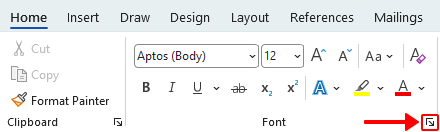
- In the Font dialog box, click the Advanced tab.
- From the Spacing drop-down list, choose Condensed.
- In the By box, enter a small value such as 0.1 pt or 0.2 pt.
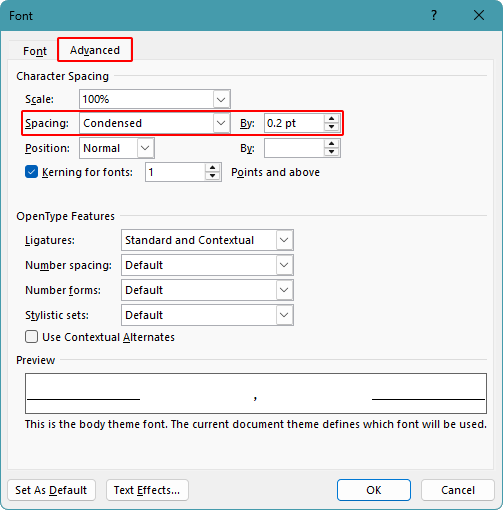
Tip:
Start with a very small value so the text still looks natural. If the last line still does not move up, try a slightly larger value.
- Click OK.
Result
The selected text becomes slightly tighter, and the short last line may move up into the previous line.
Notes:
- This method changes character spacing for all selected text, not only the last line.
- If the spacing is condensed too much, the text may look cramped and become harder to read.
Pros
- Built into Word with no add-in required
- Quick to apply to selected text
- Gives you direct control over the spacing amount
Cons
- Must be adjusted manually
- Changes spacing for all selected paragraphs, not just the ones with short last line
Fix short last lines automatically with Kutools for Word
If you need to handle short last lines in multiple paragraphs, Kutools for Word offers a more efficient solution than adjusting character spacing manually. It identifies paragraphs with short last lines and applies condensed spacing only where necessary, while leaving other paragraphs unchanged.
Kutools for Word
Kutools for Word helps you handle everyday document tasks faster with practical tools built right into Microsoft Word—no coding, no complex setup.
- AI writing, polishing, translation, and summarization
- Batch find and replace across documents
- Merge and split Word documents easily
- Batch Word ↔ PDF conversion
- Leave all text unselected to apply the feature to the whole document.
- Click Kutools Plus > Short Last Line.
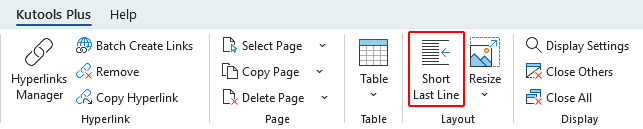
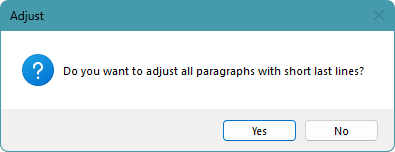
- A confirmation dialog will appear asking whether you want to adjust all paragraphs with short last lines. Click Yes.
- Another dialog will then show how many paragraphs were adjusted, along with the page and line count before and after the adjustment. Click OK.
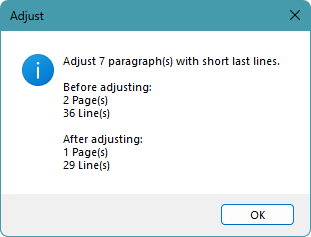
Result
Kutools automatically adjusts paragraphs with very short last lines, while leaving paragraphs without this issue unchanged.

Note:
If you only want to adjust one paragraph, select it before using this feature.
Pros
- Automatically detects paragraphs with short last lines
- Adjusts only the paragraphs that need correction
- Leaves unaffected paragraphs unchanged
- More convenient than manual spacing adjustment
Frequently Asked Questions
What does condensing character spacing do in Word?
It reduces the space between characters slightly, making the text look tighter and helping a paragraph fit more neatly on the page.
Can condensing character spacing help fix a short last line?
Yes. If a paragraph ends with a very short last line, slightly condensing character spacing may help pull that line up into the previous line.
Why didn’t my paragraph pull the last line up into the previous line?
This usually means the paragraph still does not have enough space to fit all the text into the previous line, even after the spacing is condensed. In other words, reducing the character spacing made the paragraph tighter, but not tight enough to remove the last line. This can happen when the line is still too long, the paragraph is too narrow, or the condensed value is too small.
Does Word have a built-in feature to fix short last lines automatically?
No. Word lets you condense character spacing manually, but it does not provide a built-in feature to automatically detect and fix short last lines.
What is the difference between Word’s built-in method and Kutools for Word?
Word’s built-in method requires you to adjust character spacing manually. Kutools for Word can automatically detect paragraphs with short last lines and adjust only those paragraphs when needed.
Will Kutools change all paragraphs in the document?
No. Kutools only adjusts paragraphs with short last lines. Paragraphs without this issue are left unchanged.
Can I apply the Kutools feature to only one paragraph?
Yes. Select the paragraph first, then run the feature. If no text is selected, Kutools will process the whole document.
Can condensing character spacing help save paper when printing?
Yes. By making paragraphs slightly more compact, it may reduce the number of lines or pages in a document, which can help save paper when printing.
Conclusion
Condensing character spacing in Word is a practical way to make paragraphs look tighter and fit more neatly on the page, especially when a paragraph ends with a very short last line. If you only need to adjust a small amount of text, Word’s built-in character spacing feature is a simple choice. If you want to fix short last lines automatically in multiple paragraphs, Kutools for Word offers a faster and more convenient solution. By choosing the method that best fits your document, you can improve layout, make better use of page space, and even save paper when printing.
I hope you found this tutorial helpful. If you’d like to explore more Word tips and practical solutions, please click here to browse our full collection of Word tutorials.
Best Office Productivity Tools
Kutools for Word - Elevate Your Word Experience
🤖 Kutools AI Features: AI Assistant / Real-Time Assistant / Super Polish (Preserve Format) / Super Translate (Preserve Format) / AI Redaction / AI Proofread...
📘 Document Mastery: Split Pages / Merge Documents / Export Selection in Various Formats (PDF/TXT/DOC/HTML...) / Batch Convert to PDF...
✏ Contents Editing: Batch Find and Replace across Multiple Files / Resize All Pictures / Transpose Table Rows and Columns / Convert Table to Text...
🧹 Effortless Clean: Sweap away Extra Spaces / Section Breaks / Text Boxes / Hyperlinks / For more removing tools, head to the Remove group...
➕ Creative Inserts: Insert Thousand Separators / Check Boxes / Radio Buttons / QR Code / Barcode / Multiple Pictures / Discover more in the Insert group...
🔍 Precision Selections: Pinpoint Specific Pages / Tables / Shapes / Heading Paragraphs / Enhance navigation with more Select features...
⭐ Star Enhancements: Navigate to Any Location / Auto-Insert Repetitive Text / Toggle Between Document Windows / 11 Conversion Tools...
🌍 Supports 40+ Languages: Use Kutools in your preferred language – supports English, Spanish, German, French, Chinese, and 40+ others!

Office Tab - Tabs for Office, Power for You
- Enable tabbed editing and reading in Word, Excel, PowerPoint, Publisher, Access, Visio and Project.
- Open and create multiple documents in new tabs of the same window, rather than in new windows.
- Increases your productivity by 50%, and reduces hundreds of mouse clicks for you every day!

✨ Kutools for Office – One Installation, Five Powerful Tools!
Includes Office Tab Pro · Kutools for Excel · Kutools for Outlook · Kutools for Word · Kutools for PowerPoint
📦 Get all 5 tools in one suite | 🔗 Seamless integration with Microsoft Office | ⚡ Save time and boost productivity instantly
Best Office Productivity Tools
Kutools for Word - 100+ Tools for Word
- 🤖 Kutools AI Features: AI Assistant / Real-Time Assistant / Super Polish / Super Translate / AI Redaction / AI Proofread
- 📘 Document Mastery: Split Pages / Merge Documents / Batch Convert to PDF
- ✏ Contents Editing: Batch Find and Replace / Resize All Pictures
- 🧹 Effortless Clean: Remove Extra Spaces / Remove Section Breaks
- ➕ Creative Inserts: Insert Thousand Separators / Insert Check Boxes / Create QR Codes
- 🌍 Supports 40+ Languages: Kutools speaks your language – 40+ languages supported!
Table of Contents
- Condense character spacing using the Font dialog
- Fix short last lines automatically with Kutools for Word
- Frequently Asked Questions
- Conclusion
- The Best Office Productivity Tools
Kutools for Word
Brings 100+ advanced features to Word
- 🧩 Overview
- 📥 Free Download
- 🛒 Purchase Now
- 🎁 60-Day Free Trial available