Move Selected Content to Another Place in a Word Document – Full Guide
When editing a Word document, you may often need to move selected text, paragraphs, tables, images, or other content to another location. For example, you may want to reorganize sections, move a paragraph to the beginning of a report, or place an image under a different heading. Microsoft Word provides several easy ways to move selected content. You can use cut and paste, drag and drop, the Navigation Pane or Kutools for Word depending on what type of content you want to move and how far you need to move it.
In this tutorial, you will learn several practical methods to move selected content to another place in a Word document quickly and safely.

Move Selected Content to Another Place in Word
- Method 1: With Cut and Paste commands
- Method 2: By Dragging and Dropping
- Method 3: By Right-Click Drag
- Method 4: By Kutools for Word
- Method 5: Move Headings and Sections with the Navigation Pane
Move Selected Content to Another Place with Cut and Paste commands
The most common way to move content in Word is to use the Cut and Paste commands. This method works for text, paragraphs, tables, images, shapes, and other document elements.
- Select the content you want to move.
- Press Ctrl + X to cut the selected content. Or right-click the selected content and choose Cut. See screenshot:

- Place your cursor where you want to move the content. And press Ctrl + V to paste it.
Result:
The selected content is removed from its original location and inserted into the new place.
Pros
- Works for almost all types of content, including text, paragraphs, tables, images, and objects.
- Very easy to use and suitable for both short and long documents.
- More accurate than dragging when moving content to a far location.
- Allows you to choose different paste options to control formatting.
Cons
- Formatting may change if the wrong paste option is selected.
- If you accidentally cut the wrong content, you need to undo or paste it back.
- For moving multiple separate pieces of content, repeating cut and paste can be time-consuming.
Move Selected Content to Another Place by Dragging and Dropping
If you are moving text a short distance—like switching the order of two sentences in the same paragraph—dragging and dropping is incredibly fast.
- Select the text or object you want to move. Move your mouse pointer over the selected content.
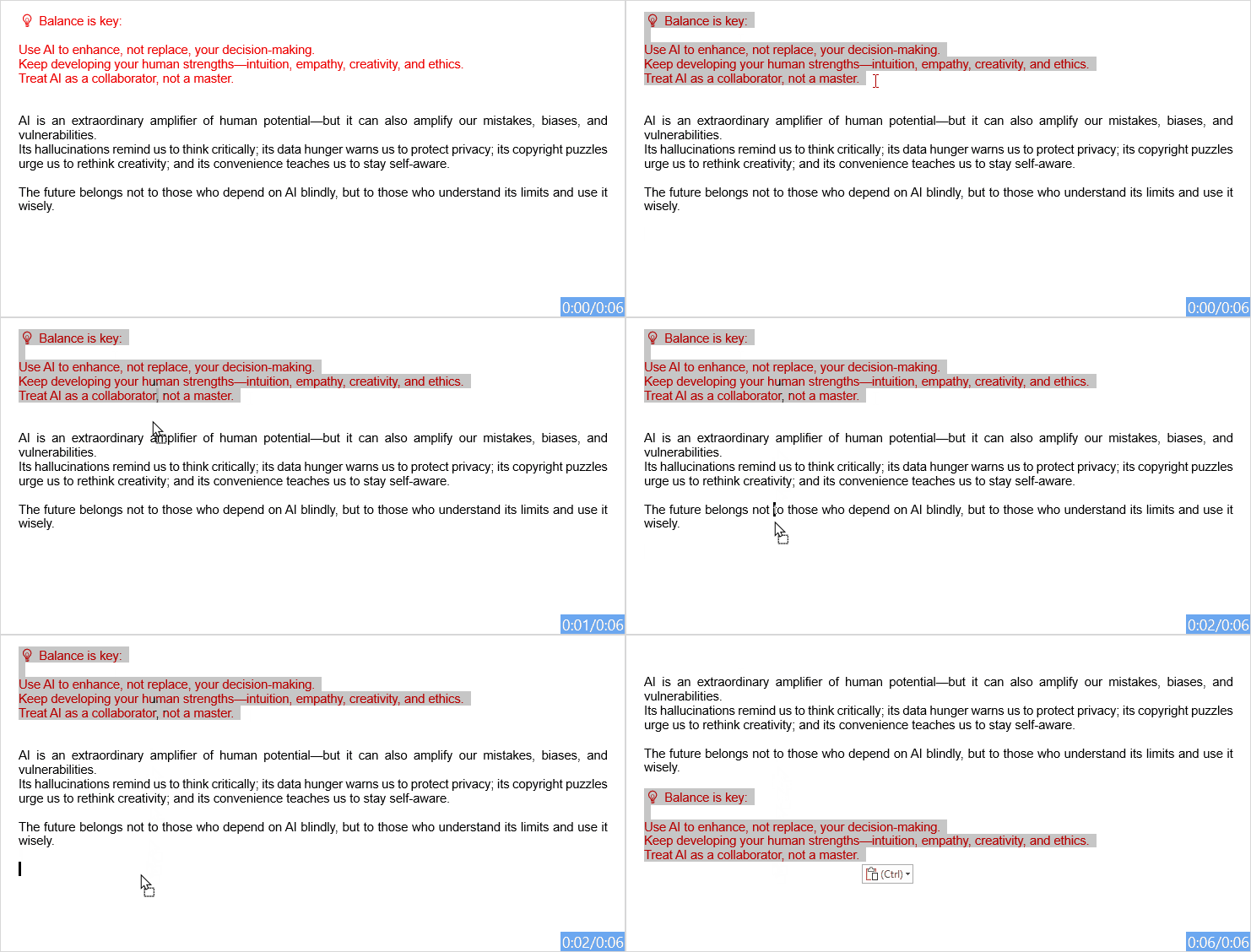
- Click and hold your left mouse button anywhere on the highlighted text. Drag the cursor to the new location. Release the mouse button to drop the text into place. See the below demo:
Note:
This method is convenient for moving short text, paragraphs, or objects within the same visible area. However, it may not be ideal for long documents because it is easy to drop the content in the wrong place.
Pros
- Fast and intuitive for moving nearby content.
- No keyboard shortcuts are required.
- Useful for small edits, short paragraphs, or objects within the visible area.
Cons
- Not ideal for long documents because it is easy to drop content in the wrong place.
- May accidentally copy content instead of moving it if certain keys are pressed.
- Dragging large sections can be inconvenient and less precise.
Move Selected Content to Another Place by Right-Click Drag
Right-click drag is a hidden gem in Word. It gives you more control by showing a shortcut menu before you commit, so you can choose whether to move, copy, or cancel the action and avoid accidental mistakes.
- Select the content you want to move, then, right-click and hold the selected content.
- Drag the cursor to the destination and release the right mouse button.
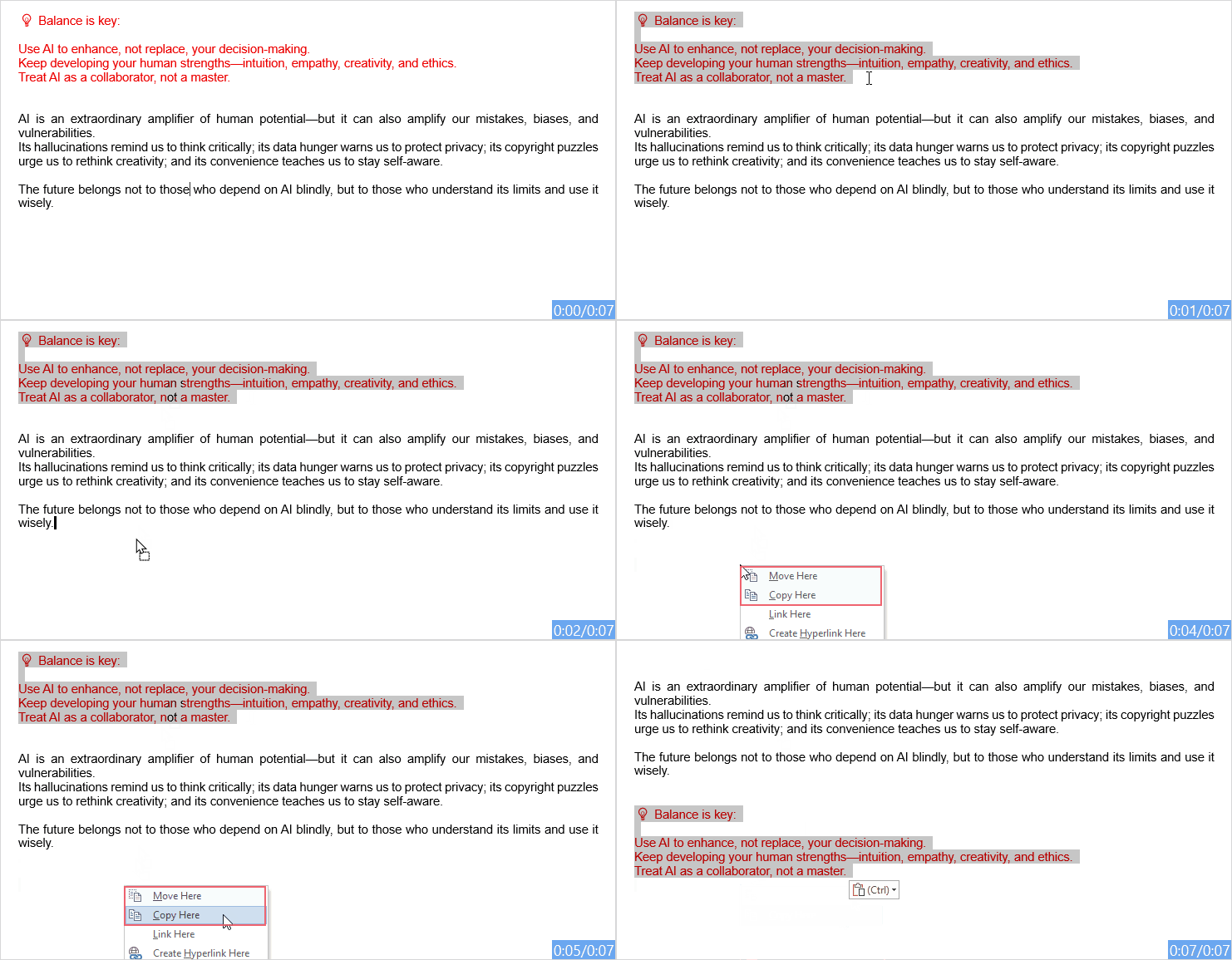
- A context menu will pop up instantly. Click Move Here to finalize the move, or Copy Here if you decide you want a duplicate instead. See the below demo:
Tip:
This method is safer than normal drag and drop because Word asks you what action to perform. You can choose Move Here, Copy Here, or Cancel.
Pros
- Safer than normal drag and drop because Word asks whether to move or copy the content.
- Gives you more control with options such as Move Here, Copy Here, or Cancel.
- Helpful when you are not sure whether you want to move or duplicate the content.
Cons
- Less commonly used, so some users may not be familiar with it.
- Still not very convenient for moving content across long documents.
- Requires careful mouse control, especially when working with large selected areas.
Move Selected Content to Another Place by Kutools for Word
Kutools for Word provides a Move To feature that helps you move selected content to another place without using the traditional cut-and-paste workflow. It is especially useful when you want to move important text, paragraphs, tables, or other content safely while keeping the clipboard unchanged.
- Select the content you want to move in the Word document.
- Go to Kutools tab, and click Move To. See screenshot:

- A little window will appear, showing the selected content and asking you to place the cursor at the target location. See screenshot:
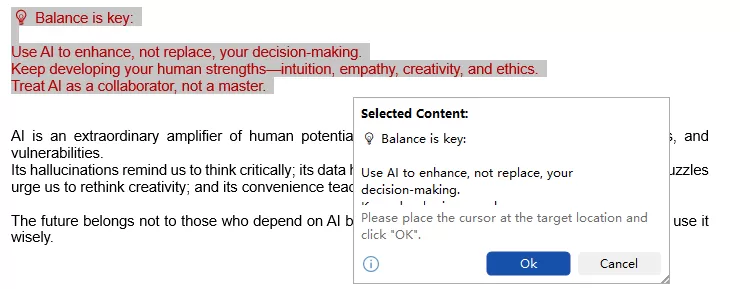
- Click the place in the document where you want to move the selected content. And then, click OK in the window.
Result:
The selected content will be moved directly to the new location without using the clipboard. This helps avoid accidentally overwriting copied content or losing text during repeated cut-and-paste operations.
Pros of Using Kutools for Word’s Move To Feature
- Safer than normal cut and paste, especially for important documents.
- Keeps the clipboard unchanged, so your copied content will not be overwritten.
- Helps prevent content loss caused by interrupted or mistaken cut-and-paste actions.
- Useful for moving large blocks of text, tables, or sections in long documents.
- More controlled and visual than standard keyboard shortcuts.
Move Headings and Sections with the Navigation Pane
When you are restructuring an entire document (like swapping Chapter 2 and Chapter 3), cutting and pasting can easily break your formatting. Instead, use the Navigation Pane to move entire sections at once.
Note:
Make sure your document uses heading styles such as Heading 1, Heading 2, Heading 3, etc.
- Go to the View tab on the ribbon and check the box for Navigation Pane. A sidebar will open on the left. See screenshot:
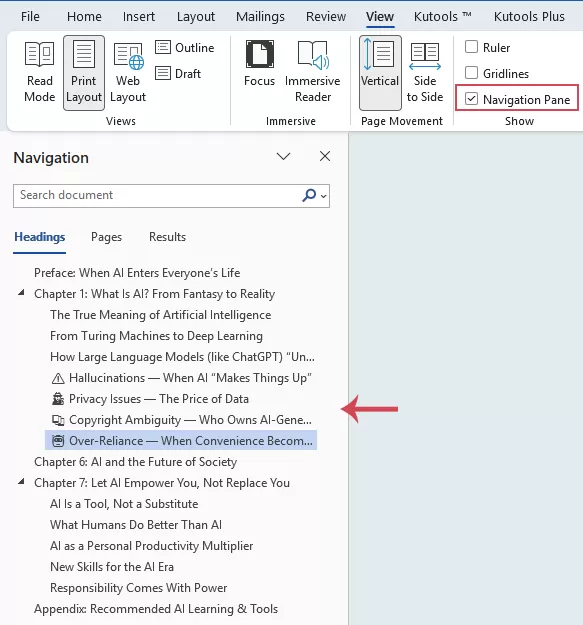
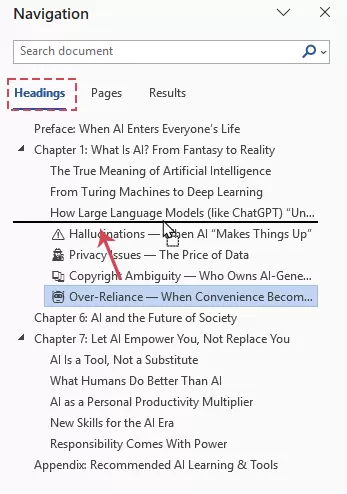
- Click on the Headings tab inside that sidebar to see an interactive outline of your document. Click and drag a heading to a new position.
Result:
As you drag, Word will instantly move that heading and every single paragraph underneath it to the new location in the actual document.
Pros
- Excellent for reorganizing long documents.
- Moves an entire section, including the heading and all content under it.
- More visual and easier than cutting and pasting large blocks of text.
- Helps maintain a clear document structure.
Cons
- Only works well if the document uses Word heading styles correctly.
- May not be useful for documents without structured headings.
- Users need to be careful when moving headings, because all content under the heading will move together.
Useful Tips for Moving Content Safely
Reorganizing a document can sometimes cause layout issues. Keep these rules of thumb in mind to keep your document looking sharp:
- Watch the Paste Options Tag: When you paste text, a small (Ctrl) clipboard icon appears next to it. Click it to choose whether the moved text should Keep Source Formatting or Merge Formatting to match its new surrounding text.
- Use the F2 Secret Shortcut: Select text, press F2 on your keyboard, move your cursor to the new spot, and press Enter. This moves your text cleanly without overwriting whatever was on your clipboard.
- Turn on Hidden Characters: Click the Show/Hide ¶ icon on the Home tab. This lets you see paragraph breaks and section breaks so you don't accidentally leave behind ugly gaps or delete structural formatting.
- Ctrl + Z: You can also use Ctrl + Z immediately if the content is moved to the wrong place.
Conclusion
Moving selected content to another place in Word is a common editing task, and the best method depends on what you want to move and how far you need to move it.
- For most basic edits, the Cut and Paste commands are simple and reliable.
- If the content is nearby, dragging and dropping can be faster.
- For better control, right-click drag gives you a safety menu before completing the action.
- If you want a safer and more visual way to move selected content without affecting the clipboard, Kutools for Word’s Move To feature is a practical choice.
- For long documents with structured headings, the Navigation Pane is especially useful because it lets you move entire sections quickly.
No matter which method you choose, always check the content and formatting after moving it. For important documents, saving a backup copy first is also recommended. With these methods, you can reorganize text, paragraphs, tables, images, and sections in Word more efficiently and safely.
Best Office Productivity Tools
Kutools for Word - Elevate Your Word Experience with Over 100 Remarkable Features!
🤖 Kutools AI Features: AI Assistant / Real-Time Assistant / Super Polish (Preserve Format) / Super Translate (Preserve Format) / AI Redaction / AI Proofread...
📘 Document Mastery: Split Pages / Merge Documents / Export Selection in Various Formats (PDF/TXT/DOC/HTML...) / Batch Convert to PDF...
✏ Contents Editing: Batch Find and Replace across Multiple Files / Resize All Pictures / Transpose Table Rows and Columns / Convert Table to Text...
🧹 Effortless Clean: Sweap away Extra Spaces / Section Breaks / Text Boxes / Hyperlinks / For more removing tools, head to the Remove group...
➕ Creative Inserts: Insert Thousand Separators / Check Boxes / Radio Buttons / QR Code / Barcode / Multiple Pictures / Discover more in the Insert group...
🔍 Precision Selections: Pinpoint Specific Pages / Tables / Shapes / Heading Paragraphs / Enhance navigation with more Select features...
⭐ Star Enhancements: Navigate to Any Location / Auto-Insert Repetitive Text / Toggle Between Document Windows / 11 Conversion Tools...
🌍 Supports 40+ Languages: Use Kutools in your preferred language – supports English, Spanish, German, French, Chinese, and 40+ others!

Office Tab - Brings Tabbed interface to Office, Make Your Work Much Easier
- Enable tabbed editing and reading in Word, Excel, PowerPoint, Publisher, Access, Visio and Project.
- Open and create multiple documents in new tabs of the same window, rather than in new windows.
- Increases your productivity by 50%, and reduces hundreds of mouse clicks for you every day!
✨ Kutools for Office – One Installation, Five Powerful Tools!
Includes Office Tab Pro · Kutools for Excel · Kutools for Outlook · Kutools for Word · Kutools for PowerPoint
📦 Get all 5 tools in one suite | 🔗 Seamless integration with Microsoft Office | ⚡ Save time and boost productivity instantly
Best Office Productivity Tools
Kutools for Word - 100+ Tools for Word
- 🤖 Kutools AI Features: AI Assistant / Real-Time Assistant / Super Polish / Super Translate / AI Redaction / AI Proofread
- 📘 Document Mastery: Split Pages / Merge Documents / Batch Convert to PDF
- ✏ Contents Editing: Batch Find and Replace / Resize All Pictures
- 🧹 Effortless Clean: Remove Extra Spaces / Remove Section Breaks
- ➕ Creative Inserts: Insert Thousand Separators / Insert Check Boxes / Create QR Codes
- 🌍 Supports 40+ Languages: Kutools speaks your language – 40+ languages supported!
Table of contents
- Move Selected Content to Another Place in Word
- Method 1: With Cut and Paste commands
- Method 2: By Dragging and Dropping
- Method 3: By Right-Click Drag
- Method 4: By Kutools for Word
- Method 5: Move Headings and Sections with the Navigation Pane
- Useful Tips for Moving Content Safely
- Conclusion
- The Best Office Productivity Tools
Kutools for Word
Brings 100+ advanced features to Word
- ⬇️ Free Download
- 🛒 Purchase Now
- 📘 Feature Tutorials
- 🎁 60-Day Free Trial