AI-Powered Text Translation Directly in Excel- Fast and Accurate
Translating text in Excel is a common task when working with multilingual data—such as product descriptions, customer feedback, reports, or international datasets. Kutools AI Aide brings AI-powered translation directly into your spreadsheets. Compared with basic Excel translation options, it can handle large ranges, understand context for more natural results, and even rewrite text in different styles.
This guide explains how to use the AI-powered translation features in Kutools for Excel to make your global data management more efficient.

What Is the AI Translation Feature in Kutools for Excel?
Key Benefits of Using Kutools AI Translation in Excel
How to Translate Text Using Kutools for Excel’s AI?
What Is the AI Translation Feature in Kutools for Excel?
The AI translation feature uses advanced AI language models to translate text from one language to another directly inside Excel. Unlike traditional methods that require copying data into external translation tools, this feature lets you:
- Translate text in selected cells
- Keep the original data structure intact
- Work efficiently with large ranges of text
It is especially useful for users who frequently handle multilingual Excel files, such as international reports, product listings, surveys, and customer data.
Key Benefits of Using Kutools AI Translation in Excel
How to Translate Text Using Kutools for Excel’s AI?
Follow these steps to translate text in Excel using the AI feature:
Step 1: Install Kutools AI Aide
Go to the Download page to download Kutools for Excel, then, run the installation file and follow the prompts to install Kutools for Excel.
Step 2: Configure the Kutools AI Aide settings
Before using the AI translation feature, you need to configure the Kutools AI Aide by selecting an AI provider, entering the required API key, and choosing an appropriate AI model. Once these settings are completed, Kutools AI will be ready to process translation and other AI-powered tasks directly in Excel.
For a beginner-friendly, step-by-step configuration guide, please refer to this link.
Step 3: Use Translate Text feature
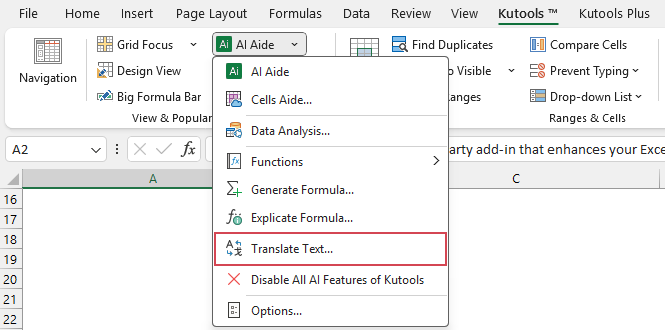
- After configuring the Kutools AI Aide settings, select the cells that contain the text you want to translate. Then, click Kutools > AI Aide > Translate Text, see screenshot:
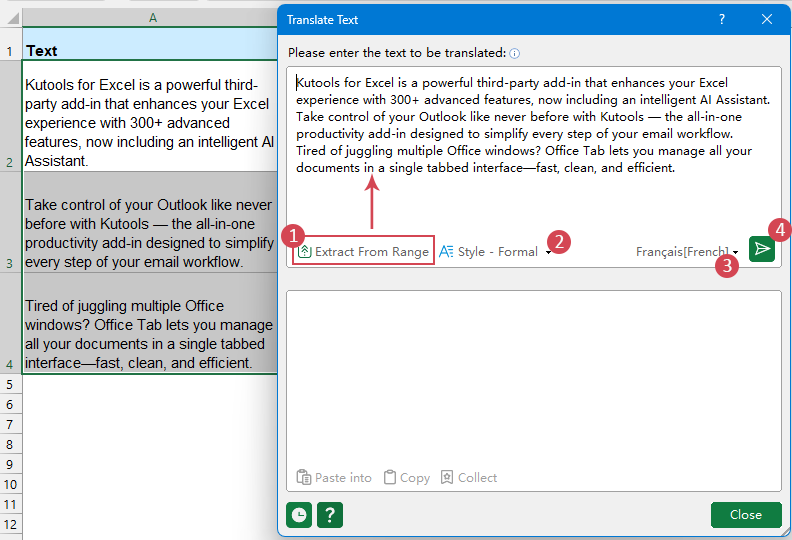
- In the Translate Text window, specify the following options:
- 1) Click the Extract From Range icon to automatically extract the selected cell text into the upper text box. (Or you can type the text into the textbox directly)
- 2) Specify the translate style (such as Formal or Popular) to control the tone and wording of the translated text according to your needs.
- 3) Choose the target language you want to translate into. (Over 40 languages are available, allowing you to translate text into the language that best fits your needs.)
- 4) Click Send button.
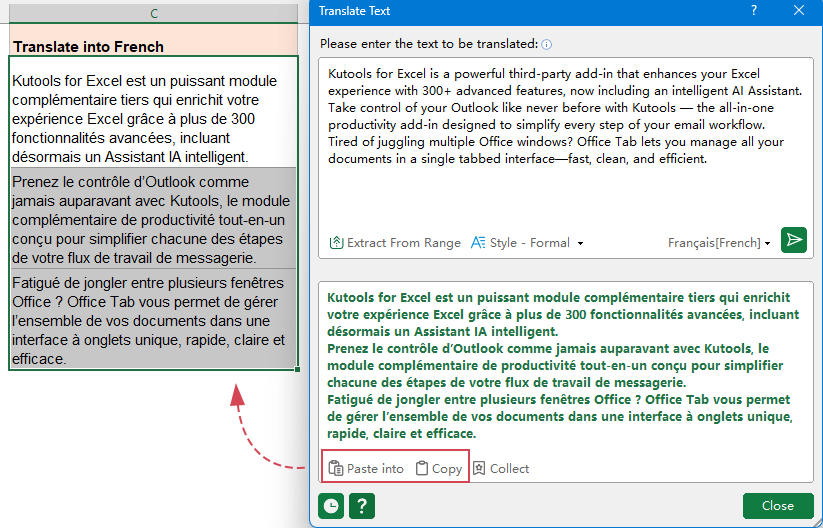
- Kutools AI automatically generates the translated text and displays it in the lower preview pane. You can then apply the result by clicking Paste into to replace the original text or insert the translation into new cells. Alternatively, click Copy to copy the translation to the clipboard and paste it into any other application as needed.
Tip: Click the History button to view your previously used translation records, making it easy to review, reuse, or further refine them. Click Clear histories to remove all saved records.
Pro Tips for Better AI Translations
Specify the Context: If you are translating technical parts or medical terms, tell the AI Aide first (e.g., "These are mechanical engineering terms, translate to German").
Handle Errors Gracefully: If you have empty cells in your range, the AI is usually smart enough to skip them, but for the best results, filter your data to only include the text that needs translation.
Check your API Key: Most AI features require an active connection. If the tool isn't responding, check Kutools > AI Aide > Settings to ensure your AI server connection is active.
How to disable Kutools AI features?
If you prefer not to use AI features in Excel, Kutools for Excel allows you to easily disable the Kutools AI functions at any time. Once disabled, all AI-related tools will be turned off and no AI processing will be performed.
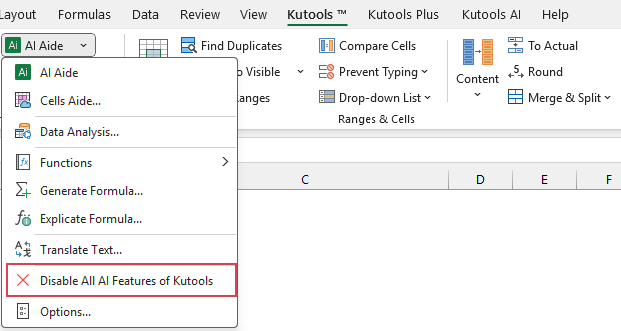
- Go to the Kutools tab on the ribbon, click AI Aide > Disable All AI Features of Kutools.
- A confirmation dialog will pop up to remind you that all AI features will be turned off. Click Yes to confirm.
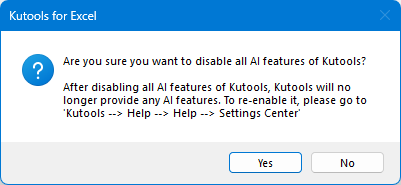
Tip: To re-enable it, please go to Kutools > Help > Settings Center, and check Enable AI Features of Kutools option. See screenshot:
Best Office Productivity Tools
Supercharge Your Excel Skills with Kutools for Excel, and Experience Efficiency Like Never Before. Kutools for Excel Offers Over 300 Advanced Features to Boost Productivity and Save Time. Click Here to Get The Feature You Need The Most...
Office Tab Brings Tabbed interface to Office, and Make Your Work Much Easier
- Enable tabbed editing and reading in Word, Excel, PowerPoint, Publisher, Access, Visio and Project.
- Open and create multiple documents in new tabs of the same window, rather than in new windows.
- Increases your productivity by 50%, and reduces hundreds of mouse clicks for you every day!
All Kutools add-ins. One installer
Kutools for Office suite bundles add-ins for Excel, Word, Outlook & PowerPoint plus Office Tab Pro, which is ideal for teams working across Office apps.





- All-in-one suite — Excel, Word, Outlook & PowerPoint add-ins + Office Tab Pro
- One installer, one license — set up in minutes (MSI-ready)
- Works better together — streamlined productivity across Office apps
- 30-day full-featured trial — no registration, no credit card
- Best value — save vs buying individual add-in
Table of contents
- What Is the AI Translation Feature in Kutools for Excel?
- Key Benefits of Using Kutools AI Translation in Excel
- How to Translate Text Using Kutools for Excel’s AI?
- Pro Tips for Better AI Translations
- How to disable Kutools AI features?
- The Best Office Productivity Tools
Kutools for Excel
Brings 300+ advanced features to Excel
- ⬇️ Free Download
- 🛒 Purchase Now
- 📘 Feature Tutorials
- 🎁 30-Day Free Trial