Check and Fix Broken References in Word
Microsoft Word documents often contain hyperlinks, cross-references, bookmarks, tables of contents, captions, and other reference fields. When referenced content is renamed, deleted, or moved, these references may become invalid. Finding them manually can be difficult, especially in a long document.
The Check References feature in Kutools for Word scans the document, lists valid and invalid references, explains each detected problem, and helps you repair broken references from one centralized window. It is especially useful for reports, manuals, academic papers, contracts, and other documents containing many internal links or field-based references.
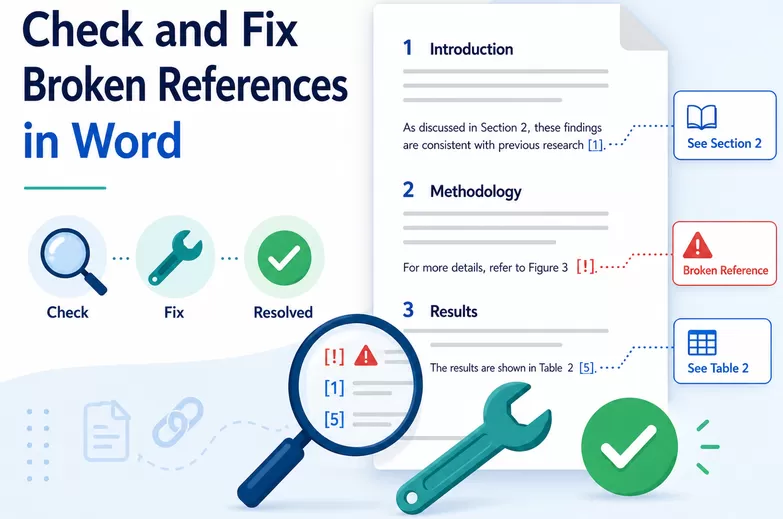
Advantage of Check References feature
Advantage of Check References feature
Check multiple reference types at once
The feature can scan different types of references in the current document, including: Table of Contents entries, Hyperlinks, Cross-references, References linked to headings, bookmarks, captions, figures, tables, or other document elements. Instead of checking every link manually, you can review them together in one pane.
Quickly identify invalid references
Each reference is marked with a status icon: A green check mark indicates that the reference appears to be valid. A red exclamation mark indicates that the reference may be broken or invalid. The total number of detected issues is displayed at the top of the pane.
See the location and context of each reference
The results list provides useful information, including: Type, Page, Context. This information makes it easier to identify where each issue occurs.
Update fields and check again
After editing the document, you can use Rescan or Update Fields & Rescan to refresh the results without closing and reopening the feature.
How to use Check References feature?
The Check References feature is easy to use and allows you to scan, review, and repair references from one convenient pane. Follow the steps below to check the references in your document, identify any errors, view detailed information, and fix invalid references.
Check All References in Word
Follow these steps to scan the references in the current document.
1. Open the Word document that contains the references you want to check. For best results, save the document before beginning the scan.
2. Then, click Kutools > Check References. 
3. The Check References pane appears on the right of the document and automatically scans the available references. 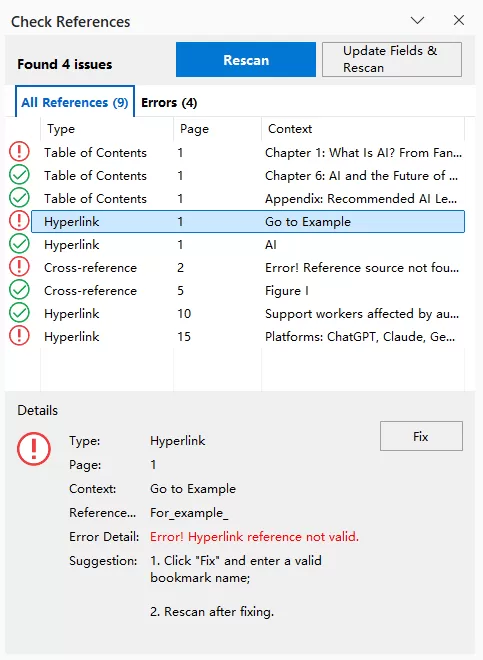
Review the scan summary
At the top of the pane, you can see the number of detected issues. For example, Found 4 issues. This means that four references may be invalid or require further review.
Review all detected references
Open the All References tab to view every reference found in the document. 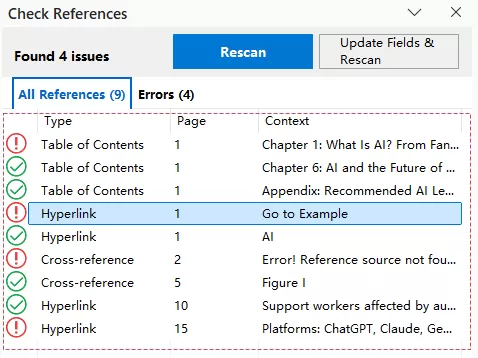
View only broken references
Click the Errors tab to display only the items that have been identified as invalid. This view is useful when the document contains many valid references and you only need to process the errors. 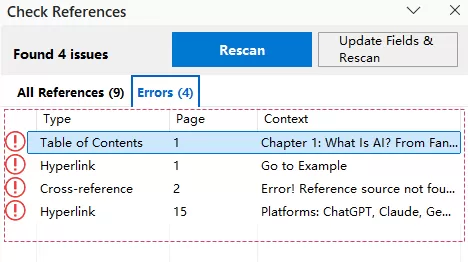
4. Select a reference to view its details. Click an item in the results list, and detailed information will appear in the lower section of the pane. Review these details to identify why the reference is broken and determine how to fix it.
Fix an Invalid Reference
A reference often becomes invalid because its original destination no longer exists. For example, a bookmark may have been deleted, a heading may have been renamed, or a referenced caption may have been removed.
1. Select the broken reference in the Check References pane, check the information shown in the Details section, especially the Reference and Error Detail fields.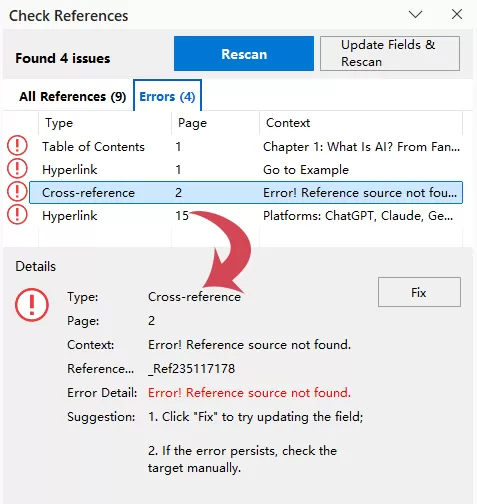
2. Click the Fix button in the Details section. Depending on the reference type, you may be prompted to replace the invalid destination with an existing bookmark or another valid reference target. Select or enter the correct destination, the selected hyperlink or reference is updated to point to the corrected destination.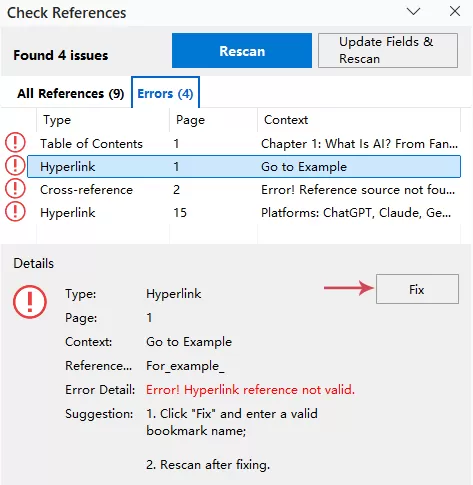
3. When the reference has been repaired successfully, its red error icon should be replaced with a green check mark. After repairing the reference, click Rescan. Kutools checks the document again and refreshes the result list. 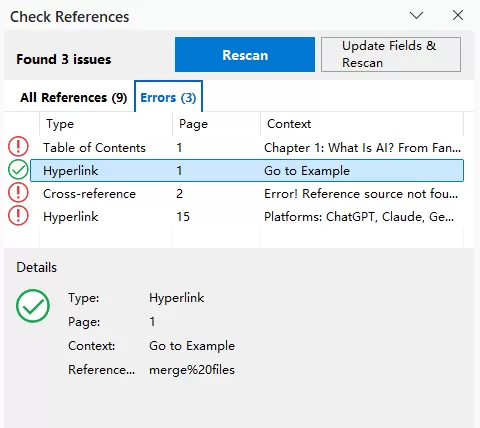
Result: When the repair is successful, the item should no longer appear under the Errors tab and should be displayed with a green check mark under All References.
Rescan and Update Fields & Rescan
The Check References window provides two scanning options.
Rescan
Click Rescan to check the current state of the document again. Rescan is suitable when you only need to check whether your recent changes have resolved the detected issues.
Update Fields & Rescan
Click Update Fields & Rescan to update the document’s fields before running another scan. For example, a cross-reference may still display an old page number or an error message until its field is updated. Update Fields & Rescan refreshes the field results first and then checks the references again.
Which option should you use?
Use Rescan after making a simple change to a hyperlink or bookmark.
Use Update Fields & Rescan when the document contains tables of contents, cross-references, captions, page references, or other fields that may need to be refreshed.
Tips for Better Results
Save a backup before making multiple repairs
If the document contains many references, save a copy before changing them. This makes it easier to restore the original document if a reference is connected to the wrong destination.
Review the context before fixing an item
Do not rely only on the reference name. Check the Context and Page columns to confirm which part of the document the reference belongs to.
Avoid deleting referenced content directly
Before deleting a heading, caption, bookmark, figure, or table, check whether other parts of the document refer to it. If it must be deleted, update or remove the related references as well.
Review the document after fixing references
A technically valid reference may still point to the wrong heading, figure, or bookmark. After repairing the errors, test important links manually to confirm that they lead to the intended content.
Notes and Limitations
Frequently Asked Questions
Conclusion
The Check References feature in Kutools for Word provides a centralized way to inspect tables of contents, hyperlinks, cross-references, and other document references. It clearly marks possible errors, shows the page and context of each item, and provides detailed information that can help you repair invalid destinations.
For the most reliable results, scan the document after making structural changes, repair each detected issue carefully, and finish by clicking Update Fields & Rescan. This helps ensure that your document’s links, fields, and references remain accurate and usable.
Best Office Productivity Tools
Kutools for Word - Elevate Your Word Experience with Over 100 Remarkable Features!
🤖 Kutools AI Features: AI Assistant / Real-Time Assistant / Super Polish (Preserve Format) / Super Translate (Preserve Format) / AI Redaction / AI Proofread...
📘 Document Mastery: Split Pages / Merge Documents / Export Selection in Various Formats (PDF/TXT/DOC/HTML...) / Batch Convert to PDF...
✏ Contents Editing: Batch Find and Replace across Multiple Files / Resize All Pictures / Transpose Table Rows and Columns / Convert Table to Text...
🧹 Effortless Clean: Sweap away Extra Spaces / Section Breaks / Text Boxes / Hyperlinks / For more removing tools, head to the Remove group...
➕ Creative Inserts: Insert Thousand Separators / Check Boxes / Radio Buttons / QR Code / Barcode / Multiple Pictures / Discover more in the Insert group...
🔍 Precision Selections: Pinpoint Specific Pages / Tables / Shapes / Heading Paragraphs / Enhance navigation with more Select features...
⭐ Star Enhancements: Navigate to Any Location / Auto-Insert Repetitive Text / Toggle Between Document Windows / 11 Conversion Tools...
🌍 Supports 40+ Languages: Use Kutools in your preferred language – supports English, Spanish, German, French, Chinese, and 40+ others!

Office Tab - Brings Tabbed interface to Office, Make Your Work Much Easier
- Enable tabbed editing and reading in Word, Excel, PowerPoint, Publisher, Access, Visio and Project.
- Open and create multiple documents in new tabs of the same window, rather than in new windows.
- Increases your productivity by 50%, and reduces hundreds of mouse clicks for you every day!
✨ Kutools for Office – One Installation, Five Powerful Tools!
Includes Office Tab Pro · Kutools for Excel · Kutools for Outlook · Kutools for Word · Kutools for PowerPoint
📦 Get all 5 tools in one suite | 🔗 Seamless integration with Microsoft Office | ⚡ Save time and boost productivity instantly
Best Office Productivity Tools
Kutools for Word - 100+ Tools for Word
- 🤖 Kutools AI Features: AI Assistant / Real-Time Assistant / Super Polish / Super Translate / AI Redaction / AI Proofread
- 📘 Document Mastery: Split Pages / Merge Documents / Batch Convert to PDF
- ✏ Contents Editing: Batch Find and Replace / Resize All Pictures
- 🧹 Effortless Clean: Remove Extra Spaces / Remove Section Breaks
- ➕ Creative Inserts: Insert Thousand Separators / Insert Check Boxes / Create QR Codes
- 🌍 Supports 40+ Languages: Kutools speaks your language – 40+ languages supported!
Table of contents
- Advantage of Check References feature
- How to use Check References feature?
- Check all references in Word
- Fix an Invalid Reference
- Rescan and Update Fields & Rescan
- Tips for Better Results
- Notes and Limitations
- Frequently Asked Questions
- Conclusion
Kutools for Word
Brings 100+ advanced features to Word
- ⬇️ Free Download
- 🛒 Purchase Now
- 📘 Feature Tutorials
- 🎁 60-Day Free Trial