Delete a section break in Word using Kutools AI
Section breaks in Word are essential for controlling document layout, but they can also create unexpected formatting issues - such as shifting headers and footers, interrupted page numbering, or unwanted page orientation changes. Manually finding and removing these breaks is often time-consuming and error-prone, especially in long or complex documents.
Kutools for Word solves these problems with its AI-powered Chat feature, allowing you to manage section breaks using simple natural-language instructions. Kutools AI not only understands your request but also identifies and recommends the correct Kutools tool, ensures only the intended break(s) are removed, and applies changes safely without affecting other formatting. This makes the process fast, accurate and beginner-friendly. The guide below shows you how to delete section breaks efficiently using Kutools AI.
Step-by-step guide to delete a section break using Kutools for Word
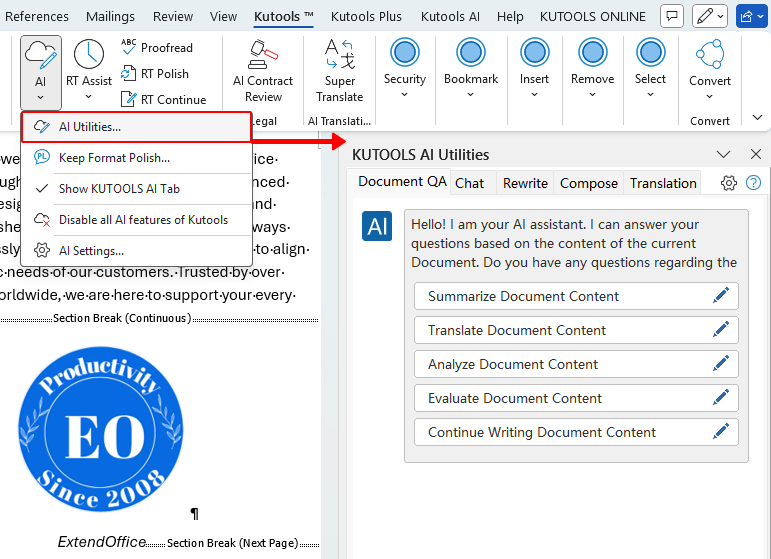
- Open your Word document, then on the Kutools tab, click AI > AI Utilities to display the Kutools AI Utilities pane.
- Switch to the Chat tab and describe your task in the chat box. For example:
- “Remove all section breaks in this document.”
- “Remove all section breaks in the current selection.” (Highlight the part of the document you want to affect before sending this.)
- “Delete the next section break in this document.”
 (or press Enter).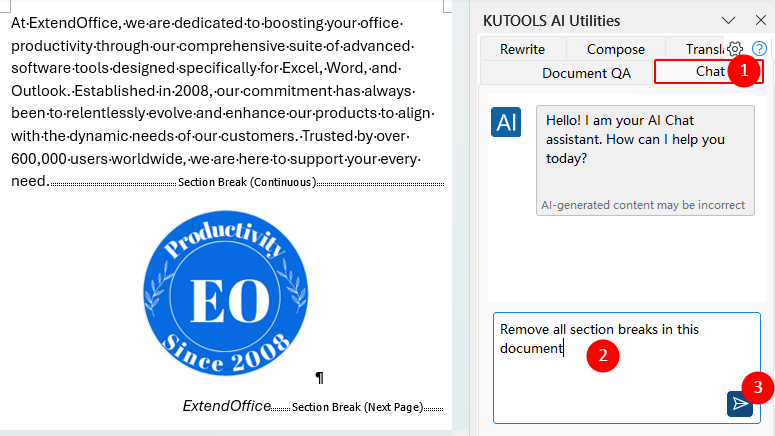
- Kutools AI analyzes your request and suggests the corresponding Kutools feature (e.g., Remove Section Breaks) and shows buttons such as Execute and Abandon.
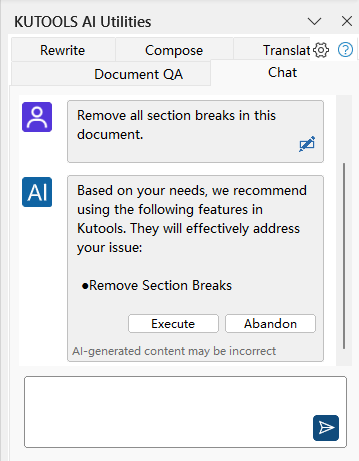
- Click Execute to run the suggested feature. Kutools for Word will automatically delete the section break(s) according to your request, and the changes are applied directly in your document.
 (or press
Note: Make sure Kutools AI is activated with a valid AI provider (such as OpenAI or Google AI) and that you are using a Kutools for Word version that includes the AI Utilities pane.
Best Office Productivity Tools
Kutools for Word - Elevate Your Word Experience
🤖 Kutools AI Features: AI Assistant / Real-Time Assistant / Super Polish (Preserve Format) / Super Translate (Preserve Format) / AI Redaction / AI Proofread...
📘 Document Mastery: Split Pages / Merge Documents / Export Selection in Various Formats (PDF/TXT/DOC/HTML...) / Batch Convert to PDF...
✏ Contents Editing: Batch Find and Replace across Multiple Files / Resize All Pictures / Transpose Table Rows and Columns / Convert Table to Text...
🧹 Effortless Clean: Sweap away Extra Spaces / Section Breaks / Text Boxes / Hyperlinks / For more removing tools, head to the Remove group...
➕ Creative Inserts: Insert Thousand Separators / Check Boxes / Radio Buttons / QR Code / Barcode / Multiple Pictures / Discover more in the Insert group...
🔍 Precision Selections: Pinpoint Specific Pages / Tables / Shapes / Heading Paragraphs / Enhance navigation with more Select features...
⭐ Star Enhancements: Navigate to Any Location / Auto-Insert Repetitive Text / Toggle Between Document Windows / 11 Conversion Tools...
🌍 Supports 40+ Languages: Use Kutools in your preferred language – supports English, Spanish, German, French, Chinese, and 40+ others!

Office Tab - Tabs for Office, Power for You
- Enable tabbed editing and reading in Word, Excel, PowerPoint, Publisher, Access, Visio and Project.
- Open and create multiple documents in new tabs of the same window, rather than in new windows.
- Increases your productivity by 50%, and reduces hundreds of mouse clicks for you every day!

✨ Kutools for Office – One Installation, Five Powerful Tools!
Includes Office Tab Pro · Kutools for Excel · Kutools for Outlook · Kutools for Word · Kutools for PowerPoint
📦 Get all 5 tools in one suite | 🔗 Seamless integration with Microsoft Office | ⚡ Save time and boost productivity instantly
Best Office Productivity Tools
Kutools for Word - 100+ Tools for Word
- 🤖 Kutools AI Features: AI Assistant / Real-Time Assistant / Super Polish / Super Translate / AI Redaction / AI Proofread
- 📘 Document Mastery: Split Pages / Merge Documents / Batch Convert to PDF
- ✏ Contents Editing: Batch Find and Replace / Resize All Pictures
- 🧹 Effortless Clean: Remove Extra Spaces / Remove Section Breaks
- ➕ Creative Inserts: Insert Thousand Separators / Insert Check Boxes / Create QR Codes
- 🌍 Supports 40+ Languages: Kutools speaks your language – 40+ languages supported!
Table of Contents
Kutools for Word
Brings 100+ advanced features to Word
- 🧩 Overview
- 📥 Free Download
- 🛒 Purchase Now
- 🎁 60-Day Free Trial available