Move content safely in Word without cut and paste
When working in Word, moving content usually means cutting and pasting. This works, but it comes with a small risk. If something interrupts the process, your content can be lost. The Move To feature in Kutools for Word gives you a safer and more controlled way to move content inside your document.
In this tutorial, you will learn how to use the Move To feature, where to find it, and when it is most useful.
Benefits of the Move To feature
- 🔒 Prevents data loss during interrupted cut-and-paste operations
- 📋 Keeps your clipboard unchanged so copied content is not overwritten
- ⚡ Moves content in one step without extra actions
- 📍 Automatically places the cursor after the moved content
- 📄 Safer when working with large or important sections of a document
Where to find the Move To feature
After installing Kutools for Word, open Word and switch to the Kutools tab on the ribbon. In the Popular group, you will see the Move To feature.

This is where you can quickly access the tool whenever you need to move content safely within your document.
How to use Move To in Word
- Select the content you want to move.
- Click Kutools > Move To.
A dialog will appear, showing the selected content and asking you to place the cursor at the target location.
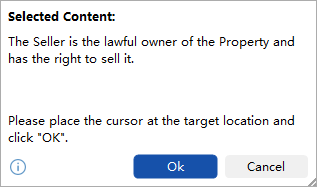
- Place your cursor at the target location in the document.
- Click OK to move the content.
Note:
The content will be moved directly to the new location without using the clipboard.
When is Move To useful
This feature is especially helpful in situations where accuracy and safety matter more than speed.
📄 Reorganizing long documents
When editing reports, contracts, or manuscripts, you often need to move paragraphs or sections to different places. Using Move To ensures nothing is lost during the process.
🔐 Working with important legal or business content
If you are handling sensitive text such as agreements or policies, avoiding clipboard operations reduces the risk of accidental overwrite or loss.
📦 Moving large blocks of content
Cutting and pasting large sections can sometimes lag or fail. Move To handles the operation more safely in one action.
📋 Avoiding clipboard conflicts
If you already have something important copied, using cut will replace it. Move To keeps your clipboard untouched.
Conclusion
The Move To feature in Kutools for Word is a simple but practical tool. It replaces the traditional cut-and-paste workflow with a safer method that protects your content.
If you often reorganize documents or work with critical text, this feature helps reduce mistakes and keeps your workflow stable.
It is especially useful for long documents, structured editing, and situations where losing content is not an option.
Best Office Productivity Tools
Kutools for Word - Elevate Your Word Experience
🤖 Kutools AI Features: AI Assistant / Real-Time Assistant / Super Polish (Preserve Format) / Super Translate (Preserve Format) / AI Redaction / AI Proofread...
📘 Document Mastery: Split Pages / Merge Documents / Export Selection in Various Formats (PDF/TXT/DOC/HTML...) / Batch Convert to PDF...
✏ Contents Editing: Batch Find and Replace across Multiple Files / Resize All Pictures / Transpose Table Rows and Columns / Convert Table to Text...
🧹 Effortless Clean: Sweap away Extra Spaces / Section Breaks / Text Boxes / Hyperlinks / For more removing tools, head to the Remove group...
➕ Creative Inserts: Insert Thousand Separators / Check Boxes / Radio Buttons / QR Code / Barcode / Multiple Pictures / Discover more in the Insert group...
🔍 Precision Selections: Pinpoint Specific Pages / Tables / Shapes / Heading Paragraphs / Enhance navigation with more Select features...
⭐ Star Enhancements: Navigate to Any Location / Auto-Insert Repetitive Text / Toggle Between Document Windows / 11 Conversion Tools...
🌍 Supports 40+ Languages: Use Kutools in your preferred language – supports English, Spanish, German, French, Chinese, and 40+ others!

Office Tab - Tabs for Office, Power for You
- Enable tabbed editing and reading in Word, Excel, PowerPoint, Publisher, Access, Visio and Project.
- Open and create multiple documents in new tabs of the same window, rather than in new windows.
- Increases your productivity by 50%, and reduces hundreds of mouse clicks for you every day!

✨ Kutools for Office – One Installation, Five Powerful Tools!
Includes Office Tab Pro · Kutools for Excel · Kutools for Outlook · Kutools for Word · Kutools for PowerPoint
📦 Get all 5 tools in one suite | 🔗 Seamless integration with Microsoft Office | ⚡ Save time and boost productivity instantly
Best Office Productivity Tools
Kutools for Word - 100+ Tools for Word
- 🤖 Kutools AI Features: AI Assistant / Real-Time Assistant / Super Polish / Super Translate / AI Redaction / AI Proofread
- 📘 Document Mastery: Split Pages / Merge Documents / Batch Convert to PDF
- ✏ Contents Editing: Batch Find and Replace / Resize All Pictures
- 🧹 Effortless Clean: Remove Extra Spaces / Remove Section Breaks
- ➕ Creative Inserts: Insert Thousand Separators / Insert Check Boxes / Create QR Codes
- 🌍 Supports 40+ Languages: Kutools speaks your language – 40+ languages supported!
Table of Contents
- Benefits of the Move To feature
- Where to find the Move To feature
- How to use Move To in Word
- When is Move To useful
- Conclusion
- The Best Office Productivity Tools
Kutools for Word
Brings 100+ advanced features to Word
- 🧩 Overview
- 📥 Free Download
- 🛒 Purchase Now
- 🎁 60-Day Free Trial available