Rewrite or polish selected text in Word using Kutools AI
Many Word users turn to AI to refine their writing—whether they need to improve clarity, adjust tone, correct grammar, simplify wording, or polish text for professional use. Instead of manually rewriting each sentence, Kutools AI can instantly transform selected text into a clearer, smoother, and more polished version.
Kutools for Word brings AI-powered text improvement directly into Word through its Rewrite tool. You can select your text, choose a writing style, and let Kutools AI rewrite it according to your needs—no workflow interruptions, no switching windows. The tutorial below shows how to rewrite or polish selected text using Kutools AI.
Step-by-step guide to rewrite or polish selected text using Kutools for Word
- Open your Word document, then on the Kutools tab, click AI > AI Utilities to display the Kutools AI Utilities pane.
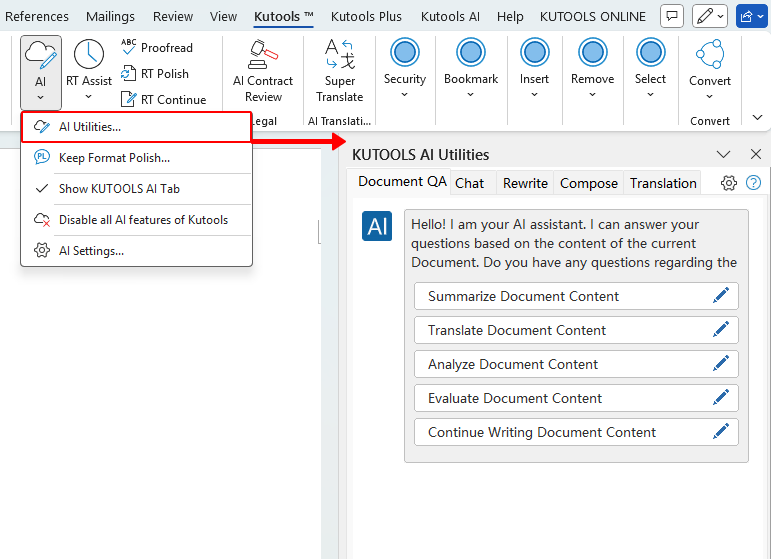
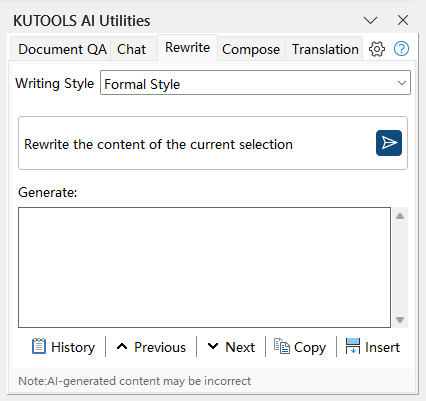
- In the AI Utilities pane, select the Rewrite tab to access the Rewrite tool.
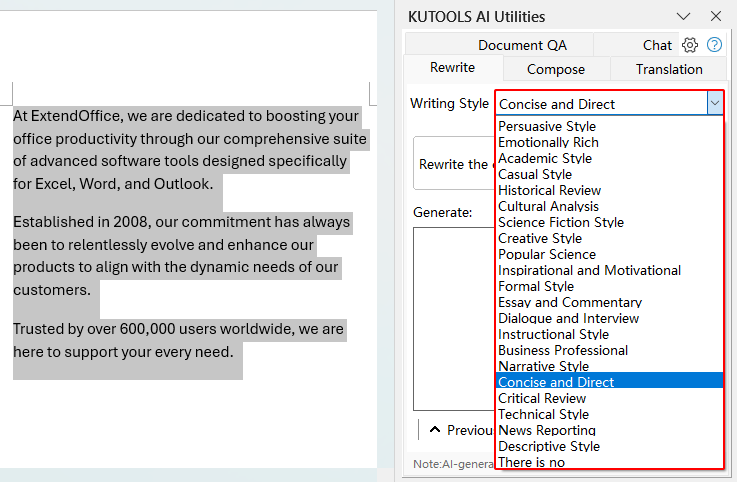
- Select the text you want to improve, and choose how you want the AI to rewrite the text from the Writing Style dropdown — for example “Formal Style,” “Concise and Direct,” “Business Professional,” “Creative Style,” or any other option in the list.
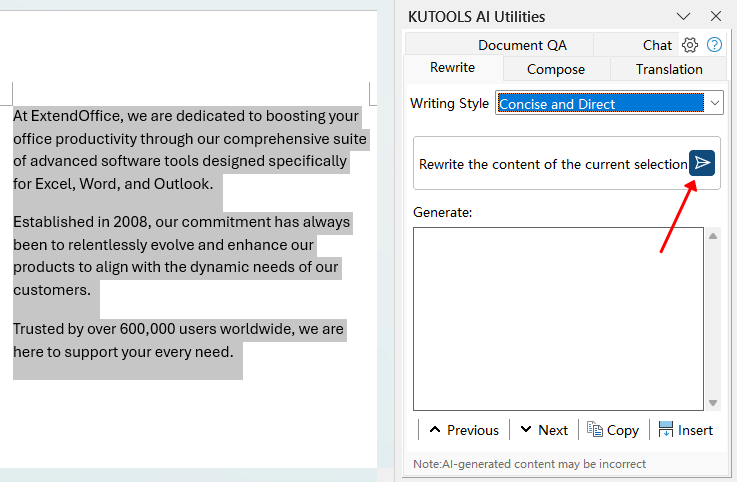
- Click the Send
 button to let Kutools AI rewrite your selected text according to the chosen style.
- Kutools AI will rephrase the selected text and show the improved version in the “Generate” box. Review the result to ensure it fits your intended tone and style.
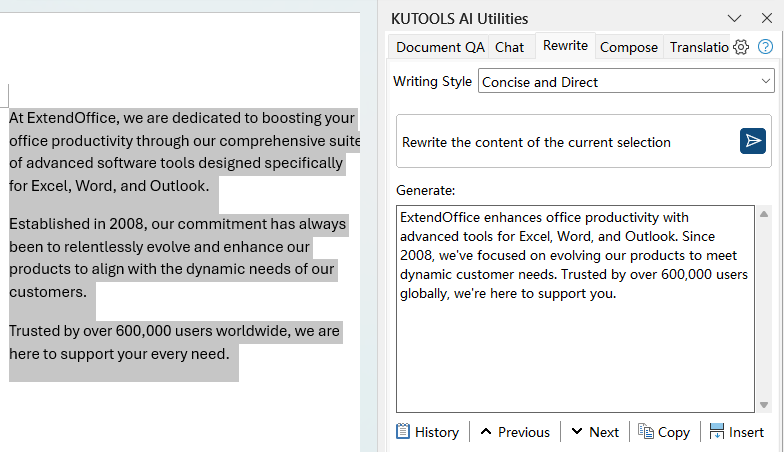
- If you're satisfied with the rewritten version, click Insert to replace your selected text directly in the document, or choose Copy to place it elsewhere manually. If you want a different version, adjust the prompt and click the Send button again to generate new alternatives.
 button to let Kutools AI rewrite your selected text according to the chosen style.
Note: Ensure Kutools AI is connected to a valid AI provider and that you are using a version of Kutools for Word that includes the Rewrite tool within the AI Utilities pane.
Best Office Productivity Tools
Kutools for Word - Elevate Your Word Experience
🤖 Kutools AI Features: AI Assistant / Real-Time Assistant / Super Polish (Preserve Format) / Super Translate (Preserve Format) / AI Redaction / AI Proofread...
📘 Document Mastery: Split Pages / Merge Documents / Export Selection in Various Formats (PDF/TXT/DOC/HTML...) / Batch Convert to PDF...
✏ Contents Editing: Batch Find and Replace across Multiple Files / Resize All Pictures / Transpose Table Rows and Columns / Convert Table to Text...
🧹 Effortless Clean: Sweap away Extra Spaces / Section Breaks / Text Boxes / Hyperlinks / For more removing tools, head to the Remove group...
➕ Creative Inserts: Insert Thousand Separators / Check Boxes / Radio Buttons / QR Code / Barcode / Multiple Pictures / Discover more in the Insert group...
🔍 Precision Selections: Pinpoint Specific Pages / Tables / Shapes / Heading Paragraphs / Enhance navigation with more Select features...
⭐ Star Enhancements: Navigate to Any Location / Auto-Insert Repetitive Text / Toggle Between Document Windows / 11 Conversion Tools...
🌍 Supports 40+ Languages: Use Kutools in your preferred language – supports English, Spanish, German, French, Chinese, and 40+ others!

Office Tab - Tabs for Office, Power for You
- Enable tabbed editing and reading in Word, Excel, PowerPoint, Publisher, Access, Visio and Project.
- Open and create multiple documents in new tabs of the same window, rather than in new windows.
- Increases your productivity by 50%, and reduces hundreds of mouse clicks for you every day!

✨ Kutools for Office – One Installation, Five Powerful Tools!
Includes Office Tab Pro · Kutools for Excel · Kutools for Outlook · Kutools for Word · Kutools for PowerPoint
📦 Get all 5 tools in one suite | 🔗 Seamless integration with Microsoft Office | ⚡ Save time and boost productivity instantly
Best Office Productivity Tools
Kutools for Word - 100+ Tools for Word
- 🤖 Kutools AI Features: AI Assistant / Real-Time Assistant / Super Polish / Super Translate / AI Redaction / AI Proofread
- 📘 Document Mastery: Split Pages / Merge Documents / Batch Convert to PDF
- ✏ Contents Editing: Batch Find and Replace / Resize All Pictures
- 🧹 Effortless Clean: Remove Extra Spaces / Remove Section Breaks
- ➕ Creative Inserts: Insert Thousand Separators / Insert Check Boxes / Create QR Codes
- 🌍 Supports 40+ Languages: Kutools speaks your language – 40+ languages supported!
Table of Contents
Kutools for Word
Brings 100+ advanced features to Word
- 🧩 Overview
- 📥 Free Download
- 🛒 Purchase Now
- 🎁 60-Day Free Trial available