How to create a Macro-enabled template in Excel?
When working with Excel, automating repetitive tasks using VBA macros can significantly streamline your workflow. After crafting a useful macro in a workbook, you may want to preserve this functionality for future use or share it with colleagues. Creating a macro-enabled template allows you to save both your worksheet layout and embedded VBA code, so you can quickly start new projects with these features included. However, if you attempt to save such a workbook as a standard Excel template (*.xltx), Excel displays a warning dialog, indicating that macros cannot be saved in the normal template format. This issue often causes confusion for users who are unfamiliar with Excel’s template formats or macro security settings. Fortunately, Excel provides an easy way to save your workbook as a macro-enabled template (*.xltm), which fully preserves your macros for future projects.
- Save the current workbook as a macro-enabled template
- Change the default save format to a macro-enabled templates
- VBA solution: Save workbook as macro-enabled template programmatically


Save the current workbook as a macro-enabled template
When you need to use an Excel workbook containing VBA macros as a model for new projects, saving it as a macro-enabled template is both practical and efficient. This method ensures that all macros and workbook settings are fully preserved and available whenever you create a new workbook from the template. Here is how you can save your current workbook as a macro-enabled template:
1. Click on the File tab in Excel, then select Save. In newer versions of Excel, you may need to choose Computer (or This PC) and then click Browse to open the Save As dialog box.
2. In the Save As dialog box, type a descriptive name for your template in the File name field. Next, click the Save as type drop-down menu and select Excel Macro-Enabled Template (*.xltm) from the list of options. This file type is specifically designed for templates that contain VBA code.
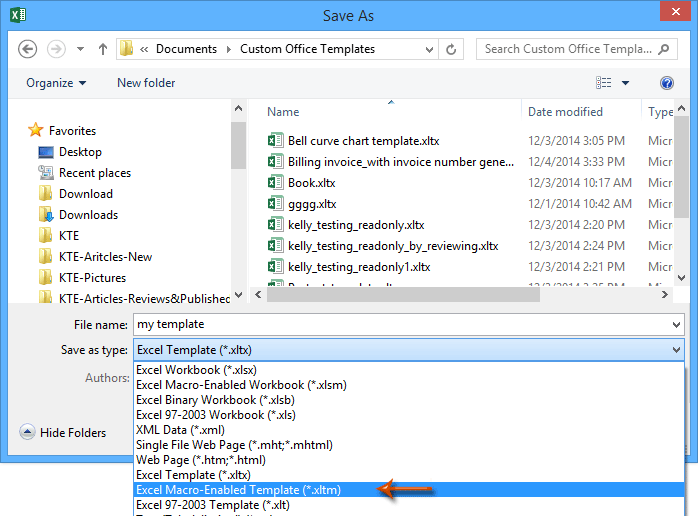
Note: When you select Excel Macro-Enabled Template (*.xltm) as the file type, Excel automatically navigates to your default Templates folder. This helps keep your templates organized and makes them easier to access when starting a new workbook. If needed, you can also browse to a different location to save the template, but storing it in the default folder ensures it appears among your available templates when you choose File > New.
3. Click the Save button to complete the process. Your workbook, including all VBA macro code, will now be preserved as a macro-enabled template. Whenever you need to start a new workbook with these macros and formatting, simply open this template from the saved location or through the template gallery when creating a new file.
Tips and precautions: Before saving as a macro-enabled template, double-check that all important macros are contained within the workbook and that their function works as expected. Additionally, be aware of macro security settings on other computers, as some environments may block macros by default. If the template will be shared, consider providing information about enabling macros for optimal use.
Change the default save format to a macro-enabled template
For users who frequently develop macro-enabled workbooks, adjusting Excel’s default save format can help streamline your workflow. When you set the default save format to Excel Macro-Enabled Template (*.xltm), every new workbook will be saved as a macro-enabled template by default, reducing the risk of accidentally saving macro-containing work as non-macro templates (or standard workbooks), which would strip away embedded code.
To change the default save format for all future workbooks, follow these steps:
1. Go to the File menu and select Options at the bottom of the sidebar to open the Excel Options dialog.
2. In the Excel Options window, click Save from the left sidebar. Locate the Save files in this format drop-down menu within the Save workbooks section. Choose Excel Macro-Enabled Template (*.xltm) from the list. This will set the macro-enabled template as the default file type whenever you save new files.
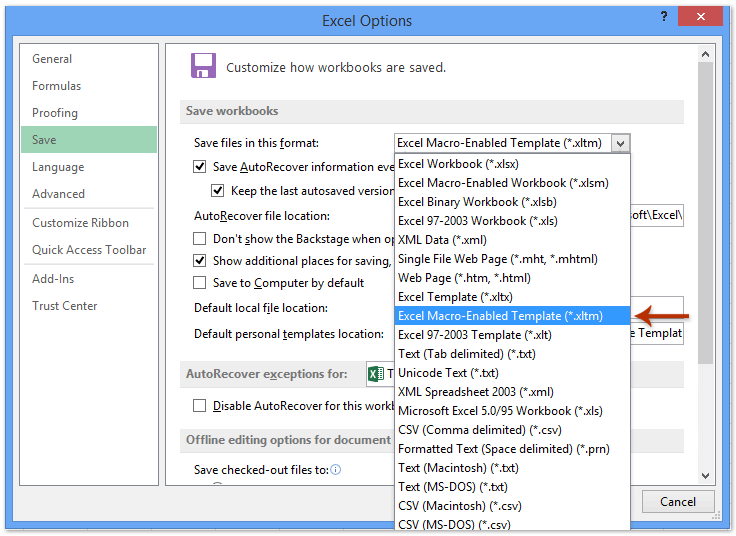
3. Click OK to apply this change. From this point forward, every time you save a new workbook using File > Save, Excel will default to the macro-enabled template format.
Points to consider: This approach is helpful if you routinely create templates or workbooks that require macros. However, if you also work with standard files that do not need macros, remember to manually change the file type back to another format (such as .xlsx) when necessary, to avoid unnecessary macro warnings and incorrect file types. Not all features are compatible across different Excel versions, so test templates on target systems if they’ll be widely shared.
Save range as a mini template (AutoText entry, remaining cell formats, and formulas) for reusing in the future
Typically, when you save an Excel file as a template, the entire workbook is stored for reuse, which can be inefficient if you only need to reuse small sections, such as a recurring table, chart, or calculation area. In situations where you frequently copy and use the same part of a worksheet, saving just the necessary range as a “mini template” can greatly improve efficiency and maintain formatting consistency. Kutools for Excel provides a practical, user-friendly solution with its AutoText utility. This feature allows you to save any selected range—including all formatting and formulas—as an AutoText entry. Once saved, you can insert this range into any worksheet at any time with a single click, saving time and reducing errors associated with manual copying and pasting.
To use this feature, simply select the desired range, open the AutoText pane provided by Kutools, and add the selection as a new entry. The cell formatting and formulas are retained, enabling accurate reuse for forms, reports, schedules, and any other repeatable content. This solution is particularly useful for professionals who use standardized tables or report sections across multiple Excel files, and it avoids the clutter of having numerous template files for small ranges.
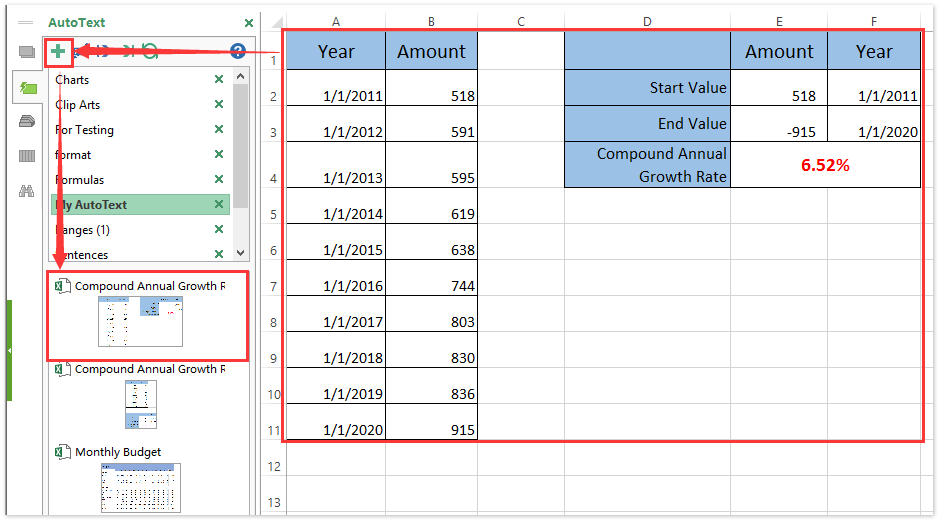
Note: When saving a range as an AutoText entry, be mindful of any relative cell references in your formulas. When reusing, check that formulas have not shifted unexpectedly. Additionally, ensure that all source data and dependencies are present or accessible in the target workbook to avoid calculation errors or reference issues.
VBA solution: Save workbook as macro-enabled template programmatically
In some cases, you may need to automate the process of saving workbooks as macro-enabled templates, such as when preparing multiple files or creating templates regularly. Using a simple VBA macro lets you quickly save your current workbook as a .xltm file. This approach not only saves time but also reduces manual errors and ensures consistent template file naming. Here is how you can implement this solution:
1. Click Developer Tools > Visual Basic to open the VBA editor. In the window that appears, go to Insert > Module and paste the following code into the module:
Sub SaveAsMacroEnabledTemplate()
    Dim filePath As String
    On Error Resume Next
    xTitleId = "KutoolsforExcel"
    filePath = Application.GetSaveAsFilename(FileFilter:="Excel Macro-Enabled Template (*.xltm), *.xltm", Title:=xTitleId)
    If filePath <> "False" Then
        ThisWorkbook.SaveAs Filename:=filePath, FileFormat:=xlOpenXMLTemplateMacroEnabled
    End If
End Sub
2. To run the code, click the  button in the VBA editor. A dialog box will prompt you to specify the save location and template name for the macro-enabled template. Once you confirm, your workbook (including all macros) will be saved to the specified location as a .xltm file.
Troubleshooting tips: If you encounter issues such as file permissions or a missing developer tab, ensure macros are enabled in Excel options and that you have appropriate write permissions to the target folder. Also, remember to save your work before executing the macro to prevent data loss.
Related articles:
How to make a read-only template in Excel?
How to protect/lock an Excel template being overwritten with password?
How to find and change default save location of Excel templates?
How to edit/change a personal template in Excel?
How to change the default workbook/sheet template in Excel?Best Office Productivity Tools
Supercharge Your Excel Skills with Kutools for Excel, and Experience Efficiency Like Never Before. Kutools for Excel Offers Over 300 Advanced Features to Boost Productivity and Save Time. Click Here to Get The Feature You Need The Most...
Office Tab Brings Tabbed interface to Office, and Make Your Work Much Easier
- Enable tabbed editing and reading in Word, Excel, PowerPoint, Publisher, Access, Visio and Project.
- Open and create multiple documents in new tabs of the same window, rather than in new windows.
- Increases your productivity by 50%, and reduces hundreds of mouse clicks for you every day!
All Kutools add-ins. One installer
Kutools for Office suite bundles add-ins for Excel, Word, Outlook & PowerPoint plus Office Tab Pro, which is ideal for teams working across Office apps.





- All-in-one suite — Excel, Word, Outlook & PowerPoint add-ins + Office Tab Pro
- One installer, one license — set up in minutes (MSI-ready)
- Works better together — streamlined productivity across Office apps
- 30-day full-featured trial — no registration, no credit card
- Best value — save vs buying individual add-in