Color coding Yes or No drop-down list in Excel
In Excel, creating a YES or NO dropdown list with color coding can significantly enhance the user experience, making data input both intuitive and visually engaging. This functionality is particularly useful in forms, surveys, and interactive dashboards where quick and clear responses are required. This guide will demonstrate two methods to achieve this: using Conditional Formatting for a customized approach and utilizing an advanced tool for added convenience and efficiency.

| Method | Setup | Coloring scope | Best for |
|---|---|---|---|
| Conditional Formatting | Create a separate formula-based rule for each value | Can color the drop-down cell or the entire row | Users who prefer an entirely built-in Excel solution |
| Kutools for Excel | Assign colors to all list items in one dialog box | Can color the drop-down cell or its corresponding row | Quickly setting up color coding with fewer manual rules |
Create YES or NO drop down list with color with Conditional Formatting
If you want to create a YES or NO drop down list with color in Excel, please do as follows:
- Select the list you will fill with the YES or NO drop down list, and click "Data" > "Data Validation" > "Data Validation".

- In the "Data Validation" dialog, under the "Settings" tab, please select "List" from the "Allow" drop down list, type "Yes,No" in the "Source" box, and click the "OK" button.

Now you have added a YES or NO drop down list in the selected list. Please go ahead to add color for the drop down list.
- Select the table without header row, and click "Home" > "Conditional Formatting" > "New Rule".

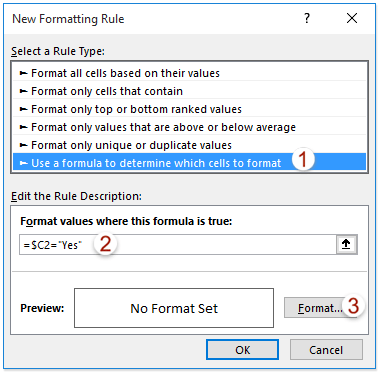
- In the "New Formatting Rule" dialog, please (1) click to highlight the "Use a formula to determine which cells to format" option in the "Select a Rule Type" list box; (2) type the following formula in the "Format values where this formula is true" box, and (3) click the "Format" button.
=$C2="Yes"Note: In the formula =$C2="Yes", $C2 is the first cell with YES or NO drop down list, and you can change it as you need.
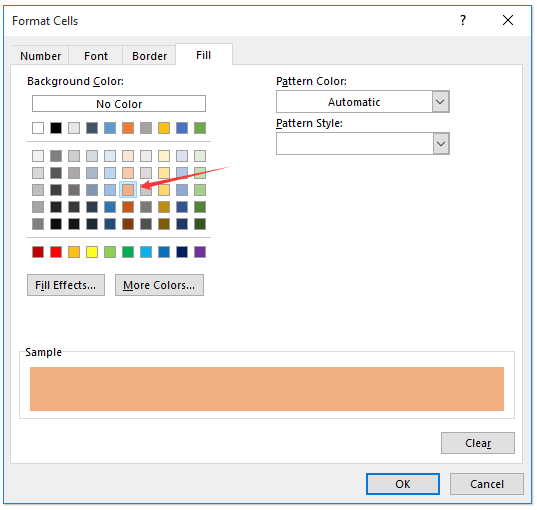
- In the "Format Cells" dialog, please enable the "Fill" tab, specify a background color, and click the "OK" button successively to close both dialogs.


Now when you click the cells in the specified list, it will pop out the YES or NO drop down list. When you select "Yes" from the drop down list, the entire row will automatically be highlighted with the specified color. See screenshot:

Easily create YES or NO drop-down list with color by an amazing tool
Here in the second method, I will introduce the "Colored Drop-down List" feature of "Kutools for Excel", which can help you quickly apply conditional formatting and highlight cells or rows based on the drop-down list selections easily.
- Select the cells containing the YES or NO drop-down list, and then select "Kutools" > "Drop-down List" > "Colored Drop-down List" to enable this feature.
- In the "Colored Drop-down list" dialog box, please do as follows:
- Check the "Row of data range" option in the "Apply to" section if you want to color the rows.
- In the "Data validation (Drop-down List) Range" box, normally the selected column containing the Yes and No drop-down list is entered here.
And in the "Highlight rows" box, please select the rows matched with the specified data validation range;
Note: To only color the drop-down list cells, skip steps 1) and 2) above. - In the "List Items" section, select a drop-down list item, says "Yes", and specify a color to it. Repeat this operation to assign another color to the "No" item.
- Click the "OK" button.


Result
From now on, rows will be automatically highlighted based on your drop-down list selections.
Kutools for Excel - Supercharge Excel with over 300 essential tools, making your work faster and easier, and take advantage of AI features for smarter data processing and productivity. Get It Now
Demo: Create YES or NO drop down list with color in Excel
Frequently asked questions
Can I use colors other than green and red?
Yes. You can assign any available fill color to the Yes and No options in either Conditional Formatting or the Kutools dialog box.
Can I color only the drop-down cell instead of the entire row?
Yes. With Conditional Formatting, apply the rule only to the drop-down range. With Kutools, choose the option for coloring the drop-down list cells instead of the rows.
Why does the wrong row change color?
Check the cell reference in the conditional formatting formula and the Applies to range. The row number in the formula should match the first row of the selected data range.
Why does the color not change after selecting Yes or No?
Make sure the text in the rule exactly matches the drop-down item. Extra spaces or different spelling can prevent the rule from recognizing the selected value.
Can I add more choices besides Yes and No?
Yes. Add the additional choices to the drop-down source, then create another conditional formatting rule or assign another color in Kutools for each new item.
Why is Kutools not showing in my Excel?
Kutools may not be installed, enabled, or loaded correctly. Make sure it is installed, then go to File > Options > Add-ins to check whether Kutools is disabled. If it is installed and enabled but still does not appear, restart Excel or reinstall Kutools.
Related articles
Best Office Productivity Tools
Supercharge Your Excel Skills with Kutools for Excel, and Experience Efficiency Like Never Before. Kutools for Excel Offers Over 300 Advanced Features to Boost Productivity and Save Time. Click Here to Get The Feature You Need The Most...
Office Tab Brings Tabbed interface to Office, and Make Your Work Much Easier
- Enable tabbed editing and reading in Word, Excel, PowerPoint, Publisher, Access, Visio and Project.
- Open and create multiple documents in new tabs of the same window, rather than in new windows.
- Increases your productivity by 50%, and reduces hundreds of mouse clicks for you every day!
All Kutools add-ins. One installer
Kutools for Office suite bundles add-ins for Excel, Word, Outlook & PowerPoint plus Office Tab Pro, which is ideal for teams working across Office apps.





- All-in-one suite — Excel, Word, Outlook & PowerPoint add-ins + Office Tab Pro
- One installer, one license — set up in minutes (MSI-ready)
- Works better together — streamlined productivity across Office apps
- 30-day full-featured trial — no registration, no credit card
- Best value — save vs buying individual add-in