How to move non-adjacent worksheets together in Excel
When working with large Excel workbooks, it is common to have dozens or even hundreds of worksheets. Over time, worksheets that belong together, such as monthly reports, department data, or project sheets, may become scattered throughout the workbook. This can make navigation more difficult and slow down your workflow when you need to locate or organize related worksheets. In such cases, quickly grouping related worksheets together can greatly improve workbook organization and navigation. This tutorial will show you two methods to move non-adjacent worksheets together in Excel.

- Manually move scattered worksheets together manually
- Quickly move scattered worksheets together in one click by Kutools
Excel Manual Method VS Kutools for Excel
| Feature | Excel Manual Method | Kutools Navigation Pane |
|---|---|---|
| Select multiple non-adjacent worksheets | ✔ (Ctrl + Click) | ✔ (Ctrl + Click) |
| View all worksheets in one list | ✘ | ✔ |
| Move scattered worksheets together | Drag the selected sheet tabs manually | One click using Move the non-adjacent worksheets together |
| Requires scrolling through sheet tabs | ✔ | ✘ |
| Easy to locate scattered worksheets | Limited | ✔ |
| Suitable for workbooks with many worksheets | Less efficient | Highly efficient |
| Manual dragging required | ✔ | ✘ |
| Number of steps | Select sheets → Drag to destination | Select sheets → Choose the command |
| Best for | Small workbooks with a few worksheets | Large workbooks containing many scattered worksheets |
| Ease of use | Moderate | Very easy |
Manually move scattered worksheets together
Excel allows you to select multiple worksheets at the same time by holding the Ctrl key and clicking individual sheet tabs. However, efficiently moving non-adjacent worksheets so they are grouped together is not always straightforward, especially when dealing with workbooks that contain many sheets. In this section, you will learn how the built-in method works can help you manage worksheets in smaller workbooks.
Suppose your workbook contains the following worksheets:

You may want to group the monthly worksheets together so they appear in order:

Step 1: Select non-adjacent worksheets
First, you need to select the worksheets you want to move.
- Press and hold the Ctrl key on your keyboard.
- Click each worksheet tab that you want to select.
Excel will highlight all selected worksheets, indicating that they are grouped together temporarily.

Step 2: Drag the selected worksheets
After selecting multiple worksheets:
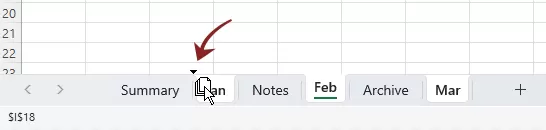
- Click and hold one of the selected worksheet tabs.
- Drag the group of worksheets to the desired location in the workbook.
- Release the mouse when the insertion indicator appears where you want the sheets to be placed.
Result
Once you release the mouse, the selected worksheets will be moved together to the new position.
This method works for basic worksheet organization tasks and can help you rearrange sheets when the workbook structure is relatively simple. However, when a workbook contains many worksheets, finding specific sheets among dozens of sheet tabs can take time. Dragging worksheets to the desired position can also be difficult because the sheet tab area is limited and often requires repeated scrolling to locate the correct placement. To overcome these limitations, a more efficient worksheet management tool can be extremely helpful. This is where Kutools for Excel's Navigation Pane provides a much easier solution.
Quickly move scattered worksheets together in one click by Kutools
Kutools for Excel provides a powerful Navigation Pane that allows you to manage worksheets more efficiently. Instead of scrolling through sheet tabs at the bottom of Excel, the Navigation Pane displays all worksheets in a convenient panel where you can easily view, select, and organize them.
With the Move the non-adjacent worksheets together option, you can quickly reorganize scattered worksheets and move them together with much less effort. This feature is especially helpful when working with large workbooks that contain many sheets.
Step 1: Open the Navigation Pane
After installing Kutools for Excel, go to the Kutools tab in the Excel ribbon. Click Navigation.

Step 2: Select Multiple Worksheets
The Navigation Pane will appear on the left side of the Excel window, displaying a list of all worksheets in the current workbook.
In the Worksheet & Workbook panel of the Navigation Pane:
- Hold the Ctrl key.
- Click the worksheets you want to move. You can select multiple worksheets even if they are separated by many other worksheets.
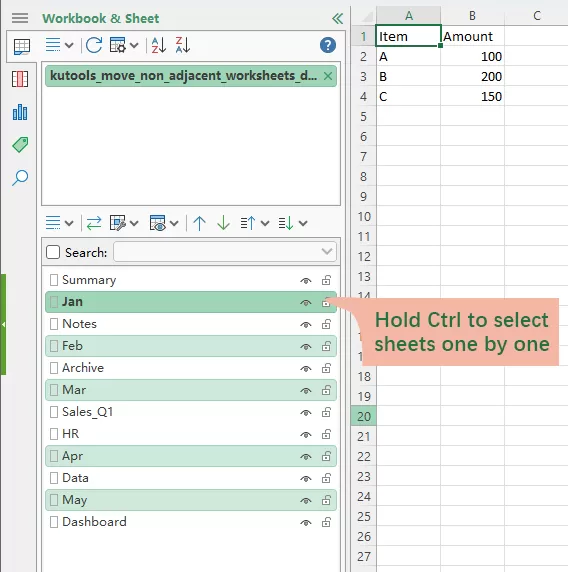
Step 3: Enable "Move the non-adjacent worksheets together"
After selecting the worksheets, expand the first drop-down list menu above the worksheet list, then select Move the non-adjacent worksheets together.

Result
Once the operation is completed, all selected worksheets will be automatically moved together in the workbook.

Kutools for Excel - Supercharge Excel with over 300 essential tools, making your work faster and easier, and take advantage of AI features for smarter data processing and productivity. Get It Now
Conclusion
Moving non-adjacent worksheets together is a common task when organizing large Excel workbooks.
While Excel allows selecting and dragging multiple worksheets, managing scattered sheets can quickly become inefficient.
Compared with Excel’s manual method, Kutools for Excel allows you to:
- locate worksheets more easily
- select scattered worksheets faster
- organize worksheets more efficiently
This makes worksheet management much faster and more convenient, especially when working with large or complex workbooks.
Best Office Productivity Tools
Supercharge Your Excel Skills with Kutools for Excel, and Experience Efficiency Like Never Before. Kutools for Excel Offers Over 300 Advanced Features to Boost Productivity and Save Time. Click Here to Get The Feature You Need The Most...
Office Tab Brings Tabbed interface to Office, and Make Your Work Much Easier
- Enable tabbed editing and reading in Word, Excel, PowerPoint, Publisher, Access, Visio and Project.
- Open and create multiple documents in new tabs of the same window, rather than in new windows.
- Increases your productivity by 50%, and reduces hundreds of mouse clicks for you every day!
All Kutools add-ins. One installer
Kutools for Office suite bundles add-ins for Excel, Word, Outlook & PowerPoint plus Office Tab Pro, which is ideal for teams working across Office apps.





- All-in-one suite — Excel, Word, Outlook & PowerPoint add-ins + Office Tab Pro
- One installer, one license — set up in minutes (MSI-ready)
- Works better together — streamlined productivity across Office apps
- 30-day full-featured trial — no registration, no credit card
- Best value — save vs buying individual add-in
Table of contents
- Manually move scattered worksheets together
- Quickly move scattered worksheets together by Kutools
- Related articles
- The Best Office Productivity Tools
Kutools for Excel
Brings 300+ powerful features to streamline your Excel tasks.
- ⬇️ Free Download
- 🛒 Purchase Now
- 📘 Feature Tutorials
- 🎁 30-Day Free Trial