Create Multiple Document Versions with Kutools AI (Formal / Simplified / External)
The same document rarely fits all audiences. Executives want a formal, complete version; frontline teams need a short, scannable brief; clients and partners require an external-safe copy with sensitive details removed. Duplicating files and hand-editing each version is slow and error-prone. Kutools for Word — AI lets you generate Formal / Simplified / External versions from one source file—write once, reuse many times.
✨ At a Glance What Kutools AI Can Do
- Generate multiple stylistic versions (formal, concise, persuasive, simplified) while keeping the original meaning
- Summarize long sections into clear takeaways
- Shorten content while preserving key points
- Analyze tone, structure, and gaps (what’s missing, what’s redundant)
- Rewrite for clarity, logic, or audience fit
- Translate between languages
- Compose new paragraphs or emails from bullets or prompts
Step-by-step: Generate a different stylistic version from a document
- Install and enable Kutools for Word.
- Prepare your source document.
Copy the original document to create a new document.
If you need multiple versions (for example, formal, simplified, or external),
duplicate the source document multiple times and apply different requirements to each copy.
- Open the copy of the document that you want to generate a new edition from.
- Go to Kutools AI ▸ AI. When the AI pane appears, select the Document QA tab.
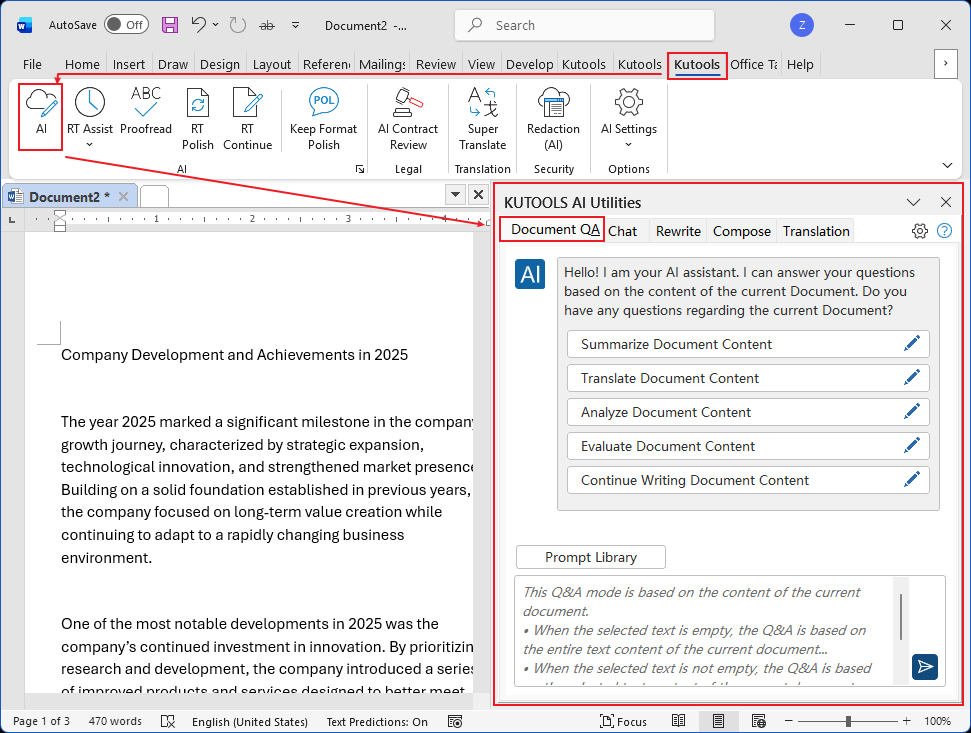
- In the textbox, type your rewrite request, then click the send button.
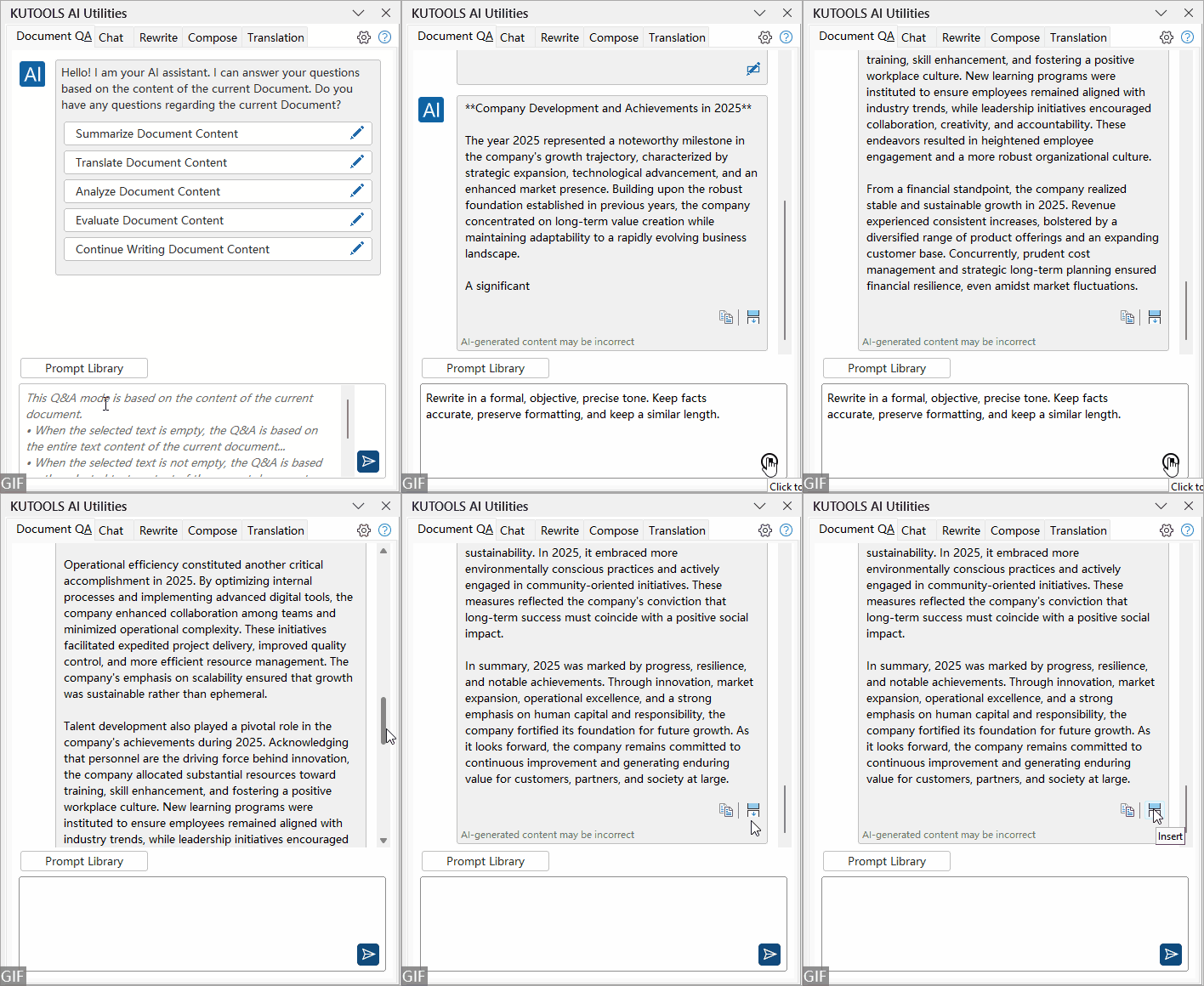
Prompt example:
“Rewrite in a formal, objective, precise tone. Keep facts accurate, preserve formatting, and keep a similar length.” - The AI generates content in the style you specify. After previewing the result, you can choose to copy it or insert it directly at the current cursor position in the document.
- Save the document.
Prompt Pack
- Formal: “Rewrite in a formal, objective, precise tone; preserve formatting; keep similar length; maintain terminology consistency.”
- Simplified: “Summarize to essentials (outcomes, steps, deadlines); short sentences; bullet points if helpful; preserve list/bold formatting.”
- External: “Produce an external-safe version; remove internal/sensitive data (pricing, discount tiers, vendor codes, personal names/emails, internal links); keep client-facing value; preserve formatting.”
This is essentially a style-based rewrite. The original text formatting will be removed.
If you want to polish your text while keeping the original formatting intact, use Kutools AI – Keep Format Polish. This feature refines your current document or selected paragraphs in a chosen style while preserving the original formatting. For detailed instructions, please refer to: Word: Keep Formatting While You Polish the Content.
Beyond multi-version output, the AI panel also supports:
- Polish and Keep Format Polish — refine tone and clarity without breaking existing styles
- Sensitive-info redaction via prompts (for example, replace content with [hidden])
- Drafting from bullets or briefs, translating entire sections, and performing context-aware rewriting
Download Kutools for Word and try the AI panel today. You’ll get hundreds of free uses to explore the workflow, and the toolkit’s 100+ features will streamline formatting, selection, cleanup, and publishing—so you can write once and ship multiple editions with confidence.
Best Office Productivity Tools
Kutools for Word - Elevate Your Word Experience
🤖 Kutools AI Features: AI Assistant / Real-Time Assistant / Super Polish (Preserve Format) / Super Translate (Preserve Format) / AI Redaction / AI Proofread...
📘 Document Mastery: Split Pages / Merge Documents / Export Selection in Various Formats (PDF/TXT/DOC/HTML...) / Batch Convert to PDF...
✏ Contents Editing: Batch Find and Replace across Multiple Files / Resize All Pictures / Transpose Table Rows and Columns / Convert Table to Text...
🧹 Effortless Clean: Sweap away Extra Spaces / Section Breaks / Text Boxes / Hyperlinks / For more removing tools, head to the Remove group...
➕ Creative Inserts: Insert Thousand Separators / Check Boxes / Radio Buttons / QR Code / Barcode / Multiple Pictures / Discover more in the Insert group...
🔍 Precision Selections: Pinpoint Specific Pages / Tables / Shapes / Heading Paragraphs / Enhance navigation with more Select features...
⭐ Star Enhancements: Navigate to Any Location / Auto-Insert Repetitive Text / Toggle Between Document Windows / 11 Conversion Tools...
🌍 Supports 40+ Languages: Use Kutools in your preferred language – supports English, Spanish, German, French, Chinese, and 40+ others!

Office Tab - Tabs for Office, Power for You
- Enable tabbed editing and reading in Word, Excel, PowerPoint, Publisher, Access, Visio and Project.
- Open and create multiple documents in new tabs of the same window, rather than in new windows.
- Increases your productivity by 50%, and reduces hundreds of mouse clicks for you every day!

✨ Kutools for Office – One Installation, Five Powerful Tools!
Includes Office Tab Pro · Kutools for Excel · Kutools for Outlook · Kutools for Word · Kutools for PowerPoint
📦 Get all 5 tools in one suite | 🔗 Seamless integration with Microsoft Office | ⚡ Save time and boost productivity instantly
Best Office Productivity Tools
Kutools for Word - 100+ Tools for Word
- 🤖 Kutools AI Features: AI Assistant / Real-Time Assistant / Super Polish / Super Translate / AI Redaction / AI Proofread
- 📘 Document Mastery: Split Pages / Merge Documents / Batch Convert to PDF
- ✏ Contents Editing: Batch Find and Replace / Resize All Pictures
- 🧹 Effortless Clean: Remove Extra Spaces / Remove Section Breaks
- ➕ Creative Inserts: Insert Thousand Separators / Insert Check Boxes / Create QR Codes
- 🌍 Supports 40+ Languages: Kutools speaks your language – 40+ languages supported!
Table of contents
- What Kutools AI can do
- Generate a different stylistic version from a document
- Related Articles
- Best Office Productivity Tools