Quickly identify risky clauses in a contract with Kutools AI in Word
Contract reviews are time-consuming and error-prone—especially when you’re not a legal expert or when deadlines are tight. Missing a single risky clause can lead to unexpected costs, legal disputes, or unfavorable obligations.
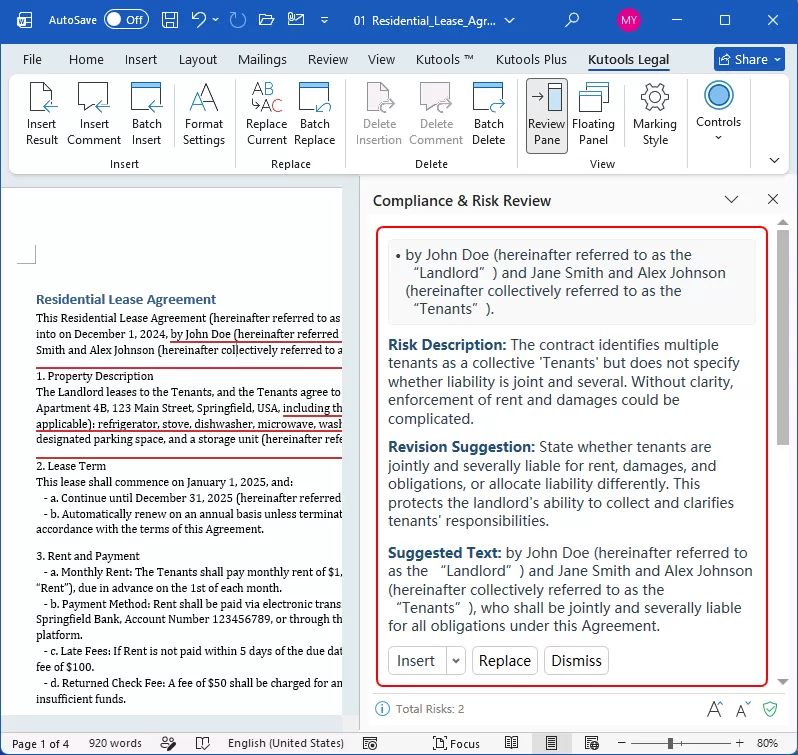
Kutools' Compliance & Risk Review gives you an instant risk overview: clear explanations in the Risk Description, practical guidance in the Revision Suggestion, and ready-to-use wording in the Suggested Text. It highlights issues exactly where they occur in the document, so you can immediately see the problematic language in context, understand its impact, and decide how to respond—helping you make faster, safer, and more confident decisions directly in Word.
Why use Kutools for Word’s Compliance & Risk Review
- 🚀 Review contracts in minutes, not hours
Automatically scan your contract, pinpoint risky clauses, and understand the issues instantly—no manual reading or line-by-line checking required. - 🔍 Analyze contracts from your side of the table
Switch instantly between Party A, Party B, or a neutral perspective. The AI adjusts its risk analysis based on who you are and how detailed you want the review to be. - 🎯 See risks exactly where they occur
Risky clauses are highlighted directly in the document with an orange underline, so you immediately know what is risky and where to focus. - 🧠 Get ready-to-use revision suggestions
Each risk comes with a clear explanation, a practical revision suggestion, and safer replacement text—no legal drafting experience needed. - ⚡ Fix issues with one click
Insert suggestions, replace risky clauses, or dismiss items instantly. For long contracts, handle everything at once using batch insert or batch replace. - 🧩 Work without leaving Word
Review results appear in a side pane and a floating panel right inside Word, so you can review and revise without switching tools or breaking your workflow. - 🎨 Clearly separate AI suggestions from original text
Customize formatting for inserted content to make AI-generated text easy to identify, review, and discuss. - 🔁 Refine results until they’re right
Not satisfied with a suggestion? Regenerate the risk explanation or revision text individually until it fits your needs. - 💾 Never lose your review progress
Close Word anytime and resume later—your analysis and suggestions are saved automatically.
How to quickly identify risky clauses in a contract using Kutools for Word
Follow the steps below to scan your contract, highlight risky clauses, and apply AI-powered suggestions directly in Word.
Step 1: Prepare and start the contract analysis
Open the Word document that contains your contract, then do the following:
- Go to the Kutools tab, and in the Legal group, click Compliance & Risk Review.

- The Compliance & Risk Review pane will open on the right side of Word. Configure the review options in the pane:
- Review position: Choose Party A, Party B, or Neutral.
- Precision level: Select Standard, Detailed, or Comprehensive.
- Additional requirement: If needed, select an additional requirement from the drop-down list, such as US Law Review. Otherwise, you can skip this step. Want to edit or add your own additional requirements?
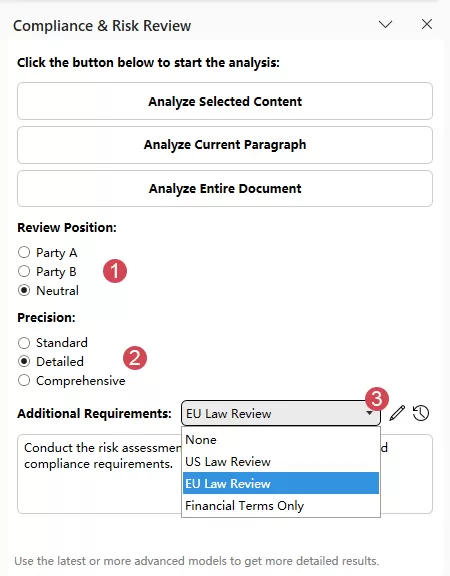
- Start the analysis by clicking one of the available buttons:
- Analyze selected content
- Analyze current paragraph
- Analyze entire document
Tip: Make sure you have an AI key to use this feature. Need help getting an AI key? Click here to learn how to get your OpenAI API key, or click here to learn how to get a KutoolsAI key and enjoy 100 free uses of all AI tools with no restrictions.
Step 2: Review and handle identified risks
After the analysis is complete:
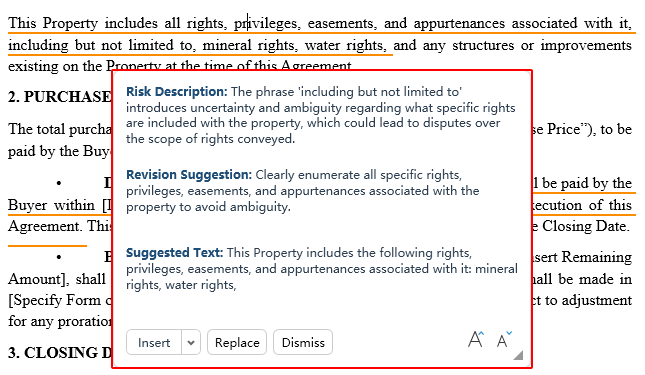
- All detected risks are listed in the Compliance & Risk Review pane, each with a clear Risk Description, a practical Revision Suggestion, and ready-to-use Suggested Text.
- The corresponding clauses in the document are automatically highlighted with an orange underline.
- The total number of identified risks is displayed at the bottom of the pane.
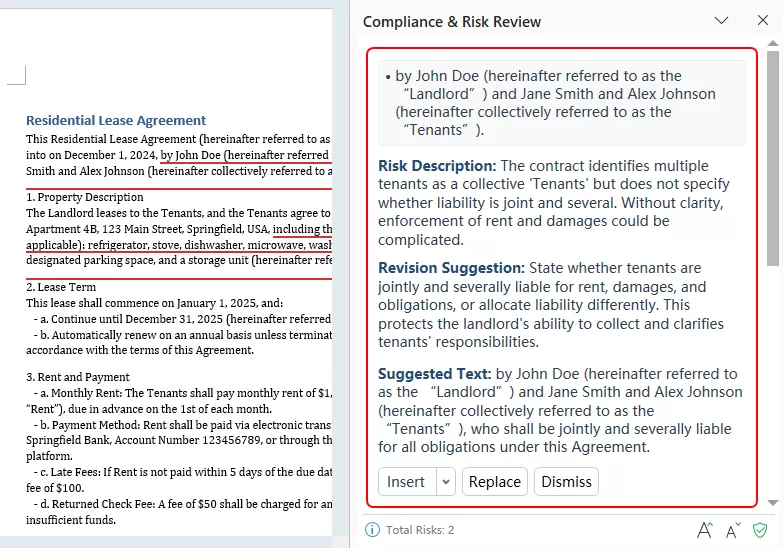
Click any risk item in the pane, and Word will instantly jump to the related clause in the document. For each risk, you can choose one of the following actions:
- Insert – Insert the risk description, revision suggestion, and suggested text into the document after the original clause. Click here to learn how to set what content is inserted and where it appears.
- Replace – Replace the original risky clause directly with the suggested text.
- Dismiss – Ignore the risk if you decide no change is needed.
- Clicking Insert, Replace, or Dismiss marks the risk as handled, and it will disappear from the AI Contract Review pane.
- Use Replace for quick cleanup, and Insert if you want to review or negotiate the suggested wording later.
Note: When you click a risky clause in the document, a Floating Panel appears. The Floating Panel shows the same content as the corresponding item in the Compliance & Risk Review pane and allows you to quickly review and handle the risk without switching focus back to the pane. Want to disable the floating review panel?
Tips for using Kutools' Compliance & Risk Review
The tips below help you customize how Compliance & Risk Review works for your needs, refine analysis results, control how suggestions are inserted, manage review tools efficiently, and ensure your document is clean and ready to share.
Edit the additional requirements
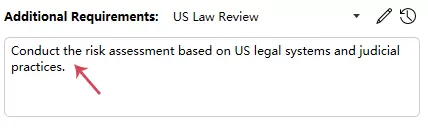
We provide three built-in additional requirements in the drop-down list. After you select one, its detailed content is displayed below.
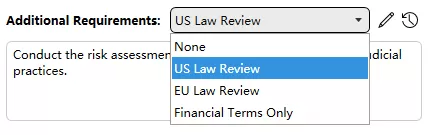
You can directly edit the content, which will be sent to the AI during this review. These changes apply only to the current review and do not modify the preset options in the drop-down list or affect reviews of other documents.
You can also click the Edit (pencil) icon on the right to edit the preset additional requirements or add your own ones:
- Option 1: Select an existing additional requirement to edit its details.
- Option 2: Click the Add (+) button to create a new additional requirement.
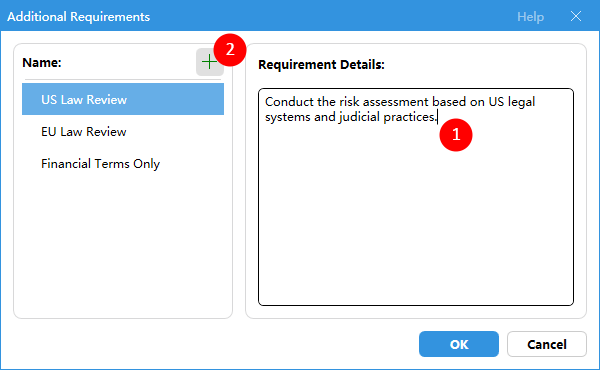
- This feature automatically uses the additional requirements last entered and submitted by the user. If no previous requirements are available, the default content is determined based on the user’s language or region. For U.S. users, this field displays “US law” by default; for EU users, it displays “EU law” by default; for users in other languages or regions, this field remains blank.
 : Click this History button to view or reuse previously generated, applied, or saved records.
 : Click this History button to view or reuse previously generated, applied, or saved records.
Regenerate risk analysis content
For each identified risky clause in the AI Contract Review pane, when you hover over the corresponding “Risk Description,” “Revision Suggestion,” or “Suggested Text,” a Regenerate icon appears. Click the Regenerate icon to regenerate the corresponding content.
Tip: The same regeneration logic applies to the Floating Panel. What is a floating panel?

- If you click “Regenerate Risk Description”, the system will regenerate the “Risk Description”, “Revision Suggestion”, and “Suggested Text”.
- If you click “Regenerate Revision Suggestion”, the system will regenerate the “Revision Suggestion” and “Suggested Text”.
- If you click “Regenerate Suggested Text”, the system will regenerate only the “Suggested Text”.
- ★ This is because once the “Risk Description” changes, the related “Revision Suggestion” and “Suggested Text” must also be updated accordingly. Similarly, when the “Revision Suggestion” changes, the corresponding “Suggested Text” must also be updated.
Default insertion settings
Once risks are identified, you can decide what content (for example, only the risk description) is inserted and where it appears in your document. These settings are saved as defaults and are applied every time you click Insert, whether from the review pane or the ribbon.
- Click the drop-down arrow next to the Insert button, and select Insertion Options.
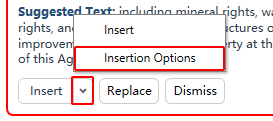
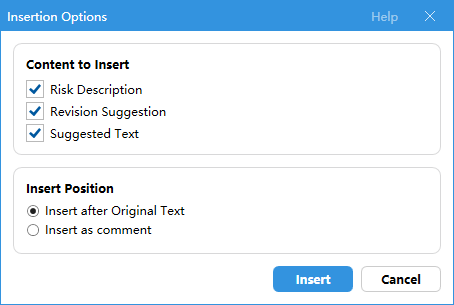
- When the Insertion Options dialog appears, choose the content you want to insert (Risk Description, Revision Suggestion, Suggested Text), then select whether to insert it after the original text or as a comment.
Use Kutools Legal tools during review
When analysis is complete, the Kutools Legal tab will be visible in the ribbon, providing powerful tools to manage, customize, and clean up review results efficiently.

- Use Batch Insert to insert all risk analysis results at once, based on your Insertion Options settings. After all risks are inserted, the AI Contract Review pane automatically clears all risk items.
- Click Format Settings to customize the formatting of inserted suggested text (such as font, color, underline, or background), making it visually distinct from the original contract text.
Tip: Applies only to newly inserted text, not existing insertions.
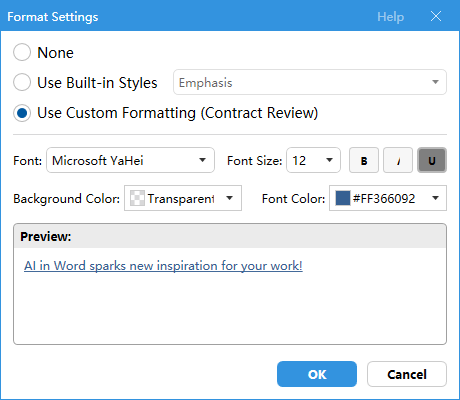
- Use Batch Replace to replace all identified risky clauses with the suggested text in one action. When all risks have been handled through replacement, the AI Contract Review pane clears automatically.
- After selecting an inserted text or comment in the document, click Delete Insertion or Delete Comment to remove only the currently selected inserted content.
- Use Batch Delete to remove all inserted text and comments in one action, restoring the document to its original state.
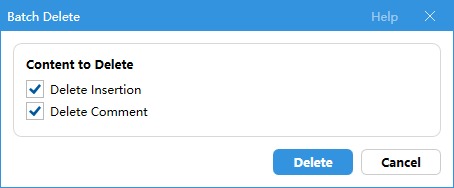
- Click Review Pane to show or hide the AI Contract Review pane on the right side of Word.
- Click Floating Panel to enable or disable the floating review panel that appears when you click a risky clause in the document.
- Click Marking Style to customize how marking lines are displayed in Word documents. You can choose whether to hide or show the lines while scrolling, and adjust the line color, thickness, and transparency. After configuring the settings, click OK to apply them. To restore the original settings, click Restore Default.
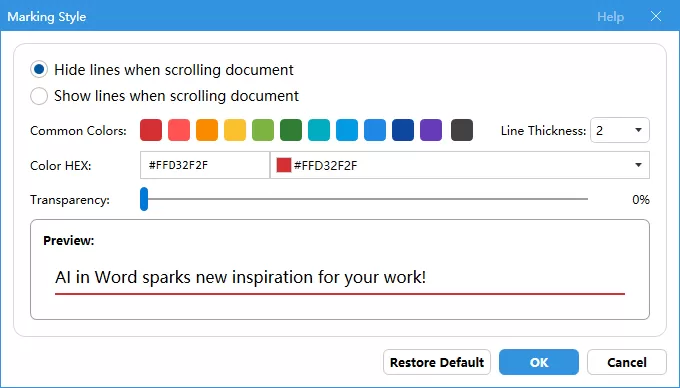
- Click Restart Review to discard the current results, reconfigure review parameters, and start a new analysis from scratch.
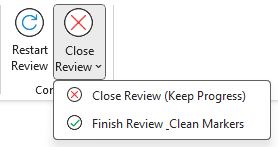
- Click Close Review to finish the review process. You can choose to:
- Keep progress – Close the AI Contract Review pane and the Kutools Legal tab for now. You can reopen them later by clicking AI Contract Review on the Kutools tab to view all previously identified risks.
- Clean review markers – Remove all review markers from the document, discard all identified risks, and close both the AI Contract Review pane and the Kutools Legal tab.
Recommended AI models
We recommend using newer models such as GPT-5 or Gemini 2.5, which can significantly improve analysis quality. Please note that these models use built-in reasoning that cannot be disabled, so analysis may take longer.
Remove AI bookmarks before sharing documents
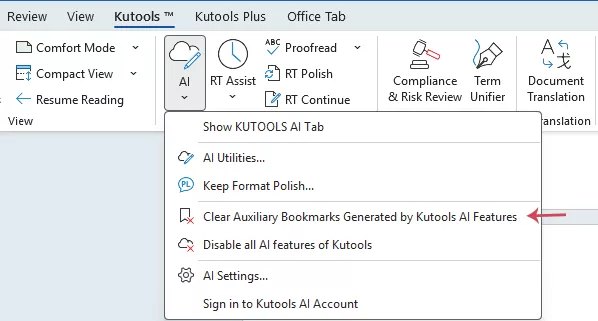
Kutools uses bookmarks internally to locate original contract text. If you plan to share the document with others, these bookmarks may cause unintended issues. To avoid this, click AI > Clear Auxiliary Bookmarks Generated by Kutools AI Features before sending the document.
Best Office Productivity Tools
Kutools for Word - Elevate Your Word Experience
🤖 Kutools AI Features: AI Assistant / Real-Time Assistant / Super Polish (Preserve Format) / Super Translate (Preserve Format) / AI Redaction / AI Proofread...
📘 Document Mastery: Split Pages / Merge Documents / Export Selection in Various Formats (PDF/TXT/DOC/HTML...) / Batch Convert to PDF...
✏ Contents Editing: Batch Find and Replace across Multiple Files / Resize All Pictures / Transpose Table Rows and Columns / Convert Table to Text...
🧹 Effortless Clean: Sweap away Extra Spaces / Section Breaks / Text Boxes / Hyperlinks / For more removing tools, head to the Remove group...
➕ Creative Inserts: Insert Thousand Separators / Check Boxes / Radio Buttons / QR Code / Barcode / Multiple Pictures / Discover more in the Insert group...
🔍 Precision Selections: Pinpoint Specific Pages / Tables / Shapes / Heading Paragraphs / Enhance navigation with more Select features...
⭐ Star Enhancements: Navigate to Any Location / Auto-Insert Repetitive Text / Toggle Between Document Windows / 11 Conversion Tools...
🌍 Supports 40+ Languages: Use Kutools in your preferred language – supports English, Spanish, German, French, Chinese, and 40+ others!

Office Tab - Tabs for Office, Power for You
- Enable tabbed editing and reading in Word, Excel, PowerPoint, Publisher, Access, Visio and Project.
- Open and create multiple documents in new tabs of the same window, rather than in new windows.
- Increases your productivity by 50%, and reduces hundreds of mouse clicks for you every day!

✨ Kutools for Office – One Installation, Five Powerful Tools!
Includes Office Tab Pro · Kutools for Excel · Kutools for Outlook · Kutools for Word · Kutools for PowerPoint
📦 Get all 5 tools in one suite | 🔗 Seamless integration with Microsoft Office | ⚡ Save time and boost productivity instantly
Best Office Productivity Tools
Kutools for Word - 100+ Tools for Word
- 🤖 Kutools AI Features: AI Assistant / Real-Time Assistant / Super Polish / Super Translate / AI Redaction / AI Proofread
- 📘 Document Mastery: Split Pages / Merge Documents / Batch Convert to PDF
- ✏ Contents Editing: Batch Find and Replace / Resize All Pictures
- 🧹 Effortless Clean: Remove Extra Spaces / Remove Section Breaks
- ➕ Creative Inserts: Insert Thousand Separators / Insert Check Boxes / Create QR Codes
- 🌍 Supports 40+ Languages: Kutools speaks your language – 40+ languages supported!
Table of Contents
- Why use Kutools’ AI Contract Review
- How to use Kutools’ AI Contract Review
- 1. Prepare the contract analysis
- 2. Review and handle identified risks
- Tips for using AI Contract Review
- Edit the additional requirements
- Regenerate risk analysis content
- Default insertion settings
- Use Kutools Legal tab during review
- Recommended AI models
- Remove AI bookmarks before sharing documents
- The Best Office Productivity Tools
Kutools for Word
Brings 100+ advanced features to Word
- 🧩 Overview
- 📥 Free Download
- 🛒 Purchase Now
- 🎁 60-Day Free Trial available